
Open a fresh Ubuntu install and a dock sits on the left side of the screen. Open Fedora Workstation and you get nothing until you press the Super key. Open elementary OS and a different dock waits at the bottom. Linux has no single dock, which is why picking one takes more thought than it should.
This guide covers 12 docks: five that ship with a desktop and seven you can install yourself. Each one gets a short rundown, key features, pros, cons and a verdict on who should use it. The table below is the fast version. Details reflect each project’s status as of October 2026, including support for GNOME 51.
Best Linux Docks at a Glance
| Dock | Type | Works with | Wayland | Customization | Status | Best for |
|---|---|---|---|---|---|---|
| Ubuntu Dock | Built-in | Ubuntu (GNOME) | Yes | Medium | Active | Ubuntu users who want zero setup |
| elementary OS Dock | Built-in | elementary OS | Yes | Low | Active | elementary OS users |
| KDE Plasma Panel | Built-in | KDE Plasma 6 | Yes | Extensive | Active | KDE users who want a dock without extra software |
| COSMIC Dock | Built-in | COSMIC (Pop!_OS 24.04) | Yes (Wayland only) | Medium | Active | Pop!_OS users |
| Deepin Dock | Built-in | Deepin (DDE) | Yes (Treeland) | Medium | Active | Switching between dock and taskbar layouts |
| Dash to Dock | GNOME extension | GNOME Shell | Yes | High | Active | GNOME on Fedora, Debian and Arch |
| Dash to Panel | GNOME extension | GNOME Shell | Yes | High | Active | A Windows-style taskbar on GNOME |
| Plank / Plank Reloaded | Standalone | Xfce, MATE, Cinnamon, KDE on X11 | No | Medium | Reloaded fork active | Light, simple docks on X11 |
| Cairo-Dock | Standalone | KDE, Sway, Hyprland, Wayfire, Labwc, COSMIC and X11 desktops | Yes, except GNOME | Extensive | Active | Effects, applets and tweaking |
| Crystal Dock | Standalone | KDE Plasma 6, Hyprland, Sway, Niri, Labwc, Wayfire, LXQt, Budgie 10.10 | Yes (Wayland only) | Medium | Maintained | Zoom effects on Wayland |
| Latte Dock NG | Standalone | KDE Plasma 6 | Yes | High | Active (young fork) | Former Latte Dock users |
| nwg-dock-hyprland | Standalone | Hyprland | Yes (Wayland only) | High (CSS) | Active | Hyprland setups |
Quick Picks: The Best Linux Dock for Your Setup
- GNOME on Fedora, Debian or Arch: Dash to Dock.
- Ubuntu: keep Ubuntu Dock, or switch to Dash to Dock if you want more settings.
- KDE Plasma 6: set up the floating Plasma panel first. Add Crystal Dock if you want zoom effects.
- Xfce, MATE or Cinnamon on X11: Plank Reloaded.
- Effects and applets: Cairo-Dock.
- A Windows-style taskbar on GNOME: Dash to Panel.
- Hyprland: nwg-dock-hyprland, or Crystal Dock if you want a settings window.
- Zero setup: the COSMIC Dock on Pop!_OS or the elementary OS Dock.
What Is a Linux Dock?
A dock is a bar of app icons, usually along the bottom or side of the screen, that launches programs and switches between running ones. A panel is broader. It often adds a menu, a clock, a system tray and a window list, much like the Windows taskbar.
Linux desktops mix both ideas. Dash to Panel behaves like a taskbar. KDE’s panel can behave like a dock. Plank and Cairo-Dock are classic docks. This guide counts anything that gives you a movable, stylable launcher bar as a dock, whatever its developers call it.
Every dock below is either part of a maintained desktop or a project with recent releases, and each one fills a different need. Abandoned projects get their own short list near the end.
Does Linux Have a Dock by Default?
It depends on the desktop. Here is what you get out of the box:
- Ubuntu: Ubuntu Dock, pinned to the left.
- Fedora Workstation, Debian with GNOME and other stock GNOME setups: no always-visible dock. The dash only appears in the Activities Overview.
- Kubuntu, Fedora KDE and other Plasma desktops: the Plasma panel, which you can turn into a dock.
- Pop!_OS 24.04: the COSMIC Dock at the bottom of the screen.
- elementary OS: the elementary OS Dock.
- Deepin: the Deepin Dock.
- Linux Mint (Cinnamon), Xfce, MATE and LXQt: a traditional panel and no dock. Plank and Cairo-Dock fit these desktops well.
Wayland or X11? Check This Before You Install a Dock
This is the detail that trips people up. On X11, any program can draw a bar along the screen edge and reserve space for it. Wayland does not allow that, so a standalone dock needs help from the compositor, usually through a protocol called layer-shell.
KWin on KDE, Sway, Hyprland, Wayfire, Labwc and COSMIC support it. GNOME’s Mutter does not, which is why GNOME docks are extensions instead of standalone programs. Plank was built for X11, and the Plank Reloaded project states that Wayland is not supported at this time.
A quick rule of thumb:
- GNOME: use an extension such as Dash to Dock or Dash to Panel.
- KDE Plasma 6, Sway, Hyprland and similar compositors: Cairo-Dock 3.6 and Crystal Dock both work.
- X11 desktops: Plank and Cairo-Dock both work, and Plank is the lighter of the two.
Best Built-In Docks for Linux
These five come with their desktop, so there is nothing to install. They are also the safest choice if you want the least maintenance.
1. Ubuntu Dock
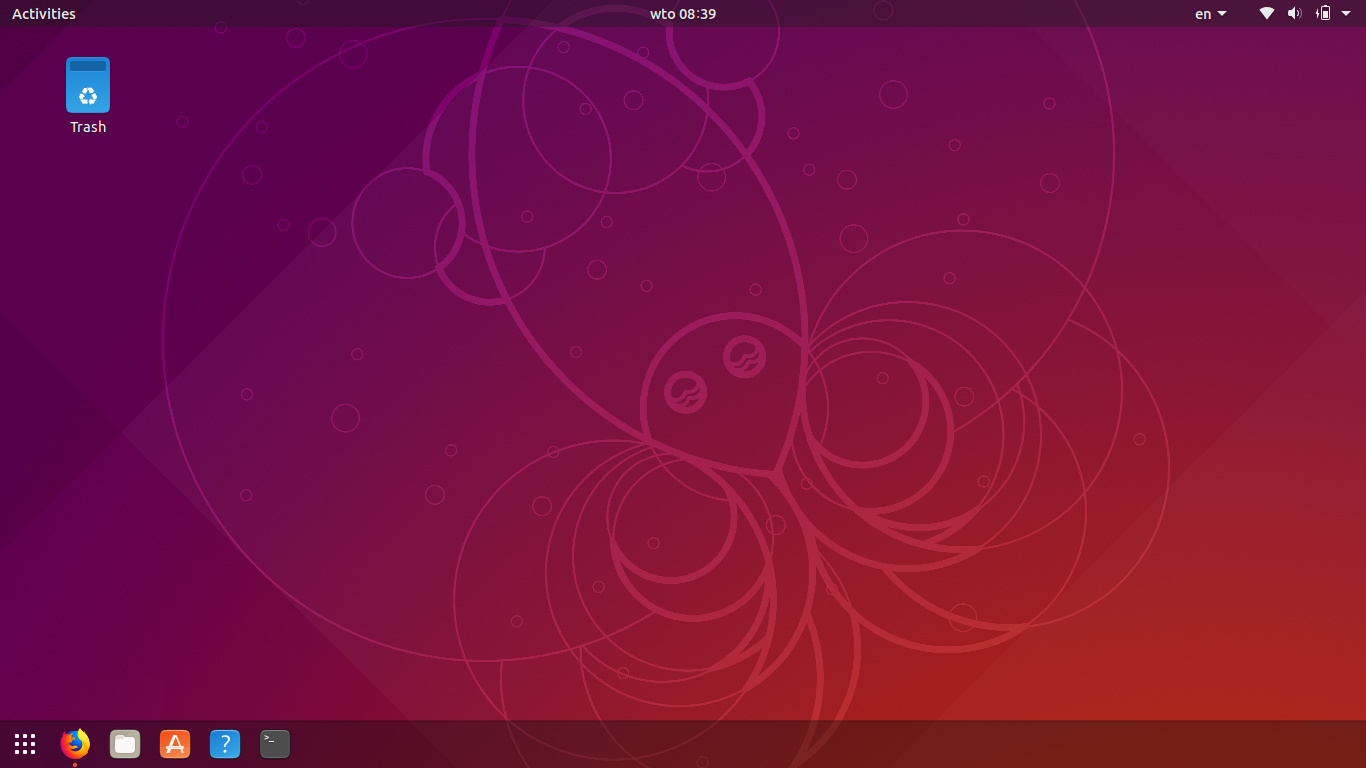
Ubuntu Dock is the launcher bar on the left side of the Ubuntu desktop. It is a customized version of Dash to Dock with Ubuntu’s defaults, so it behaves a lot like the extension covered later in this guide.
Key features
- Left placement by default, with bottom and right options
- Auto-hide, icon size, multi-monitor and panel-mode settings under Appearance in Settings
- Optional Trash and mounted drive icons
- Running-app indicators and notification badges
Pros
- Works with no setup
- Runs on Wayland and X11 because it is a GNOME Shell extension
- Updated alongside each Ubuntu release
Cons
- Fewer visible settings than Dash to Dock
- Ubuntu only
- The left-side default takes getting used to if you come from Windows or macOS
Best for: Ubuntu users who want a dock that works without tinkering.
2. elementary OS Dock

elementary OS 8 replaced Plank with a new Dock written for Wayland and built around Gala, the distribution’s window manager. Version 8.1 made Wayland the default session and brought back some features that were lost in the switch from Plank. You can read more on the elementary OS site.
Key features
- Wayland-first design tied closely to the Pantheon desktop
- Window spread view for apps with several open windows
- Multitasking and window management features built in
- Minimal look that matches the rest of the system
Pros
- Consistent and polished with nothing to configure
- Wayland-native, so no XWayland workarounds
- Improved since the 8.0 release
Cons
- Only available on elementary OS
- Limited customization compared with Plank or Cairo-Dock
- Plank themes and docklets do not carry over
Best for: elementary OS users.
3. KDE Plasma Panel (Dock Mode)
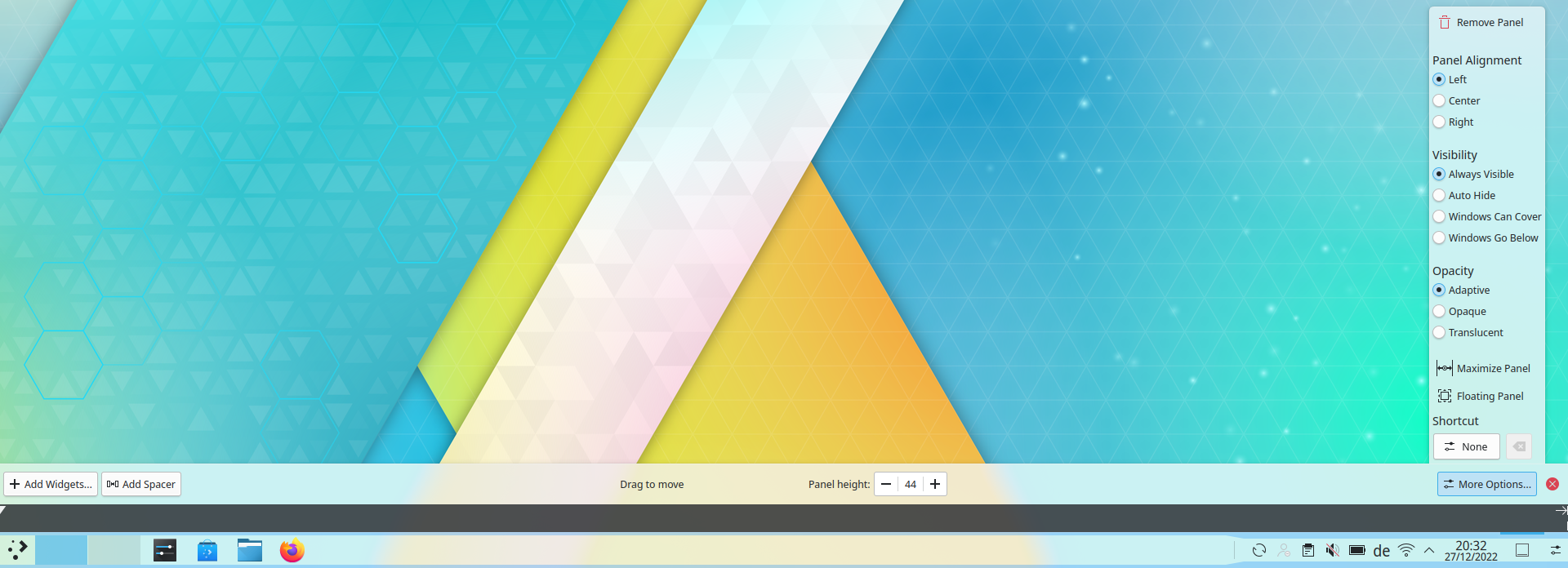
KDE Plasma does not ship a separate dock. It ships a panel that does the job once you set it up. Plasma 6 made that easier with floating panels and a Dodge Windows mode that hides the panel when a window touches it.
To build the dock, right-click the desktop, choose Add Panel, then Empty Panel. Right-click the new panel, enter Edit Mode and set the length to fit its content. Center it, turn on floating, pick Dodge Windows and add the Icons-only Task Manager widget.
Key features
- Floating look that settles against the screen edge when a window is maximized
- Visibility modes including auto-hide and Dodge Windows
- Multiple panels on any screen edge
- A large widget library, plus third-party styling tools such as Panel Colorizer
- Works on Wayland and X11
Pros
- Nothing to install, so updates rarely break it
- The deepest customization of any built-in dock
- Maintained by KDE alongside the rest of Plasma
Cons
- No macOS-style icon zoom
- Takes a few minutes to configure
- A few Latte Dock features have no direct equivalent
Best for: KDE users who want a dock without third-party software.
4. COSMIC Dock
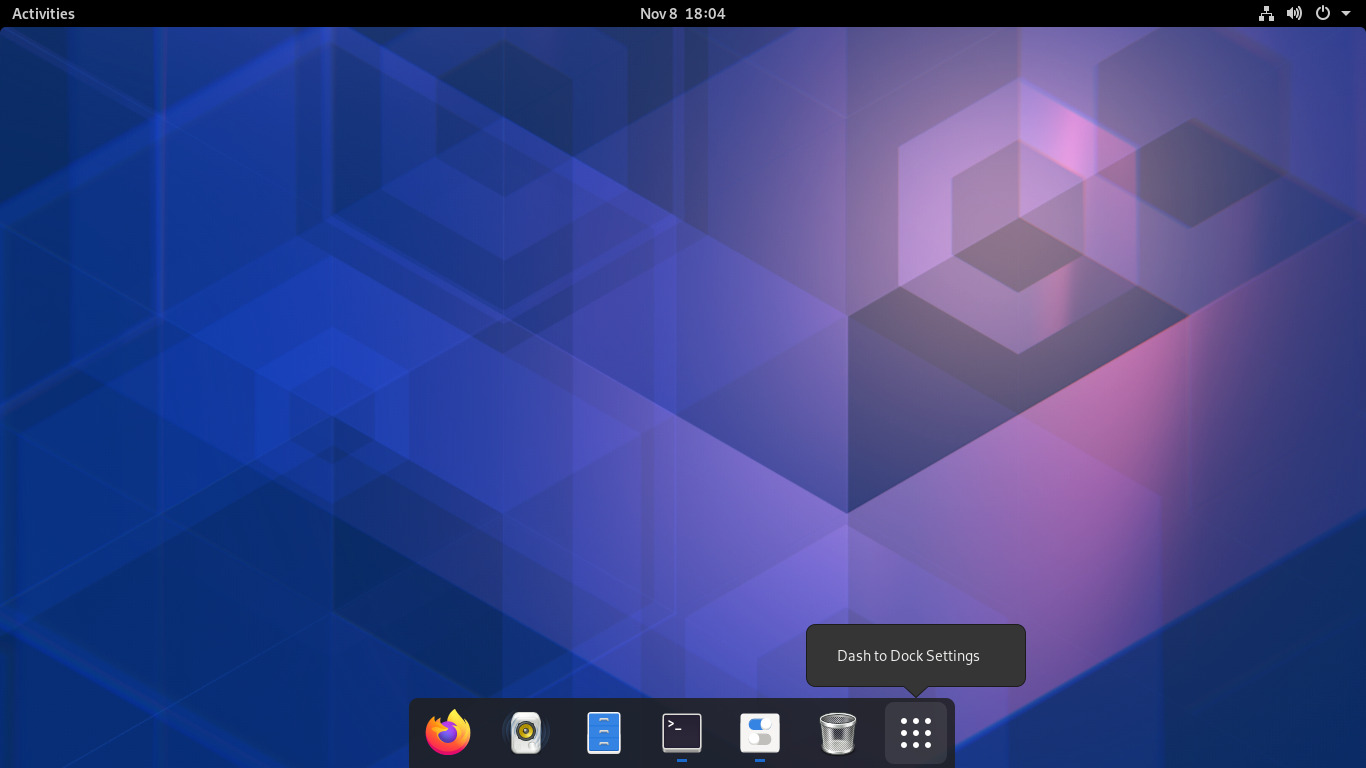
COSMIC is System76’s Rust-based, Wayland-only desktop and the default on Pop!_OS 24.04. The dock sits at the bottom of the screen and holds pinned apps, running apps and minimized windows. Open Settings, go to Desktop, then Dock to change it.
Key features
- Hide the dock when idle, or leave it visible
- Extend it to the screen edges or keep it centered
- Choose which screens and which edge it appears on
- Set the size and background opacity
- Rearrange applets such as the Launcher, Workspaces and Applications shortcuts
Pros
- Customization from a settings window, no extensions needed
- The panel and dock share one applet system, so both work the same way
- Wayland-native and written in Rust
Cons
- A young desktop, so expect the occasional bug and a small applet selection
- Limited to COSMIC, which means Pop!_OS and other distros that package it
Best for: Pop!_OS users who want a configurable dock with no extra software.
5. Deepin Dock
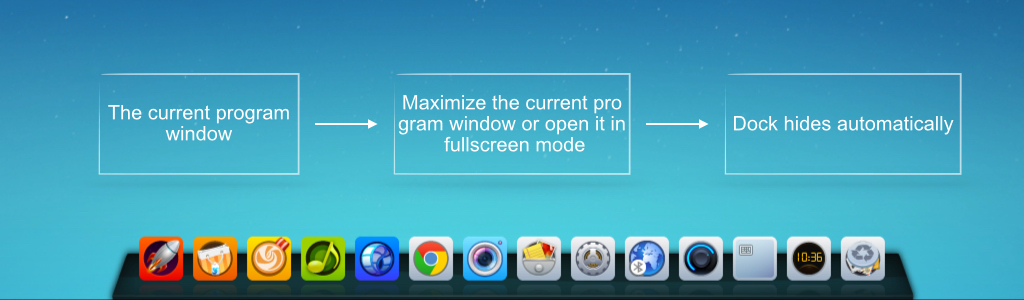
The Deepin Dock is part of the Deepin Desktop Environment and works as both a dock and a taskbar. Fashion mode gives you a macOS-style dock. Efficient mode switches to a Windows-style taskbar.
Key features
- Fashion and Efficient display modes
- Position, size and hide settings
- A tray area for system plugins
- A taskbar icon split option for tracking several windows of one app, added in Deepin 25.2
- A dock theme that follows light and dark mode under Treeland
Pros
- Two layouts in one dock
- Polished default look
- Deepin 25.2, released in July 2026, focused on stability for the Treeland Wayland session
Cons
- Tied to the Deepin desktop, so it is hard to use anywhere else
- Treeland, Deepin’s own Wayland compositor, is still young
Best for: anyone who wants a polished desktop and the option to switch between dock and taskbar layouts.
Best Docks You Can Install on Linux
These docks give you more control than the defaults, and most work on more than one distro. Check the Wayland column in the table above before you pick one.
6. Dash to Dock
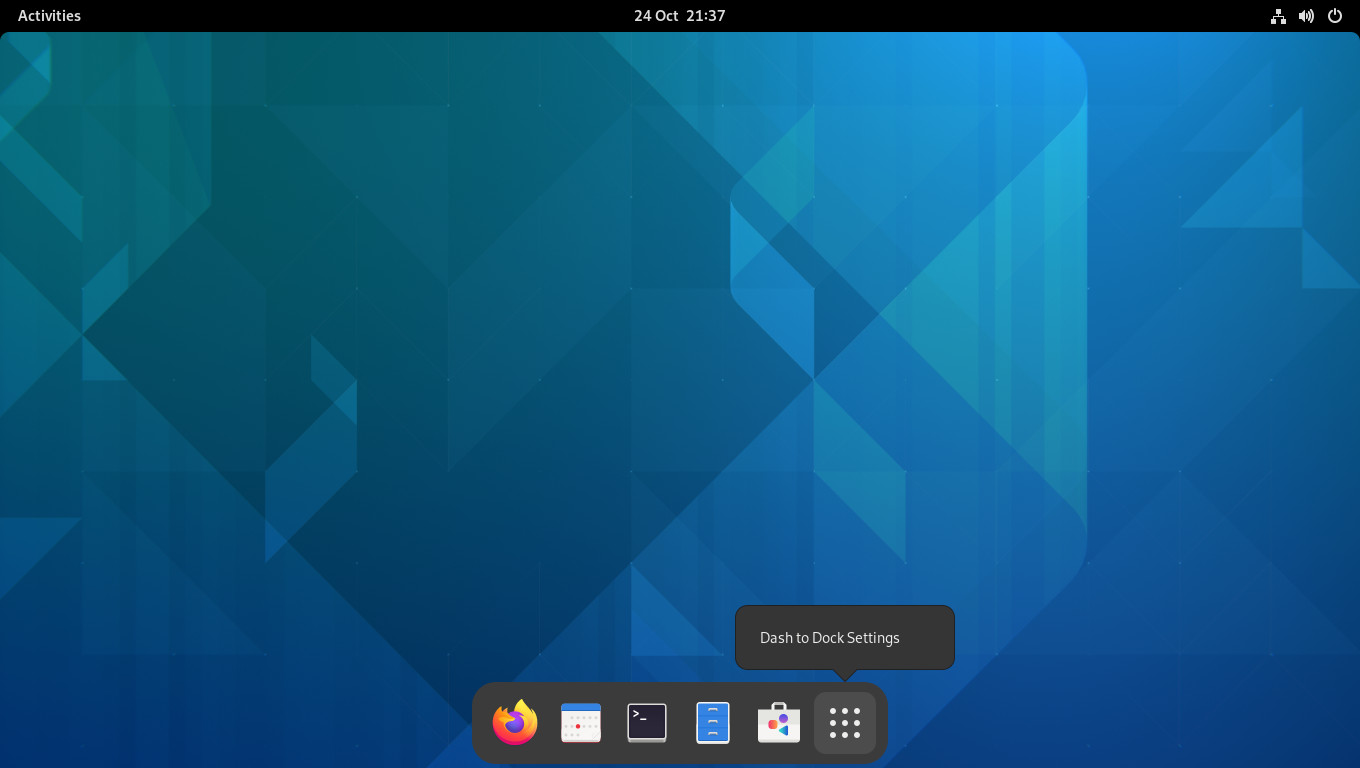
Dash to Dock is the standard way to get a permanent dock on GNOME. It takes the dash that GNOME hides inside the Activities Overview and turns it into an always-available launcher. Ubuntu Dock started as a customized version of it. The extension keeps pace with GNOME: versions 107 and 108 arrived in September 2026 with GNOME 51 support.
Key features
- Bottom or side placement
- Intellihide, which hides the dock only when a window overlaps it
- Panel mode that stretches the dock along the screen edge
- Custom icon size, opacity, dynamic transparency and running-indicator styles
- Multi-monitor support, workspace isolation, click and scroll actions and notification badges
Pros
- The most complete dock for GNOME
- Runs on Wayland and X11
- Updated quickly for new GNOME releases
- Pairs well with Blur My Shell, which has a dedicated Dash to Dock section
Cons
- Extensions can break after a major GNOME update until the developer catches up
- GNOME only
- The settings window has enough options to overwhelm a first-time user
Best for: GNOME users on Fedora, Debian, Arch and openSUSE.
7. Dash to Panel
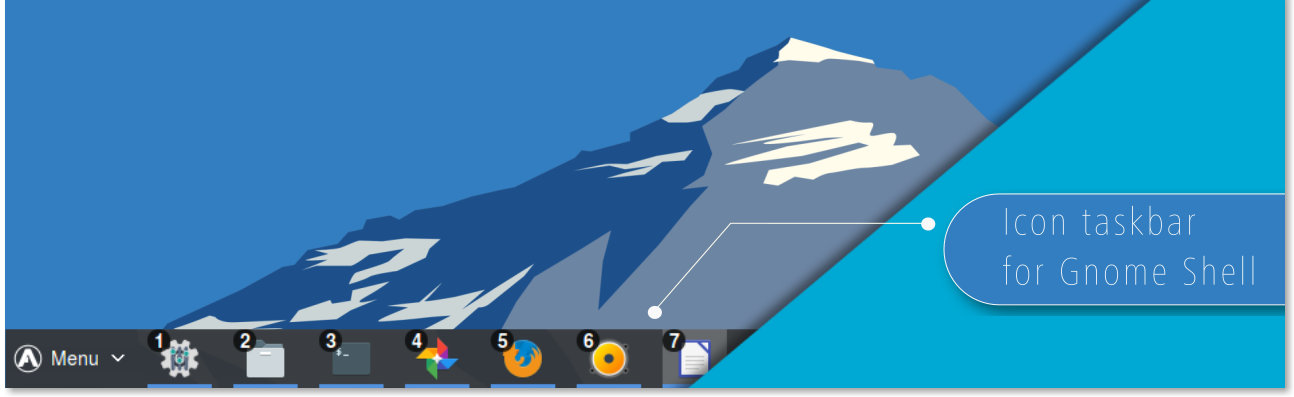
Dash to Panel merges GNOME’s top bar and dash into a single panel. Launchers, running apps and the system tray share one bar, similar to Windows 7 and later or KDE Plasma. A recent release added a dock mode with margins for a floating look, and version 74 supports GNOME 46 through 51.
Key features
- Taskbar with grouped apps and window previews
- Intellihide and multi-monitor support
- Dock mode with adjustable margins
- Control over the position and scale of every panel element
- App icon badges and running indicators
Pros
- One bar for everything, which suits people coming from Windows or KDE
- Deep customization
- Works on both Wayland and X11
Cons
- It takes over GNOME’s top bar, which can clash with other extensions that modify the panel
- Not a floating dock out of the box
- A large settings surface takes time to learn
Best for: anyone who misses the Windows taskbar on GNOME.
8. Plank and Plank Reloaded
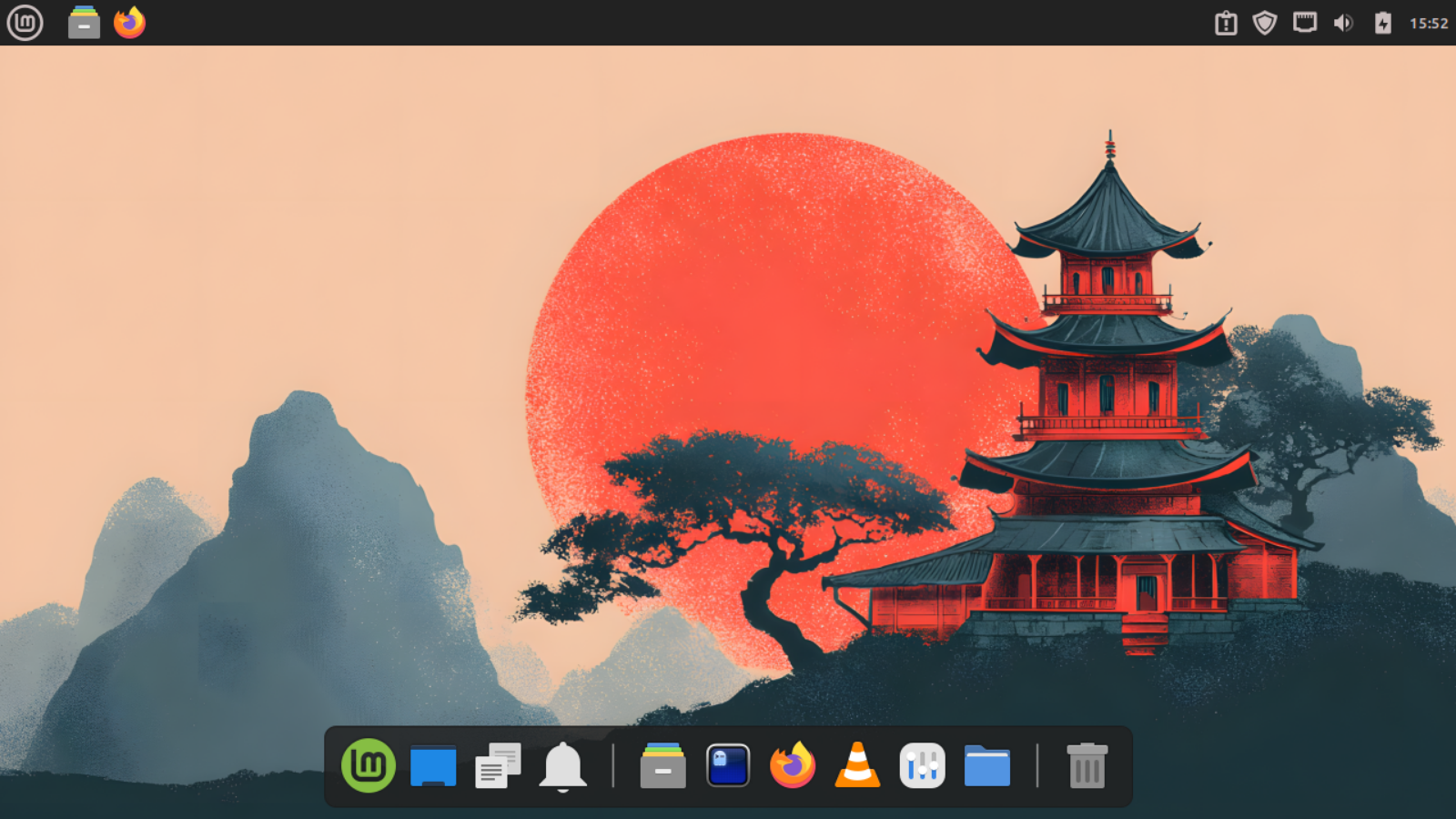
Plank set out to be the simplest dock on the planet, and it still is: icons, a few docklets and little else. The original project has seen little major development in years, so Plank Reloaded is where the work happens now. The fork targets Cinnamon, MATE, Xfce and other X11 desktops, plus KDE on X11.
Key features
- Docklets such as a clock with a pop-up calendar and a separator
- Icon zoom up to 400 percent in Plank Reloaded
- Multi-monitor support and a setting for the gap between the dock and the screen edge
- A large library of community themes, plus new Matte and Matte Light themes in Reloaded
- Settings open with a right-click on an empty part of the dock
Pros
- Light on resources
- Easy to set up and easy to understand
- Plank Reloaded keeps shipping updates
Cons
- X11 only, with no Wayland support
- No window previews
- Distro repositories may still carry the original Plank, so check which one you install
Best for: Xfce, MATE and Cinnamon users on X11 who want a quiet little dock.
9. Cairo-Dock
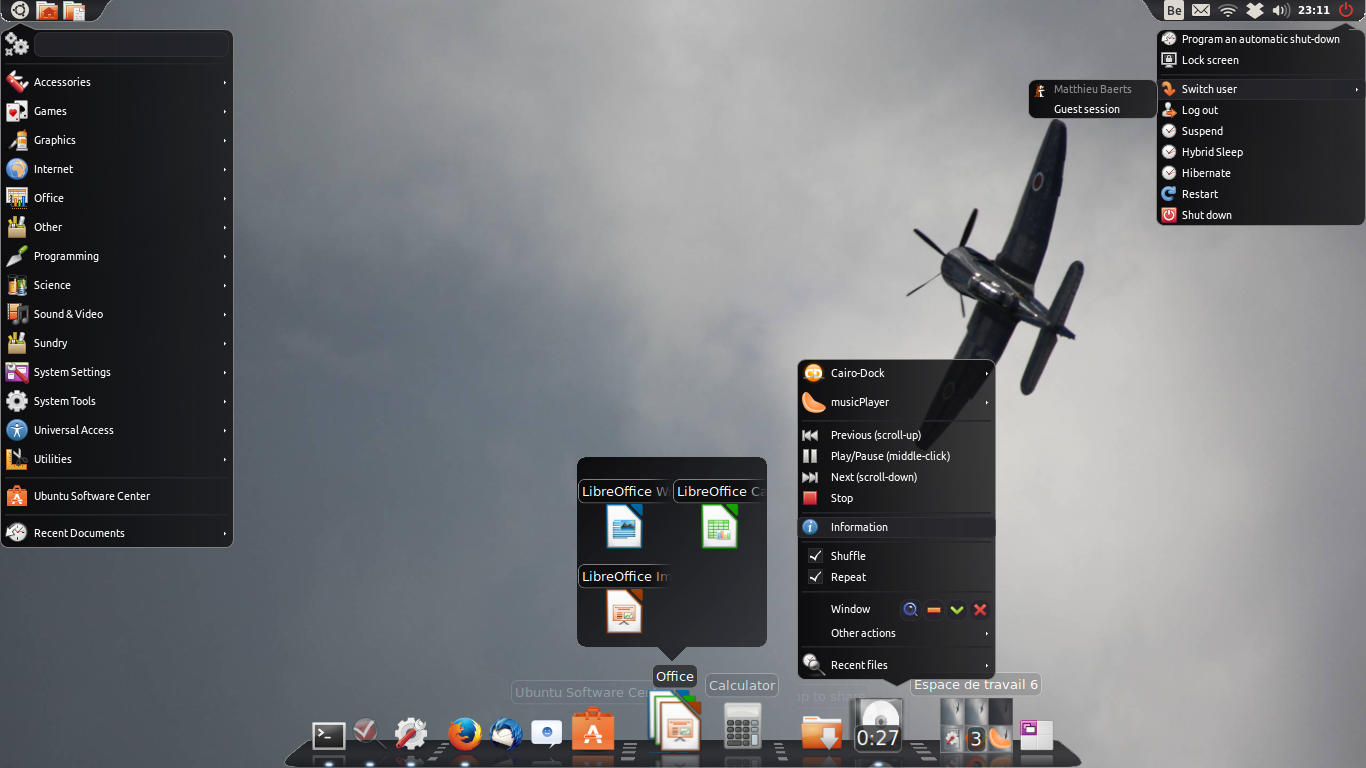
Cairo-Dock is one of the oldest docks on Linux and the most tweakable standalone option. Version 3.6, the first major release in more than ten years, added Wayland support for KWin, Sway, Hyprland, Wayfire, Labwc and COSMIC, plus HiDPI scaling and systemd integration. GNOME’s Mutter is still not supported on Wayland.
Key features
- Several dock views and animations with OpenGL acceleration
- A large set of applets for things like clocks, weather and system monitoring
- Multiple docks and desktop widgets
- Full theming
- Can run as a systemd service
Pros
- The most customizable standalone dock
- Works on many X11 desktops and a growing list of Wayland compositors
- Version 3.6.2 is in the Arch and Fedora repositories
Cons
- No GNOME support on Wayland
- Uses more resources than Plank when effects are on
- The options are dense and take time to learn
- Some distros still package an older version, so check before you count on Wayland support
Best for: anyone who wants effects, applets and total control, especially on KDE, Xfce, Sway or Hyprland.
10. Crystal Dock
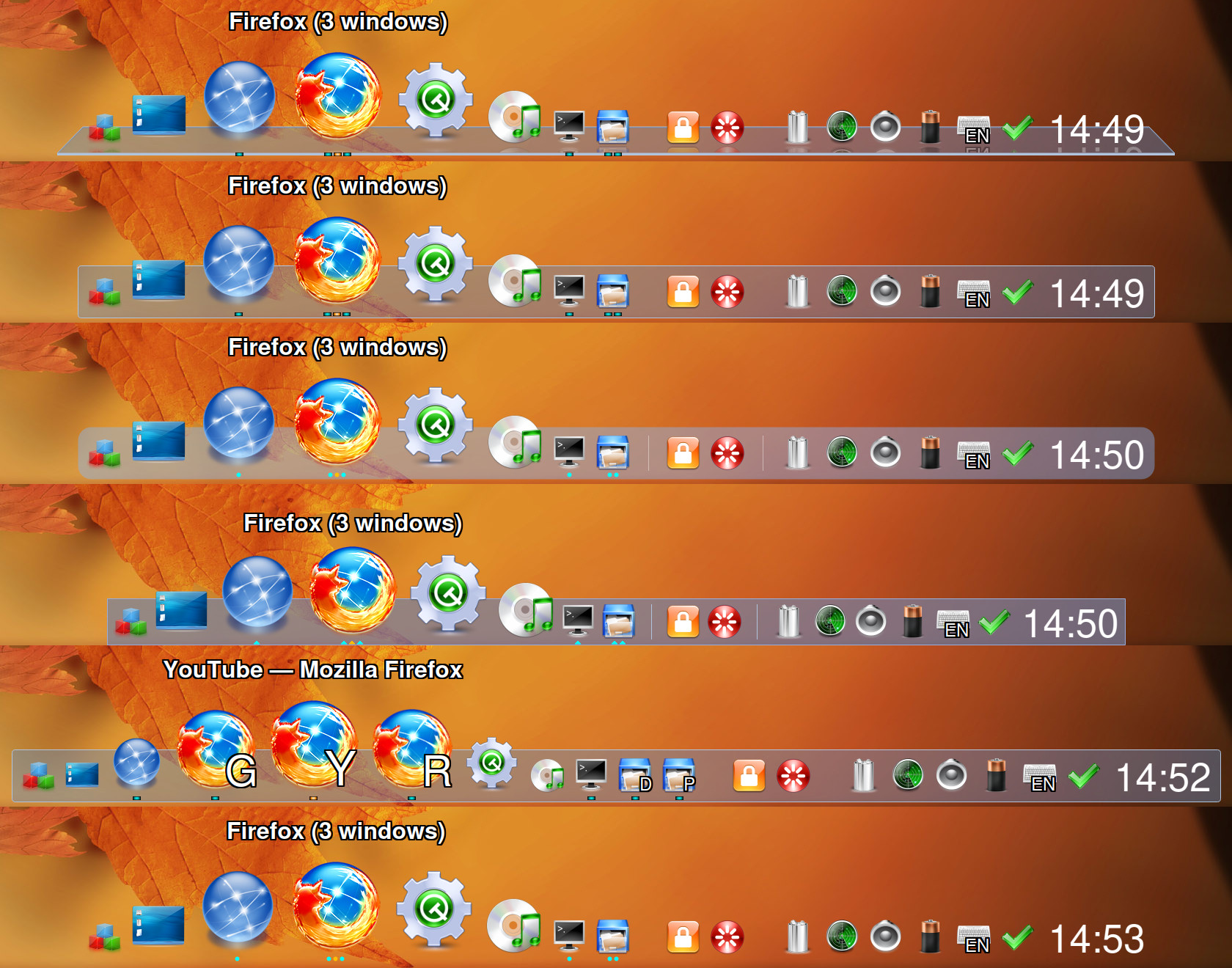
Crystal Dock is a Qt dock by Viet Dang and the successor to KSmoothDock. Version 2 is built for Wayland and runs on KDE Plasma 6, Hyprland, Sway, Labwc, Niri, Wayfire, LXQt and Budgie 10.10. Version 1 was X11 only and covered Plasma 5, GNOME, LXQt, Cinnamon and MATE.
Key features
- Parabolic zoom and translucency
- Glass 3D, Glass 2D, Flat 2D and Metal 2D visual styles
- Multiple docks on any screen edge
- Components for the app menu, pager, task manager, clock, Show Desktop, volume, Wi-Fi, trash, battery and keyboard layout
- Auto-hide and Intelligent Auto Hide
Pros
- A zoom dock that runs natively on several Wayland desktops
- Simple settings and a clean look
- Regular releases through 2025
Cons
- Version 2 is Wayland only, so X11 users are stuck with the older version 1
- No GNOME support
- Limited distro packaging, so you may need the KDE Store or a source build
Best for: Plasma 6, Hyprland and Sway users who want a macOS-style zoom dock.
11. Latte Dock NG

Latte Dock was the dock KDE users loved, with smooth zoom, flexible layouts and plenty of tweaks. The original never got a Plasma 6 release and is effectively unmaintained. Latte Dock NG is a community fork by Ruizhi Zhong that targets Plasma 6 and Wayland, with .deb, .rpm and Arch packages on its GitHub releases page. If you still run Plasma 5, the original Latte Dock keeps working.
Key features
- Latte’s familiar layouts, indicators and parabolic zoom
- Wayland-first design
- Support for Plasma 6.3 and newer
Pros
- Brings the Latte workflow to Plasma 6
- Actively developed, with new releases through 2026
- Prebuilt packages for Debian, Fedora and Arch
Cons
- A young fork, and early adopters report rough edges such as crashes with old layouts
- Not an official KDE project
- Plasma 6’s own panel and Crystal Dock cover much of the same ground
Best for: former Latte Dock users who want the same workflow on Plasma 6.
12. nwg-dock-hyprland
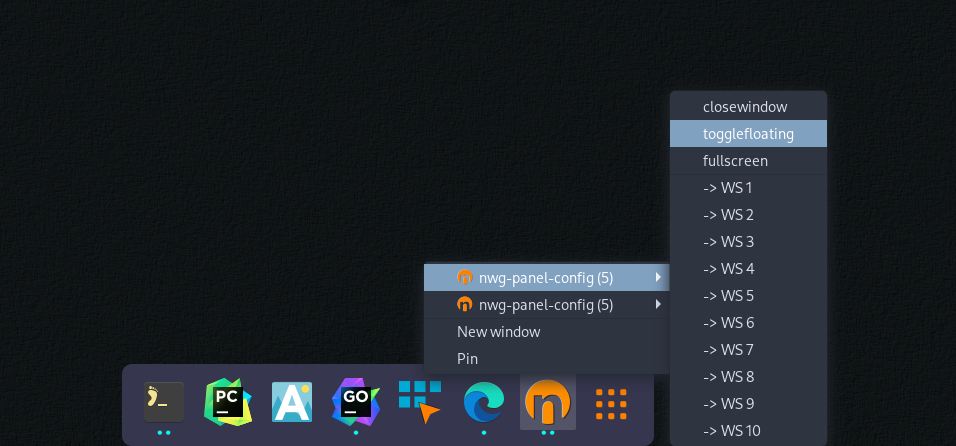
nwg-dock-hyprland is a small GTK3 dock written in Go for the Hyprland compositor. It belongs to the nwg-shell project, which also offers nwg-dock for Sway.
Key features
- Pinned apps, running-app buttons and a launcher button that opens nwg-drawer by default
- Auto-hide with a hover hotspot, plus a resident mode you can toggle with a key binding
- Styling through a CSS file at
~/.config/nwg-dock-hyprland/style.css - Talks to Hyprland through its own IPC sockets
Pros
- Tiny and fast
- Easy to launch from
hyprland.confwithexec-once - Wayland-native through layer-shell
Cons
- Hyprland only
- No settings window, so you work with command-line flags and CSS
- Icons depend on the app class name, so some apps need manual fixes
Best for: Hyprland users who are comfortable with config files.
Dead Docks to Skip
These names still show up in old tutorials. Skip them.
- Docky: a former favorite with no meaningful upstream development in years and no Wayland support.
- Avant Window Navigator (AWN): same story. Plank, Cairo-Dock and Crystal Dock cover what it did.
- The original Latte Dock on Plasma 6: it was never ported. Use Latte Dock NG, Crystal Dock or the Plasma panel instead.
How to Install a Dock on Linux
GNOME extension docks
Dash to Dock and Dash to Panel install through the Extension Manager app. On Debian and Ubuntu:
sudo apt install gnome-shell-extension-managerOn any distro with Flatpak:
flatpak install flathub com.mattjakeman.ExtensionManagerOpen the app, search for the extension and click Install. Dash to Dock is also packaged for some distros. On Fedora, run sudo dnf install gnome-shell-extension-dash-to-dock. On Debian, the package is gnome-shell-extension-dashtodock. If you are on Ubuntu, switch off Ubuntu Dock in Extension Manager first so the two docks do not overlap.
Standalone docks
Plank and Cairo-Dock live in many repositories:
# Plank
sudo apt install plank          # Debian, Ubuntu
sudo dnf install plank          # Fedora
sudo pacman -S plank            # Arch

# Cairo-Dock
sudo apt install cairo-dock cairo-dock-plug-ins    # Debian, Ubuntu (may be older than 3.6)
sudo dnf install cairo-dock cairo-dock-plug-ins    # Fedora
sudo pacman -S cairo-dock cairo-dock-plug-ins      # Arch
The plank package in many repositories is still the original. Plank Reloaded is in the AUR as plank-reloaded-git, and other distros can use the packages or source on its GitHub page. Crystal Dock is available from the KDE Store and its GitHub releases page. Latte Dock NG publishes .deb, .rpm and Arch packages on GitHub. For nwg-dock-hyprland, check your distro’s repositories or build it from source with the steps in the project README.
Start it at login
Extensions start on their own once you enable them. Standalone docks need an autostart entry. Add the command to your desktop’s startup applications, or on Hyprland add exec-once = nwg-dock-hyprland -d to hyprland.conf.
Which Linux Dock Should You Use?
Match the dock to your desktop and you will rarely go wrong. On GNOME, Dash to Dock is the safe pick, and Ubuntu Dock is the same idea with Ubuntu’s defaults. On KDE Plasma 6, set up the floating panel first and add Crystal Dock only if you want zoom effects. On Xfce, MATE and Cinnamon, Plank Reloaded is still hard to beat for simplicity, and Cairo-Dock is the choice if you want effects and applets. On Hyprland, nwg-dock-hyprland is lean and easy to style.
If your distro already ships a dock, such as COSMIC on Pop!_OS or the Dock on elementary OS, give it a week before you replace it. You may not need to.
Linux Dock FAQ
What is the best dock for Linux?
There is no single winner because the right dock depends on your desktop. Dash to Dock is the best choice on GNOME, the floating Plasma 6 panel or Crystal Dock suits KDE, Plank Reloaded fits lightweight X11 desktops, and Cairo-Dock is the pick for effects and applets. If you want zero setup, use the dock that ships with your distro, such as Ubuntu Dock or the COSMIC Dock.
Does Linux have a built-in dock?
Some desktops do. Ubuntu ships Ubuntu Dock, Pop!_OS 24.04 ships the COSMIC Dock, elementary OS ships its own Dock and Deepin ships the Deepin Dock. KDE Plasma has a panel you can set up as a dock. Stock GNOME on Fedora and Debian only shows its dash inside the Activities Overview.
What is the difference between a dock and a panel?
A dock is a bar of app launchers and running apps. A panel is a fuller bar that can also hold a menu, clock, system tray and window list, like the Windows taskbar. Dash to Dock and Plank are docks. Dash to Panel and the KDE Plasma panel sit closer to the panel side, although both can act like docks.
Does Plank work on Wayland?
Not natively. Plank was built for X11, and the Plank Reloaded project says Wayland is not supported at this time. It can run through XWayland on some setups, but behavior varies. On Wayland, use Dash to Dock on GNOME, or Cairo-Dock 3.6 or Crystal Dock on KDE and other compositors that support layer-shell.
Is Latte Dock still maintained?
The original Latte Dock is effectively unmaintained and never received a Plasma 6 release. A community fork called Latte Dock NG targets Plasma 6 and Wayland. Crystal Dock and the Plasma 6 panel are other options on KDE.
Can I get a macOS-style dock on Linux?
Yes. Plank, Cairo-Dock and Crystal Dock all offer a centered dock with zoom effects. On GNOME, Dash to Dock can sit centered at the bottom, although it does not magnify icons. elementary OS and Deepin in Fashion mode also come close out of the box, and a macOS-style icon theme finishes the look.
Which Linux dock uses the least resources?
Plank and nwg-dock-hyprland are among the lightest standalone options, and built-in docks add little because they are part of the desktop already. Cairo-Dock uses more when its effects are on. Real usage depends on your theme, hardware and settings, so test on your own system if memory is tight.
How do I install a dock on GNOME?
Install the Extension Manager app, open it, search for Dash to Dock or Dash to Panel and click Install. On Ubuntu, turn off Ubuntu Dock first so the two do not overlap. Standalone docks such as Cairo-Dock do not support GNOME on Wayland, so an extension is the right route.
