
XFCE is the desktop you land on when GNOME and KDE Plasma start to feel like too much. It boots fast, rarely breaks, and runs well on hardware that chokes on heavier desktops. But XFCE is only half the story. The distro underneath decides how fresh your software is, how long security updates last, and how much setup you face on day one. Below are the eight best XFCE Linux distros in 2026, each with features, pros, cons, and a clear verdict on who it suits. If you only want the short version, jump to the comparison table.
What Is XFCE?
XFCE (officially spelled Xfce) is a free, open-source desktop environment for Linux and other Unix-like systems. The project started in 1996 and has kept the same goal ever since: a desktop that is fast, stable, and stays out of your way. The current stable series is XFCE 4.20, released in December 2024. What you get with XFCE:
- Low resource use. A fresh install typically idles somewhere between 400 and 800 MB of RAM, depending on the distro and what starts at login.
- Modular design. The panel, window manager (xfwm4), file manager (Thunar), app menu (Whisker Menu), and settings are separate components, so distros can trim or swap them.
- Deep customization. Panels, plugins, themes, icons, shortcuts, and window behavior are all adjustable from the Settings Manager. You don’t need extensions to get a layout you like.
- Stability. XFCE moves slowly and avoids big redesigns, so updates rarely change how things work.
- A traditional layout. The panel, app menu, and system tray sit where Windows users expect them.
- Wayland progress. XFCE 4.20 added experimental Wayland support to most components, but the default session still runs on X11. XFCE 4.22 is in development and is expected to bring XFCE’s own Wayland compositor, xfwl4, which is currently in preview.
The tradeoff is fewer built-in visual effects than GNOME or KDE Plasma, plus a Wayland story that is still maturing. If you value speed and predictability over eye candy, it’s a fair deal.
Best XFCE Linux Distros Compared
| Distro | Based on | Updates | XFCE version | Resource use | Skill level | Best for |
|---|---|---|---|---|---|---|
| Xubuntu | Ubuntu 26.04 LTS | Fixed (LTS) | 4.20 | Medium | Beginner | Best all-rounder |
| MX Linux | Debian 13 | Fixed | 4.20 | Light to medium | Beginner to intermediate | Older PCs and power tools |
| Linux Mint XFCE | Ubuntu 24.04 LTS | Fixed (LTS) | 4.18 | Medium | Beginner | New users who want stability |
| Linux Lite | Ubuntu 26.04 LTS | Fixed (LTS) | 4.20 | Light | Beginner | Low-spec and aging PCs |
| Debian XFCE | Debian 13 | Fixed (stable) | 4.20 | Light | Intermediate | Long-term stability |
| Zorin OS Lite | Ubuntu 24.04 LTS | Fixed (LTS) | 4.20 | Medium | Beginner | Windows switchers |
| Fedora XFCE Spin | Fedora | Fixed (every 6 months) | 4.20 | Medium | Intermediate | Newer software and RPM tools |
| Manjaro XFCE | Arch Linux | Rolling | 4.20 | Medium | Intermediate | Rolling releases with an easy installer |
What to Look for in an XFCE Distro
XFCE looks similar everywhere, but the distros around it make different tradeoffs. These are the factors that separate them:
- XFCE version. Most distros here ship XFCE 4.20. Linux Mint’s XFCE edition still ships 4.18.
- Release model. Fixed releases give you stability and a long support window. Rolling releases give you the newest software and more upkeep.
- Support length. LTS bases like Ubuntu LTS and Debian stable can run for years without a reinstall. Fedora expects an upgrade at least once a year.
- Defaults. Some distros ship a full app set and codecs. Others hand you a bare desktop and a package manager.
- Hardware support. A good installer and a recent kernel save hours on new laptops.
- Community. A bigger community means more fixes and answers when something breaks.
1. Xubuntu: Best Overall XFCE Distro
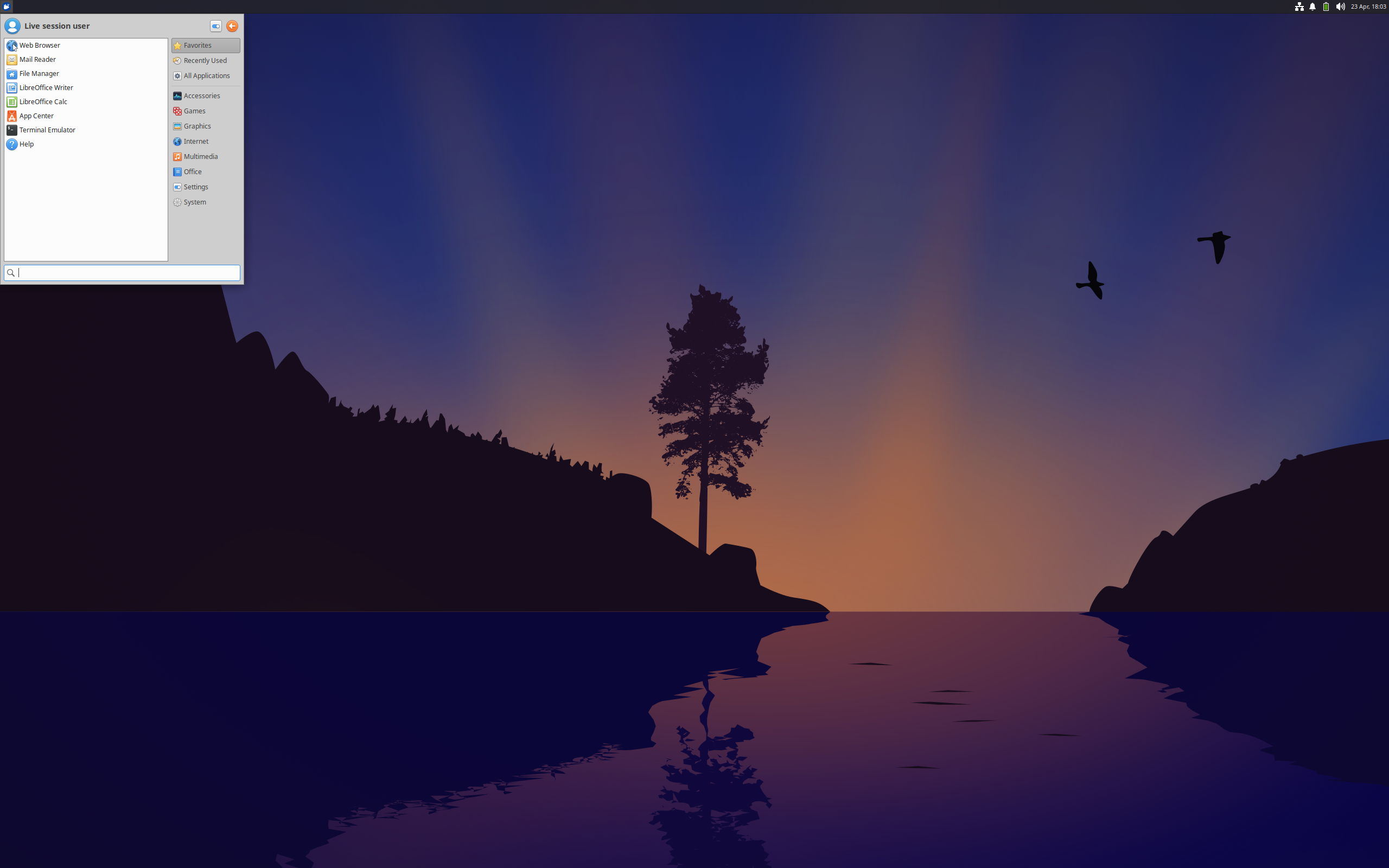 Xubuntu is the official XFCE flavor of Ubuntu, and it is the safest pick on this list. You get Ubuntu’s hardware support, software catalog, and huge community behind a clean XFCE desktop. Xubuntu 26.04 LTS arrived in April 2026 with XFCE 4.20 and is supported until April 2029.
Xubuntu features
- XFCE 4.20 with the Greybird theme, elementary-xfce icons, Whisker Menu, and Thunar.
- Ubuntu 26.04 LTS base, with access to Ubuntu’s repositories, PPAs, and third-party .deb packages.
- A full desktop ISO that includes LibreOffice, GIMP, Firefox, and Thunderbird, plus a Minimal ISO if you prefer to build up from less.
- Linux kernel 7.0 and Mesa 26 for recent hardware.
Xubuntu pros and cons
Pros
- Strong hardware support and driver availability.
- A huge pool of tutorials and forum answers, since most Ubuntu guides apply.
- Polished defaults that need little tweaking.
- Predictable LTS releases every two years.
Cons
- Firefox and Thunderbird ship as Snap packages, which some users dislike and which can start slowly on older hardware.
- Uses more RAM at idle than leaner picks like Debian XFCE or MX Linux.
- Support lasts three years, not the five that Ubuntu itself gets.
Best for: anyone who wants a polished, low-drama XFCE system backed by a big community.
2. MX Linux: Best for Older PCs and Power Users
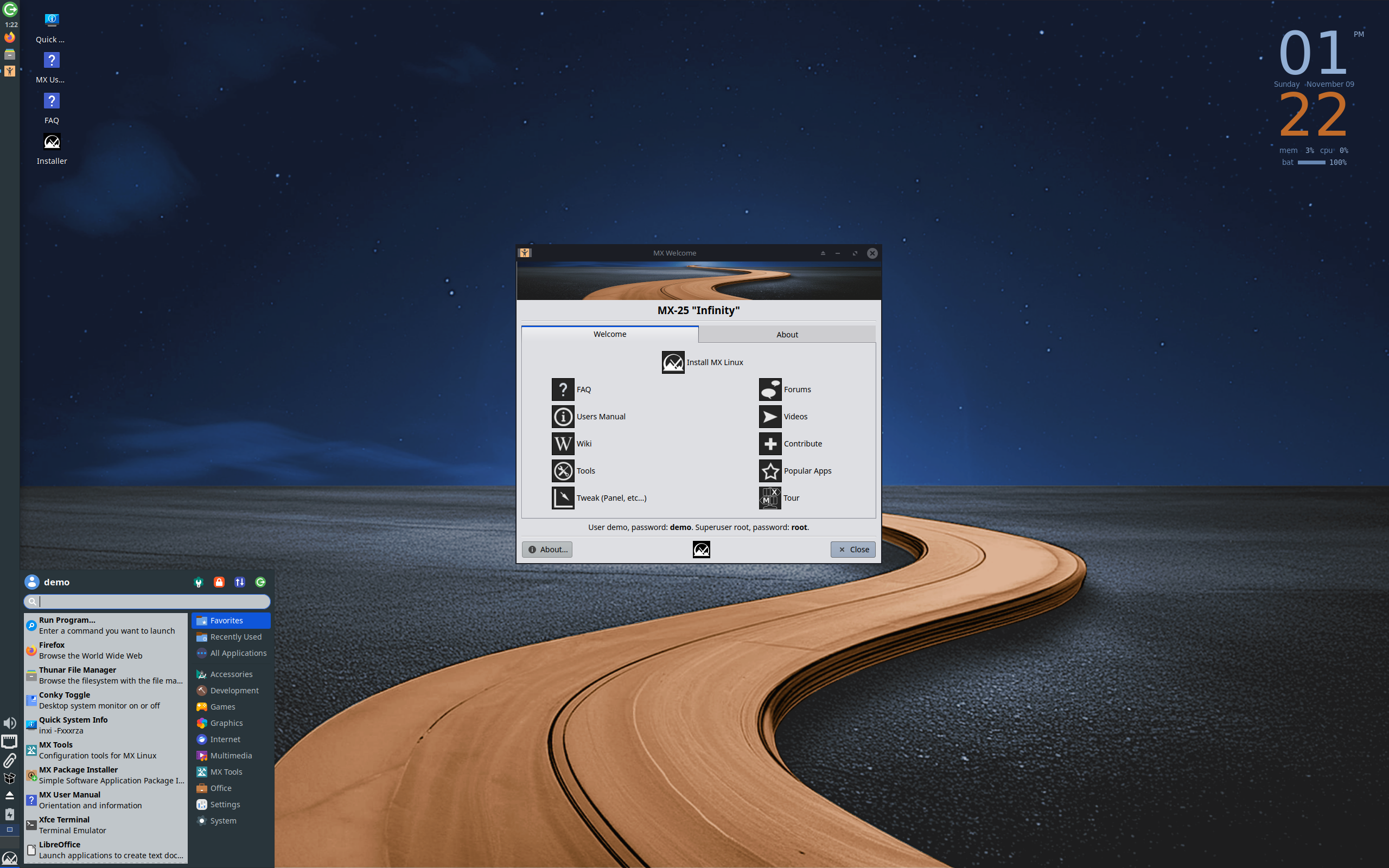 MX Linux is a Debian-based distro with XFCE as its flagship edition. It pairs Debian’s stable base with a set of homegrown MX Tools that handle jobs other distros leave to the terminal. MX Linux 25 “Infinity” is built on Debian 13 and ships XFCE 4.20.
MX Linux features
- MX Tools for snapshots, boot repair, package installs, and live USB creation. MX Snapshot can turn your installed system into a bootable ISO.
- Debian 13 base with Linux 6.12 LTS on the standard ISO, plus an Advanced Hardware Support (AHS) edition with a newer Liquorix kernel for recent hardware.
- Systemd by default, with SysVinit variants of the XFCE edition if you prefer the older init system.
- Secure Boot support on 64-bit UEFI systems and an installer that can set up zram swap on low-RAM machines.
MX Linux pros and cons
Pros
- Debian stability with a friendlier layer on top.
- Runs well on older and modest hardware.
- MX Snapshot makes it easy to clone your setup.
- You choose between systemd and SysVinit.
Cons
- The number of tools and options can overwhelm beginners.
- Debian stable means older app versions than Fedora or Manjaro.
- Fewer third-party tutorials than Ubuntu-based distros.
- No 32-bit ISOs since MX Linux 25.
Best for: tinkerers and anyone who wants Debian stability with useful built-in tools.
3. Linux Mint XFCE: Best for Beginners Who Want Stability
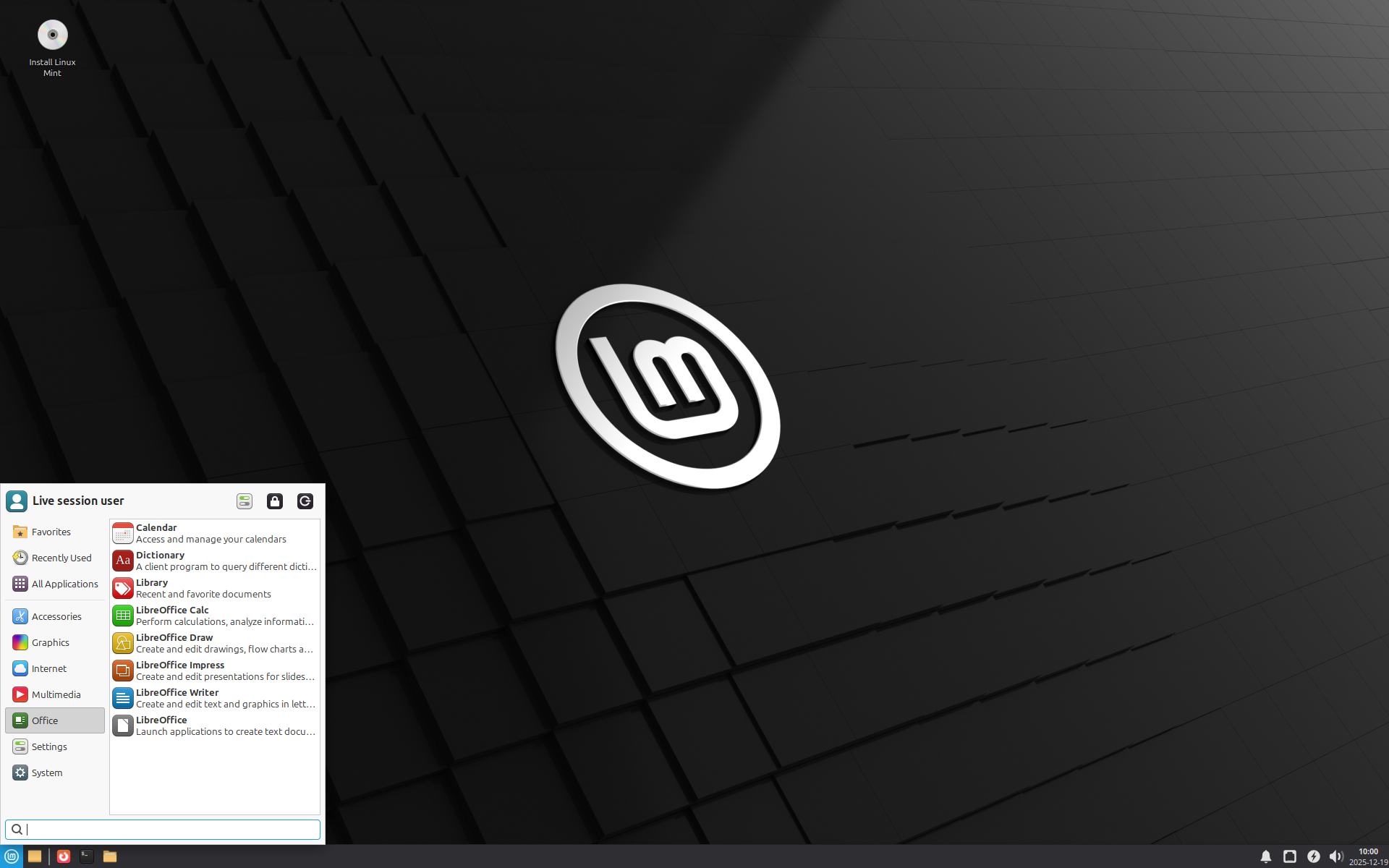 Linux Mint offers XFCE as a lighter alternative to its flagship Cinnamon desktop. You keep the Mint formula of conservative updates and friendly tools, on a desktop that asks for less RAM. Linux Mint 22.3 “Zena” arrived in January 2026 and is supported until 2029.
Linux Mint XFCE features
- Ubuntu 24.04 LTS base with Mint’s own tweaks and Snap blocked by default.
- Mint’s tools: Software Manager with Flatpak support, Update Manager, Driver Manager, and Timeshift snapshots for easy rollbacks.
- Multimedia codecs available through a checkbox in the installer.
- A Windows-like layout with the Mint-Y theme.
Linux Mint XFCE pros and cons
Pros
- Easy to learn and hard to break.
- Timeshift makes recovery from a bad update simple.
- No Snap packages unless you add them yourself.
- Large community and thorough documentation.
Cons
- Ships XFCE 4.18, older than the 4.20 in most distros here.
- The XFCE edition gets less development focus than Cinnamon.
- The next major release, planned for around December 2026, moves to an Ubuntu 26.04 base. If you can wait, that may be the better time to install.
Best for: new Linux users and Windows switchers who want a calm, predictable system.
4. Linux Lite: Best for Low-Spec and Aging PCs
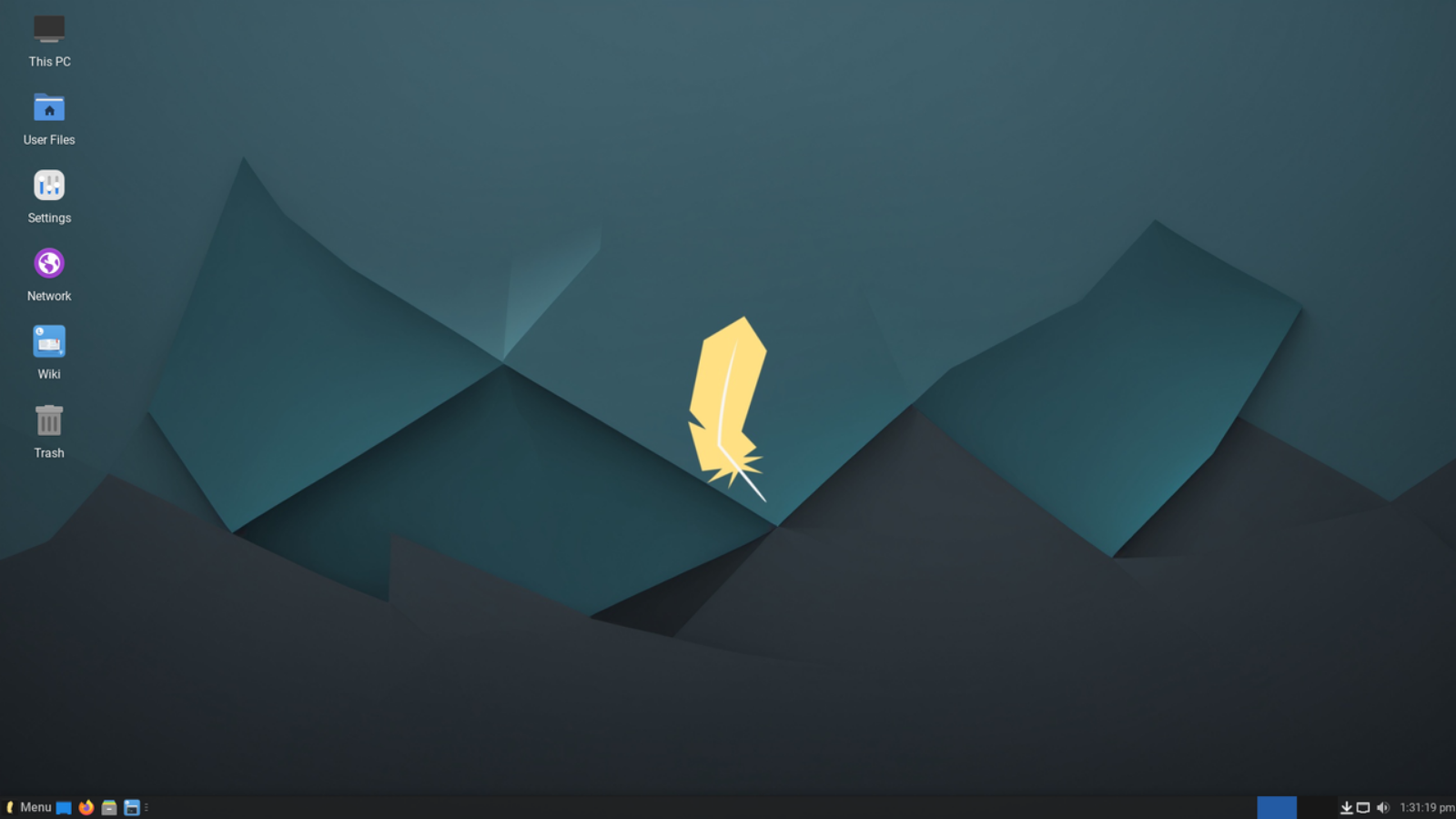
Linux Lite has one job: make Linux easy on modest hardware. It pairs XFCE with a Windows-like layout and a set of in-house helper apps. Linux Lite 8.0 “Hematite” arrived on June 1, 2026, built on Ubuntu 26.04 LTS with XFCE 4.20.
Linux Lite features
- Lite Tweaks, Lite Driver Manager, and Lite Kernel Manager for common jobs without the terminal.
- Lite Core, which strips the installed system down to the essentials so you can build it your way.
- Custom Linux Lite kernels (Linux 7.0) tuned for desktop responsiveness, plus the Calamares installer.
- Lite Distro Builder, which creates your own Linux Lite installer image from a working system.
- Lite Series Upgrade for moving from Series 7 to Series 8 without a reinstall.
Linux Lite pros and cons
Pros
- Light and quick to set up.
- Helpful in-house tools for drivers, tweaks, and kernels.
- Ubuntu LTS base means a long support window.
- Easy to slim down further with Lite Core.
Cons
- A smaller project than Mint or Ubuntu, so fewer tutorials are written for it.
- Series 8 is a fresh rebuild with a new installer and new apps. If you need maximum polish, give the point releases time to settle.
Best for: first-time Linux users with older or low-spec hardware.
5. Debian XFCE: Best for Stability and Long-Term Setups
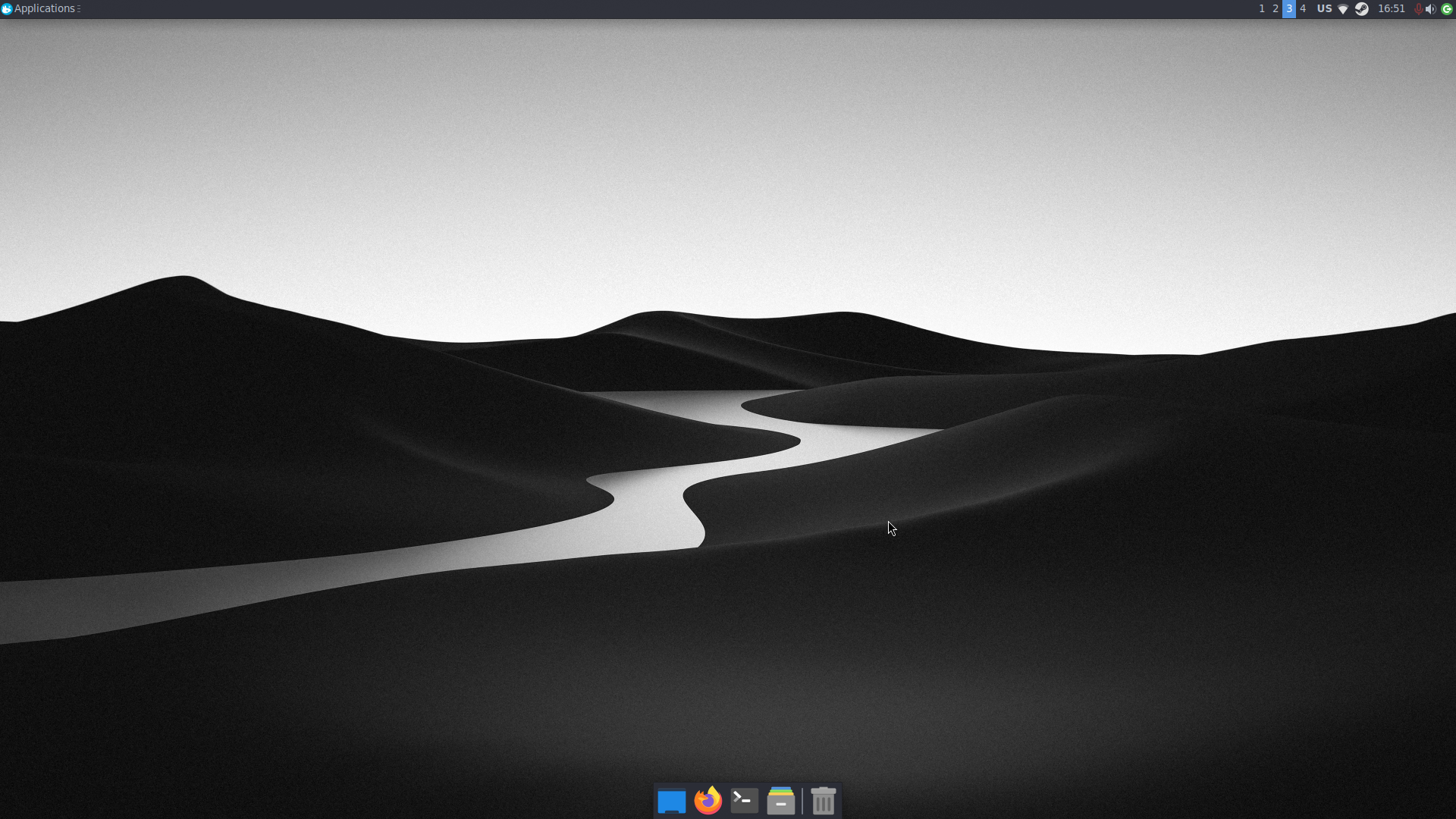 Debian is the base for MX Linux, Peppermint OS, Ubuntu, and many others. Choosing XFCE on Debian gets you the source: a clean, conservative system with no vendor extras. Debian 13 “Trixie” ships XFCE 4.20 and gets full support until August 2028, with long-term support running to June 2030.
Debian XFCE features
- Pick XFCE in the installer’s software selection screen, or download a live XFCE image to try it first.
- One of the largest software archives in Linux, with tens of thousands of packages.
- Official installer images that include the non-free firmware many Wi-Fi and graphics chips need.
- Easy to keep lean: install the standard system utilities plus XFCE and add only what you use.
Debian XFCE pros and cons
Pros
- Legendary stability and predictable updates.
- Five years of coverage per release, including the LTS period.
- Light when installed minimally.
- A clear free-software policy.
Cons
- Packages are frozen at release, so newer apps often need Flatpak or backports.
- The default look is basic and needs some theming.
- Fewer helper tools than MX Linux or Linux Lite.
- New installs need a 64-bit PC.
Best for: people who want a system that stays put for years and don’t mind reading the docs.
6. Zorin OS Lite: Best for Windows Switchers on Older Hardware
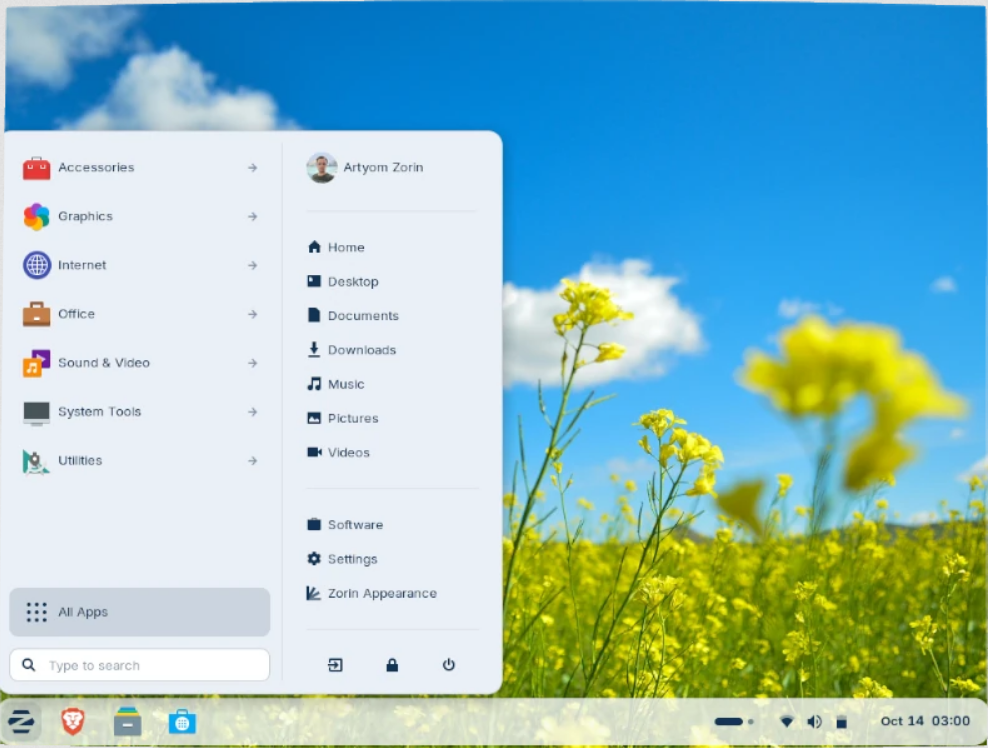 Zorin OS is known for making Linux feel familiar to Windows users, and the Lite edition brings that idea to XFCE. Zorin OS 18 launched without a Lite edition, and Lite returned with version 18.1 in April 2026. It runs XFCE 4.20 on an Ubuntu 24.04 LTS base with Linux 6.17.
Zorin OS Lite features
- A customized XFCE desktop with updated themes and a redesigned file manager.
- A Web Apps tool that turns websites into desktop apps.
- Fingerprint reader support from the settings panel.
- Ubuntu 24.04 LTS base with updates through 2029.
Zorin OS Lite pros and cons
Pros
- Familiar and polished for people leaving Windows.
- Newer XFCE (4.20) than Linux Mint’s edition.
- Kernel 6.17 helps with recent hardware.
- Web Apps are built in.
Cons
- Zorin has said it plans to phase out the Lite edition, so its long-term future is unclear.
- Lite is the secondary edition and arrived months after the main release.
- The Ubuntu 24.04 base means package versions trail Xubuntu 26.04.
- Zorin will discontinue Lite from June 2029. Starting with Zorin 19, Lite will no longer be available.
Best for: Windows switchers with older laptops who want a polished look with little setup.
7. Fedora XFCE Spin: Best for Newer Software
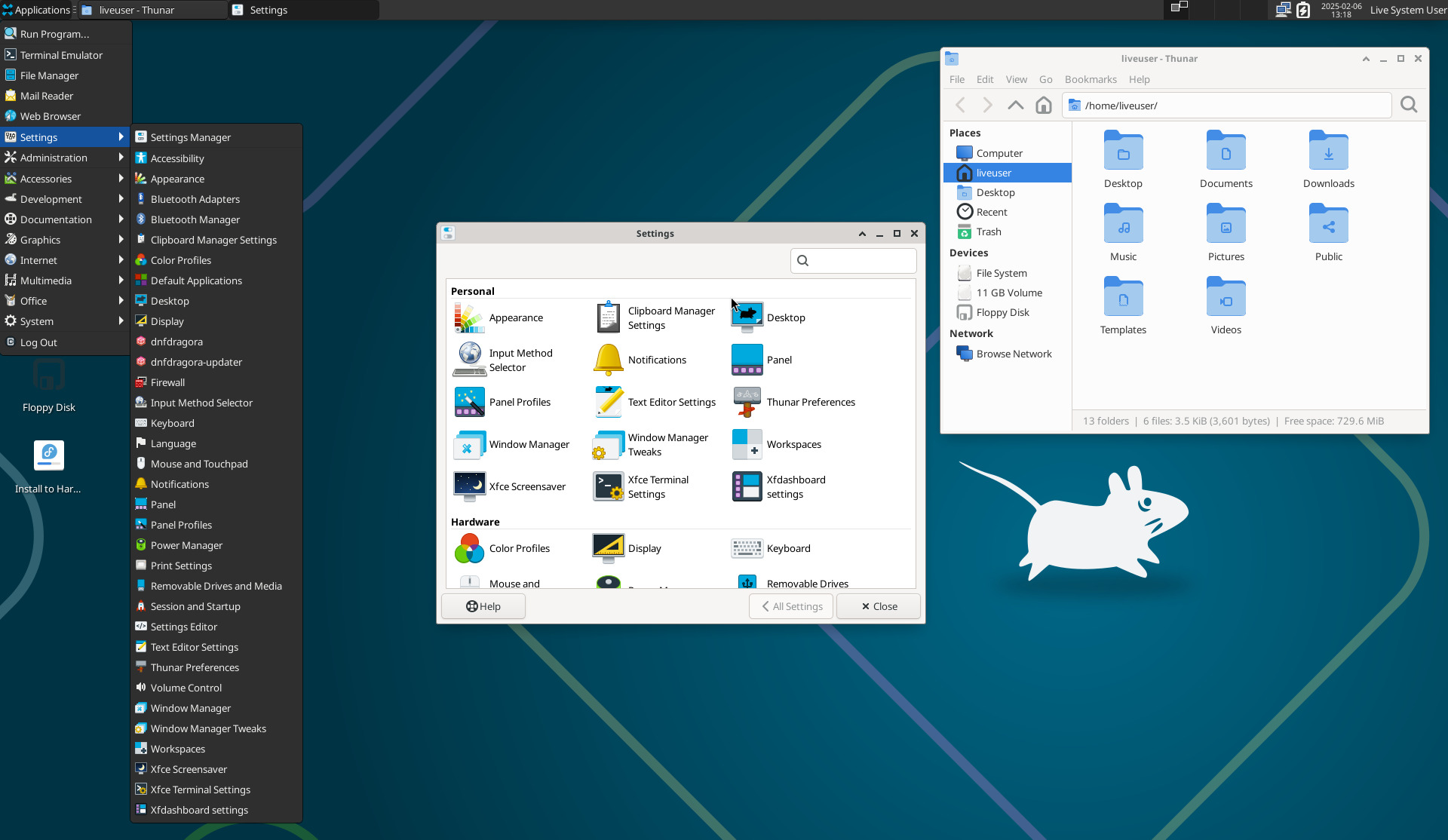 The Fedora XFCE Spin suits people who want recent software and the RPM ecosystem on a classic desktop. Fedora ships a new release about every six months and supports each one for roughly 13 months.
Fedora XFCE Spin features
- Recent kernels and toolchains soon after they land upstream.
- DNF package manager with the large Fedora repositories. RPM Fusion adds codecs and extra drivers.
- SELinux enabled by default.
- An upstream-first approach that keeps XFCE close to what its developers release.
- A live ISO with a graphical installer.
Fedora XFCE Spin pros and cons
Pros
- Fresh software and kernels.
- Good for developers who want current toolchains.
- Strong security defaults.
- Backed by the large Fedora project and its documentation.
Cons
- Short support cycle: plan on upgrading at least once a year.
- Codecs and some drivers need RPM Fusion.
- Fedora recommends 4 GB of RAM for most editions, more than the leanest picks need.
- The spin gets less attention than Fedora Workstation.
Best for: developers and enthusiasts who want fresh software on a traditional desktop.
8. Manjaro XFCE: Best Arch-Based XFCE Distro
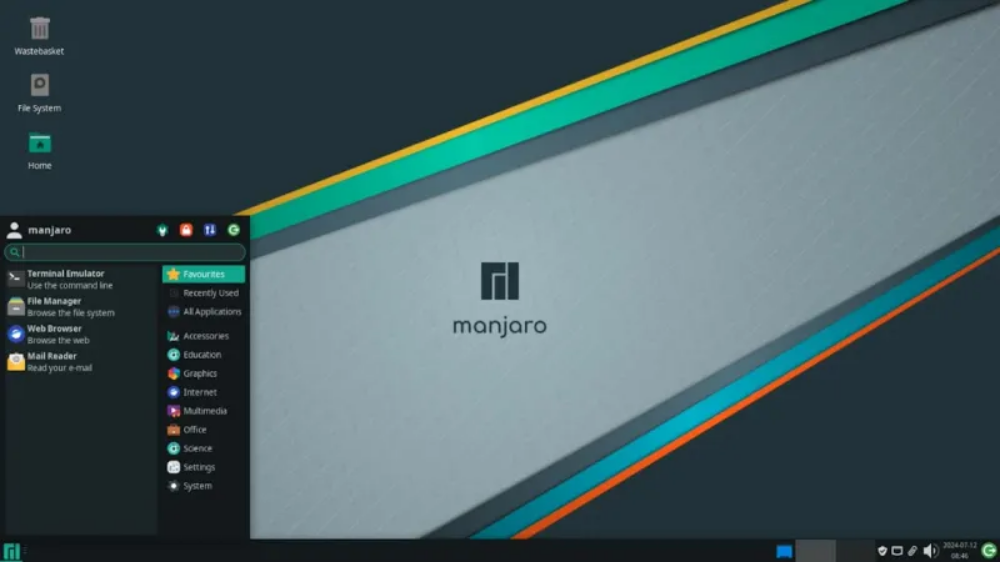 Manjaro takes Arch Linux’s rolling-release model and adds a graphical installer, hardware detection, and its own testing layer. XFCE is one of its three official editions, next to GNOME and KDE Plasma, and it ships XFCE 4.20. In recent releases GNOME and KDE Plasma default to Wayland, while the XFCE edition stays on X11.
Manjaro XFCE features
- Rolling releases through Unstable, Testing, and Stable branches. Manjaro holds updates back for testing before they reach Stable.
- Pamac graphical package manager, with optional AUR support.
- Calamares installer and automatic hardware and driver detection.
- Multiple kernels you can switch between, including LTS options.
- Full and Minimal ISOs.
Manjaro XFCE pros and cons
Pros
- No reinstalls: one install keeps updating.
- An easy installer and driver setup for an Arch-based system.
- Access to the AUR for software that isn’t in the main repositories.
- Recent software and kernels.
Cons
- Rolling releases need regular maintenance and can break after an update.
- Mixing AUR packages with Manjaro’s delayed repositories can cause dependency conflicts.
- Not a set-and-forget system.
Best for: intermediate users who want rolling updates without a manual Arch install.
Other XFCE Distros Worth a Look
- Peppermint OS. A Debian 13 based distro with XFCE 4.20 and almost no preinstalled apps. Its Suggested Packages tool lets you pick what you want.
- EndeavourOS. A near-vanilla Arch experience. Its live ISO boots KDE Plasma, but you can pick XFCE in the online installer. The project says its next major release will change some install options, so check the current list.
- Kali Linux. XFCE is its default desktop. It is built for security testing, not everyday use.
- Void Linux, Artix Linux, and Mageia. All publish XFCE editions if you want to step outside the Debian, Ubuntu, and Fedora families.
Which XFCE Distro Should You Pick?
- Want the safe default? Install Xubuntu.
- Reviving an old PC? Start with Linux Lite or MX Linux.
- New to Linux or coming from Windows? Try Linux Mint XFCE or Zorin OS Lite.
- Want a system that stays the same for years? Go with Debian XFCE.
- Want newer software? Pick the Fedora XFCE Spin for fixed releases or Manjaro XFCE for rolling updates.
Whatever you choose, test it from a live USB first. Every distro here offers a live ISO, so you can check Wi-Fi, graphics, and your trackpad before you wipe anything.
How to Install XFCE on Your Current Distro
You don’t have to reinstall to try XFCE. Most distros let you add it next to your current desktop, then pick it from the session menu on the login screen.
# Debian, Ubuntu, and Linux Mint
sudo apt update
sudo apt install xfce4 xfce4-goodies

# Fedora
sudo dnf install @xfce-desktop-environment

# Arch and Manjaro
sudo pacman -S xfce4 xfce4-goodies
On Arch-based systems you also need a display manager, such as LightDM, if you don’t already run one. Expect some duplicate apps if you keep your old desktop installed. A fresh install of a dedicated XFCE distro is cleaner.
Quick Tips to Make XFCE Faster
- Turn off the compositor on aging hardware. Open Settings, then Window Manager Tweaks, then the Compositor tab, and uncheck display compositing. You lose shadows and transparency, which most old machines won’t miss.
- Trim startup apps. Go to Settings, then Session and Startup, then Application Autostart, and disable what you don’t use.
- Watch the browser. On old machines the browser uses far more RAM than XFCE does. Keep tab counts low and run an ad blocker.
- Check the hardware first. An SSD and 4 GB or more of RAM change more than any theme or setting.
- Enable zram on low-RAM systems. It compresses memory instead of swapping to disk. Most distros can enable it, and the MX Linux installer offers it directly.
Frequently Asked Questions About XFCE Linux Distros
What is the best XFCE Linux distro?
Xubuntu is the best all-round choice for most people. It combines Ubuntu’s hardware support and software with a polished XFCE 4.20 desktop. MX Linux is the better pick for older PCs, and Linux Mint XFCE suits beginners who want a calm, predictable system.
Is XFCE good for old computers?
Yes. XFCE was built to be light, and it runs well on older 64-bit hardware that struggles with GNOME or KDE Plasma. Pair it with a lean distro such as Linux Lite, MX Linux, or Debian, and add an SSD and 4 GB of RAM or more if you can. The distros in this guide are all 64-bit only, so a 32-bit PC needs a different option.
How much RAM does XFCE use?
A fresh XFCE install typically idles between 400 and 800 MB of RAM, depending on the distro and which apps start at login. For comfortable daily use with a modern browser, aim for 4 GB or more. 2 GB works if you keep browser tabs low.
Is XFCE better than GNOME or KDE Plasma?
It depends on what you value. XFCE uses fewer resources, changes slowly, and stays predictable. GNOME and KDE Plasma offer more polish and modern features, including stronger Wayland support, but they ask for more RAM and CPU. Pick XFCE if you want speed and stability over visual effects.
Does XFCE support Wayland?
Partly. XFCE 4.20 added experimental Wayland support to most of its components, but the default window manager, xfwm4, still runs on X11, so most XFCE distros use X11 by default. XFCE 4.22 is in development and is expected to bring XFCE’s own Wayland compositor, xfwl4, which is currently in preview.
Which XFCE distro is best for beginners?
Linux Mint XFCE, Xubuntu, Linux Lite, and Zorin OS Lite are the easiest to start with. Mint XFCE and Xubuntu have the biggest communities. Linux Lite and Zorin OS Lite are better choices for older hardware.
Can I install XFCE on my current distro?
Yes. On Debian, Ubuntu, and Linux Mint, run sudo apt install xfce4 xfce4-goodies. On Fedora, run sudo dnf install @xfce-desktop-environment. On Arch and Manjaro, run sudo pacman -S xfce4 xfce4-goodies. Then pick XFCE from the session menu on the login screen. A dedicated XFCE distro is usually cleaner, because you avoid duplicate apps.
Is XFCE still actively developed?
Yes. XFCE 4.20 was released in December 2024, and XFCE 4.22 is in development alongside work on a Wayland compositor. Releases are slow by design, but the project is maintained and major distros still ship it as a main desktop option.




One thought on “Best XFCE Linux Distros in 2026: 8 Fast and Lightweight Picks Ranked”
pretty sure xubuntu does 6 monthly releases, not just LTS