
Every Linux distro ships with a file manager already installed. Most people open it to grab a download or unzip a file, then never think about it again. That’s fine until you hit something it can’t do: no split view for moving files between folders, no bulk rename, no way to browse a remote server without opening a terminal.
This guide covers both sides of that problem. First, the file managers already sitting on your desktop depending on which desktop environment you run. Then the ones worth installing if your default is holding you back, including a few twin-panel tools built for speed and a handful of terminal-based options that never touch a mouse.
Use the comparison table below for a quick snapshot, or click any name to jump straight to its full breakdown.
Quick Comparison: Linux File Managers at a Glance
| File Manager | Interface | Found On | Layout | Best For | Resource Use |
|---|---|---|---|---|---|
| Nautilus (GNOME Files) | GUI | GNOME | Single-pane | Beginners, GNOME users | Medium |
| Dolphin | GUI | KDE Plasma | Dual-pane | Power users, developers | Medium |
| Thunar | GUI | XFCE | Single-pane | Speed, older hardware | Light |
| Nemo | GUI | Cinnamon | Dual-pane | Mint users wanting more features | Medium |
| Caja | GUI | MATE | Single-pane | Classic layout, stability | Light |
| PCManFM / PCManFM-Qt | GUI | LXDE / LXQt | Single-pane | Minimal systems, old hardware | Very light |
| Files | GUI | elementary OS | Column view | Clean, minimal design | Light |
| COSMIC Files | GUI | Pop!_OS (COSMIC) | Dual-pane | Modern Pop!_OS setups | Medium |
| Krusader | GUI, install | KDE/Qt desktops | Dual-pane | Bulk operations, archives | Medium |
| Double Commander | GUI, install | Cross-platform | Dual-pane | Total Commander switchers | Medium |
| GNOME Commander | GUI, install | GTK desktops | Dual-pane | GTK-native dual-pane workflow | Light |
| Midnight Commander | Terminal | Install anywhere | Dual-pane (text) | Servers, SSH sessions | Very light |
| ranger | Terminal | Install anywhere | Miller columns | Vim users, keyboard navigation | Very light |
| Yazi | Terminal | Install anywhere | Miller columns | Speed, image previews | Very light |
Built-In Linux File Managers (Already on Your System)
Your file manager is tied to your desktop environment, not your distro directly. Two people running Ubuntu can end up with completely different file managers if one installed the standard edition and the other installed Kubuntu or Xubuntu instead. Here’s what you’re probably already running.
1. Nautilus (GNOME Files)
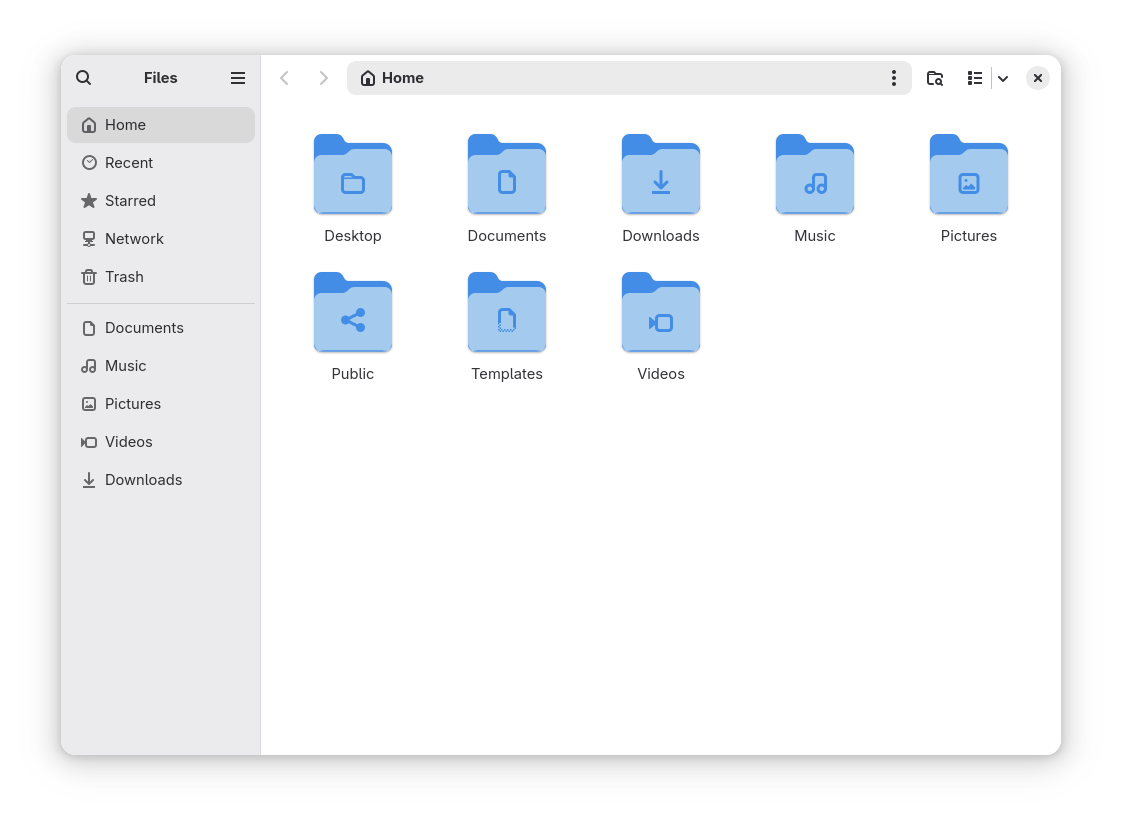
Nautilus ships with every GNOME-based distro, which makes it the file manager most Linux users touch first. Ubuntu, Fedora Workstation, Debian’s GNOME spin, and dozens of derivatives all default to it. In your applications menu it just shows up as “Files,” but most people who’ve used Linux for a while still call it by its project name.
Key features:
- Tabbed browsing
- Search built into the location bar
- Connect to servers over SFTP, FTP, SMB, and WebDAV from the sidebar
- Right-click compress and extract for common archive formats
- Batch rename
Pros:
- Preinstalled, zero setup required
- Clean, distraction-free interface
- Tight integration with the rest of GNOME
- Actively developed with regular updates each GNOME release
Cons:
- No dual-pane or split view. GNOME removed it years ago and has turned down repeated requests to bring it back
- Fewer configuration options than Dolphin or Nemo
- Some power-user features, like a full tree-view sidebar, simply aren’t there
2. Dolphin
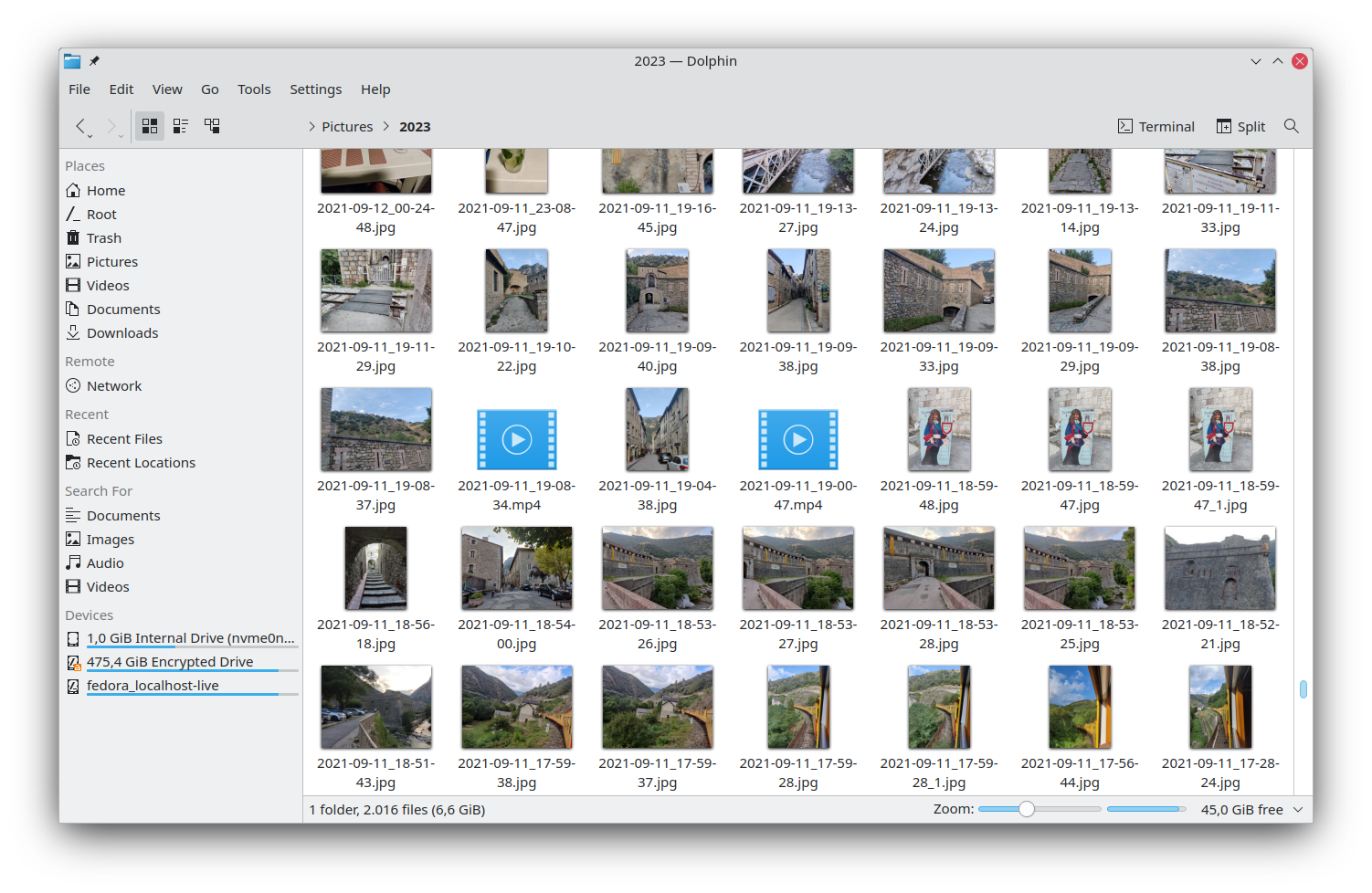
Dolphin is KDE Plasma’s default file manager, and it’s usually the first answer when someone asks which Linux file manager has the most features. If you run Kubuntu, KDE neon, an openSUSE KDE spin, or Plasma on Manjaro or Fedora, this is already installed.
Key features:
- Split view (two panes side by side), toggled with F3
- Embedded terminal panel
- Git integration that shows file status directly in the file view
- Tabs plus tree-view, detail, or icon layouts
- Service menus for custom right-click actions
- Baloo-powered search
Pros:
- Dual-pane out of the box, no plugin required
- Extremely configurable, down to toolbars and individual shortcuts
- The embedded terminal and Git status are genuinely useful for developers
- Handles SFTP and SMB connections well
Cons:
- Pulls in KDE Frameworks dependencies, which adds noticeable overhead on a GNOME or XFCE system
- The number of options can overwhelm someone who just wants to move files around
- Baloo’s search index occasionally needs a rebuild, which slows searches down temporarily
3. Thunar
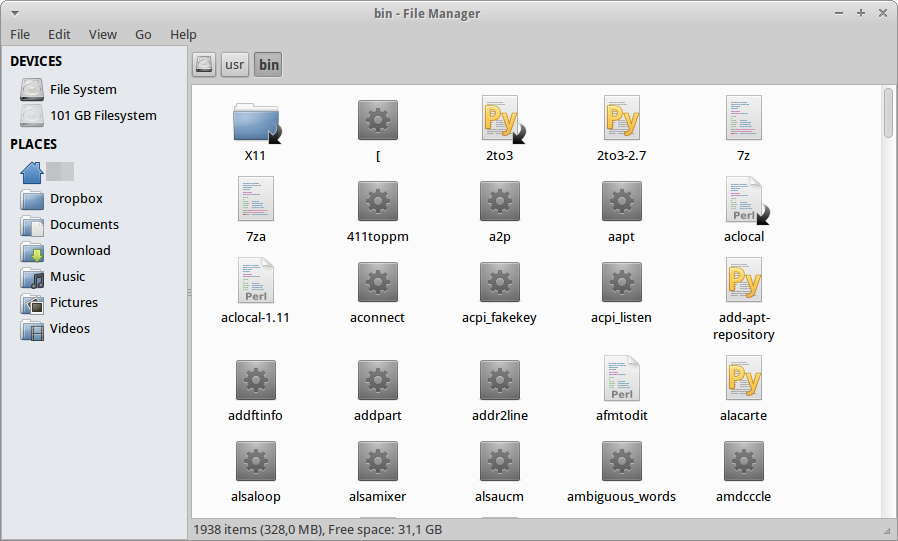
Thunar is XFCE’s file manager, and its whole design philosophy is to get out of the way. If speed matters more to you than features, and you run Xubuntu, MX Linux, or XFCE on Manjaro, you already have it installed.
Key features:
- Custom actions, like adding your own “Open Terminal Here” command
- Built-in Bulk Rename tool
- Plugin system: thunar-archive-plugin for zip and tar handling, thunar-media-tags-plugin for editing audio tags, and more
- Tabs
Pros:
- Starts almost instantly and uses very little RAM
- Runs well on older or low-spec hardware
- The Bulk Rename tool is genuinely one of the better renaming tools on Linux
- No learning curve
Cons:
- Archive handling and other extras need separate plugins rather than working out of the box
- No dual-pane view
- Visually plain compared to Dolphin or Nautilus
4. Nemo
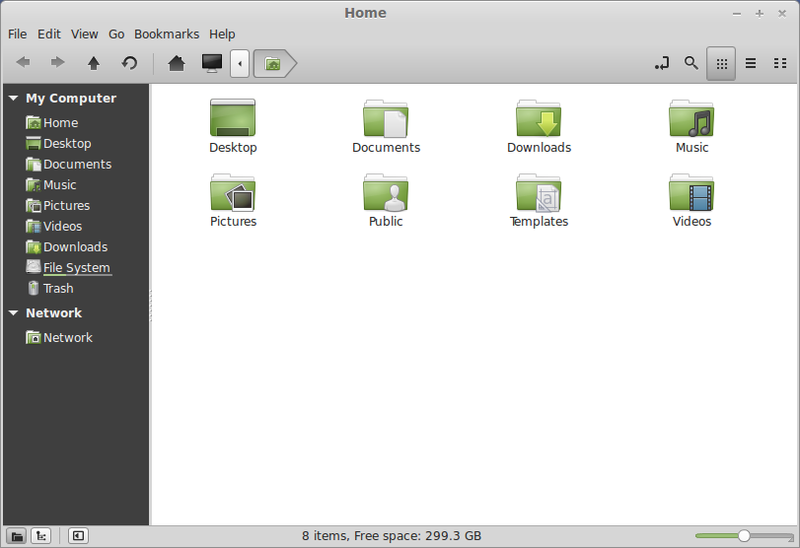
Nemo is what Nautilus might look like today if GNOME had kept adding features instead of removing them. Linux Mint forked it from an older version of Nautilus specifically to preserve the tree-view sidebar, split view, and other options GNOME stripped out, and it’s the default on every edition of Mint’s Cinnamon desktop.
Key features:
- Toggleable split view / dual-pane
- Optional tree-view sidebar
- “Open Terminal Here” and “Open as Administrator” built in
- Extensions system for adding actions like file comparison
- Traditional menu bar
Pros:
- More features than modern Nautilus while keeping a familiar layout
- Actively maintained by the Linux Mint team
- Feels immediately familiar to anyone coming from Windows Explorer
Cons:
- Runs best on Cinnamon. Installing it on GNOME or XFCE can bring extra dependencies and occasional theming mismatches
- Smaller development team than GNOME’s, so new features land more slowly
5. Caja
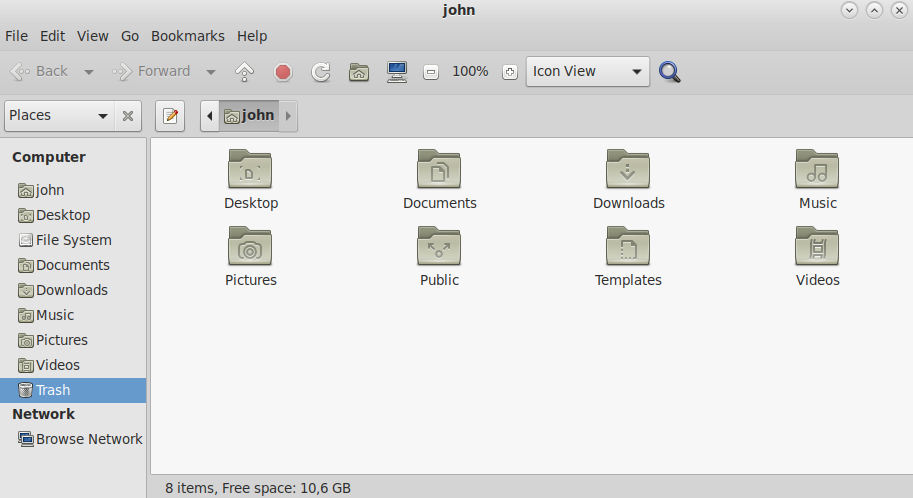
Caja is the MATE desktop’s file manager, forked from Nautilus back when MATE itself was forked from GNOME 2. If you run Ubuntu MATE or the MATE edition of Linux Mint, this is your default.
Key features:
- Traditional menu bar and toolbar layout
- Tabs
- Extensions package that adds image conversion, “Open Terminal Here,” wallpaper setting, and more
- Optional tree-view sidebar
Pros:
- Lightweight and stable, runs well on older machines
- Familiar layout that needs no relearning
- MATE’s small, consistent update cycle keeps it from breaking
Cons:
- Visually dated next to Dolphin or newer GTK apps
- Development is slow. Most updates are maintenance rather than new features
- No dual-pane view
6. PCManFM and PCManFM-Qt
PCManFM is the default on LXDE, and its Qt-based rewrite, PCManFM-Qt, is the default on LXQt, which is what Lubuntu has shipped since version 18.10. Both exist for the same reason: use as little memory as possible while still looking like a normal file manager.
Key features:
- Can manage desktop icons as well as folders on distros that use it as the desktop shell
- Tabs
- Built-in volume and removable media management
- Bookmarks and basic network browsing
Pros:
- About as light on resources as a GUI file manager gets
- Fast to open, fast to browse even on modest hardware
- Good match for old machines, VMs, or minimal installs
Cons:
- Feature set is intentionally bare: no dual-pane, limited plugin ecosystem
- Network share browsing has rough edges compared to Nautilus or Dolphin
- PCManFM and PCManFM-Qt are separate codebases, so features don’t always match between them
7. Files (elementary OS)
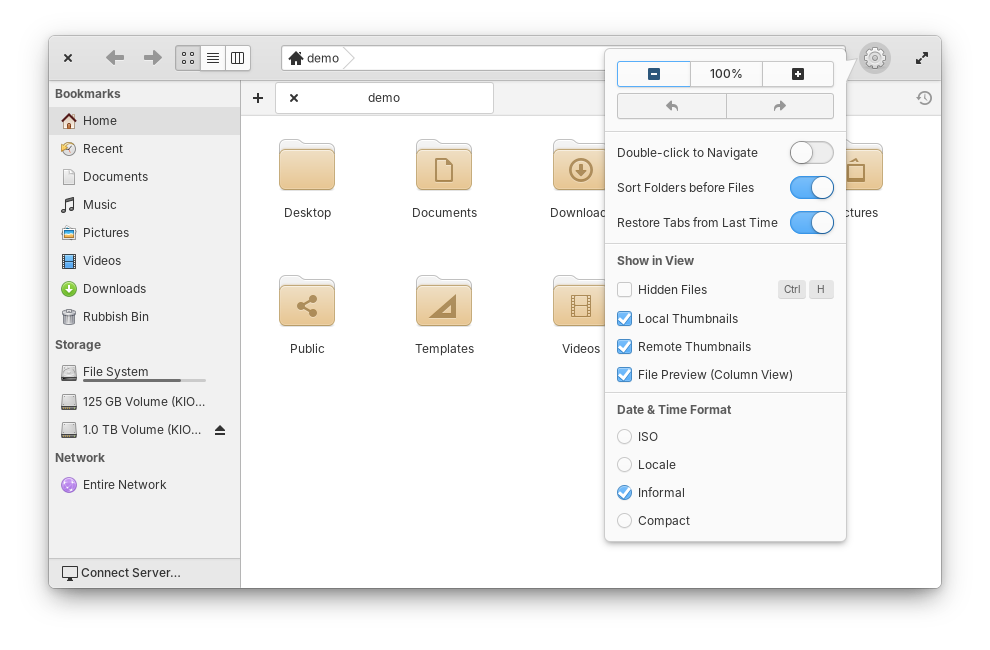
elementary OS’s file manager is simply called Files, a distant fork of GNOME Files built specifically to match elementary’s own design language. Older references sometimes call it Pantheon Files, its name from before elementary standardized its app naming.
Key features:
- Miller-column browsing mode alongside standard list and grid views
- Smart pathbar with breadcrumb navigation and path autocompletion
- Tabs with tab history
- Root-access window available from a right-click, no terminal needed
- Third-party apps can hook into the context menu
Pros:
- Clean and consistent, with no visual clutter
- Column view makes deep folder structures easy to browse
- The root-access shortcut is a nice touch for less technical users
Cons:
- Closely tied to elementary’s visual style, so it can look out of place on other desktops
- Smaller feature scope than Dolphin or Nemo by design
- No dual-pane view
8. COSMIC Files
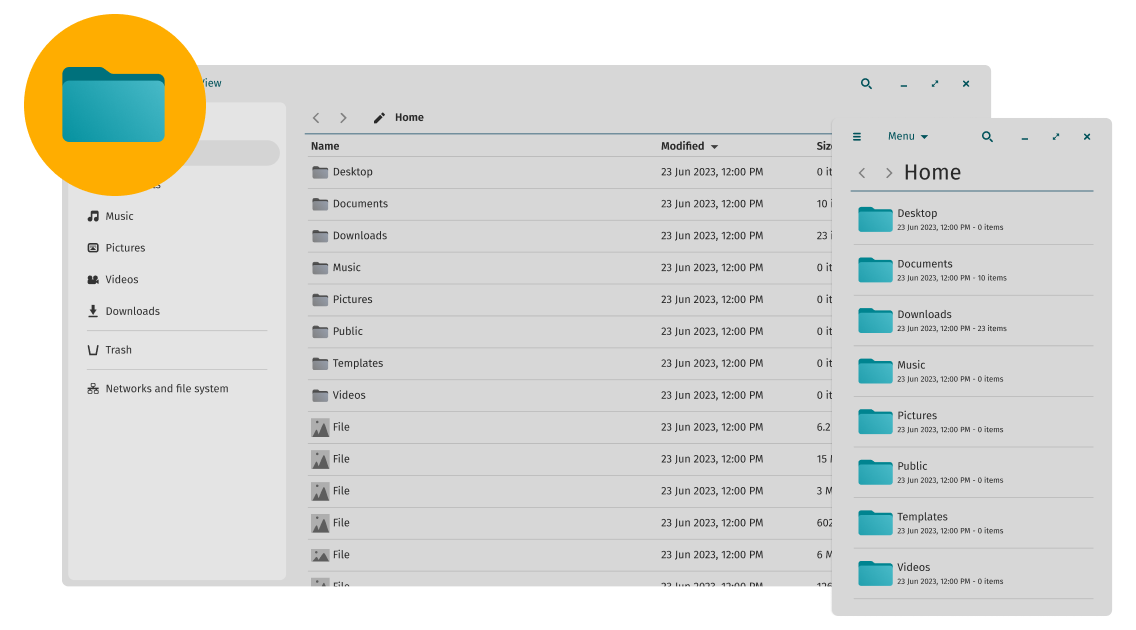
COSMIC Files is the newest name on this list. It’s the file manager for System76’s COSMIC desktop, the from-scratch, Rust-based environment that replaced Pop!_OS’s old GNOME-based interface. It ships by default on Pop!_OS 24.04 and later.
Key features:
- Tabbed browsing with full keyboard navigation
- Dual-pane mode for side-by-side comparisons or drag-and-drop transfers
- Automatic thumbnail previews
- Right-click compress and extract, plus a panel applet for quick archive actions
- Follows COSMIC’s light, dark, and accent color settings automatically
- Built natively for Wayland
Pros:
- Combines dual-pane browsing with a modern, clean interface
- Fast, thanks to Rust and native Wayland support
- Tightly integrated with the rest of the COSMIC desktop
Cons:
- Younger and still evolving, so expect occasional rough edges compared to decades-old file managers
- Most useful if you’re actually running COSMIC. Packaging for other distros is still limited
Linux File Managers Worth Installing
None of these come preinstalled anywhere, but each one solves a specific problem better than the defaults above. Install with your distro’s package manager, most are available directly from the standard repositories.
9. Krusader

Krusader is a twin-panel file manager for KDE Plasma, though it runs fine on other desktops too, built for people who grew up on Norton Commander or Total Commander. It’s about as close as Linux gets to a full “manage everything from two panels” workflow.
Key features:
- Twin-panel layout with independent navigation on each side
- Extensive archive support, including browsing inside archives like regular folders
- Built-in directory synchronization and file comparison tools
- Search across file contents, not just names
- Batch rename with regex support
- User Actions: fully scriptable custom commands
Pros:
- One of the most feature-dense file managers available on Linux
- Directory sync and compare tools save real time when managing backups or mirrored folders
- Deep customization across colors, key bindings, and panel behavior
Cons:
- The interface still looks and feels like a KDE 4-era app
- Steep learning curve if you’ve never used a twin-panel manager before
- Brings in KDE and Qt dependencies on non-KDE desktops
10. Double Commander
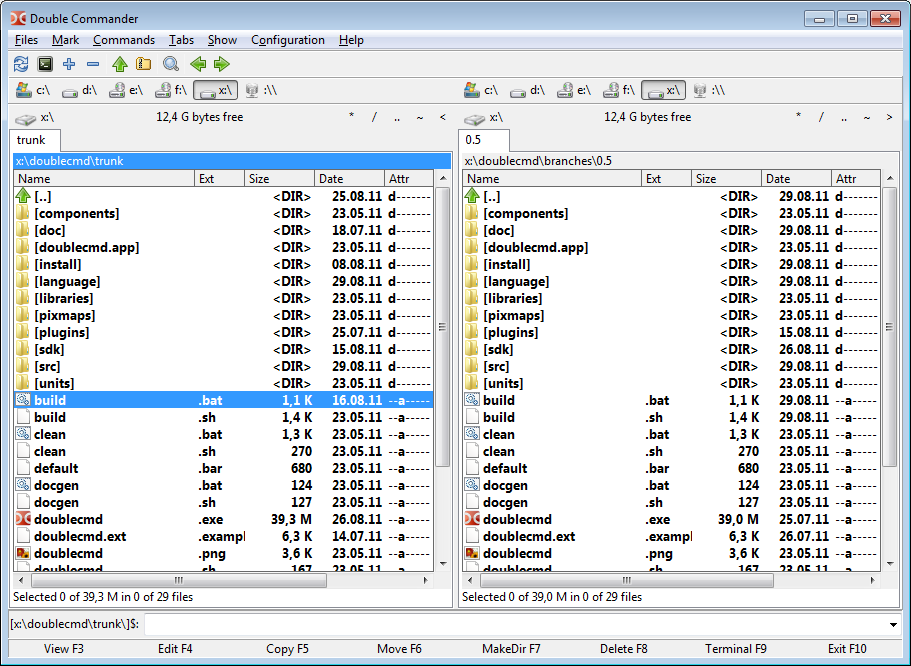
Double Commander is a cross-platform, open source answer to Total Commander. It runs the same way on Linux, Windows, and macOS, which makes it a solid pick if you switch between operating systems and don’t want to relearn a workflow every time.
Key features:
- Dual-pane layout with tabs in each pane
- Plugin system split into archive, content, filesystem, and viewer plugin types
- Built-in file viewer
- Multi-rename tool
- File comparison by content, not just name or size
Pros:
- Genuinely cross-platform, so the same muscle memory works on every OS
- Plugin architecture lets you add exactly the functionality you need
- Free, unlike Total Commander which inspired it
Cons:
- Built with Lazarus and Free Pascal, so it doesn’t feel fully native on GTK or Qt desktops
- Interface is functional rather than polished
- Setting up plugins for some formats takes manual digging
11. GNOME Commander
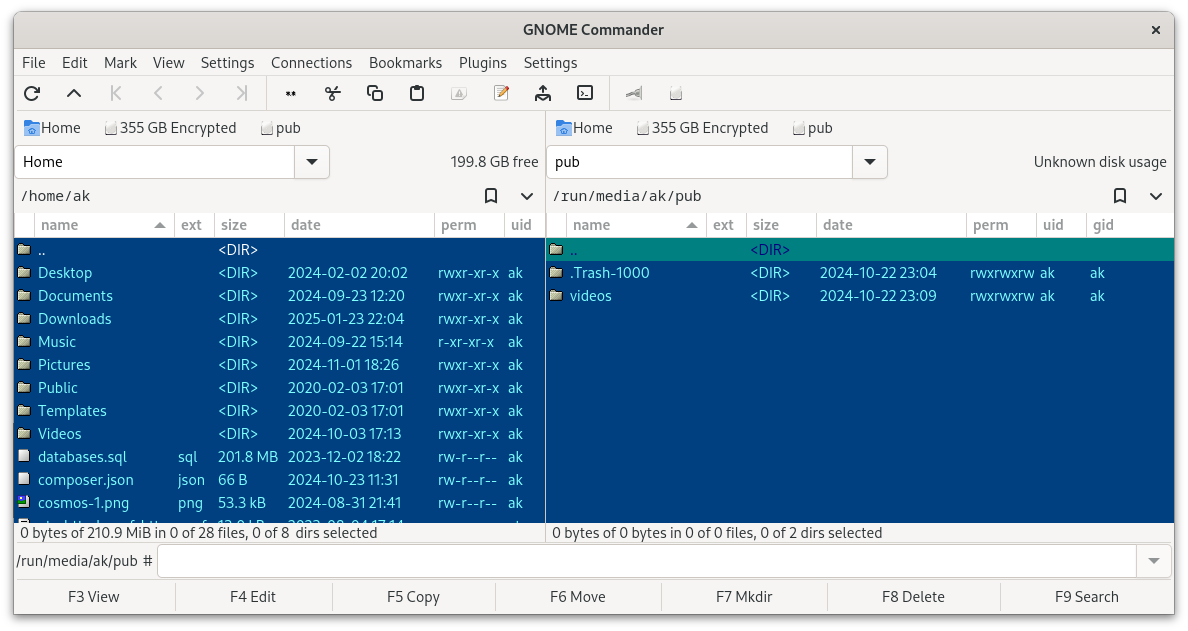
GNOME Commander had a fairly quiet run for years until a version 2.0 rewrite brought it back to life. The entire codebase moved from C++ to Rust, it’s now built on GTK4, and Adblock Plus creator Vladimir Palant took over as maintainer. If you tried it years ago and wrote it off, it’s worth another look.
Key features:
- Twin-panel layout in the Norton and Midnight Commander tradition
- Embedded, auto-hiding terminal
- FTP, SFTP, SMB, and WebDAV support
- Metadata support for Exif, ID3, IPTC, and more
- Advanced batch rename tool
- Plugin support
Pros:
- Native GTK4 look that fits GNOME and Cinnamon desktops well
- The recent rewrite means current Wayland support instead of legacy code held together with patches
- Active new leadership since the 2.0 relaunch
Cons:
- Still rebuilding parts of its plugin and theme ecosystem after the rewrite
- Smaller community than Krusader or Double Commander
- Documentation is still catching up to the new version
12. Midnight Commander (mc)
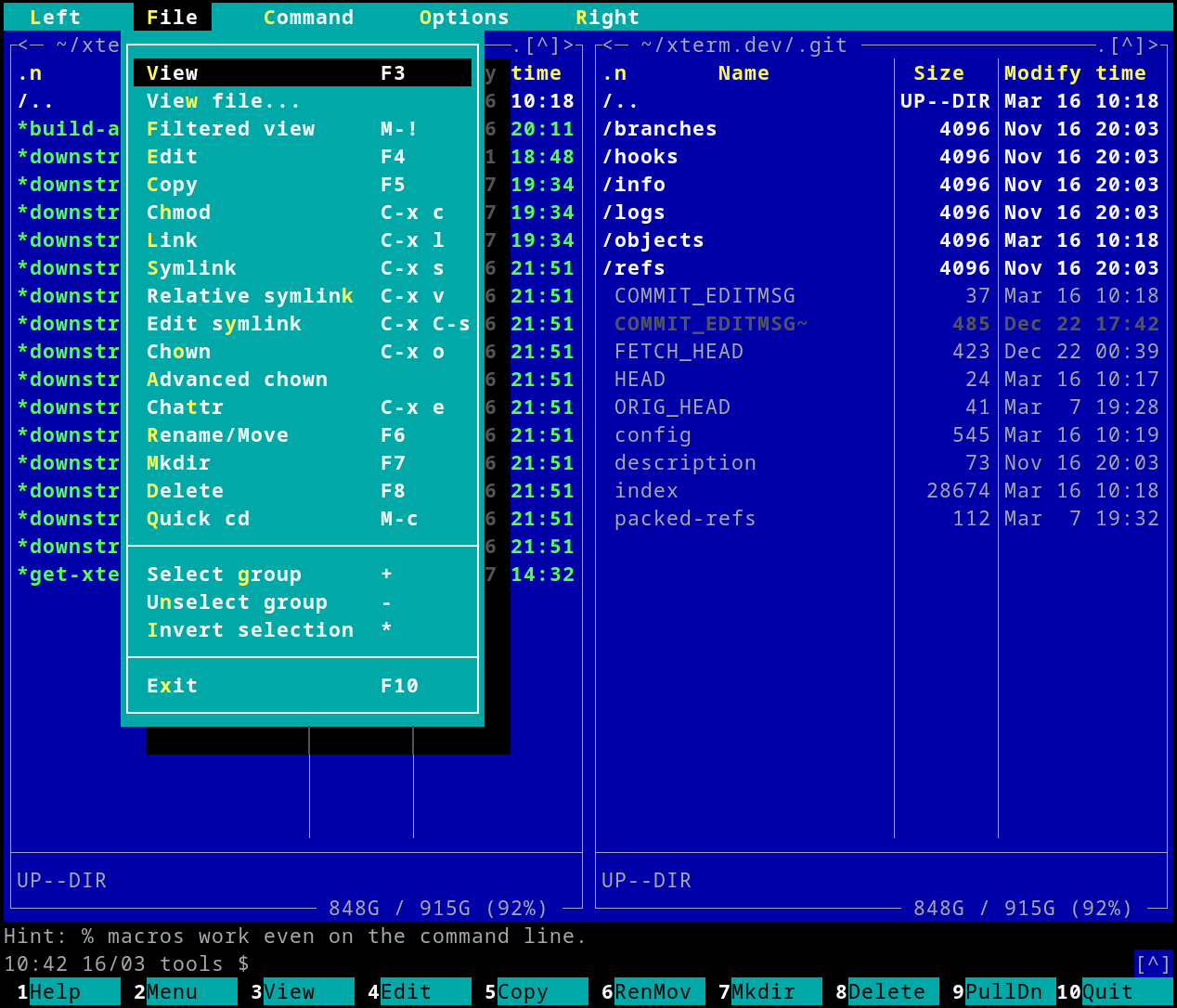
Midnight Commander has been around since the early 1990s, modeled directly on Norton Commander, and it still does exactly what it always did: two panels of files in a terminal, with function-key shortcuts for everything. If you manage servers over SSH, this is probably already muscle memory.
Key features:
- Dual-pane, text-mode interface with mouse support
- Built-in text viewer and editor (mcedit)
- Browse inside archives and connect to FTP or SFTP sites as if they were folders
- Function-key driven: F5 to copy, F6 to move, F8 to delete, and so on
Pros:
- Works anywhere you have a terminal, including over SSH with no GUI forwarding needed
- Tiny resource footprint
- Decades of stability, updates rarely break anything
Cons:
- Text-mode interface takes real adjustment if you’ve only used GUI file managers
- Visual feedback like thumbnails and previews is minimal by nature
- Keyboard shortcuts take time to memorize
13. ranger
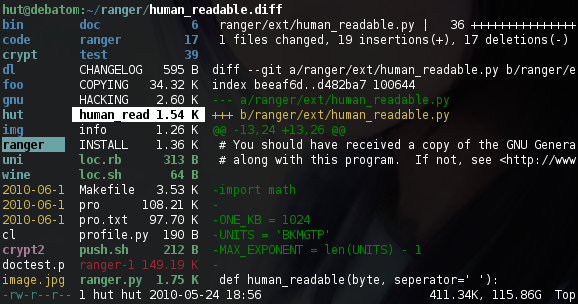
ranger borrows its keybindings from Vim and its layout from the Miller-column view found in macOS Finder: three or more columns showing your path, your current folder, and a preview of whatever’s selected, all navigated with hjkl.
Key features:
- Miller-column, multi-pane layout
- Vim-style keybindings for navigation and selection
- Image and text previews in supported terminals
- Bulk rename that opens your selection in a text editor
- Fully configurable through Python config files
Pros:
- Extremely fast once the keybindings are muscle memory
- Miller columns make deep directory structures easy to keep track of
- Highly scriptable for anyone who wants to bend it to their workflow
Cons:
- Vim-style navigation is a real barrier if you’ve never used Vim
- Initial setup takes more effort than most terminal file managers
- Image previews depend on terminal support and extra tools being installed
14. Yazi
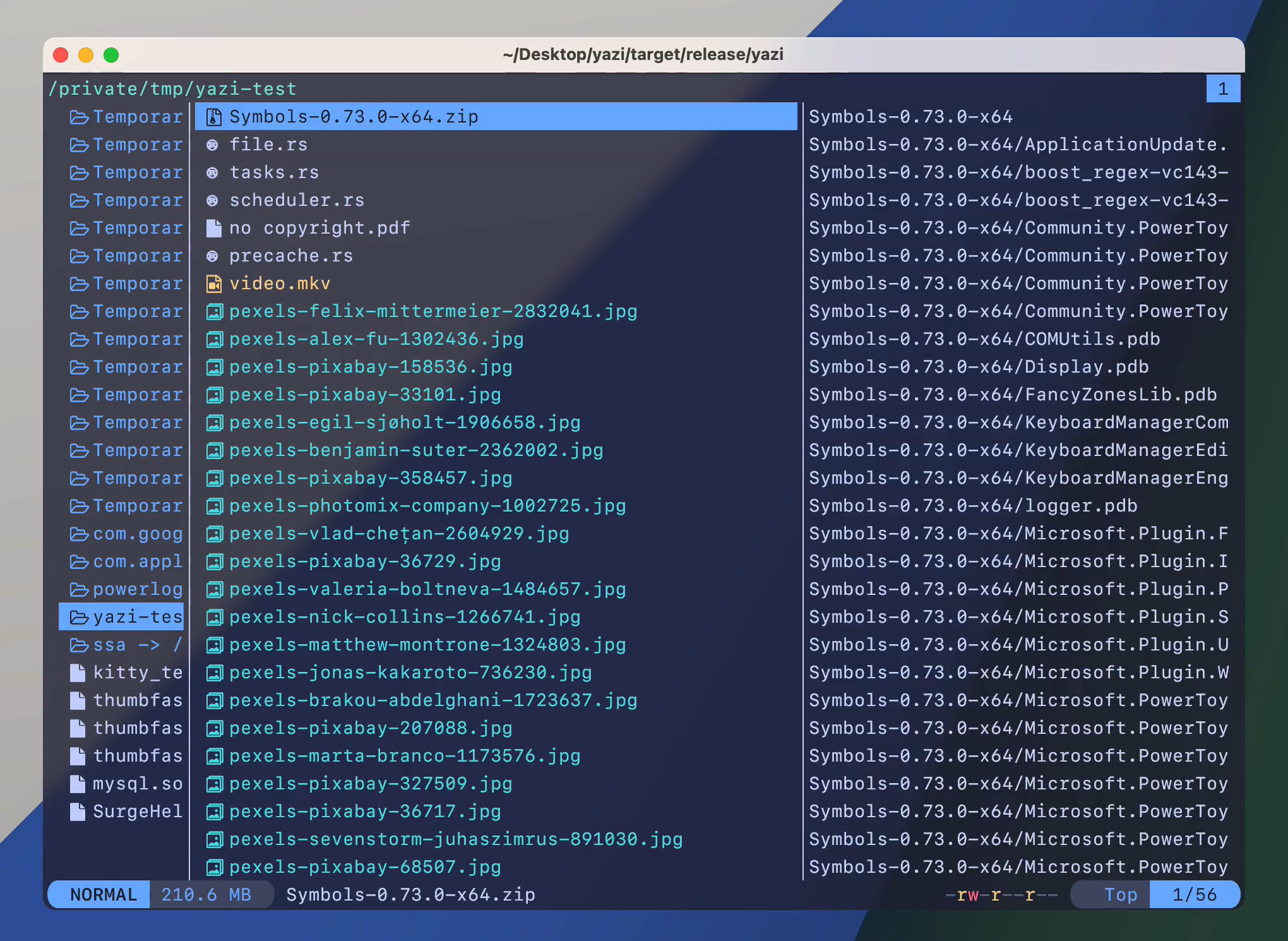
Yazi is the newest terminal file manager to gain real traction, and it’s easy to see why. Written in Rust with fully asynchronous I/O, it loads directory contents and image previews without the lag older terminal file managers can have on large folders or slow drives.
Key features:
- Asynchronous, non-blocking file operations. Copy and move run in the background while you keep browsing
- Built-in image preview across multiple terminal protocols, including Kitty and iTerm2
- Lua-based plugin system for previewers and custom UI
- Built-in package manager for installing plugins and themes
- Integrates with ripgrep, fd, fzf, and zoxide
Pros:
- Genuinely fast, the async model isn’t just marketing
- Image, video, and PDF previews right in the terminal, something older TUI file managers struggle with
- Actively developed with a growing plugin ecosystem
Cons:
- Younger project, so some plugins and integrations are less mature than ranger’s
- Best experience depends on a terminal that supports one of its image protocols
- Still terminal-based, so it carries the same learning curve as any TUI tool
How to Pick the Right File Manager for Your Setup
Most people should stick with whatever their desktop environment shipped. Here’s when switching actually makes sense:
- You want dual-pane browsing without installing anything extra: switch to KDE Plasma for Dolphin, or check whether Nemo or COSMIC Files already fits your desktop.
- You manage a headless server over SSH: Midnight Commander or Yazi, both work entirely in a terminal.
- You came from Windows and miss Total Commander: Double Commander or Krusader.
- Your hardware is old or you’re running a lightweight VM: Thunar, PCManFM, or PCManFM-Qt.
- You do a lot of bulk renaming: Thunar’s Bulk Rename tool or Krusader’s regex-based renamer.
- You already live in the terminal: ranger if you know Vim, Yazi if you want image previews and speed.
- You just want it to work without thinking about it: stay with your default. Nautilus, Dolphin, Thunar, whichever one you have, they all handle basic file management fine.
Frequently Asked Questions
What is the default file manager on Ubuntu?
Standard Ubuntu uses Nautilus (GNOME Files) since it runs GNOME by default. The official flavors differ: Kubuntu uses Dolphin, Xubuntu uses Thunar, Lubuntu uses PCManFM-Qt, and Ubuntu MATE uses Caja.
Which Linux file manager is best for beginners?
Nautilus and Files (elementary OS) are the easiest to pick up, since both keep the interface minimal with few settings to get lost in. Nemo is a good middle ground if you want more features without much added complexity.
Which Linux file manager uses the least system resources?
Terminal-based options like Midnight Commander, ranger, and Yazi use almost nothing. Among GUI file managers, Thunar, Caja, and PCManFM or PCManFM-Qt are the lightest.
Can I install a different file manager without switching desktop environments?
Yes. File managers are just applications. You can install Dolphin on GNOME or Nemo on KDE, though you’ll pull in some extra libraries from the other desktop. It works fine, but it may not integrate quite as smoothly as it does on its native desktop.
What’s the difference between Nautilus and Nemo?
Nemo is a fork of an older version of Nautilus that Linux Mint created to keep features GNOME later removed, including split view and a tree-view sidebar. They share a common ancestor but have developed separately since.
Do I need a terminal file manager if I already use a GUI one?
Not usually, unless you regularly manage a server without a desktop environment or SSH into remote machines often. In those cases, something like Midnight Commander or Yazi is much faster than mounting a remote filesystem just to browse it.
Is Dolphin better than Nautilus?
It depends on what you want. Dolphin has more built-in features, including split view, an embedded terminal, and Git integration, plus more configuration options. Nautilus is simpler and lighter, and fits better if you just want a clean, no-fuss file browser. Neither is objectively better, they’re built around different priorities.
Which file manager should I use on Pop!_OS?
COSMIC Files ships by default on Pop!_OS 24.04 and newer, and it’s a solid choice with dual-pane browsing and tabs built in. Older Pop!_OS releases used a modified version of GNOME Files instead.
Bottom Line
Most Linux users can go their whole life using whatever file manager came with their desktop and never notice a limitation. If you’ve read this far, you probably already know yours isn’t doing something you need it to. Pick one from the section above, install it, and give it a week before judging it. Muscle memory matters more than any single feature on a list.
