
Ubuntu and Linux Mint share the same foundation, install in about the same time and run the same apps. After the first login, they feel nothing alike. Ubuntu gives you a modern, opinionated desktop backed by a company. Linux Mint gives you a familiar, quiet desktop built by a small team that mostly wants to stay out of your way.
That gap is why this question keeps coming back. This guide covers both distros in full: features, strengths, weaknesses, what they have in common and where they split. After that you get a comparison table, a clear answer on who should pick which, and a verdict.
The Short Answer
- Choose Ubuntu if you want newer software and a newer kernel, commercial support options, or a development setup that matches what runs on cloud servers.
- Choose Linux Mint if you are coming from Windows, use older hardware, or want a calm desktop with no Snap packages and no surprises.
As of October 2026 the current releases are Ubuntu 26.04 LTS “Resolute Raccoon” (April 2026) and Linux Mint 22.3 “Zena” (January 2026). Linux Mint 23 is planned for around December 2026, and we explain what that changes further down. Ubuntu 26.10 is planned for 15th October 2026, but it’s not an LTS release.
In this guide
- What Is Ubuntu?
- What Is Linux Mint?
- How Ubuntu and Linux Mint Are Similar
- Ubuntu vs Linux Mint: The Key Differences
- Comparison Table
- Which Is Better for Gaming, Coding, Old PCs and More?
- Who Should Choose Ubuntu?
- Who Should Choose Linux Mint?
- What Linux Mint 23 Changes
- Other Distros Worth a Look
- How to Try Both Without Risk
- Final Verdict
- Frequently Asked Questions
What Is Ubuntu?
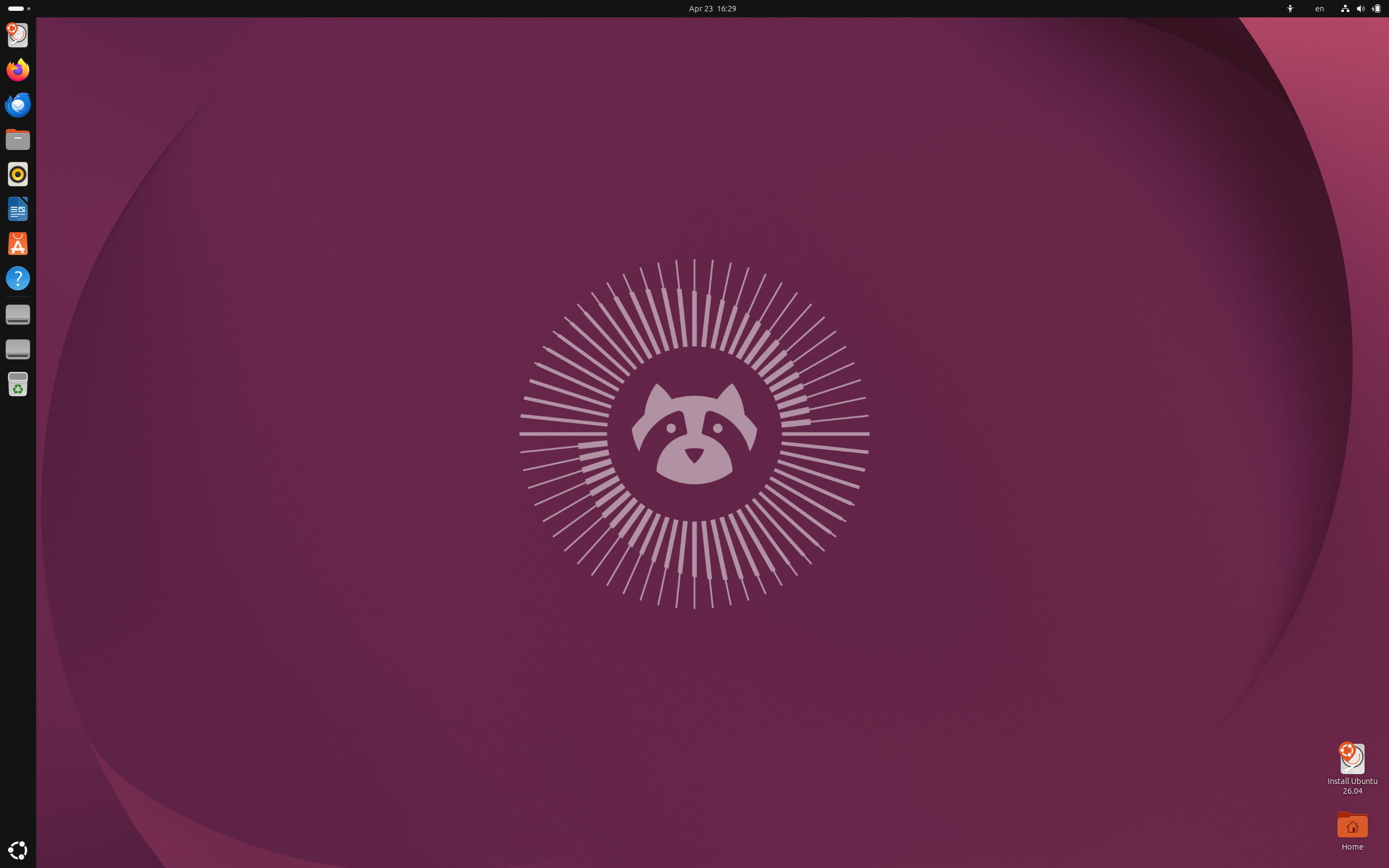
Ubuntu is a Linux distribution built on Debian and developed by Canonical, the company founded by Mark Shuttleworth. The first release shipped in October 2004. Two decades later it is the best-known desktop Linux distro, a common choice on the major cloud platforms and the default distro inside Windows Subsystem for Linux (WSL).
Canonical publishes a new version every six months. Every two years, in April, it releases a Long Term Support (LTS) version with five years of standard security updates. The current LTS is Ubuntu 26.04 “Resolute Raccoon”, released on April 23, 2026. It runs GNOME 50 on Linux kernel 7.0 and is the first Ubuntu LTS without an Xorg desktop session. GNOME 50 is Wayland-only, and older X11 apps still work through XWayland.
Key Features of Ubuntu
- GNOME 50 with the Ubuntu Dock. A clean, modern layout with a left-side dock, an Activities overview and the Yaru theme. Variable refresh rate works by default on displays that support it.
- A fresh core. Linux 7.0, Mesa 26.0 and OpenJDK 25 ship in the LTS, along with new default apps: Ptyxis as the terminal, Resources as the system monitor and Showtime as the video player.
- Long support windows. Five years of standard updates, extendable to ten with Ubuntu Pro, which is free for personal use on up to five machines. Pro also adds kernel Livepatch.
- Snap and the App Center. Ubuntu uses Snap packages for some default apps, including Firefox, and its App Center is built around the Snap Store alongside regular .deb packages.
- Hardware and driver support. The installer can add proprietary NVIDIA drivers and media codecs, and 26.04 offers AMD ROCm and NVIDIA CUDA packages straight from its repositories. Dell and Lenovo sell laptops with Ubuntu preinstalled.
- Security extras. AppArmor confinement, automatic security updates and TPM-backed disk encryption options. Ubuntu has also started replacing core tools such as sudo with memory-safe Rust versions.
- Official flavors. Kubuntu (KDE Plasma), Lubuntu (LXQt), Ubuntu Budgie and others keep the Ubuntu base but change the desktop.
Ubuntu Pros
- Newest software in the LTS. Kernel 7.0 and Mesa 26.0 mean hardware released in 2025 and 2026 is far more likely to work on day one.
- The biggest community. Most tutorials, vendor docs and forum answers assume Ubuntu. Whatever breaks, someone has already posted the fix.
- Vendors package for it first. Developers of drivers, SDKs, databases and proprietary apps usually test on Ubuntu before anything else.
- Strong for development and cloud work. It matches what many production servers run, and it works well with Docker, WSL and the main cloud providers.
- Long, clear support. You know exactly how long each LTS is covered, and paid options go well past the free window.
- Good out-of-the-box defaults. The installer is polished, drivers are one checkbox away and security updates apply on their own.
Ubuntu Cons
- Snap is hard to avoid. Firefox and other default apps ship as Snaps. Some start slowly on first launch, some run into sandbox permission quirks, and the Snap Store backend is closed source.
- Higher resource needs. Ubuntu 26.04 lists 6 GB of RAM as its minimum. It installs on less, but a 2 GB machine will feel slow.
- Wayland only. Most things work fine, but older screen recorders, remote desktop tools and X11-specific scripts may need replacements.
- A workflow unlike Windows. GNOME has no classic start menu or window list. It is easy once learned, but there is a learning curve.
- Promotions and prompts. The installer asks about sending system info to Canonical, and Ubuntu Pro messages show up in the terminal during updates.
- Canonical calls the shots. Decisions like pushing Snap show how little say users have in the direction of the distro.
What Is Linux Mint?
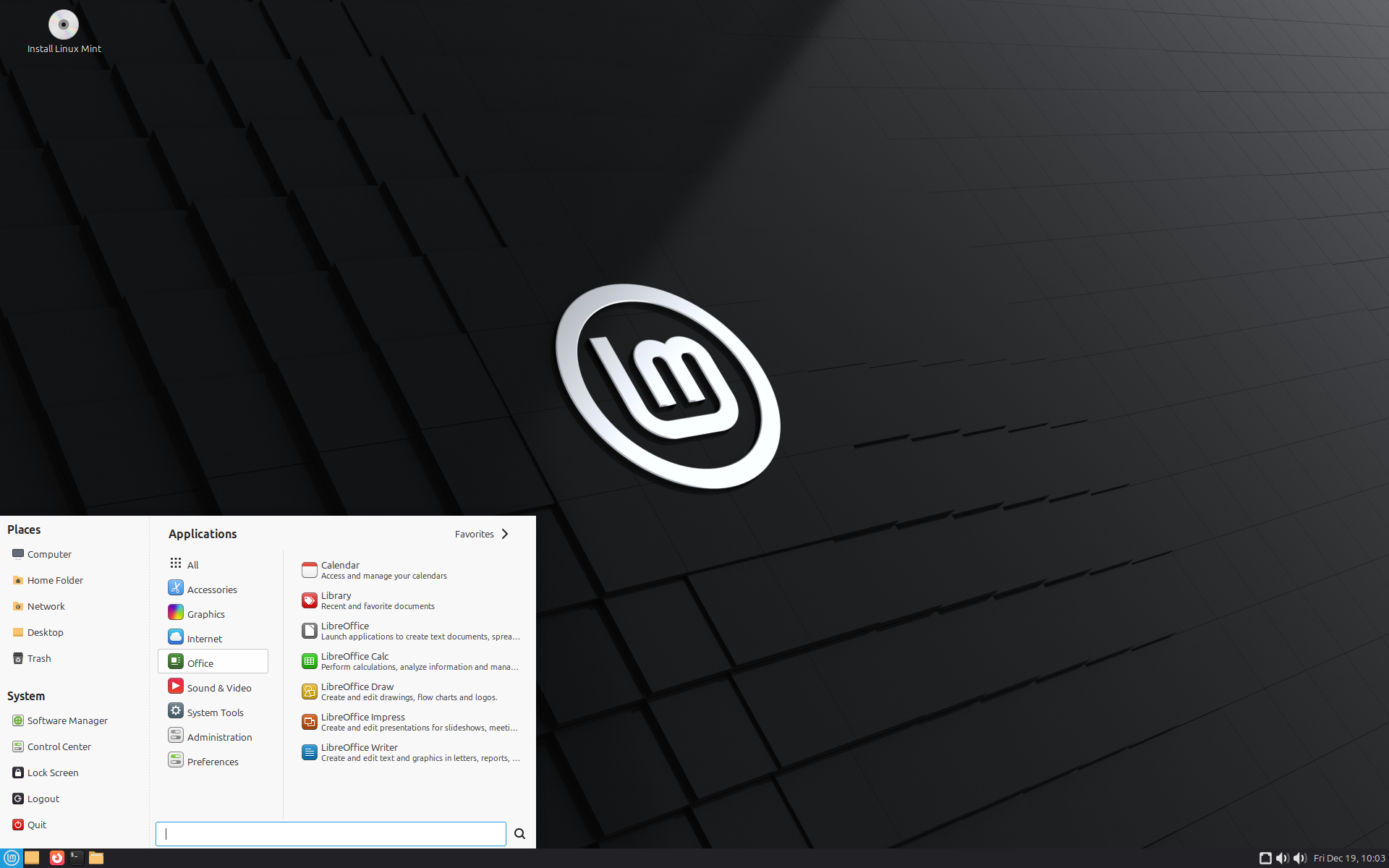
Linux Mint is a community-driven distribution led by Clément Lefèbvre. It started in 2006 as an Ubuntu-based project that added the codecs and polish many people wanted out of the box. Today it builds its own desktop, Cinnamon, along with its own set of tools. The philosophy is simple: a stable, conventional desktop that does not change under your feet.
The main edition is built on Ubuntu LTS and comes with three desktops: Cinnamon, MATE and Xfce. Mint also offers Linux Mint Debian Edition (LMDE), which uses Debian as its base instead of Ubuntu. The current main release is Linux Mint 22.3 “Zena”, published in January 2026. It sits on Ubuntu 24.04 LTS, runs Linux kernel 6.14 and Cinnamon 6.6, and gets security updates until 2029. The official download page lists all three editions.
Mint has also become a popular landing spot for people leaving Windows 10, because the layout feels familiar from the first minute.
Key Features of Linux Mint
- The Cinnamon desktop. A bottom panel, a start-style menu, a window list and a system tray. Cinnamon began in 2011 as Mint’s answer to the sweeping changes in GNOME 3.
- Three editions. Cinnamon is the full-featured default, MATE is a classic and lighter alternative, and Xfce is the leanest option for older machines.
- No Snap by default. Mint blocks Snap and delivers Firefox as a regular package. The Software Manager supports Flatpak with Flathub instead.
- Timeshift preinstalled. System snapshots let you roll back after a bad update or a bad experiment, and the welcome screen nudges you to set it up.
- Codecs included. MP3, H.264 and other media formats work right after installation.
- Mint’s own tools. Update Manager, Driver Manager, Backup Tool, Warpinator for local network file transfers and XApps such as Xed, Xreader and Xviewer.
- New in 22.3. A redesigned application menu, a System Information app, a System Administration tool for boot settings and the ability to pause and resume file operations in the Nemo file manager.
Linux Mint Pros
- Familiar from day one. If you can use Windows 10, you can use Mint without a tutorial.
- Stable and predictable. Updates are conservative. The desktop looks and behaves the same next month as it does today.
- No Snap, no telemetry, no promotions. Nothing gets installed behind your back and nothing asks you to upgrade to a paid tier.
- Light on resources. Mint 22.3 asks for 2 GB of RAM, with 4 GB recommended, and the Xfce edition runs well on hardware that struggles with GNOME.
- Useful tools included. Timeshift, codecs, a Driver Manager and Flathub support are all there on first boot.
- Easy to customize. Themes, applets, desklets and panel layouts are configured through regular settings, with no extensions to babysit.
- Same software as Ubuntu. It uses the Ubuntu repositories, so you lose almost nothing in app availability.
Linux Mint Cons
- An older base. Mint 22.3 runs on Ubuntu 24.04 packages and kernel 6.14, so it trails Ubuntu 26.04 by a full generation until Mint 23 arrives.
- No Wayland yet. Cinnamon runs on X11 today. Wayland support is in development but not ready for daily use.
- Newest hardware can be a struggle. Very recent Wi-Fi, graphics or audio chips may need a newer kernel, which you can install through Mint’s tools but have to manage yourself.
- A small team and no commercial backing. Support comes from the community forum and documentation. There is no paid support plan for businesses.
- The codename quirk. Some scripts and PPAs read the OS codename and fail because Mint reports its own (for example “zena”) instead of Ubuntu’s (“noble”). The fix is usually one line, but it trips people up.
- Manual updates by default. Update Manager shows what is pending, and you decide when to apply it. That is a feature for some people and a chore for others.
- Rougher scaling. HiDPI screens and mixed-DPI multi-monitor setups can feel less polished than on GNOME with Wayland.
How Ubuntu and Linux Mint Are Similar
Mint is built on Ubuntu, so the overlap is large. Underneath the desktop, you are using the same operating system in two different outfits.
- The same package base. Both use APT and .deb packages from the Ubuntu repositories, so the same apps and the same terminal commands work on both.
- The same hardware support. Both rely on the Linux kernel and Ubuntu’s driver stack, including proprietary NVIDIA drivers.
- The same support model. Both are built around LTS releases that receive years of security updates.
- Free and open source. Neither costs anything to download, use or share.
- Beginner-friendly installers. Both boot to a live desktop from a USB stick, so you can test before you install, and both can sit next to Windows in a dual-boot setup.
- Gaming support. Both run Steam and Proton, and both handle common apps such as Firefox, LibreOffice, VLC and Thunderbird.
- Flatpak compatibility. Mint supports it from the start, and Ubuntu can add it in a few commands.
- Large communities. Most Ubuntu guides work on Mint with little or no change.
Ubuntu vs Linux Mint: The Key Differences
Desktop and Daily Workflow
Ubuntu runs a customized GNOME desktop. A dock sits on the left, apps live in an Activities overview, and windows are managed through workspaces and keyboard shortcuts. It looks clean and works well once you learn it, but it does not behave like Windows.
Linux Mint runs Cinnamon with a bottom panel, a start-style menu, a window list and a system tray. A Windows 10 user can sit down at Mint and be productive within minutes.
Software and Packaging
Both use APT and .deb packages, so the same software is available on each. The split is in the extras. Ubuntu leans on Snap, and apps such as Firefox ship that way. Linux Mint blocks Snap by default, delivers Firefox as a normal package and promotes Flatpak through its Software Manager and Flathub.
If Snap bothers you, that alone can settle the choice. If you do not care how an app is packaged, you will barely notice.
Performance and Hardware Requirements
Ubuntu 26.04 LTS lists a 2 GHz dual-core CPU, 6 GB of RAM and 25 GB of disk space. It installs on less, but a 2 GB laptop will crawl. Linux Mint 22.3 asks for 2 GB of RAM, with 4 GB recommended, and 20 GB of disk space, with 100 GB suggested.
Cinnamon is lighter than GNOME in typical use, and the Xfce edition is lighter again. On an old laptop, Mint is the practical pick. On a modern machine with 8 GB of RAM or more, you will rarely feel the gap.
New Technology vs Proven Technology
This is the biggest practical difference right now. Ubuntu 26.04 LTS ships with kernel 7.0, GNOME 50 and Mesa 26.0. Linux Mint 22.3 sits on the Ubuntu 24.04 base with kernel 6.14.
For most desktops that gap does not matter. For a laptop with brand-new Wi-Fi, graphics or audio hardware, it can decide whether everything works on day one.
Updates, Backups and Control
Ubuntu installs security updates automatically in the background. Linux Mint takes a hands-on approach. Update Manager shows what is pending and lets you apply, skip or hide individual updates. Mint also ships with Timeshift, so a bad update is easy to roll back. Ubuntu does not include a comparable snapshot tool by default.
Customization
Cinnamon puts themes, applets, desklets and panel layouts in the regular Settings app. Ubuntu keeps its Settings app simple, and deeper changes usually need Tweaks or GNOME extensions, which can break when GNOME updates.
Ubuntu is easier to leave as it is. Mint is easier to bend into shape.
Privacy and Corporate Influence
Neither is a privacy-focused distro. Ubuntu asks during installation whether to send basic system information to Canonical, and Ubuntu Pro promotions appear in the terminal. Linux Mint does not ship telemetry, and it answers to its users rather than a company, which is how it ended up blocking Snap.
The tradeoff is funding. Canonical pays full-time engineers and maintains a long-term roadmap that a donation-funded community project cannot fully match.
Support and Ecosystem
Ubuntu has the larger ecosystem. Vendor documentation, tutorials and forum answers mostly assume Ubuntu, and Canonical sells paid support. Because Mint is Ubuntu-based, most of that advice carries over, but Mint’s own forum and documentation are the main official help channels.
Ubuntu vs Linux Mint Comparison Table
| Feature | Ubuntu | Linux Mint |
|---|---|---|
| Developer | Canonical | Linux Mint team, led by Clément Lefèbvre |
| First release | 2004 | 2006 |
| Based on | Debian | Ubuntu LTS (LMDE uses Debian) |
| Current release | 26.04 LTS “Resolute Raccoon” (April 2026) | 22.3 “Zena” (January 2026) |
| Default desktop | GNOME 50, Wayland only | Cinnamon 6.6 (MATE and Xfce also offered) |
| Linux kernel | 7.0 | 6.14 |
| Package formats | .deb and Snap by default, Flatpak optional | .deb and Flatpak, Snap blocked by default |
| Minimum RAM | 6 GB listed (installs on less) | 2 GB (4 GB recommended) |
| Disk space | 25 GB | 20 GB (100 GB recommended) |
| Look and feel | Modern, dock-based, good touchpad gestures | Traditional panel and menu, Windows-like |
| Media codecs | Optional during install | Included |
| Telemetry | Optional system info prompt at install | None |
| Snapshots and backups | Not included by default | Timeshift included |
| Updates | Automatic security updates | Manual by default, with fine control |
| Release cycle | LTS every two years, interim every six months | Point releases on an LTS base, moving to a slower schedule |
| Support period | 5 years, up to 10 with Ubuntu Pro | 22.x supported until 2029 |
| Commercial support | Yes, through Canonical | No, community only |
| Server edition | Yes | No |
| Wayland | Wayland-only desktop | X11 today, Wayland work in progress |
| Best for | Developers, new hardware, organizations | Windows switchers, older PCs, a quiet daily driver |
Which Is Better for Gaming, Coding, Old PCs and More?
- Beginners and Windows switchers: Linux Mint. The layout is familiar and the defaults need almost no tweaking.
- Gaming: A tie. Both run Steam and Proton. Ubuntu’s newer kernel and Mesa help with recent GPUs, while Mint’s X11 session avoids some Wayland quirks with older games and capture tools.
- Programming and DevOps: Ubuntu. It mirrors common server environments and gets first-class vendor support. Mint works fine too, apart from the codename quirk.
- Old computers: Linux Mint, especially the Xfce edition.
- Brand-new hardware: Ubuntu 26.04 LTS, thanks to kernel 7.0 and the newer graphics stack.
- Everyday office, browsing and media: Either. Mint has a slight edge for simplicity and included codecs.
- Servers: Ubuntu. Mint has no server edition and is not meant for that job.
- Schools and businesses: Ubuntu, because of paid support, long maintenance windows and certified hardware.
- Daily use with fewer corporate touches: Linux Mint, since it ships without Snap, telemetry or upsell messages.
Who Should Choose Ubuntu?
Ubuntu is the better fit if one or more of these describes you:
- You develop software, run containers or manage servers, and want your desktop to match your production environment.
- You own a 2025 or 2026 laptop or GPU and want the newest kernel and drivers.
- You like the GNOME workflow, gestures and a minimal desktop.
- You need long-term support, certified hardware or a paid support contract for a team or company.
- You want the newest Linux technology, including a Wayland-only session and ROCm and CUDA from the repositories.
- You have 8 GB of RAM or more and do not mind Snap packages.
Skip Ubuntu if you are on an older machine with 4 GB of RAM or less, if you dislike Snap on principle, or if you want a desktop that feels like Windows.
Who Should Choose Linux Mint?
Linux Mint is the better fit if this sounds like you:
- You are switching from Windows and want a layout you already know.
- You are reviving an older laptop or desktop and want it to feel fast.
- You want a system you can install once and leave alone for years.
- You prefer no Snap packages, no telemetry and no promotional messages.
- You like adjusting the desktop through normal settings, not extensions.
- You want codecs, snapshots and driver tools ready on the first boot.
- You do not need the very latest kernel or a Wayland session today.
Skip Linux Mint if you own very new hardware that needs a recent kernel, if you want a Wayland desktop right now, or if you need commercial support for a business.
What Linux Mint 23 Changes
Linux Mint 23 is in development under the working name “Alfa” and is planned for around Christmas 2026. According to the Mint team’s monthly updates, it moves to an Ubuntu 26.04 LTS base with kernel 7.0, adopts the live installer already used by LMDE and includes early Wayland groundwork in Cinnamon, along with a new screensaver built with Wayland in mind. The team has also announced a longer development cycle with fewer releases. Dates and details can change before launch.
What does that mean for your choice? If your hardware works well on Mint 22.3, there is no reason to wait, because it is supported until 2029. If you want Mint and own very new hardware, Ubuntu 26.04 is the safer option today, or you can wait for Mint 23. Once Mint 23 ships, much of the “Mint is a generation behind” argument disappears, and the decision comes back to desktop style and philosophy.
Other Distros Worth a Look
Ubuntu and Mint are not your only options. If neither feels right, these are the usual next stops:
- LMDE: Linux Mint on a Debian base, with no Ubuntu involved.
- Kubuntu: Ubuntu with the KDE Plasma desktop, which is highly customizable and also familiar to Windows users.
- Zorin OS: A Windows-like layout with a polished look, aimed at newcomers.
- Fedora Workstation: Newer packages and a close-to-stock GNOME desktop.
- Pop!_OS: A popular pick for gamers, creators and NVIDIA-heavy setups.
- Lubuntu: A very light Ubuntu flavor for low-end hardware.
How to Try Both Without Risk
You do not have to guess. Both distros run from a USB stick without touching your disk, so a one-hour test beats any review, including this one.
- Download the ISO files from the Ubuntu download page and the Linux Mint download page.
- Write each ISO to a USB drive with Balena Etcher, Rufus or Ventoy. Ventoy lets you keep both ISOs on a single drive.
- Restart the computer and open the boot menu. The key is usually F12, F10, Esc or F2, depending on the brand.
- Choose the live session and test what matters to you: Wi-Fi, Bluetooth, sound, trackpad, an external monitor and your daily apps.
- Pick the one that felt better, back up your data and install. Keep your home folder on a separate partition if you may switch later.
A virtual machine in VirtualBox or GNOME Boxes works for a first impression of the interface. It will not tell you anything about hardware support or real performance.
Final Verdict
If we had to give one answer to a stranger, it would be this. Install Linux Mint if you are new to Linux, coming from Windows, or running a machine with 4 GB of RAM or less. Install Ubuntu if you are on new hardware, building software for servers, or want a distro with a company behind it.
Ubuntu wins on fresh technology, support and ecosystem. Linux Mint wins on simplicity, familiarity and low overhead. Neither choice is a mistake, and since both are free and both run from a USB stick, the cheapest way to decide is to try each for an hour.
Already using one of them? Tell us in the comments what pushed you toward it.
Frequently Asked Questions
Is Linux Mint better than Ubuntu?
Neither is better across the board. Linux Mint is better for people who want a familiar Windows-style desktop, low resource use and no Snap packages. Ubuntu is better for people who want newer software, stronger commercial support and a development-friendly environment. Your hardware and habits decide it more than any benchmark does.
Is Linux Mint based on Ubuntu?
Yes. The main editions of Linux Mint are built on Ubuntu LTS releases. Linux Mint 22.3 uses Ubuntu 24.04 LTS as its base, so it shares Ubuntu’s repositories, kernel and software compatibility. Linux Mint also offers LMDE, an edition built on Debian instead.
Which is better for beginners, Ubuntu or Linux Mint?
Linux Mint is usually easier for beginners who come from Windows, because its Cinnamon desktop uses a familiar panel, start-style menu and system tray. Ubuntu is also beginner friendly, but its GNOME desktop works differently and takes a short adjustment period.
Is Linux Mint faster than Ubuntu?
On the same hardware, Linux Mint with Cinnamon typically uses less memory than Ubuntu with GNOME, and its Xfce edition is lighter still. Ubuntu 26.04 LTS lists 6 GB of RAM as its minimum, while Linux Mint 22.3 lists 2 GB with 4 GB recommended. On modern hardware with 8 GB of RAM or more, the difference in daily use is small.
Does Linux Mint use Snap?
No. Linux Mint blocks Snap by default and ships Firefox as a regular package. It supports Flatpak through its Software Manager instead. You can re-enable Snap manually if you want it.
Which is better for gaming, Ubuntu or Linux Mint?
Both run Steam and Proton equally well. Ubuntu 26.04 LTS has a newer kernel and graphics stack, which helps with recent GPUs. Linux Mint uses an X11 session that avoids some Wayland-related quirks with older games and capture tools. For most gamers, hardware age and desktop preference should decide it.
Which is more stable, Ubuntu or Linux Mint?
Both are stable because both use Ubuntu LTS packages. Linux Mint takes a more conservative approach, with fewer visible changes between updates, while Ubuntu LTS adopts new technology such as a Wayland-only desktop sooner. Mint feels steadier day to day, and Ubuntu feels more current.
How long are Ubuntu and Linux Mint supported?
Ubuntu 26.04 LTS gets five years of standard security updates, up to 2031, and up to ten years with Ubuntu Pro. Linux Mint 22.3 is supported until 2029, which matches the lifespan of its Ubuntu 24.04 base.
Is Ubuntu or Linux Mint better for programming?
Ubuntu is the safer pick for development, especially for cloud, containers and server work, because it matches what many production servers run and gets first-class vendor support. Linux Mint works well too, since it uses the same packages, but you may need small workarounds for scripts that expect Ubuntu’s codename.
Can I switch between Ubuntu and Linux Mint without losing my files?
There is no in-place switch, so you need to reinstall. Back up your data first, or keep your home folder on a separate partition so a fresh install does not touch it. Files and many settings in the home folder usually carry over, though desktop-specific settings may not.
Should I wait for Linux Mint 23?
If your hardware works well on Linux Mint 22.3, there is no need to wait, because it is supported until 2029. Linux Mint 23 is planned for around December 2026 on an Ubuntu 26.04 base, and dates can change. If you own very new hardware or want the newest kernel and graphics stack now, Ubuntu 26.04 LTS is available today.
Are Ubuntu and Linux Mint free?
Yes. Both are free to download, use and share. Ubuntu Pro, an optional subscription for extended security coverage, is free for personal use on up to five machines. Linux Mint is funded by donations and sponsors.





2 thoughts on “Ubuntu vs Linux Mint: Which Linux Distro Is Better in 2026?”
Remember there are different flavors of Ubuntu offered. I use KUbuntu (KDE) across all my laptops/desktops/servers, for example, which is more comfortable for M$ users than Gnome.
Of course. Thanks for the comment. For anyone interested, here’s a resource: https://linuxstans.com/ubuntu-flavors-compared/