
Your Linux desktop already has a way to open apps, and it is probably slower than it needs to be. A good app launcher cuts the routine down to three moves: press a key, type a few letters, hit Enter. The better ones also do math, search files, switch windows, paste from clipboard history and run your own scripts. Below are the best Linux app launchers in 2026, with a comparison table, pros and cons for each, and a section on Wayland, because your display server decides which of these will run on your machine. Short answer: Ulauncher is the best pick for most people. Rofi suits power users, KRunner is the one to use on KDE Plasma, Vicinae is the closest Raycast alternative for Linux, and Fuzzel is the easy choice for Sway and Hyprland.
Best Linux App Launchers: Quick Comparison Table
| Launcher | Best for | Works on | Extensions | Setup |
|---|---|---|---|---|
| Ulauncher | Beginners, Spotlight-style popup | X11, Wayland | Yes (Python) | Easy |
| Rofi | Power users, scripting, tiling WMs | X11, Wayland (2.0+) | Plugins and scripts | Medium |
| Albert | Plugin-heavy workflows on any desktop | X11, Wayland | Yes (C++ and Python) | Medium |
| KRunner | KDE Plasma users | Plasma (X11, Wayland) | Yes (runner plugins) | None, preinstalled |
| Vicinae | Raycast fans | X11, Wayland | Yes (React and TypeScript) | Medium |
| Fuzzel | Sway, Hyprland and niri users | Wayland only | No (dmenu mode) | Easy |
| Walker | Feature-rich Wayland setups | Wayland only | Yes (Elephant providers) | Medium |
| Sherlock | Widgets and CSS theming | Wayland only | Yes (plugins) | Medium |
| Anyrun | KRunner-style runner on Wayland | Wayland only | Plugins (required) | Advanced |
| dmenu | Minimalists and menu builders | X11 only | Scripts and patches | Easy to install, manual to extend |
What Is a Linux App Launcher?
An app launcher is a search box that opens programs when you type their names. You call it up with a keyboard shortcut, type a few characters and press Enter. A traditional app menu makes you click through categories, and a dock only helps with apps you pinned. A launcher skips both. If you have used Spotlight or Alfred on macOS, you already know the idea. Most app launchers for Linux go further than opening software. Depending on the one you pick, you can also:
- Search files and folders
- Run quick calculations and unit conversions
- Switch between open windows
- Pull up clipboard history
- Search the web with keyword shortcuts
- Open SSH hosts, bookmarks or emoji
- Run your own scripts and commands
What Is the Default App Launcher on Linux?
There is no single default. Linux is a kernel, so the launcher comes from your desktop environment, and each one handles it differently:
- GNOME uses the Activities Overview. Press the Super key, start typing, and it searches apps, files and settings. The full app grid is one click away.
- KDE Plasma has two: the Application Launcher menu in the panel (Kickoff by default) and KRunner, a search box you open with Alt+Space or Alt+F2.
- Xfce uses an Applications Menu, which many distros swap for the Whisker Menu, plus the Application Finder search dialog.
- Cinnamon and MATE use traditional start-style menus with a search field.
- COSMIC on Pop!_OS 24.04 opens its Launcher with the Super key. It handles apps, window switching, calculations and commands.
- Tiling window managers such as i3 and Sway ship a bare dmenu-style prompt in their default configs: dmenu for i3, wmenu for Sway.
These defaults are fine for casual use. They fall short when you want speed, extra features, or the same workflow across more than one desktop.
Why Install a Different App Launcher?
Most people switch for one of these reasons:
- Speed. One shortcut, a few letters, Enter. Nothing to click and nothing to scroll.
- Built-in extras. A calculator, clipboard history, emoji picker, file search and window switching can live in the same box.
- Customization. Themes, fonts, window position and scripts are yours to change.
- One workflow everywhere. The same launcher and the same key work on GNOME at the office and Sway at home.
- No desktop environment. If you run a bare window manager, nothing provides a launcher until you install one.
There are reasons to stay put, too. If GNOME’s search or KRunner already covers what you do, a second tool is one more thing to maintain. KDE users in particular rarely need to look elsewhere.
X11, Wayland and Your App Launcher
Your display server decides which of these launchers will run, so check it before you install anything. GNOME 50 removed its X11 session, and KDE Plasma 6.8 drops it too. X11 apps still run through XWayland, but three things change how you should pick a launcher.
- Fuzzel, Walker, Sherlock, Anyrun and Rofi’s native Wayland mode draw their windows with the layer-shell protocol. Sway, Hyprland, niri, river and KDE Plasma support it. GNOME’s compositor, Mutter, does not, so those launchers fail to start there.
- Wayland apps cannot register global hotkeys on their own. You bind a key in your desktop or compositor settings and point it at the launcher’s show or toggle command, such as
albert toggle,ulauncher-toggleorvicinae toggle. - dmenu only speaks X11. It still runs through XWayland, but a Wayland-native menu such as wmenu or Fuzzel is the better fit there.
Not sure which session you are on? Run echo $XDG_SESSION_TYPE in a terminal. It prints x11 or wayland.
The Best Linux App Launchers in 2026
The order below runs roughly from the launchers that suit the most people to the ones that suit the fewest. Each entry has a Best for line, so pick by your desktop and habits rather than by position.
1. Ulauncher
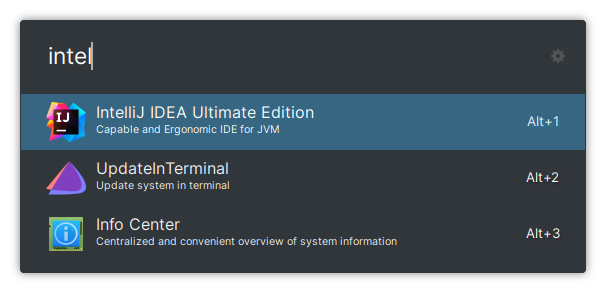 Best for: beginners who want a Spotlight or Alfred style popup on almost any desktop. Ulauncher is written in Python with GTK and runs on nearly every desktop environment. Press Ctrl+Space, type a few letters, press Enter. The fuzzy search finds apps even when you misspell them and learns which ones you open most, so your favorites rise to the top. Everything beyond app launching comes from extensions and shortcuts. Key features
- Fuzzy app search that remembers your choices
- File browser mode: start a query with
~or/ - Custom shortcuts for web searches and scripts
- Python extensions from the Ulauncher extension site
- A built-in calculator in recent releases, plus built-in and custom themes
Pros
- Easiest setup of the bunch
- Works across desktop environments
- Sensible defaults, with extensions when you want more
Cons
- Version 6, which improves Wayland handling, is still in beta at the time of writing, so the stable builds are the 5.x series
- On Wayland you bind the shortcut yourself and point it at
ulauncher-toggle - Extensions run with your user permissions, and older ones may need updates for version 6
Install: Ubuntu and Linux Mint users can install it from the official PPA:
sudo add-apt-repository ppa:agornostal/ulauncher
sudo apt update
sudo apt install ulauncher
Fedora packages it, Arch users can use the AUR, and Debian users can download a .deb from ulauncher.io.
2. Rofi
 Best for: power users, scripters and anyone on a tiling window manager. Rofi began as a window switcher and grew into one of the most flexible menu tools on Linux. It works in modes:
 drun for desktop apps, run for commands, window for open windows, ssh for hosts, filebrowser for files, and combi to mix several at once. Its dmenu mode takes any list from a script and returns your pick, which is why so many community power menus, emoji pickers and password manager front ends are built on it. Rofi 2.0 merged the old rofi-wayland fork into the main project, so a single build now covers both X11 and Wayland. If you like to tinker, it is hard to beat. Key features
- Fuzzy, regex, glob and prefix matching
- Themes written in
.rasifiles - Script mode and dmenu mode for building your own menus
- Plugins such as rofi-calc and rofi-emoji
Pros
- Deep customization of layout, colors and behavior
- Starts on demand, so nothing sits in memory between uses
- A large library of community themes and scripts
- MIT licensed
Cons
- The config and theme syntax take time to learn
- No calculator or clipboard history without plugins or scripts
- The native Wayland mode needs layer-shell support, so it will not start on GNOME
- Some distro repositories still ship the 1.7 series, which is X11 only. Check yours with
rofi -version
Install: sudo apt install rofi, sudo dnf install rofi or sudo pacman -S rofi. Test it with rofi -show drun. Project page: github.com/davatorium/rofi.
3. Albert
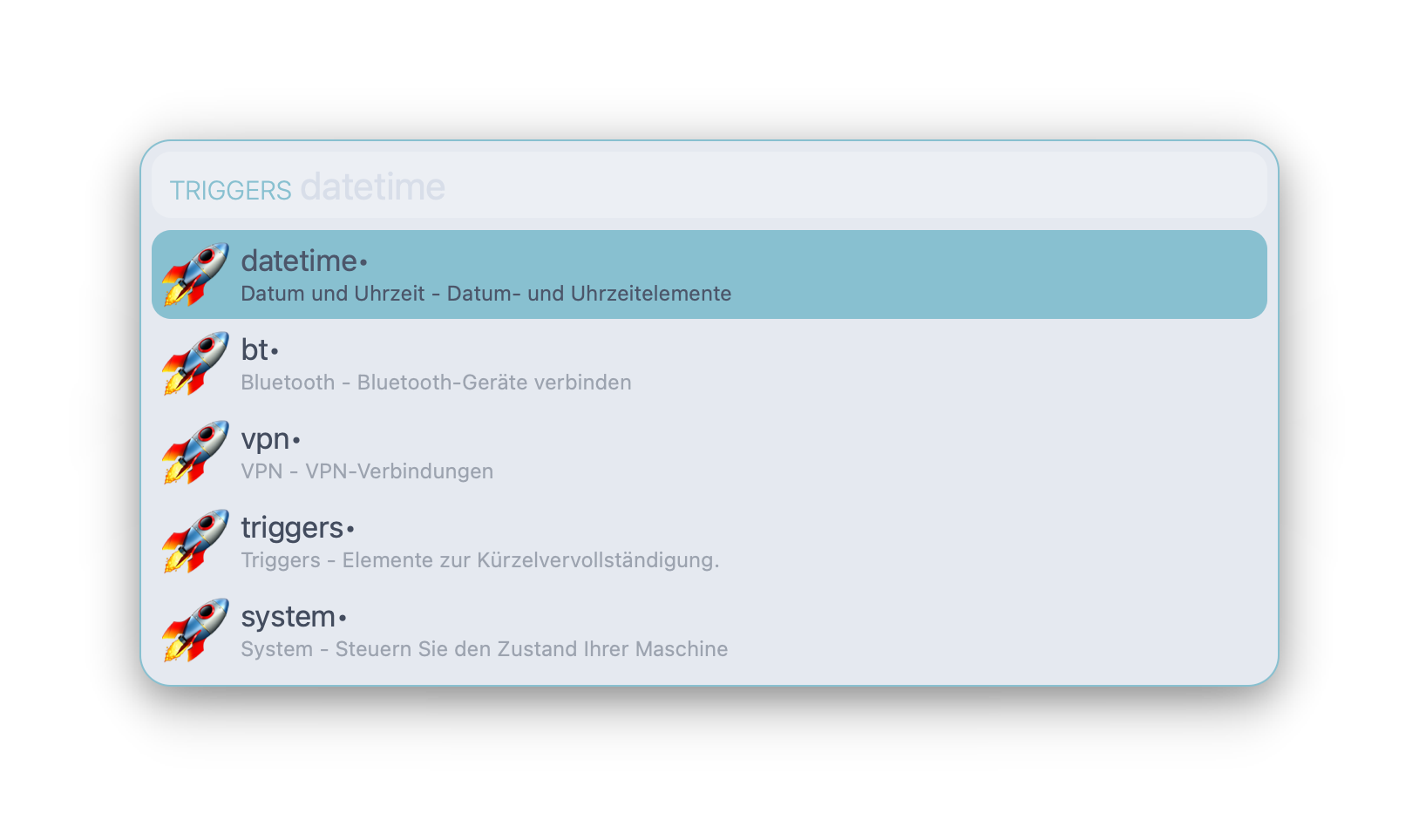 Best for: plugin-heavy, Spotlight-style workflows on any desktop. Albert is a keyboard launcher written in C++ and Qt, built around plugins. You turn on only the plugins you want, give each one a trigger word and choose a look from its frontends and themes. It does not care which desktop you run, so it behaves the same on GNOME, Xfce and KDE. If you like how Alfred works, this is the nearest thing on Linux. Key features
- Plugins for apps, files, calculator, clipboard history, web search, browser bookmarks and SSH hosts
- Custom trigger words for each plugin
- A Python plugin interface for your own scripts and community add-ons
- Several frontends and themes
Pros
- Mature project with a plugin list that covers most daily tasks
- Independent of any desktop environment
- Works on both X11 and Wayland
Cons
- The main program uses a custom license that is not OSI approved. It permits personal use and redistribution only without modification, and some distributions, including Arch and Gentoo, dropped it from their official repositories
- Many distros do not carry it, so you install from the project’s repository or the AUR
- On Wayland, the global hotkey needs a desktop-level shortcut that runs
albert toggle
Install: Packages for Ubuntu, Debian, Fedora and openSUSE come from the project’s openSUSE Build Service repository, and Arch users can find it in the AUR. Instructions are on albertlauncher.github.io.
4. KRunner
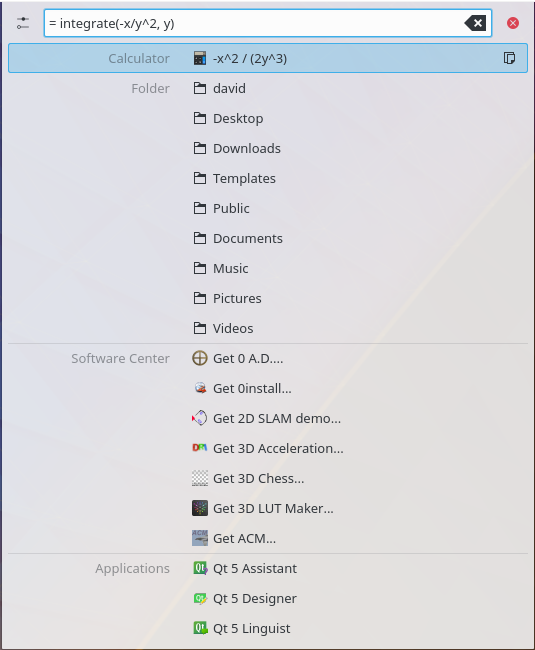 Best for: KDE Plasma users. KRunner is already on your system if you run Plasma. Press Alt+Space or Alt+F2, start typing, and results from every enabled plugin appear together. It launches apps, but it also works as a small command center for the whole desktop. Key features
- A calculator: start or end an expression with an equals sign
- Unit and currency conversions
- Web shortcuts you already set up in System Settings
- Bookmarks, files and folders
- Process matching, so you can end a running app from the search box
- Third-party runner plugins
Pros
- Preinstalled and tied into Plasma settings
- Handles math, conversions and web search with no setup
- Each plugin can be switched on or off in System Settings
Cons
- Built for Plasma, so it makes little sense on other desktops
- Its look follows the Plasma theme, so there is little to tweak
Install: Nothing to install on Plasma. KDE documents what it can do on the KRunner page.
5. Vicinae
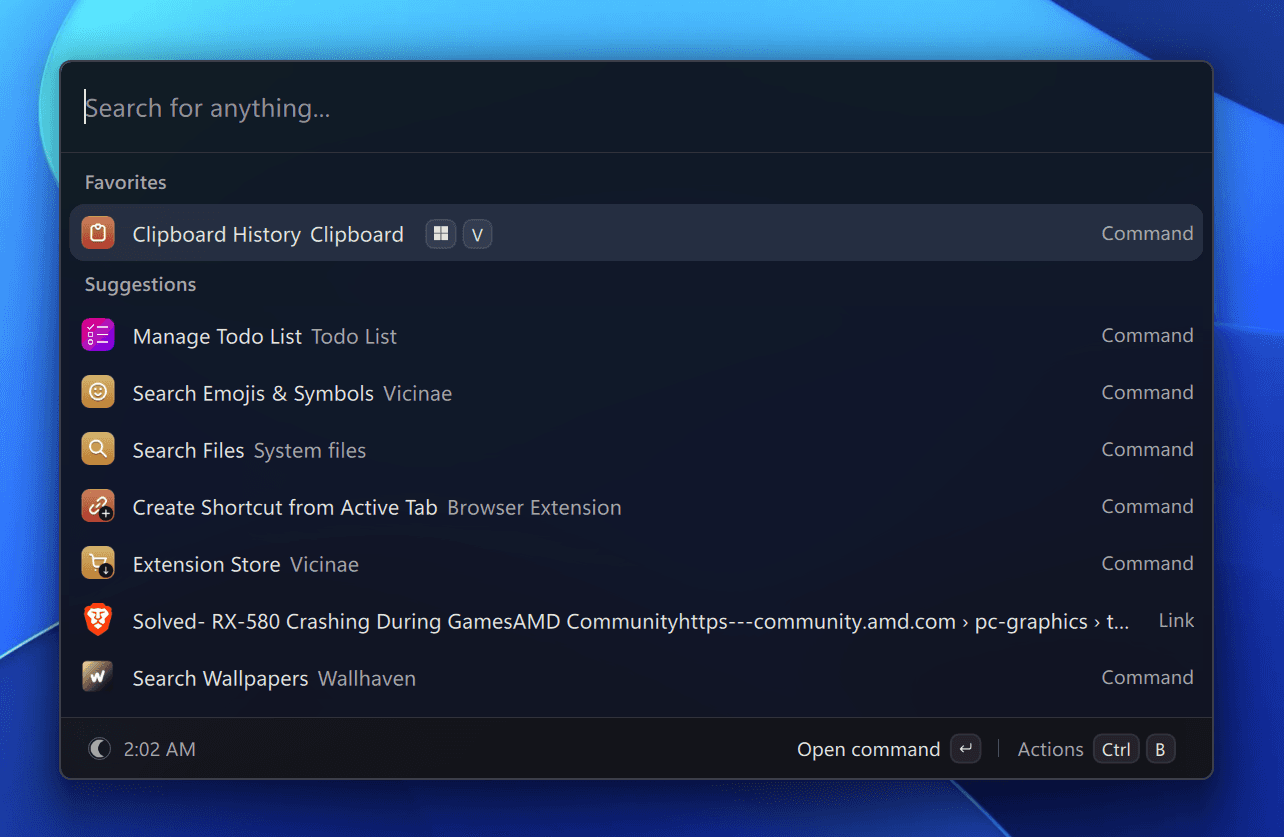 Best for: people who miss Raycast. Vicinae is a native launcher built with C++ and Qt, and the Raycast influence is obvious. Its extension API is mostly compatible with Raycast’s, so many Raycast extensions, which are written in React and TypeScript, install from inside the launcher. The built-in modules cover most of what a Raycast user reaches for each day. Key features
- App launching, file search, an emoji picker and a calculator with history
- Clipboard history and window focusing
- Script commands and a dmenu compatibility mode
- Theming, plus a React and TypeScript SDK for your own extensions
Pros
- Raycast extension support and an in-app extension store
- Plenty built in, so there is less plugin hunting
- Window management works on Hyprland, X11 and KDE Wayland, and on GNOME through a companion extension
Cons
- Still before version 1.0, so releases can contain breaking changes
- Many Raycast extensions need APIs Vicinae has not implemented yet, so some will not work
- Window management on KDE Wayland leans on an internal API that the docs call brittle, and COSMIC is not supported yet
Install: Packages and setup guides for GNOME, Hyprland and other environments are on docs.vicinae.com. Start the server with vicinae server, then bind a key to vicinae toggle.
6. Fuzzel
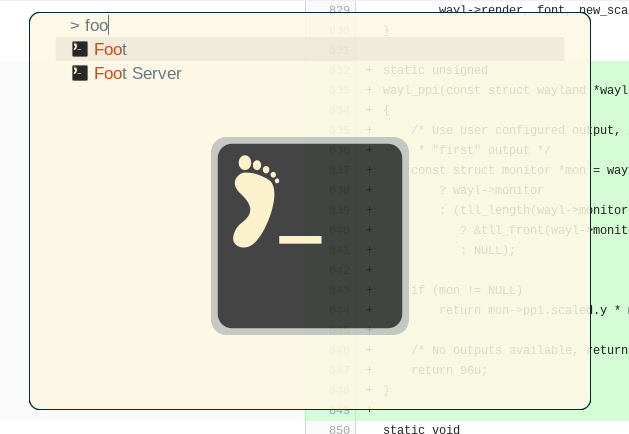 Best for: Sway, Hyprland and niri users who want something simple that works. Fuzzel is a Wayland-native launcher modeled on Rofi’s drun mode. It shows app icons, remembers what you launch often and has a dmenu mode for piping in your own lists. Settings live in a single ini file, so there is little to learn. It does one job and stays out of the way. Key features
- Icons and frequency-based sorting
- Fuzzy matching and Emacs-style key bindings
- dmenu mode for custom lists
- Fonts, colors and borders set in
fuzzel.ini
Pros
- Quick to set up
- MIT licensed and packaged by Debian, Fedora and Arch
- Actively developed
Cons
- Wayland only, and it needs layer-shell support, so it will not run on GNOME
- No plugin system, calculator or file search
- Styling stops at fonts, colors and borders, with nothing like Rofi’s full themes
Install: sudo apt install fuzzel, sudo dnf install fuzzel or sudo pacman -S fuzzel. In Sway, add bindsym $mod+d exec fuzzel to your config. Project page: codeberg.org/dnkl/fuzzel.
7. Walker
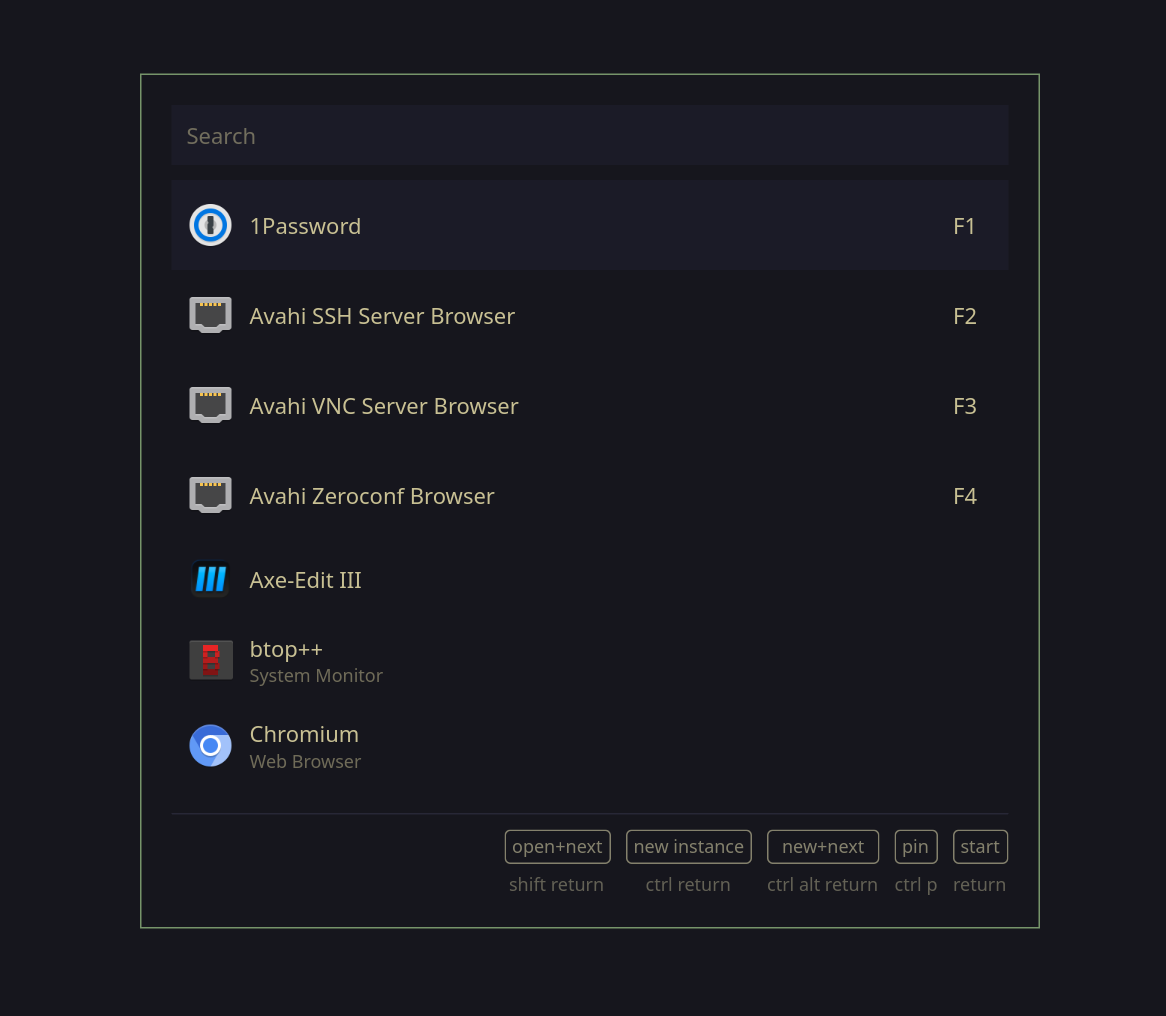 Best for: a feature-rich, themeable launcher on Wayland. Walker is a GTK4 launcher written in Rust. Version 2 splits the work in two: Walker draws the interface, and a background service called Elephant gathers the data through providers. Providers cover desktop apps, files, clipboard history, a calculator, emoji and symbols, web search and custom menus. Run Walker in service mode and it opens quickly when you call it. Key features
- Elephant providers for apps, files, clipboard history (text and images), calculator, symbols, web search and menus
- Layouts and styling through GTK4 CSS and XML files
- A service mode for quick opening
Pros
- Highly customizable
- Modular, so you enable only the providers you use
- Elephant can feed other tools as well as Walker
Cons
- Elephant must be running, with its providers installed, before Walker shows anything
- Setup takes more steps than Fuzzel
- Wayland only, and it needs layer-shell support
- Packaged mainly in the AUR and Nix
Install: Use the AUR or Nix, or build it from source. Install Elephant and its providers first, start Elephant, then run walker. The steps are in the Walker repository.
8. Sherlock
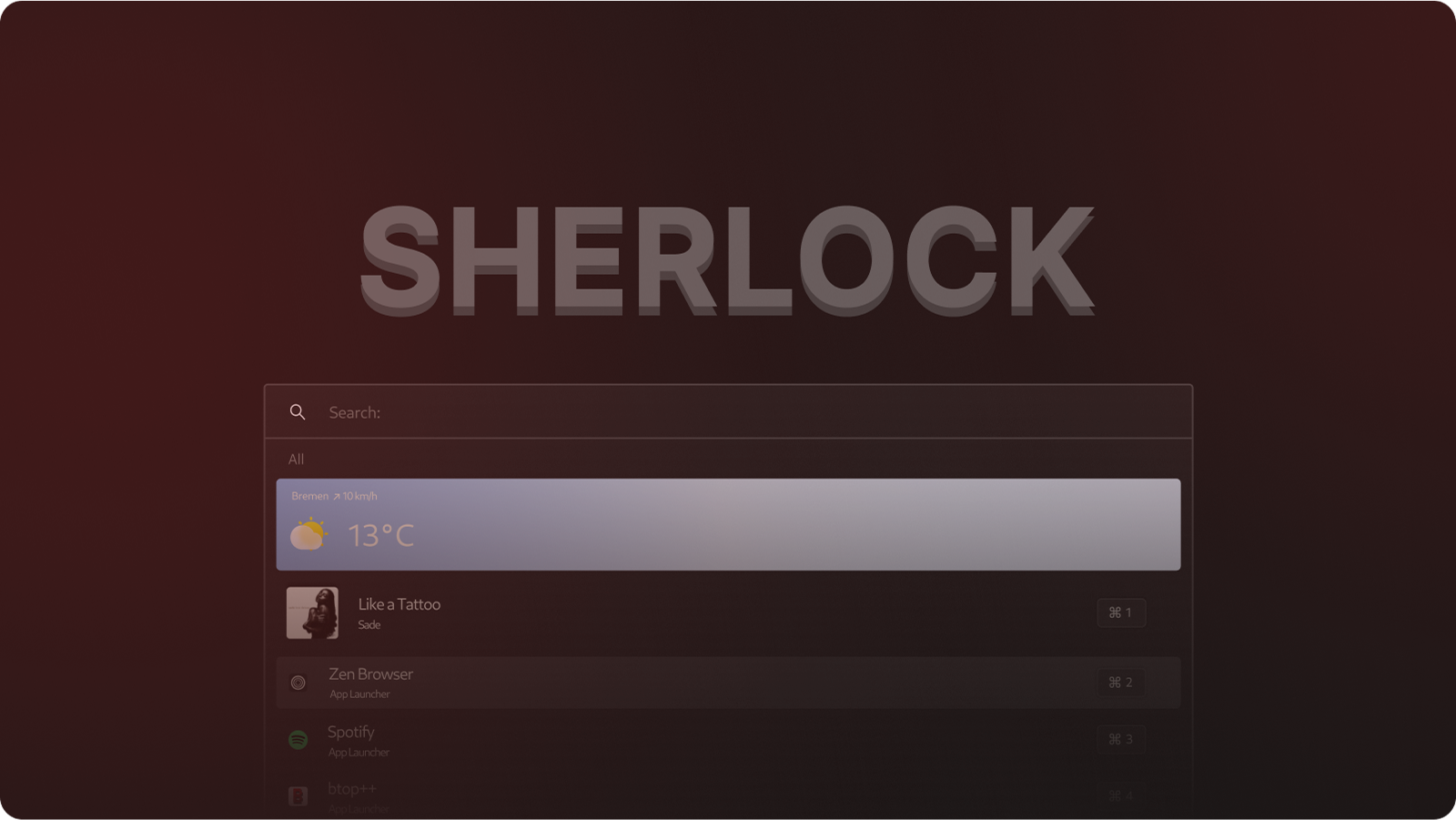 Best for: people who want widgets and heavy visual customization. Sherlock is a Rust and GTK4 launcher developed with Arch Linux and Hyprland in mind. Beyond app search it offers custom commands, fallback actions, category-based search, submenus and context menus. It can show what your media player is playing through MPRIS, display widgets such as weather, and pull data from external APIs. Styling is done with CSS. Key features
- App search with aliases, custom icons and hidden apps
- Custom commands, fallback actions and submenus
- MPRIS media display and widgets
- Plugins for Wikipedia, dictionaries and clipboard history
Pros
- Extensive CSS customization
- Widgets and previews built in
- GPL-3.0 licensed
Cons
- Wayland only, and it needs layer-shell support
- A young project, so expect changes between releases
- Mostly installed through the AUR or Nix
Install: Packages exist in the AUR and nixpkgs, and the repository explains how to build it with Cargo. See github.com/Skxxtz/sherlock.
9. Anyrun
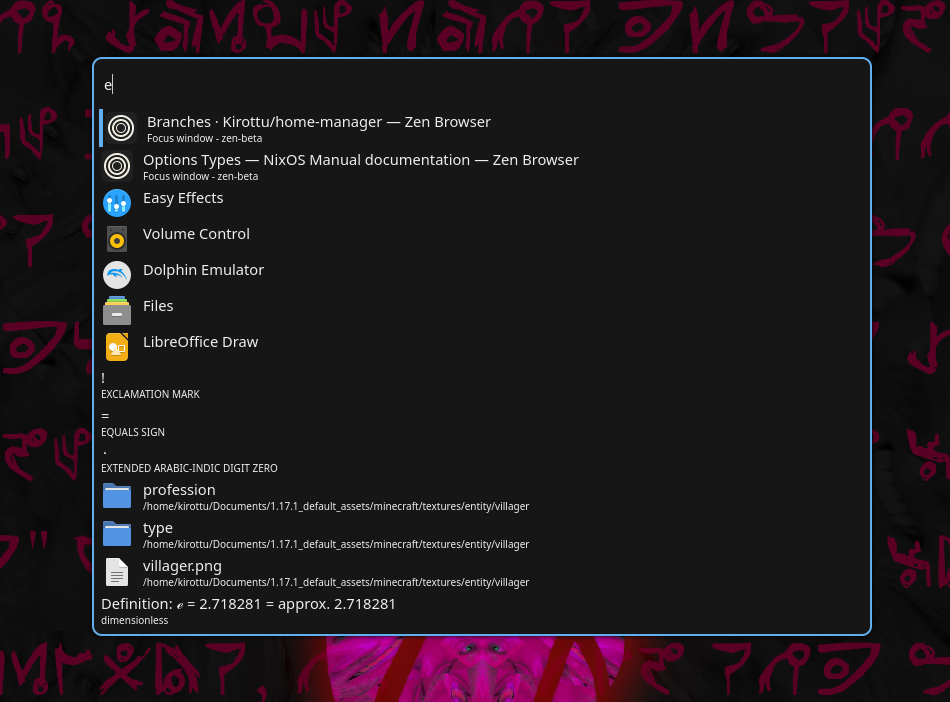 Best for: a KRunner-style, plugin-driven runner on Wayland. Anyrun is a Wayland-native runner written in Rust with GTK4. It is modeled on KRunner and built entirely around plugins: with none loaded, it shows nothing. The official plugins include applications, symbols and a file search plugin built on Kidex, and writing your own is meant to be easy. Key features
- A plugin system with a documented plugin API
- GTK4 CSS styling
- Command line flags that choose plugins and position per launch, such as
anyrun --plugins libapplications.so --plugins libsymbols.so --position top
Pros
- Different pickers from one binary by loading different plugins
- Highly customizable
Cons
- Nothing works until you install plugins
- Manual setup unless you use Nix
- Wayland only, and it needs layer-shell support
Install: Nix users get a package and a Home Manager module. Everyone else builds it with cargo install and copies the plugin files into ~/.config/anyrun/plugins. See github.com/anyrun-org/anyrun.
10. dmenu
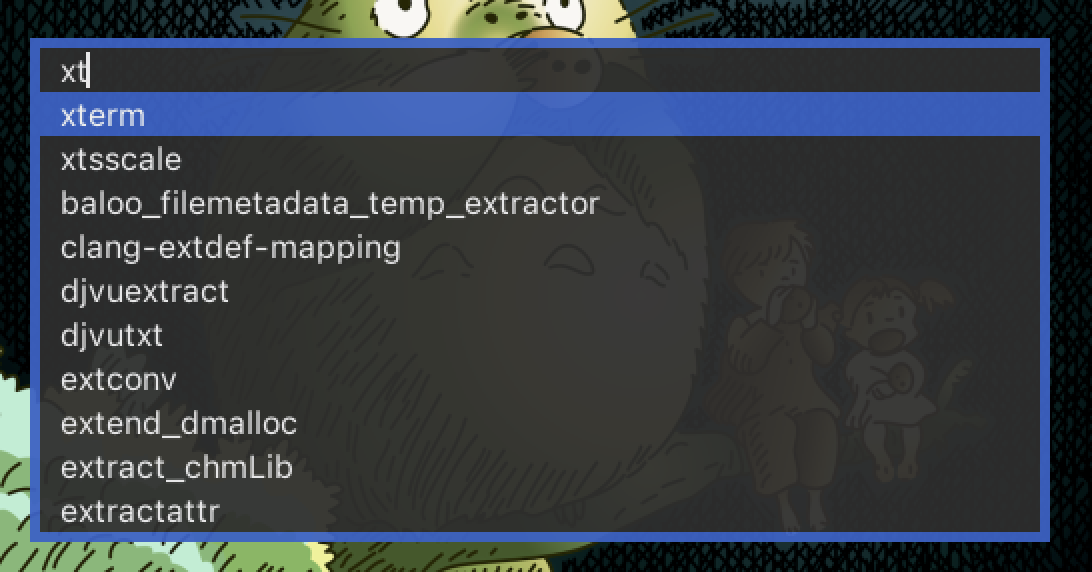 Best for: minimalists on X11 and anyone who builds their own menus. dmenu is the classic from the suckless project. It reads a list from standard input, lets you filter it by typing and prints your choice. Everything else is up to you. i3 uses it in its default config, and a long list of scripts depends on how it behaves. It has changed little over the years, and that stability is the appeal. Key features
- A tiny, single-purpose design
dmenu_runfor launching commands from your PATH- Customization through
config.hand community patches such as fuzzy matching
Pros
- Small and quick to start
- Works with any script that can output a list
- Stable and well understood
Cons
- X11 only
- No icons, calculator or plugins in the base program
- Changing anything means editing C source and recompiling
Install: sudo apt install dmenu, sudo dnf install dmenu or sudo pacman -S dmenu. On Wayland, use wmenu or bemenu instead. Source and patches: tools.suckless.org/dmenu.
Honorable Mentions
- Tofi is a minimal dmenu and Rofi replacement for wlroots compositors such as Sway. It is MIT licensed and packaged in Debian.
- Wofi is a GTK-based menu for wlroots compositors with CSS styling and a dmenu mode. It shows up in a lot of Sway and Hyprland dotfiles.
- Hyprlauncher comes from the Hyprland project and has providers for apps, emoji, Unicode, math and fonts. It is still early in development.
- bemenu and wmenu are dmenu-style menus for Wayland. bemenu also runs on X11 and in a terminal, and wmenu has been Sway’s default menu since version 1.9.
Things to Know Before You Switch
- Extensions and plugins run with your user permissions. A bad one can read your files or use the network, so install them from official sources and check what they do.
- Clipboard history records what you copy, passwords included. Look for an option to exclude apps such as password managers from the history.
- Ulauncher, Albert, Vicinae and Walker (in service mode) keep a background process running so they open fast. Rofi, Fuzzel, Tofi and dmenu start fresh each time and exit afterward, so nothing sits in memory between uses.
- Pick a shortcut your desktop does not already use. Super+Space clashes with input source switching on GNOME, and Ctrl+Space is popular but can collide with code editors and input methods.
How to Set Up Your Launcher
- Install it from your distro’s repositories, or from the project’s own repository if it is not packaged.
- Start it at login. If your Ulauncher package includes a systemd unit,
systemctl --user enable --now ulauncherstarts it now and at every login. Vicinae has one too:systemctl --user enable --now vicinae. - Bind a keyboard shortcut to the launcher’s command, as shown below.
- Switch on the plugins you use and switch off the rest. Fewer plugins mean cleaner results.
Setting a launcher shortcut
- GNOME: open Settings, go to Keyboard, then Keyboard Shortcuts and Custom Shortcuts, and add a shortcut that runs the launcher’s command.
- KDE Plasma: open System Settings, go to Keyboard, then Shortcuts, and add a command shortcut.
- i3 and Sway: add a line to your config.
# i3
bindsym $mod+d exec --no-startup-id rofi -show drun

# Sway
bindsym $mod+d exec fuzzel
Which App Launcher Should You Pick?
- On GNOME, start with Ulauncher or Albert. Vicinae also works once you add its GNOME extension. Layer-shell launchers will not start.
- On KDE Plasma, stay with KRunner. Try Vicinae if you want Raycast-style extras.
- On Xfce, Cinnamon, MATE or an X11 window manager, use Ulauncher, Albert or Rofi.
- On Sway, Hyprland or niri, begin with Fuzzel. Move to Walker, Sherlock, Vicinae or Anyrun when you want more features.
- Coming from Alfred or Spotlight, try Albert or Ulauncher. Coming from Raycast, try Vicinae.
- Want to script your own menus? Use Rofi, or Fuzzel in dmenu mode.
Pick one, bind it to a key you can hit without looking, and use it for a week. If you still reach for the mouse, try the next one on the list.
Linux App Launcher FAQ
What is the best app launcher for Linux?
For most people, Ulauncher. It installs easily, works on nearly every desktop and gains features through extensions. Power users usually prefer Rofi, KDE Plasma users already have KRunner, and Sway or Hyprland users should look at Fuzzel first.
What is the default app launcher in Linux?
Linux has no single default. GNOME uses the Activities Overview, KDE Plasma uses its Application Launcher menu plus KRunner, and COSMIC uses the COSMIC Launcher. Tiling window managers such as i3 and Sway ship a basic dmenu-style prompt instead.
Does Rofi work on Wayland?
Yes, since Rofi 2.0. That release merged the rofi-wayland fork into the main project, so one build handles both X11 and Wayland. The Wayland backend needs a compositor with layer-shell support, which rules out GNOME. Older 1.7 packages are X11 only.
Which app launchers work on GNOME?
Ulauncher, Albert and Vicinae (with its GNOME extension) are the safest choices. Launchers that rely on the layer-shell protocol, including Fuzzel, Walker, Sherlock and Anyrun, do not start on GNOME because its compositor does not support that protocol.
Is there a Linux alternative to Raycast or Alfred?
For Raycast, Vicinae is the closest match, and it can install many Raycast extensions, though not every one works. For Alfred, Albert and Ulauncher are the nearest equivalents. KRunner fills the same role on KDE Plasma.
How do I set a keyboard shortcut for an app launcher on Wayland?
Wayland apps cannot register global hotkeys on their own. Open your desktop’s keyboard shortcut settings, or your compositor’s config file, and bind a key to the launcher’s command, such as ulauncher-toggle, albert toggle, vicinae toggle or fuzzel.
Do app launchers use a lot of memory?
Launchers that run as background services, such as Ulauncher, Albert and Vicinae, keep a process running so they open quickly. On-demand tools such as Rofi, Fuzzel and dmenu start when called and exit afterward, so they use nothing in between.
Are Linux app launchers safe to use?
The launchers themselves are fine, but extensions and plugins run with your user permissions. A bad one can read your files or use the network. Install extensions from official sources, check what they do, and be careful with clipboard history if you copy passwords.
Can I use more than one app launcher?
Yes. Keep your desktop’s built-in search and add a second launcher on a different shortcut, for example Ulauncher on Ctrl+Space and Rofi for scripted menus. Give each one its own key.
