
Your desktop environment is doing a lot of jobs you probably don’t need it to do. GNOME and KDE Plasma bundle a window manager together with a file manager, a settings app, a notification system, and a dozen background services, most of which run whether you ever touch them or not. A window manager strips all of that away and leaves you with the one part that actually decides how your screen works: where windows appear, how they’re sized, and how you switch between them.
That’s the whole appeal, and it’s why so many Linux users eventually try one. Some want more speed out of old hardware. Some want a workflow that never touches a mouse. Some just want their desktop to look like the screenshots they keep seeing online. Whatever your reason, this guide covers the best Linux window managers in 2026: what each one is actually good at, which distros already have them set up for you, and how to install one on whatever you’re running right now.
In this guide:
- What a window manager actually is, and how it differs from a desktop environment
- A quick comparison table of every window manager covered
- The 12 best Linux window managers in 2026, with features, pros, and cons
- Which one you should actually pick
- The most lightweight options for old hardware
- Linux distros that already have a window manager set up for you
- How to install a new window manager on your current distro
- Frequently asked questions
What Is a Window Manager?
A window manager is the software that decides how application windows behave on your screen. It draws borders and title bars, or skips them entirely if you tell it to. It decides where a new window opens. It manages focus, so your keyboard input goes to the right application. And it gives you a way to move, resize, and close windows, usually through keyboard shortcuts rather than a mouse.
On Linux, the window manager sits on top of a display server, either X11 or Wayland. The display server handles the low level work of drawing pixels and reading your keyboard and mouse. The window manager decides what to actually do with that information. On Wayland, the window manager is often also the compositor, which is why projects like Hyprland and Sway get called “Wayland compositors” instead of window managers, even though they’re doing the same job a window manager has always done.
Window Manager vs. Desktop Environment
A desktop environment like GNOME, KDE Plasma, or XFCE bundles a window manager together with a matching file manager, settings app, notification daemon, panel, and a long list of background services built to work together out of the box. A standalone window manager only handles the windowing part. Your app launcher, status bar, wallpaper, and notifications are all things you add yourself, one piece at a time, or skip entirely if you don’t need them.
That’s really the whole pitch for running a window manager on its own instead of a full desktop environment. You build a desktop out of exactly the parts you want, and nothing runs in the background that you didn’t put there yourself.
Tiling vs. Floating vs. Dynamic Window Managers
Window managers generally fall into a few categories:
- Floating (stacking) window managers let windows overlap and stack on top of each other, the same way Windows and macOS behave by default. Openbox, Fluxbox, and IceWM all work this way.
- Tiling window managers automatically arrange windows so they never overlap, splitting the screen into sections as you open new ones. i3 and bspwm are the classic examples, and both use manual tiling, meaning you choose how each split happens.
- Dynamic window managers also tile automatically, but use a layout algorithm, often a master and stack model, so windows rearrange themselves as you open, close, or resize things. dwm, Awesome, Xmonad, and Hyprland all work this way.
None of these is objectively better than the others. Tiling and dynamic window managers reward keyboard heavy workflows and juggling a lot of windows at once. Floating window managers feel more familiar and need less relearning if you’re coming from a traditional desktop.
Quick Comparison: Best Linux Window Managers at a Glance
| Window Manager | Type | Protocol | Config Language | Best For |
|---|---|---|---|---|
| i3 | Manual tiling | X11 | Plain text | Beginners to tiling |
| Sway | Manual tiling | Wayland | Plain text (i3 compatible) | i3 users moving to Wayland |
| Hyprland | Dynamic tiling | Wayland | Custom config | Visual polish and effects |
| Niri | Scrollable tiling | Wayland | KDL config | A different take on tiling |
| bspwm | Tiling (tree based) | X11 | bspc + sxhkd | Scripting and automation |
| dwm | Dynamic tiling | X11 | C (compiled) | Absolute minimalism |
| Awesome | Dynamic tiling | X11 | Lua | All in one flexibility |
| Xmonad | Dynamic tiling | X11 | Haskell | Stability and low resource use |
| Qtile | Dynamic tiling | X11 and Wayland | Python | Python developers |
| Openbox | Floating | X11 | XML | A lightweight, familiar desktop |
| Fluxbox | Floating | X11 | Plain text | Low resource use with tabbed windows |
| IceWM | Floating | X11 | Plain text | Old hardware and VMs |
The Best Linux Window Managers in 2026
Here’s a closer look at each one, including what it’s actually like to use day to day, not just a feature list copied from its GitHub page.
1. i3 (i3wm)
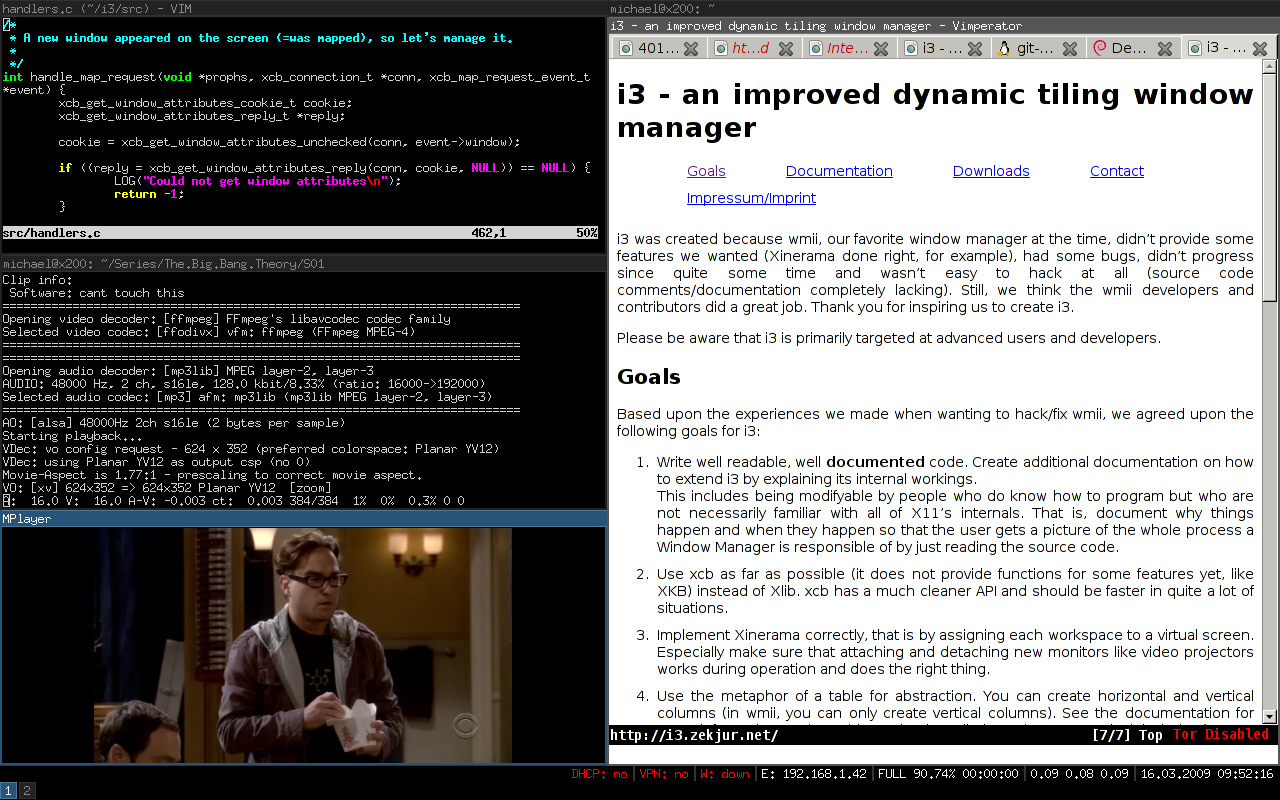
i3 is usually the first tiling window manager people try, and for good reason. It’s a manual tiling WM for X11 written in C, meaning you choose exactly how each new window splits the screen instead of letting an algorithm guess. The config file reads like plain English, which is rare in this corner of Linux. Version 4.25.1 shipped in February 2026, and the project’s core philosophy has barely changed in over a decade, which says a lot about how well it was designed the first time around.
Key features:
- Manual tiling with horizontal and vertical splits you control
- Plain text config file you can learn in an afternoon
- A built in IPC socket that tools like i3status and polybar hook into
- Workspaces you can assign to specific monitors
Pros:
- Enormous community and documentation, so nearly every problem already has a forum answer
- Stable enough to run for months without a restart
- A gentler learning curve than most other tiling window managers
Cons:
- X11 only, with no native Wayland version of its own
- Manual tiling means more keypresses than a dynamic layout
- Looks plain out of the box until you theme it
2. Sway
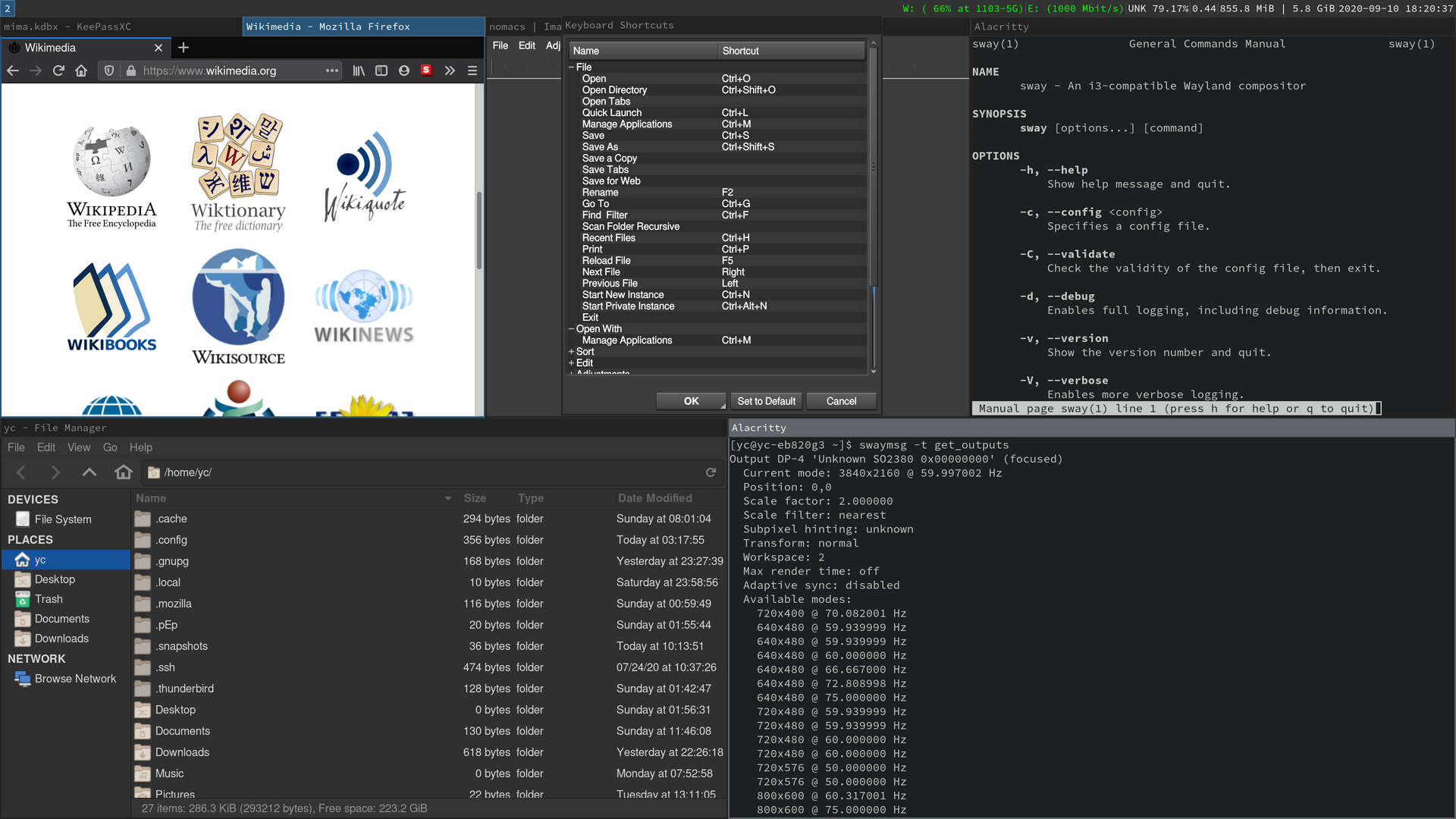
Sway is what happens when someone asks what i3 would look like on Wayland. It reads most of the same configuration syntax as i3, so anyone coming from i3 can be productive within minutes. Built on wlroots, Sway has been the safe, mature choice for Wayland tiling for years, well before Wayland was considered ready for daily use by most people.
Key features:
- Near drop in compatibility with existing i3 config files
- Built on wlroots, the same library behind several other modern compositors
- Solid multi monitor support, including mixed DPI setups
- Works with waybar and most of the i3 ecosystem’s Wayland equivalents
Pros:
- The easiest on ramp to Wayland if you already know i3
- Genuinely stable rather than experimental
- Good screen sharing support now that desktop portals have matured
Cons:
- Wayland only, so X11 only tools need XWayland
- Fewer visual effects than Hyprland out of the box
- A handful of older i3 extensions still need adapting
3. Hyprland
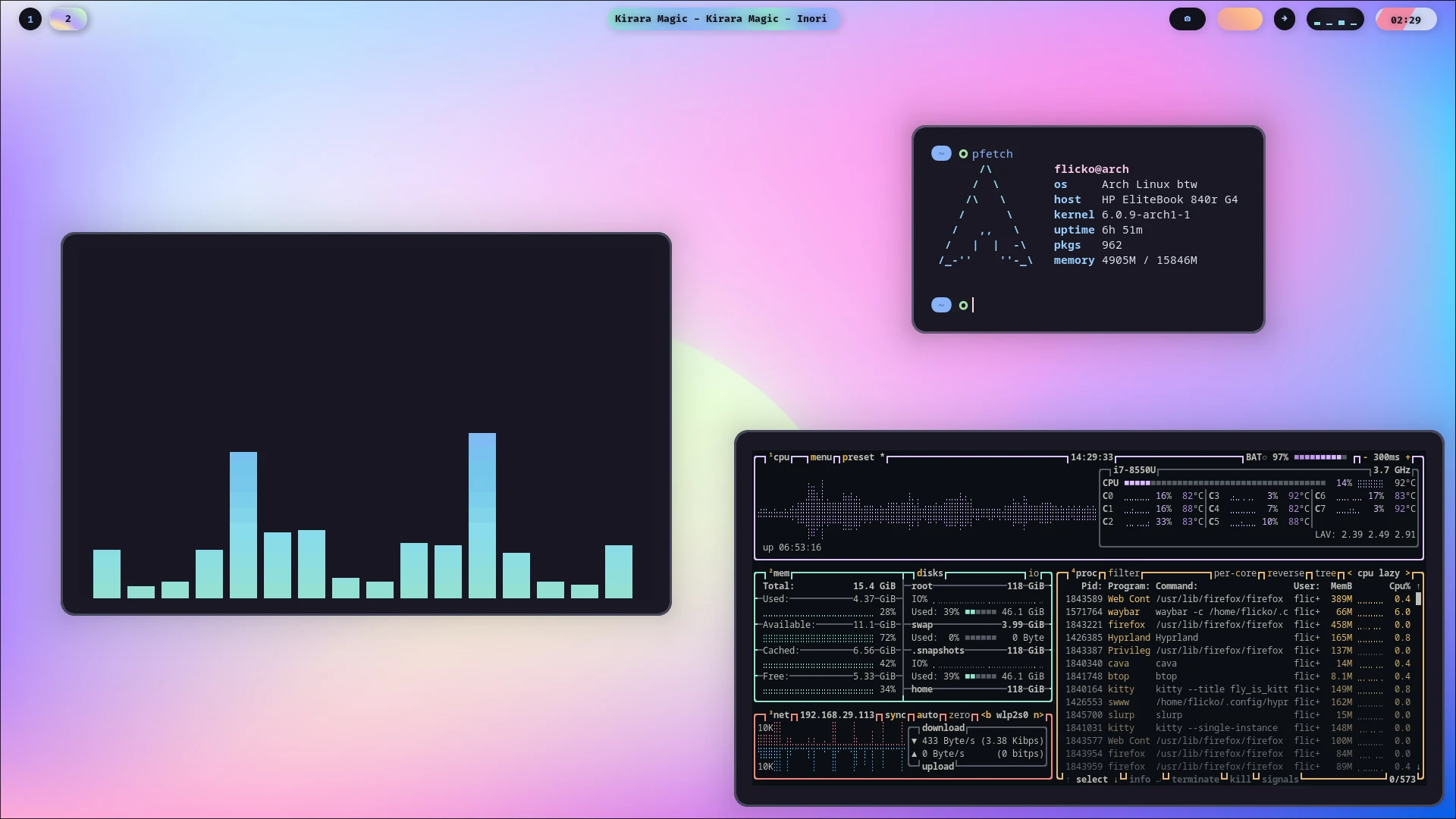
Hyprland is the window manager behind most of the eye catching Linux desktop screenshots you see on Reddit and YouTube. It’s a dynamic tiling Wayland compositor written in C++, with animations, blur, rounded corners, and gradients built in rather than bolted on afterward. Development moves fast, Hyprland reached version 0.56.2 in August 2026, and it officially supports Arch Linux and NixOS, with the community keeping Fedora and Gentoo packages current. It’s also the default and only window manager behind Omarchy, the Arch based distro built by Ruby on Rails creator DHH.
Key features:
- Built in animations, blur, and rounded corners with no extra compositor needed
- Dynamic tiling that adapts as you open and close windows
- A growing plugin ecosystem for extra functionality
- Live config reloading, so changes apply without restarting your session
Pros:
- The best looking desktop you can build on Linux without much effort
- Very active development with a large contributor base
- Supports newer Wayland protocols that other compositors are still catching up on
Cons:
- Wayland only
- Uses more resources than the minimalist window managers on this list
- The fast release pace occasionally introduces regressions
4. Niri
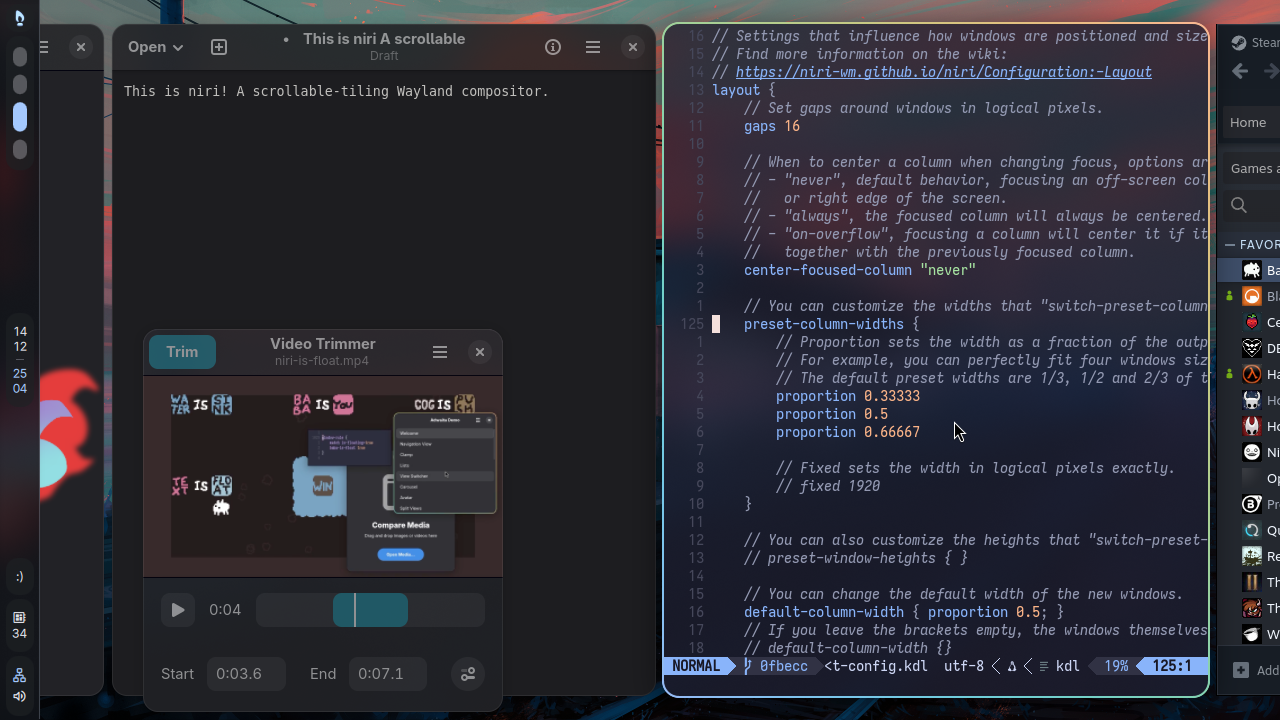
Niri is the newest name on this list, and it’s the one generating the most buzz in 2026. Instead of a fixed grid of tiles, Niri arranges windows in columns on an infinite horizontal strip you scroll through, an approach borrowed from the PaperWM extension for GNOME. Opening a new window never shrinks the ones you already have, which quietly solves one of the most annoying parts of traditional tiling. It’s written in Rust, which makes it memory safe, and it’s already proven stable enough that a growing number of people run it as a daily driver instead of just a curiosity.
Key features:
- Scrollable tiling on an infinite horizontal strip instead of a fixed grid
- Independent workspaces per monitor that stay put when you unplug a display
- Floating window support, added in release 25.01
- XWayland compatibility through xwayland-satellite, added in release 25.08
Pros:
- Solves the “everything resizes when I open one more window” problem completely
- Built in Rust, so crashes and memory bugs are rare
- Packaged for Fedora and Arch, so you don’t need to build it from source
Cons:
- A genuinely different mental model, so muscle memory from i3 or Sway won’t transfer
- Ubuntu users still need a PPA or a manual build
- A smaller theme and plugin ecosystem simply because it’s newer
5. bspwm
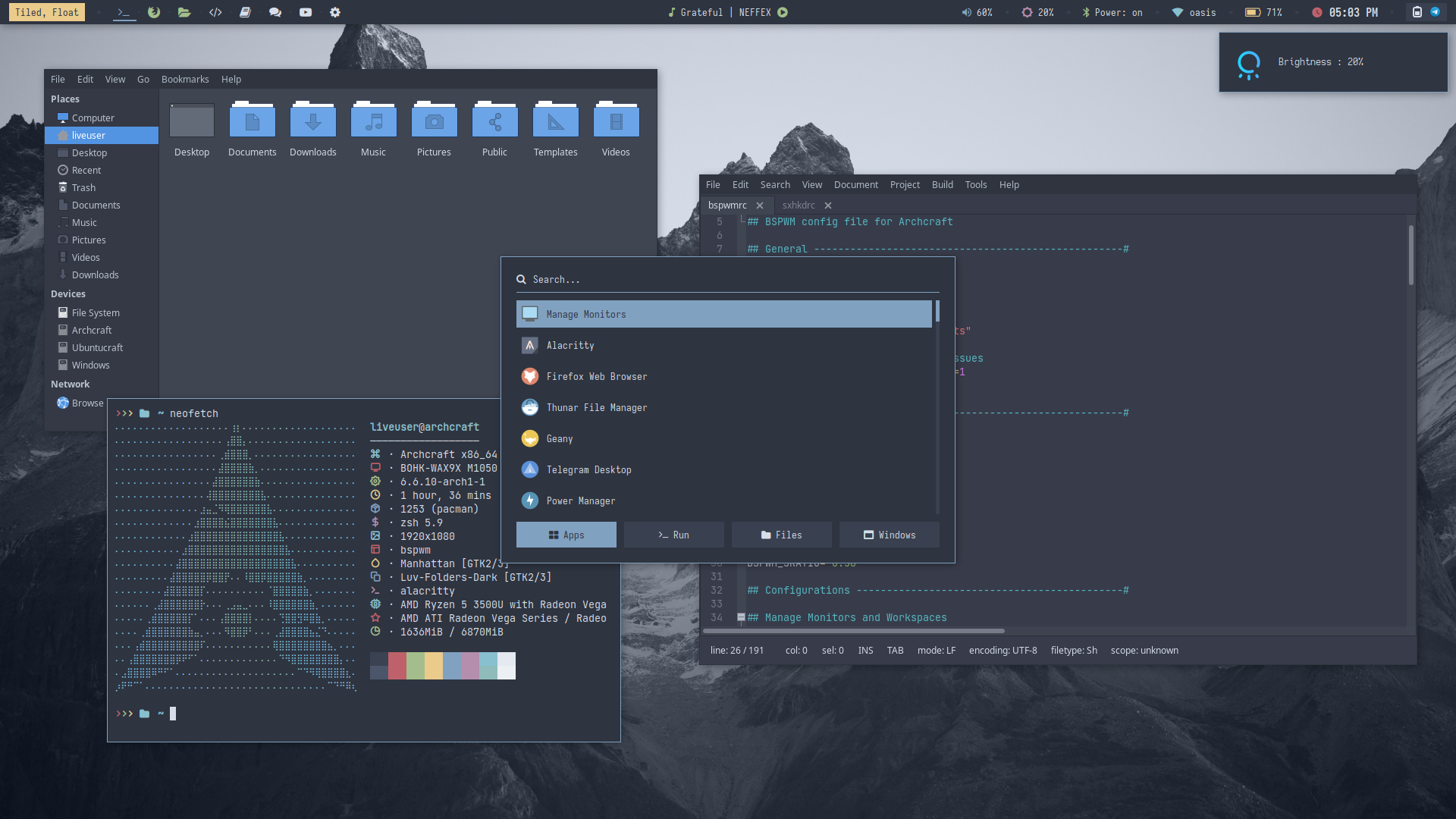
bspwm treats your screen as a binary tree and splits it into rectangles every time you open a window. It follows the Unix philosophy about as strictly as any window manager gets: it only listens for X events and messages sent to its own socket. It doesn’t handle keybindings, wallpapers, or a status bar. You pair it with sxhkd for hotkeys and whatever bar and launcher you like.
Key features:
- Tree based tiling controlled entirely through the bspc command
- Socket based IPC, so you can script it in any language
- Pairs with sxhkd to handle keyboard shortcuts
- Per monitor desktops, which is bspwm’s term for workspaces
Pros:
- Extremely scriptable and predictable once you understand the tree model
- Rock solid, and rarely crashes
- Popular enough that plenty of dotfiles and guides already exist for it
Cons:
- Needs sxhkd as a second program just to get keybindings working
- No built in status bar or wallpaper handling
- X11 only
6. dwm
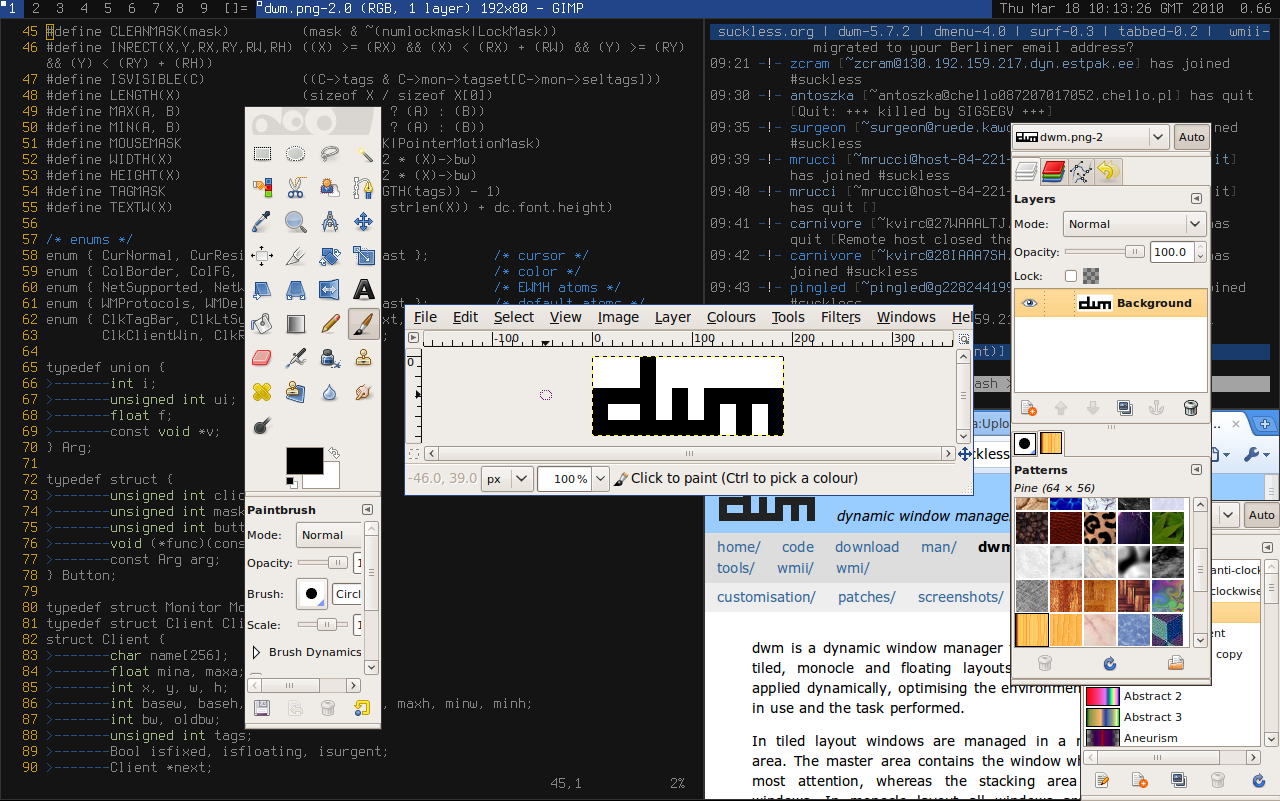
dwm comes from suckless.org, the same group behind the st terminal and dmenu. It’s about 2,000 lines of C, and there is no runtime config file. You edit config.h, a C header file, and recompile the whole window manager to change anything, including your keybindings. That sounds intimidating, but a large patch ecosystem means most customizations you want have already been written by someone else, so you’re usually just applying a patch and rebuilding.
Key features:
- Roughly 2,000 lines of C, one of the smallest window managers that still feels complete
- Dynamic tiling with tags, which work like workspaces but let a window belong to more than one
- Configuration by editing and recompiling source code
- Hundreds of community patches covering everything from gaps to a system tray
Pros:
- About as lightweight as a window manager gets while still being genuinely usable
- Extremely stable, since there’s very little code that can break
- Once compiled, it’s entirely yours, with no bloat you didn’t ask for
Cons:
- Requires a C compiler and a willingness to read source code
- Every config change means a rebuild
- X11 only
7. Awesome (AwesomeWM)
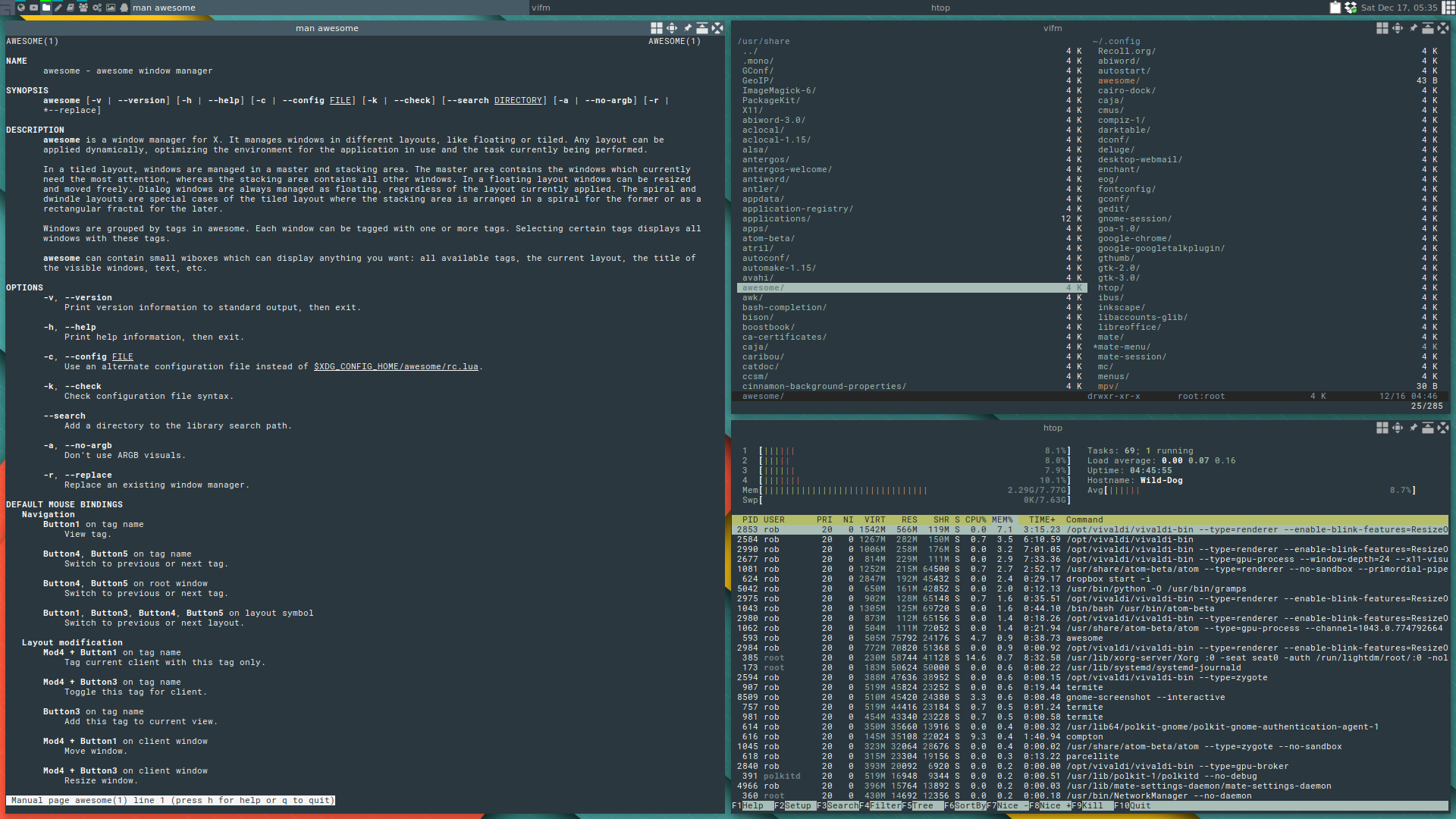
Awesome sits between the extreme minimalism of dwm and the batteries included feel of a desktop environment. It’s configured and extended in Lua, and it ships with a built in widget system, so you often don’t need a separate status bar at all. It supports both tiling and floating layouts, and switching between them is trivial.
Key features:
- Configuration and scripting through Lua
- Built in widgets and a status bar you can build entirely inside the WM
- Multiple layouts, including tiling, floating, and fullscreen, switchable on the fly
- An active wiki with plenty of copy and paste ready configs
Pros:
- Extremely flexible without needing a dozen extra utilities
- Good documentation for a window manager this customizable
- A community large enough that Lua beginners can find working examples
Cons:
- Lua is one more language to learn if you’ve never touched it
- X11 only
- Deep customization takes real time investment
8. Xmonad
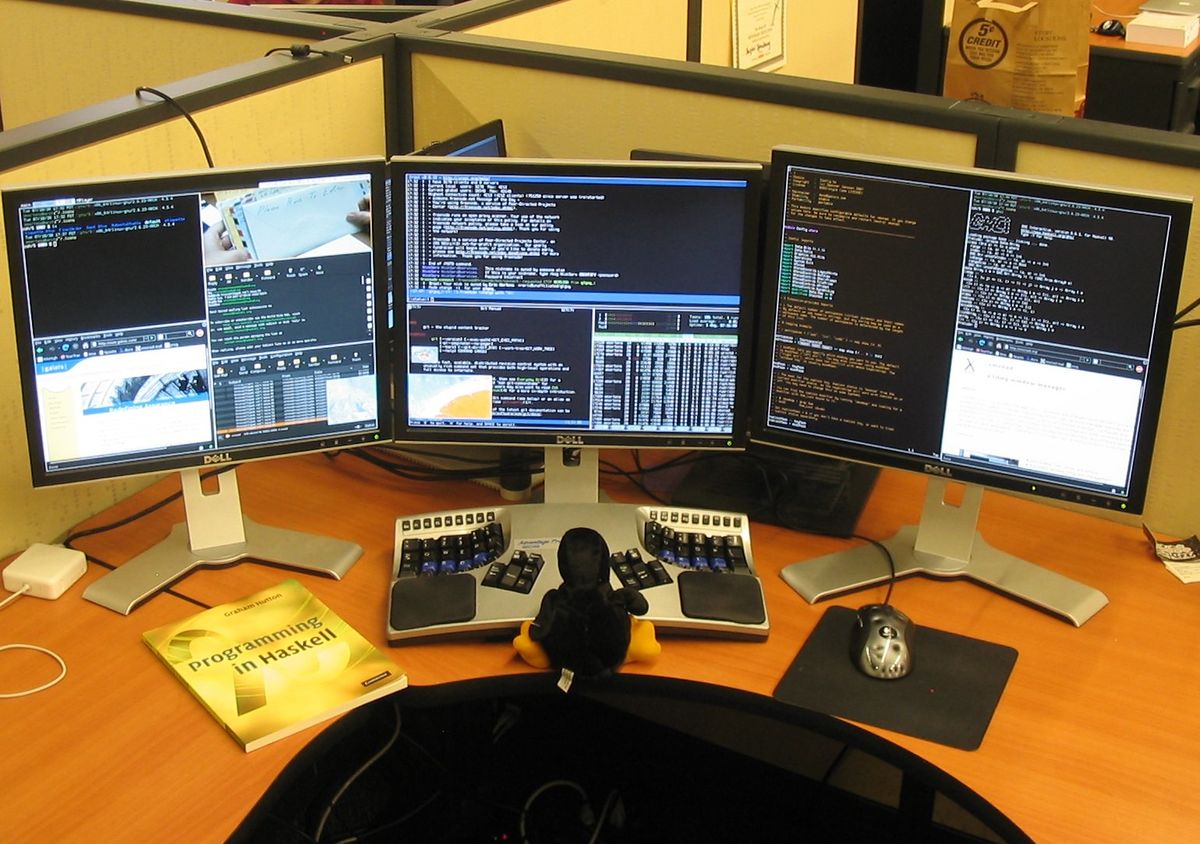
Xmonad has a reputation for basically never crashing, and once you understand why, it makes sense. It’s written in Haskell, and your configuration file is actual Haskell code that gets compiled together with the window manager itself. That scares some people off, but Xmonad remains one of the most stable pieces of software in the entire Linux desktop world.
Key features:
- Configuration written in Haskell and compiled with the WM itself
- A tiny codebase that’s easy to audit
- Dynamic tiling built around a master and stack layout model
- An extension library (xmonad-contrib) for extra layouts and features
Pros:
- Legendary stability, crashes are almost unheard of
- Very low resource usage
- Appeals to functional programming fans who want their config to be actual code
Cons:
- Haskell is a real learning curve if you don’t already know it
- A smaller mainstream community than i3 or bspwm
- X11 only
9. Qtile
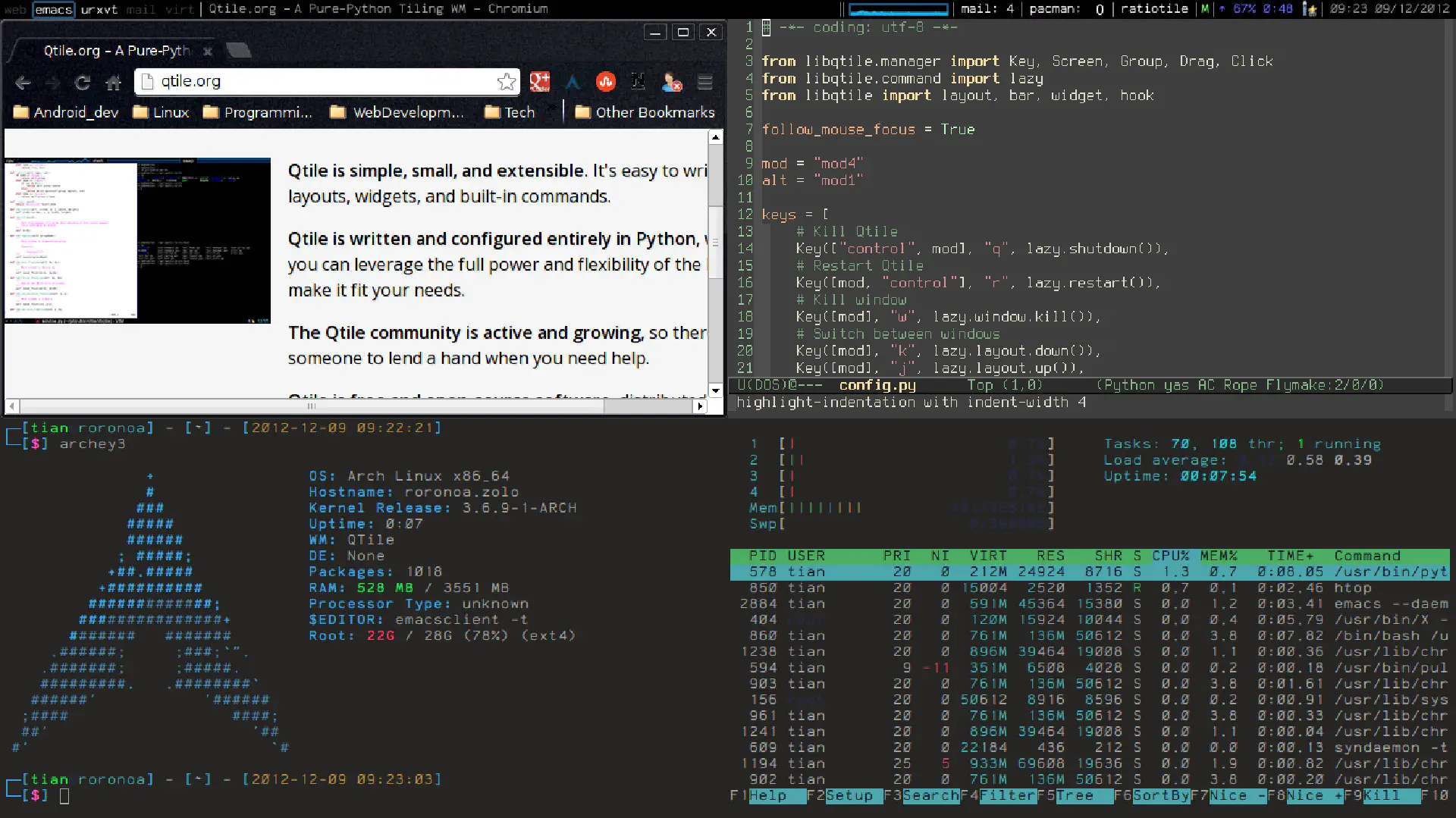
Qtile is what you get when a tiling window manager is written and configured entirely in Python. That alone makes it approachable to a much bigger audience than the C or Haskell options on this list. Qtile 0.34.0 runs on both X11 and Wayland, though the Wayland backend is still labeled experimental and can be a little rough around the edges.
Key features:
- Configuration in plain Python, with no separate config language to learn
- Both X11 and Wayland backends in the same project
- Pluggable layouts you can mix, match, or write yourself
- Built in widgets for a status bar without extra tools
Pros:
- One of the most approachable config languages if you already write Python
- Actively developed with regular releases
- One project that spans both display protocols instead of picking a side
Cons:
- The Wayland backend is still experimental and less polished than the X11 side
- Fewer ready made dotfiles floating around compared to i3 or Hyprland
- Python startup overhead makes it marginally heavier than the C based options
10. Openbox
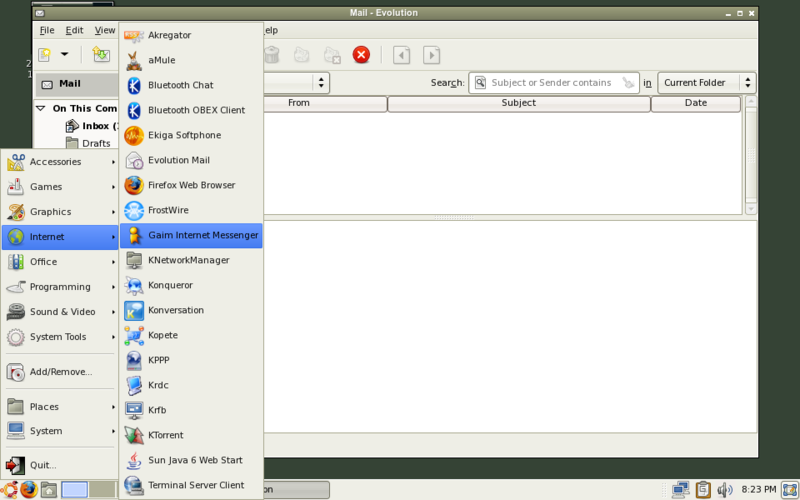
Openbox is a floating window manager, meaning windows overlap the way they do on a normal desktop, just without a desktop environment wrapped around them. It used to power LXDE before Lubuntu moved to LXQt, and it’s still a go to choice for anyone who wants something lightweight and familiar rather than a full tiling relearn. Configuration happens through XML files, plus a genuinely useful right click menu system.
Key features:
- Familiar floating window behavior, with no new mental model required
- Configuration through XML files, plus a GUI tool (obconf) for the basics
- Deep right click menu customization
- Very low resource use
Pros:
- The easiest window manager on this list to pick up if you’re used to Windows or macOS
- Great for reviving old hardware
- Strong theming support with a long history of community themes
Cons:
- No built in tiling, so you’re arranging windows manually or scripting it yourself
- XML config is less friendly to hand edit than a plain text file
- Needs a separate compositor, like picom, for transparency or shadows
11. Fluxbox
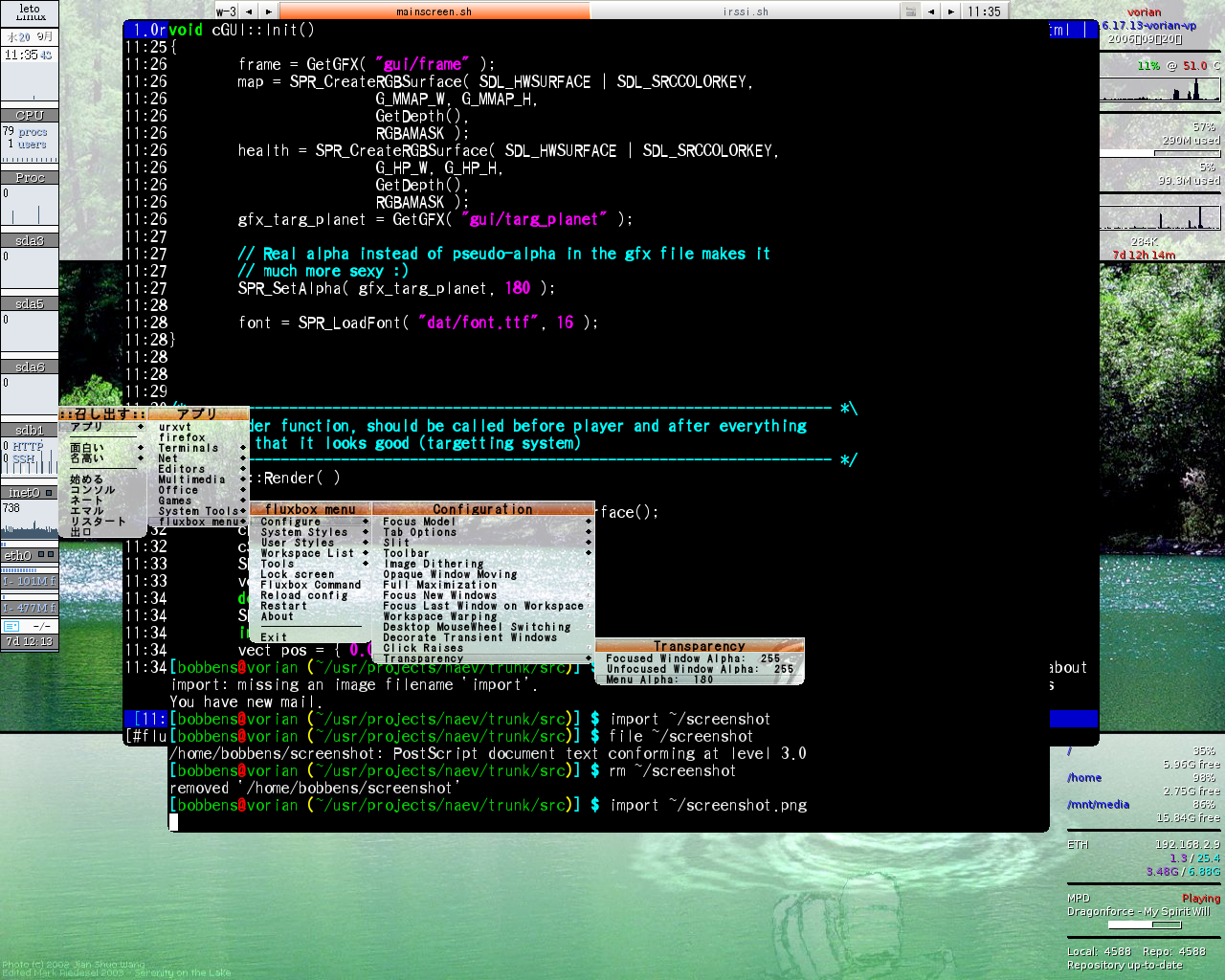
Fluxbox grew out of the old Blackbox codebase and kept the same lightweight footprint while adding a few conveniences Blackbox never had, most notably tabbed windows, where you can group several windows under one titlebar and flip between them like browser tabs. It’s a floating window manager through and through, and it mostly stays out of your way.
Key features:
- Tabbed window grouping, a feature most other window managers skip entirely
- A built in iconbar and system tray
- Root menu configuration through a single text file
- A very low memory footprint
Pros:
- One of the lightest full featured floating window managers available
- The tabbing feature is genuinely useful for juggling terminals or file managers
- Simple enough to configure without much documentation
Cons:
- The default look is dated, though themeable
- A smaller community than Openbox
- No tiling support out of the box
12. IceWM
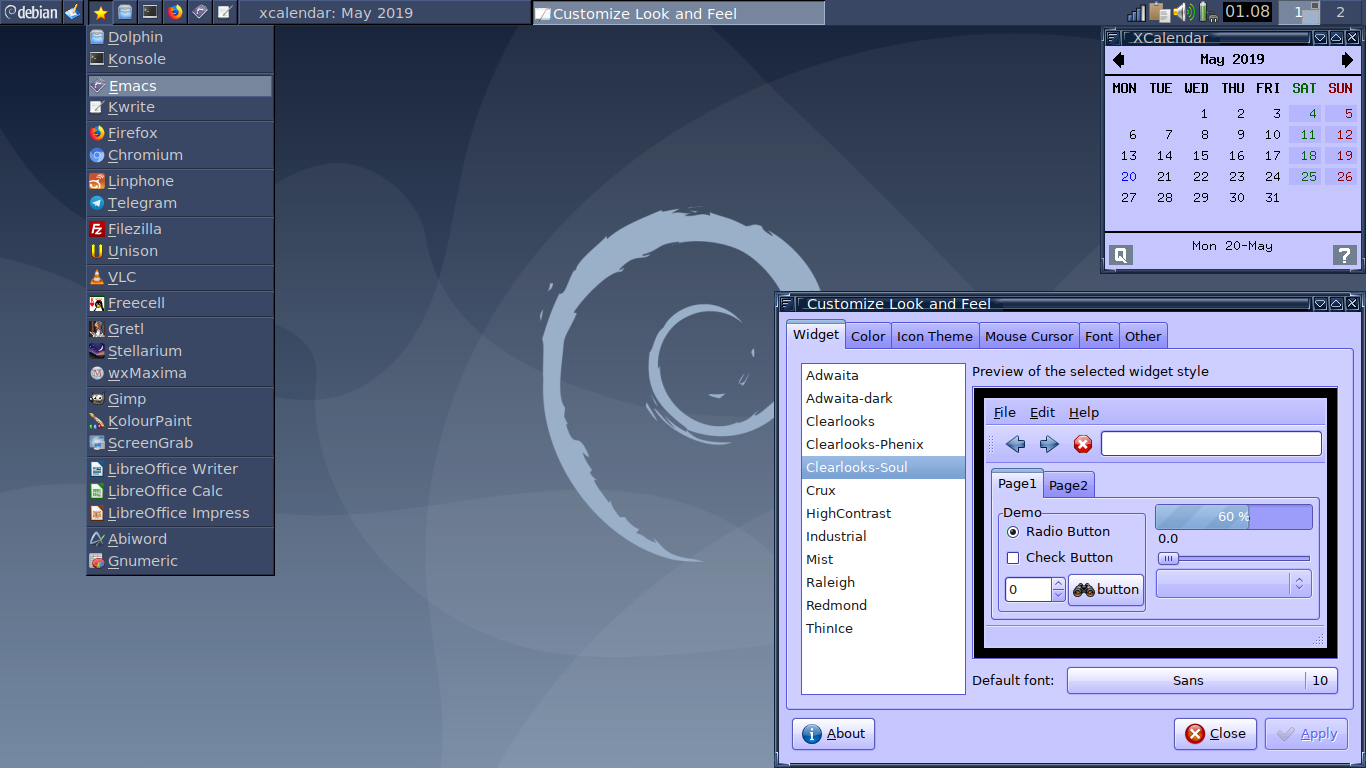
IceWM exists for one reason: speed. It mimics a Windows style taskbar and start menu, which makes it the least intimidating option on this list for anyone coming from Windows. You’ll find it on rescue disks, thin clients, and ancient laptops that would choke on anything heavier.
Key features:
- A taskbar with a pager and a Windows style start menu
- Global and per window keybindings
- Comfortable performance on hardware from the 2000s
- Minimal dependencies, so it installs cleanly on almost any distro
Pros:
- About as fast and light as a usable window manager gets
- Immediately familiar if you’re coming from Windows
- A great choice for virtual machines and older laptops
Cons:
- A dated look by default
- Floating only, with no tiling
- Limited extensibility compared to the more modern options here
Which Window Manager Should You Actually Pick?
If you’ve never used a tiling window manager before, start with i3 on X11 or Sway if you’re already on Wayland. Both have the documentation and community size to get you through the first frustrating week. If you want something that looks impressive with minimal effort, Hyprland is the current favorite, and Niri is worth a look if the scrollable layout appeals to you. If you want the smallest possible resource footprint and don’t mind compiling code, dwm is hard to beat. And if none of that appeals to you, Openbox or IceWM will get you a fast, familiar, floating desktop without asking you to learn a new workflow at all.
There’s no wrong answer here. Try one, keep your old desktop environment installed as a safety net, and switch back anytime it stops working for you.
Best Lightweight Linux Window Managers for Old Hardware
Every window manager on this list is lighter than a full desktop environment, but some are lighter than others even by this list’s standards. If you’re working with an old laptop, a low powered mini PC, or a virtual machine with limited RAM, these are the ones worth trying first.
- IceWM: the lightest full featured option covered above, built specifically for speed on modest hardware.
- dwm: tiny by design at around 2,000 lines of code, and you can strip it down further at compile time by skipping patches you don’t need.
- Fluxbox: nearly as light as IceWM, with the added bonus of tabbed windows.
- JWM: not covered in the main list above, but worth a mention. Joe’s Window Manager is written in C with almost no dependencies and shows up in a lot of live rescue and recovery distros for exactly that reason.
If you want tiling instead of floating windows on old hardware, bspwm and i3 are both light enough to run comfortably on a machine over a decade old. Hyprland and Niri, on the other hand, are Wayland compositors with animations and effects, and they want a GPU that can actually drive them.
Linux Distros That Come with Window Managers Built In
You can install any of these window managers on almost any distro, but a few distros do the setup work for you, which is worth knowing if configuring dotfiles from scratch isn’t how you want to spend your weekend.
- Regolith Linux: an Ubuntu based distro that ships i3 and Sway pre configured with sane defaults, so you get a usable tiling desktop on first boot instead of a blank config file. It’s currently on Regolith Desktop 3.4.
- Fedora i3 Spin and Fedora Sway Spin: official Fedora spins, not side projects, which means they get the same testing and release schedule as Fedora Workstation.
- Garuda Linux: an Arch based distro with dedicated community editions for Hyprland, i3, and Sway, all pre themed so you’re not starting from a bare config.
- Omarchy: a newer Arch based distro built around Hyprland as the only option, instead of an afterthought bolted onto GNOME. It was created by Ruby on Rails creator DHH and has picked up a loyal following fast.
- BunsenLabs Linux: a Debian based continuation of the old CrunchBang project, built entirely around Openbox. The Carbon release, based on Debian 13, even added labwc for anyone who wants a similar setup on Wayland.
- EndeavourOS: an Arch based distro that offers community editions for several window managers, including ones on this list, with a much friendlier installer than a manual Arch install.
- Manjaro: ships community editions built around i3 and Sway on top of Manjaro’s easier package management and driver detection.
- antiX: a Debian based, systemd free distro aimed squarely at older hardware, using lightweight window managers like IceWM and Fluxbox instead of a full desktop environment.
How to Install a Different Window Manager on Your Distro
You don’t need to reinstall Linux or wipe your current desktop to try a new window manager. Almost every window manager is a normal package sitting in your distro’s repositories, and your display manager, the login screen, lets you pick which session to load before you even type your password.
- Install the window manager through your package manager. On Debian or Ubuntu based distros:
sudo apt install i3. On Fedora:sudo dnf install i3. On Arch based distros:sudo pacman -S i3. Swap “i3” for whichever window manager you’re installing. A few, like dwm, are typically compiled from source instead of installed as a package, since editing and recompiling the source is how you configure them. - Leave your current desktop environment installed. Installing a window manager doesn’t remove GNOME, KDE, or whatever you’re already running. Keep it around as a fallback until you’re sure the new setup works the way you want.
- Log out completely. Don’t just lock your screen, actually log out so you land back at the login screen, whether that’s GDM, SDDM, or LightDM.
- Select the new session before logging in. Look for a small gear or session icon near the password field. Click it and you should see your new window manager listed alongside your existing desktop options. Select it, then log in as usual.
- Install the companion tools you’ll actually need. A bare window manager usually doesn’t include an app launcher, notification popups, or a status bar. Common pairings are rofi or dmenu for launching apps, dunst or mako for notifications, picom as a compositor for transparency and shadows on X11, and polybar or waybar for a status bar.
If you log in and get dropped to a blank screen or bounced back to the login page, the package probably didn’t install a session file for your display manager. Check your distro’s wiki, since most tiling window manager communities have already documented the fix, usually a missing .desktop file in /usr/share/xsessions or /usr/share/wayland-sessions.
Frequently Asked Questions
What is a window manager in Linux?
A window manager is the software that controls how application windows are placed, sized, and switched between on your screen. It handles borders, focus, and workspaces, but on its own it doesn’t include a file manager, settings app, or panel. Those extras come from a desktop environment or from tools you add yourself.
What is the difference between a window manager and a desktop environment?
A desktop environment such as GNOME or KDE Plasma bundles a window manager together with a full suite of matching tools, including a file manager, settings panel, and notification system. A standalone window manager only handles windows, so you add exactly the other pieces you want around it, or skip them entirely.
Which Linux window manager is best for beginners?
i3 is the most commonly recommended starting point because of its plain text configuration and large amount of documentation. If you want to start on Wayland instead of X11, Sway offers nearly the same experience since it reads a very similar configuration format.
What is the most lightweight window manager for Linux?
IceWM and dwm are typically the lightest full featured options, and both run comfortably on hardware from the 2000s. Fluxbox is close behind and adds tabbed windows on top of a similarly small footprint.
Do window managers work with Wayland?
Yes, though not all of them. Sway, Hyprland, and Niri are built for Wayland from the ground up, and Qtile now supports Wayland through a backend that’s still labeled experimental. Older projects such as dwm, bspwm, Awesome, and Xmonad remain X11 only.
Can I switch window managers without reinstalling Linux?
Yes. Window managers are regular packages you install alongside your existing desktop. Log out, select the new window manager from your login screen’s session menu, and log back in. Your old desktop environment stays available as a fallback.
Should I use a tiling or a floating window manager?
Tiling window managers suit people who work mostly from a keyboard and want windows arranged automatically without overlap. Floating window managers such as Openbox or IceWM feel closer to a traditional desktop and have a shorter learning curve. Neither is objectively better, it comes down to how you like to work.

3 thoughts on “The Best Linux Window Managers in 2026”
The hot window manager in 2026 is mangowm. https://mangowm.github.io/. It’s built for Wayland. The dynamic tiling options include “scrollable”, which tiles horizontally without resizing, a la Niri/paperwm. You can even set different tiling layouts per tag (tags are a more filter-like analogue of virtual desktops).
You missed Notion, a fork of ion3.
https://notionwm.net/
Both openbox and fluxbox allows other purpose menus besides the root one. A key feature neglected by many.