
Copy a command, copy a URL, then reach back for the command. Gone. The Linux clipboard holds one item, and the next Ctrl + C replaces it. KDE Plasma is the notable exception because it ships with Klipper. Most other desktops, GNOME included, do not come with a clipboard history.
A clipboard manager fixes that by keeping a searchable history of everything you copy. This guide covers 10 that work today, from full apps with tabs and scripting to terminal tools that fit in a single binary. Each entry lists what it does, where it runs and where it falls short.
One change matters more than any feature list. GNOME 50 removed the X11 session, and KDE Plasma 6.8 will drop its X11 session as well. Wayland handles clipboard access differently, so some older tools no longer work properly. Every pick below says which sessions it supports.
Short Answer: Which Linux Clipboard Manager Should You Install?
Choose by desktop first and by features second.
- KDE Plasma: Klipper. It is already installed. Press Meta + V.
- GNOME: Clipboard Indicator for the shortest setup, Copyous for the best looks, GPaste for command line control.
- Xfce: Clipman.
- Sway, Hyprland and other tiling setups: cliphist, or Clipse if you prefer a terminal interface.
- Any desktop, most features: CopyQ.
- Old X11 machine with little RAM: Parcellite.
What Is a Clipboard Manager?
A clipboard manager is a small background program that records everything you copy and lets you paste any of it again later. Without one, Linux remembers a single item. Copy something new and the old item is gone.
It also fixes a quieter problem. Copied data belongs to the app that copied it, on both X11 and Wayland. Close that app and the content can disappear. A clipboard manager keeps its own copy, so the text is still there after the source window closes.
Benefits of Using a Clipboard Manager
- Recover overwritten text. Copy twice by accident and the first item is still in the list.
- Paste several things in a row. Copy a name, an address and an order number, then paste them one after another without switching windows.
- Search your history. Find that command or link from an hour ago by typing a few letters.
- Pin what you reuse. Keep email replies and shell one-liners one click away, in tools that support pinning.
- Keep more than text. Most managers store images, and some keep file paths too.
- Automate repetitive work. Some tools, CopyQ in particular, can run commands on whatever you copy.
Linux Clipboard Managers Compared at a Glance
| Clipboard manager | Type | Best for | X11 | Wayland | Images | Status |
|---|---|---|---|---|---|---|
| CopyQ | Qt app with tray icon | Power users on any desktop | Yes | Yes (XWayland mode on GNOME) | Yes | Active |
| Klipper | Built-in KDE Plasma widget | KDE Plasma users | Yes | Yes | Yes | Active |
| GPaste | GNOME Shell extension and daemon | GNOME users who want a command line client | Older GNOME only | Yes (GNOME) | Yes | Active |
| Clipboard Indicator | GNOME Shell extension | A simple GNOME setup | Older GNOME only | Yes (GNOME) | Yes | Active |
| Copyous | GNOME Shell extension | A modern GNOME interface | Older GNOME only | Yes (GNOME) | Yes | Active |
| Clipman | Xfce panel plugin | Xfce users | Yes | Yes (newer versions) | Yes | Maintained |
| Clipse | Terminal interface (TUI) | Terminal and tiling window manager users | Yes | Yes (not GNOME) | Yes | Active |
| cliphist | Command line tool with your own picker | Sway and Hyprland users | No | Yes (not GNOME) | Yes | Maintained |
| Parcellite | GTK tray app | Old or low-RAM X11 machines | Yes | No | Text focus | Slow |
| Diodon | GTK tray indicator | Lightweight X11 setups | Yes | Limited | Yes | Slow |
Older GNOME only means GNOME 49 and earlier, because GNOME 50 has no X11 session. Status is a rough guide based on recent releases and commits at the time of writing.
Why Wayland Changes Which Clipboard Manager You Should Pick
Check your session first. Run echo $XDG_SESSION_TYPE in a terminal. It prints x11 or wayland.
On Wayland, an ordinary app cannot read the clipboard while it sits in the background. That rule stops apps from spying on what you copy, and it also blocks traditional clipboard managers. Desktops solve the problem in two different ways.
- KDE Plasma, Sway, Hyprland and similar compositors offer a data control protocol that trusted tools can use. CopyQ, Clipse and cliphist rely on it, and Klipper is part of Plasma itself.
- GNOME does not offer that protocol. Clipboard managers for GNOME run as Shell extensions, which live inside the compositor and can see every copy. CopyQ falls back to XWayland mode on GNOME as a workaround.
X11-only tools such as Parcellite and Greenclip can look fine on Wayland and still miss copies. If you run GNOME 50, Ubuntu 26.04 or Fedora 44, you are on Wayland, so stick to tools marked Yes in the Wayland column.
The 10 Best Clipboard Managers for Linux
1. CopyQ: Best Overall
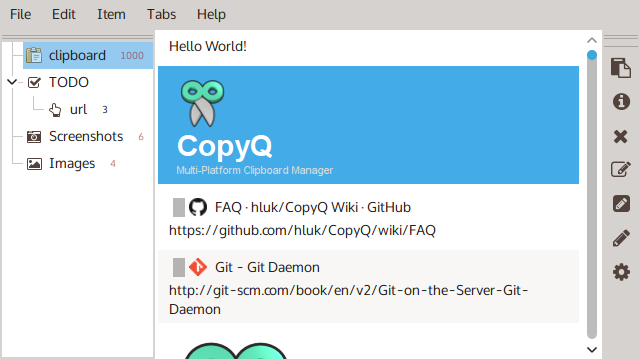
CopyQ does more than any other clipboard manager on this list. It records text, HTML, images and custom formats, files them into tabs, and lets you edit an entry before you paste it. The same app runs on Windows and macOS, so your habits carry over if you work on more than one system.
Development is steady. New major versions arrive every few months. Version 16 shipped in May 2026 and version 17 has followed. On KDE Plasma, Sway and other compositors that offer the data control protocol, CopyQ reads the clipboard natively. GNOME does not offer that protocol, so CopyQ runs its clipboard monitor through XWayland there. It works for most copies, but it is a workaround and not native support.
Best for: power users on any desktop
Runs on: X11 and Wayland (XWayland mode on GNOME)
License: GPL-3.0
Key features
- Searchable history with tabs, tags, notes and pinned items
- Built-in item editor, or your own editor
- Ignore rules for chosen windows or text patterns
- Command line and scripting, such as
copyq addandcopyq read 0 - Custom commands that run on copy or from a shortcut
- Encrypted tab data, with password-based encryption added in version 14
- Themes, including black, Nord and One Dark
Pros
- Works on almost every desktop and window manager
- The deepest feature set in this roundup
- Regular releases
- Same app on Windows and macOS
Cons
- More settings than most people will ever touch
- Built on Qt, so heavier than bare-bones tools such as Parcellite
- Needs the XWayland workaround on GNOME
Install
# Debian and Ubuntu
sudo apt install copyq copyq-plugins

# Fedora
sudo dnf install copyq

# Arch
sudo pacman -S copyq

# Flatpak
flatpak install flathub com.github.hluk.copyq
2. Klipper: Best for KDE Plasma
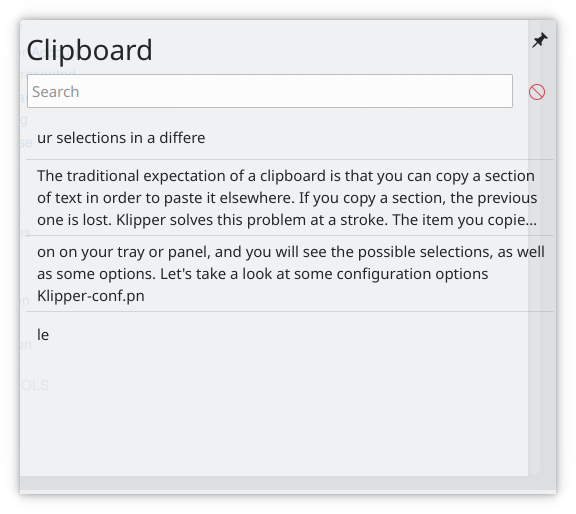
If you run KDE Plasma, you already have a clipboard manager. Klipper sits in the system tray as the Clipboard widget, and Meta + V opens the history from anywhere. Start typing and the list filters as you go.
It keeps files and folders in the history as well as text, and it can generate a QR code for an entry, which is handy for sending a link to your phone. A setting controls whether images enter the history. You can also tell Klipper to save its history on exit, so your clips survive a reboot.
Best for: KDE Plasma users
Runs on: Plasma on X11 and Wayland
License: GPL (part of KDE Plasma)
Key features
- Meta + V history popup with type-to-search
- Files and folders in the history, plus images if you allow them
- QR code for any entry
- Adjustable history size
- Option to save the history on exit
- Option to sync the clipboard and the primary selection
Pros
- Nothing to install on Plasma
- Works natively on X11 and Wayland
- Matches the rest of the desktop
Cons
- Plasma only
- No tabs or scripting like CopyQ
Install
Included with KDE Plasma. Press Meta + V and it opens.
3. GPaste: Best for Command Line Control on GNOME
GPaste is a clipboard daemon with a GNOME Shell extension on top. It is one of the older tools here and it still keeps up with GNOME. Version 50.5, built for GNOME 50, came out in June 2026.
The daemon ships with a command line client, gpaste-client, so you can script it as well as click it. Because it runs as a Shell extension, it works in GNOME’s default Wayland session without the workarounds other tools need.
Best for: GNOME users who want scripting and tight desktop integration
Runs on: GNOME on Wayland, and on X11 in GNOME 49 and earlier
License: BSD-2-Clause
Key features
- Shell extension plus a separate GPaste window
- Shortcuts to show the history and pop the latest item
- Shortcuts to sync the primary selection and the clipboard in either direction
- Mark an item as a password
- Upload an item to a pastebin service through wgetpaste
- Search results in the GNOME Activities overview
Pros
- Native GNOME integration with no Wayland workaround
- Scriptable from the terminal
- Follows each GNOME release closely
- Password marking built in
Cons
- GNOME only
- Two parts to install and enable, the daemon and the extension
- Plainer interface than Copyous
- After an upgrade, run
gpaste-client daemon-reexecso the new daemon loads
Install
# Debian and Ubuntu
sudo apt install gpaste gnome-shell-extension-gpaste

# Fedora
sudo dnf install gpaste-ui gpaste
Then switch on the GPaste extension in the Extensions app or Extension Manager.
4. Clipboard Indicator: Best Simple GNOME Extension
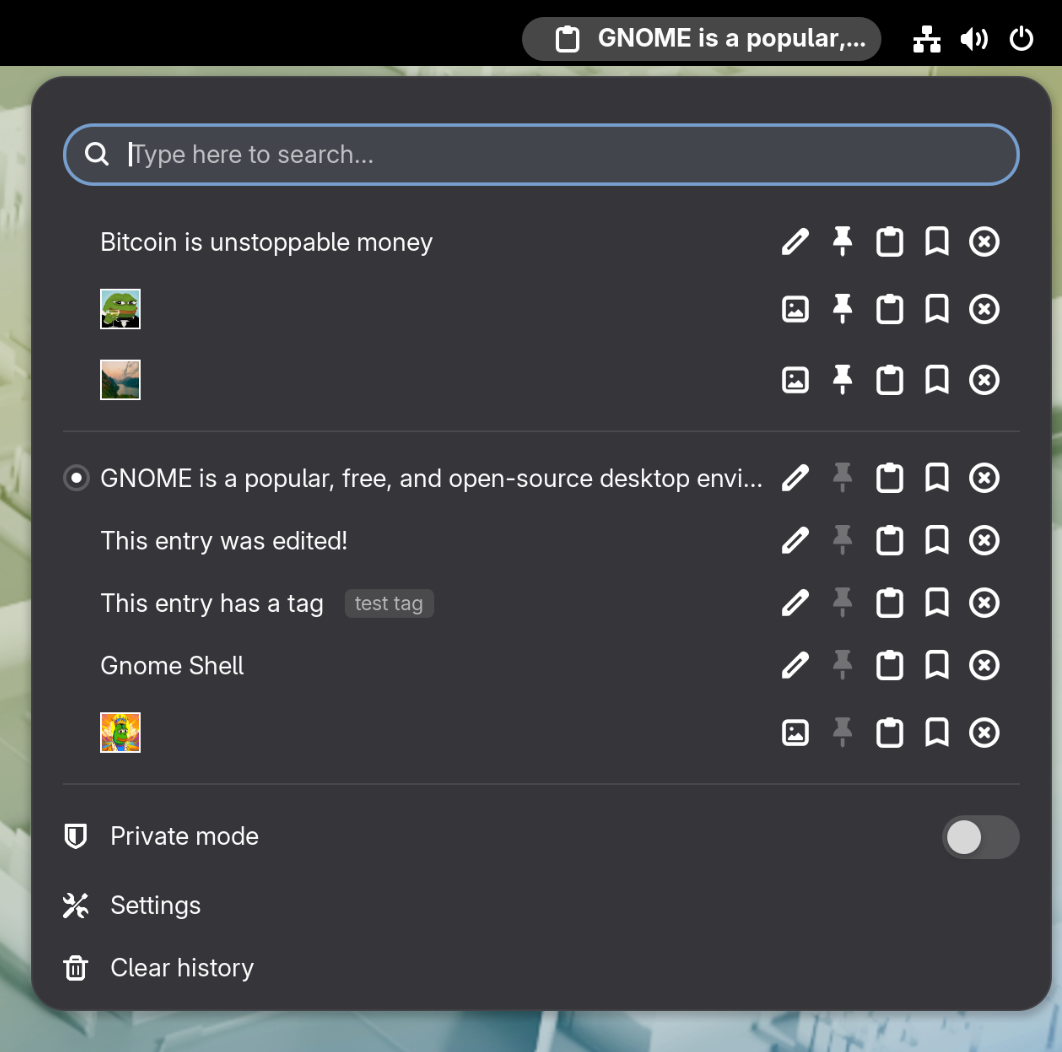
Clipboard Indicator puts an icon in the GNOME top bar. Click it, pick an older item, and it returns to the clipboard. It has more than 2 million downloads on extensions.gnome.org, and version 71 supports GNOME 46 through 50.
The author follows GNOME’s release cycle loosely and usually ships about two updates a year. After a major GNOME upgrade, the extension can stay switched off until a compatible version appears.
Best for: anyone who wants clipboard history on GNOME with the least setup
Runs on: GNOME 46 to 50
License: open source (GitHub)
Key features
- Text and images in the history
- Pin items to the top
- Searchable history
- Configurable history size and interface
- Keyboard controls inside the menu
Pros
- Easy install from extensions.gnome.org or Extension Manager
- Widely used, so problems get noticed and fixed
- Pinned items stay at the top of the list
Cons
- GNOME only
- Updates trail new GNOME releases
- Pasting from the menu sends Shift+Insert, or Ctrl+Shift+Insert in terminals, so tmux and some terminals need a small config change
- Fewer power features than CopyQ
Install
# Install Extension Manager, then search for Clipboard Indicator
flatpak install flathub com.mattjakeman.ExtensionManager

# Or enable it from the terminal once the extension is installed
gnome-extensions enable clipboard-indicator@tudmotu.com
5. Copyous: Best Modern Interface for GNOME
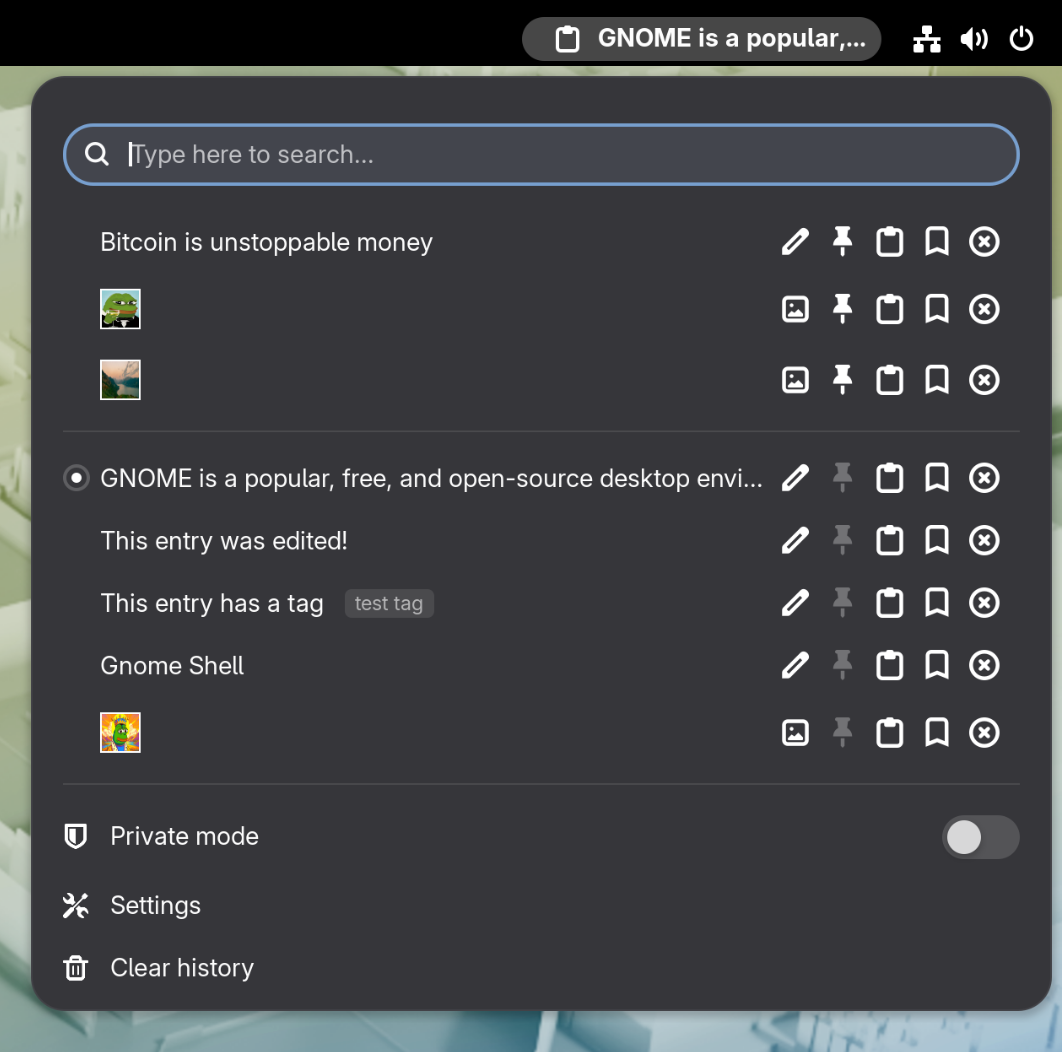
Copyous is the newcomer. It arrived in late November 2025 and describes itself as a full rewrite of Pano, an older GNOME clipboard extension (see the note on Pano below). It opens a clipboard dialog at the mouse pointer or the text cursor and handles text, code, images, files, links, characters and colors.
Version 2.0.1 supports GNOME 48, 49 and 50.
Best for: GNOME users who care how their clipboard looks
Runs on: GNOME 48 to 50
License: GPL-3.0 (GitHub)
Key features
- Dialog that opens at the pointer or text cursor
- Pin favorite items
- Nine colored tags for grouping
- Customizable clipboard actions
- Configurable shortcuts, with Super + Shift + V to open it by default
- D-Bus interface to show, hide, toggle and clear the history
Pros
- The cleanest interface of the GNOME options
- Tags and actions help with long histories
- Supports GNOME 50
- D-Bus control makes it scriptable
Cons
- Young project with a short track record and about 40,000 downloads
- Needs GNOME 48 or newer
- Some optional dependencies for full functionality, listed in the README
Install
# Install the extension from extensions.gnome.org or Extension Manager, then:
gnome-extensions enable copyous@boerdereinar.dev

# Open its settings
gnome-extensions prefs copyous@boerdereinar.dev
6. Clipman: Best for Xfce
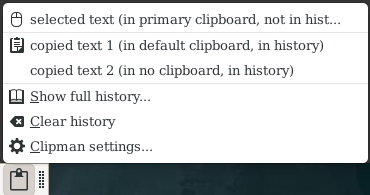
Clipman is the Xfce panel plugin for clipboard history. It keeps clipboard contents alive after you close the source app and it handles text and images. Its best trick is actions. Clipman matches copied text against regular expressions and offers matching commands.
It can also generate QR codes for copied text, and a standalone history dialog lets you search older entries. Middle-clicking the panel icon pauses recording, which is a quick way to stay out of the history when you handle something sensitive. Recent releases added Wayland support.
Best for: Xfce users
Runs on: Xfce on X11, with newer versions supporting Wayland
License: GPL-2.0 or later
Key features
- Text and images
- Regex-based actions on copied text
- QR code generation
- History search dialog (
xfce4-clipman-history) - Middle-click pause on the panel icon
Pros
- Small and built for Xfce
- Actions are a feature few other tools offer
- Maintained by the Xfce team
Cons
- Designed around the Xfce panel
- Fewer features than CopyQ
- Releases are infrequent
Install
# Debian and Ubuntu
sudo apt install xfce4-clipman-plugin

# Fedora
sudo dnf install xfce4-clipman-plugin

# Arch
sudo pacman -S xfce4-clipman-plugin
Then right-click the panel, choose Panel, then Add New Items, and pick Clipman.
7. Clipse: Best for the Terminal
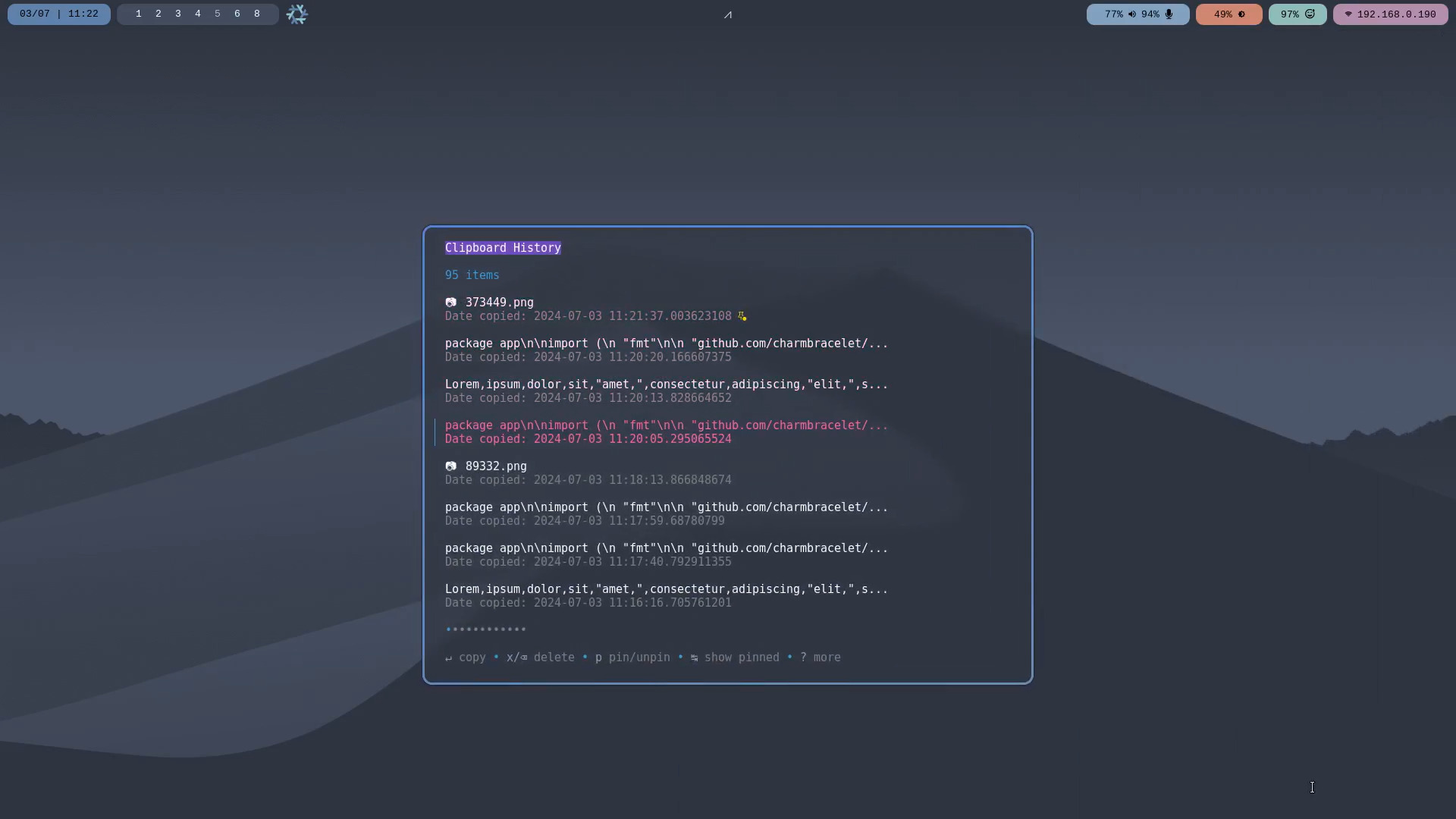
Clipse is a clipboard manager that lives in the terminal. A small background listener records what you copy, and a keyboard-driven interface lets you browse and filter the history. It is written in Go, ships as a single binary and runs on Linux, macOS and other Unix systems, on both X11 and Wayland.
It suits tiling window managers well. You bind a key that opens a floating terminal running Clipse, pick an item, and the item goes back on the clipboard.
Best for: terminal users and tiling window manager setups
Runs on: X11 (with xclip) and Wayland (with wl-clipboard)
License: MIT
Key features
- Persistent history with text and image previews
- Fuzzy filtering
- Pinned items and a pinned view
- Multi-select for copy and delete
- Vim-style navigation, custom key bindings and themes
- Pause recording with
clipse -pause 5m
Pros
- Light, with one binary for the listener and the interface
- Works on X11 and Wayland
- Pause and clear commands help with privacy
- MIT license
Cons
- You wire up the listener and the keybinding yourself
- Browsing needs a terminal window
- On GNOME’s Wayland session, tools that depend on wl-clipboard cannot watch the clipboard in the background
Install
# Go
go install github.com/savedra1/clipse@latest

# Arch (AUR)
yay -S clipse

# Nix
nix shell nixpkgs#clipse
Start the listener when you log in:
clipse -listenThen add a keybinding. This example is for i3 or Sway. Swap alacritty for your terminal.
bindsym $mod+V exec alacritty --class clipse -e clipse8. cliphist: Best for Sway and Hyprland
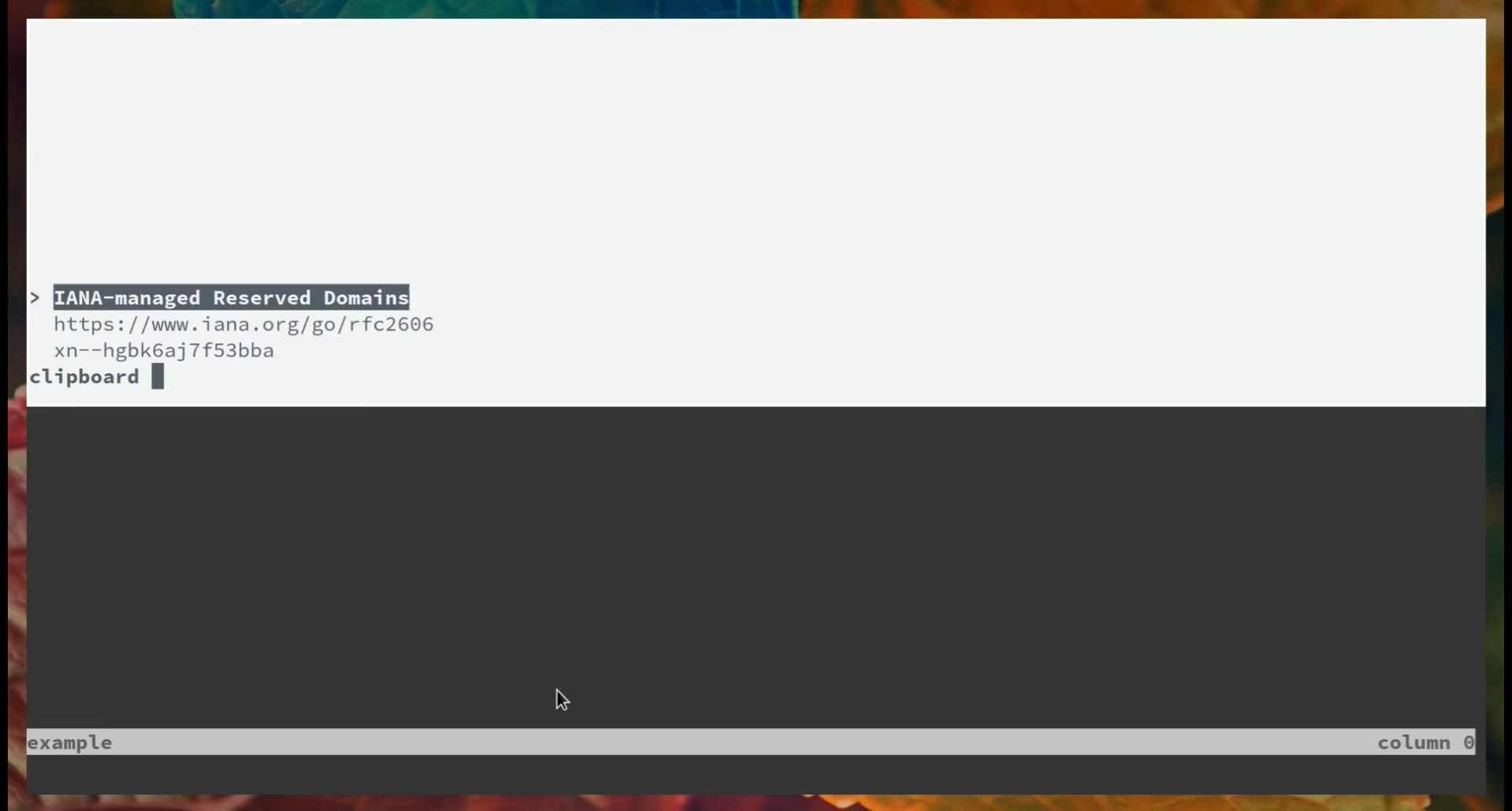
cliphist is a clipboard history tool for Wayland, and it is deliberately small. It has no window of its own. It stores what you copy and hands the list to whatever picker you prefer: rofi, wofi, fuzzel, dmenu or fzf.
The clipboard is preserved byte for byte, so leading spaces, missing newlines and Vim block selections survive a round trip. It handles text and images. Because it depends on wl-clipboard’s watch mode, it needs a compositor with data control support, which rules out GNOME.
Best for: Sway, Hyprland and other tiling Wayland setups
Runs on: Wayland only (not GNOME)
License: GPL-3.0
Key features
- Text and image history
- Works with rofi, wofi, fuzzel, dmenu and fzf
- Byte-for-byte storage
- Delete single entries, delete by query, or wipe everything
Pros
- Tiny and scriptable
- You choose the picker
- Fits into the launcher and keybindings you already use
Cons
- Wayland only, and not for GNOME
- No graphical interface of its own
- You build the keybinding and picker setup yourself
Install and use
# Arch
sudo pacman -S cliphist

# Any distro with Go (wl-clipboard is also required)
go install go.senan.xyz/cliphist@latest
Start the watchers at login. Run one for text and one for images.
wl-paste --type text --watch cliphist store
wl-paste --type image --watch cliphist store
Bind this command to a key to pick an entry. Swap rofi for wofi, fuzzel or fzf if you like.
cliphist list | rofi -dmenu | cliphist decode | wl-copy9. Parcellite: Best Lightweight Option for Old X11 Machines
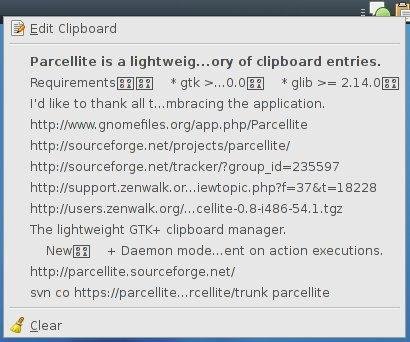
Parcellite is a stripped-down GTK clipboard manager with a small memory footprint. It adds a tray icon with your history, lets you edit an entry before you paste it, and supports configurable hotkeys. It is built on GTK 2 and X11.
Updates are rare. Version 1.2.5 still ships in distribution repositories and the tool keeps working, but do not expect new features. On a Wayland desktop it is the wrong choice.
Best for: old or low-RAM machines running X11
Runs on: X11 only
License: GPL-3.0 or later
Key features
- Tray icon with clipboard history
- Edit an entry before pasting
- Configurable hotkeys
- Small memory footprint
Pros
- One of the lightest options available
- Simple, with few settings to learn
- Packaged for most distributions
Cons
- No Wayland support
- Text focus, with basic features only
- Infrequent updates and an aging GTK 2 base
Install
# Debian and Ubuntu
sudo apt install parcellite

# Arch
sudo pacman -S parcellite
10. Diodon: Best for Lightweight GTK Setups on X11
Diodon is a lightweight clipboard manager written in Vala. It began as a clipboard manager for Ubuntu’s Unity desktop and still shows up in Ubuntu’s repositories, where 24.04 carries version 1.13. It adds a panel indicator with your history and supports text, files and images.
It can sync the primary selection with the regular clipboard, supports plugins, and can use Zeitgeist for a longer history. Wayland is its weak spot. A bug report on Launchpad notes that the hotkey menu cannot be used from the keyboard on Wayland.
Best for: lightweight GTK setups on X11
Runs on: X11, with limited Wayland support
License: GPL-2.0 or later
Key features
- Panel indicator with clipboard history
- Text, files and images
- Primary selection and clipboard sync
- Plugin support
- Optional Zeitgeist integration for a longer history
Pros
- Light on resources
- Image support in a small package
- Available in Ubuntu’s repositories
Cons
- Built for X11 and older panel designs
- Limited Wayland support
- Slow development
Install
# Debian and Ubuntu
sudo apt install diodon
Other Linux Clipboard Managers Worth Knowing
- Greenclip: a small clipboard manager built to work with rofi. It is X11 only. On Arch, install it from the AUR as
rofi-greenclip. - clipmenu: the same idea with dmenu or rofi and xsel, so it is also X11 only.
- Pano: a well-known GNOME extension, but its listing on extensions.gnome.org only covers GNOME 45. On current GNOME, use Copyous or Clipboard Indicator instead.
- COSMIC: the desktop does not include a clipboard manager yet. The community applet cosmic-utils/clipboard-manager fills the gap for now.
Clipboard History and Privacy
A clipboard manager records what you copy, and that includes passwords, tokens and private messages. Many tools store their history in a plain file in your home directory. A few habits keep the risk low.
- Exclude your password manager. CopyQ can ignore copies from chosen windows. GPaste lets you mark an entry as a password.
- Pause when you handle secrets. CopyQ has a Toggle Clipboard Storing menu item, Clipse has
clipse -pause 5m, and Clipman pauses with a middle click on the panel icon. - Keep the history short. A 50-item history leaves far less behind than a 5,000-item one.
- Encrypt where you can. CopyQ can encrypt tab data on disk.
- Delete on demand. cliphist has
cliphist wipeandcliphist delete-query. - Keep it out of backups you share. Do not commit the history file to a public dotfiles repository.
Setup Tips for Any Linux Clipboard Manager
- Bind a shortcut you will use. Super + V feels natural if you come from Windows. On GNOME it is already taken by the notification list, which is why Copyous defaults to Super + Shift + V.
- Start it at login. Tray apps such as CopyQ have an autostart option. Terminal tools need a line in your session or compositor config, for example
clipse -listenorwl-paste --watch cliphist store. - Cap the history. Fifty to a few hundred items is plenty. Long histories and large images cost memory and disk space.
- Test pasting into a terminal. Terminals paste with Ctrl + Shift + V, and tools that paste for you by simulating keys can behave differently there.
- Decide about the primary selection. If middle-click paste matters to you, turn on the sync option in tools that offer one, such as Klipper and GPaste.
- Check extensions after a GNOME upgrade. GNOME extensions can switch off after a major upgrade until the author ships a compatible version. If your clipboard icon vanishes, look in the Extensions app first.
Frequently Asked Questions About Linux Clipboard Managers
What is the best clipboard manager for Linux?
CopyQ is the best all-round choice. It runs on most desktops, stores text and images, and can be scripted. If you use KDE Plasma, Klipper is already installed and opens with Meta+V. On GNOME, Clipboard Indicator, GPaste and Copyous run inside the Wayland session. For Sway and Hyprland, cliphist and Clipse are the usual picks.
What is the best clipboard manager for GNOME?
Clipboard Indicator is the simplest option and has more than 2 million downloads on extensions.gnome.org. GPaste adds a command line client and deeper system integration. Copyous has the most modern interface and supports GNOME 48 to 50. CopyQ also works, but on GNOME’s Wayland session it runs through XWayland.
Does Linux have a built-in clipboard manager?
It depends on the desktop. KDE Plasma includes Klipper, which opens with Meta+V. GNOME has no clipboard history, so you need an extension or an app. Xfce has Clipman as an optional panel plugin.
Do clipboard managers work on Wayland?
Yes, but support depends on the desktop. Wayland blocks background apps from reading the clipboard, so managers need a data control protocol or a Shell extension. KDE Plasma, Sway and Hyprland support the protocol, so CopyQ, Clipse and cliphist work there, and Plasma has Klipper built in. GNOME needs extensions such as Clipboard Indicator, GPaste or Copyous. X11-only tools such as Parcellite and Greenclip are unreliable on Wayland.
How do I open clipboard history with a shortcut like Win+V?
On KDE Plasma, press Meta+V. Copyous opens with Super+Shift+V by default, because GNOME already uses Super+V for the notification list. In CopyQ, open Preferences, go to Shortcuts, and assign a global shortcut to Show the tray menu. For cliphist or Clipse, bind a key in your compositor to the command that opens your picker or terminal.
Is it safe to copy passwords when a clipboard manager is running?
It carries some risk. Many clipboard managers keep history in an unencrypted file, so a copied password can stay on disk long after you paste it. Pause recording when you handle secrets, exclude your password manager’s window where the tool allows it, keep the history short and clear it often. CopyQ can encrypt tab data, and GPaste lets you mark an entry as a password.
What is the difference between the clipboard and the primary selection?
The clipboard is what Ctrl+C and Ctrl+V use. The primary selection holds whatever text you last highlighted, and you paste it with a middle click. They are two separate buffers. Some clipboard managers can sync the two, and GPaste has shortcuts for syncing them in either direction.
Why does my copied text disappear when I close an app?
Copied data belongs to the app that copied it. When that app quits, the content can disappear on both X11 and Wayland. A clipboard manager keeps its own copy and offers it back, so the text survives after the source window closes.
