Every Linux distro ships with a text editor, and most people never look past it. That works until you’re editing config files daily, writing scripts, or managing servers over SSH. Then the editor you picked starts to matter.
Short answer: Visual Studio Code is the best all-round pick for most developers, Kate is the best native GUI editor, Neovim is the best terminal editor for power users, and Nano is the easiest choice for quick edits. The rest of this guide covers the 14 best text editors for Linux in detail, so you can match one to the way you work.
Six of them run in the terminal (CLI) and eight have a graphical interface (GUI). Each gets a short profile with features, pros, cons, and who it suits, and the comparison table below lets you narrow the list first. Versions, licenses, and prices were checked in October 2026.
Jump to: Comparison table | CLI editors | GUI editors | How to choose | Install commands | FAQ
Best Linux Text Editors Compared at a Glance
Resource use is a rough, relative rating that changes with your plugins and project size. Click an editor’s name to jump to its profile.
| Editor | Type | Best for | Learning curve | Resource use | Extensibility | License / price |
|---|---|---|---|---|---|---|
| Terminal (CLI) editors | ||||||
| Neovim | CLI (GUI front ends available) | Keyboard-driven coding with a full IDE setup | Steep | Low | Excellent (Lua plugins) | Apache 2.0 |
| Vim | CLI (gVim for GUI) | Servers, SSH, and quick edits | Steep | Minimal | Good (Vim script) | Vim license (open source) |
| GNU Nano | CLI | Beginners and config files | Easy | Minimal | None (settings only) | GPL |
| GNU Emacs | CLI and GUI | One environment for code, notes, and Git | Steep | Moderate | Excellent (Emacs Lisp) | GPL |
| Helix | CLI | Modal editing with little setup | Moderate | Low | None yet | MPL 2.0 |
| Micro | CLI | Familiar shortcuts in the terminal | Easy | Minimal | Basic (Lua plugins) | MIT |
| Graphical (GUI) editors | ||||||
| Visual Studio Code | GUI | General development with a huge extension library | Easy | High | Excellent (marketplace) | Free (MIT source, Microsoft build) |
| Sublime Text | GUI | Speed and large files | Easy | Low | Good (Python packages) | $99 (free evaluation) |
| Zed | GUI | Fast coding with built-in AI and collaboration | Easy | Moderate | Growing (extensions) | GPL-3.0+ with AGPL and Apache parts |
| Kate | GUI | Full-featured native Linux editing | Easy | Low | Good (plugins) | GPL / LGPL |
| GNOME Text Editor | GUI | Notes and quick edits on GNOME | Easy | Minimal | None | GPL |
| Geany | GUI | Lightweight IDE-style editing | Easy | Minimal | Good (plugins) | GPL 2.0+ |
| Lite XL | GUI | Minimal, hackable editing | Moderate | Minimal | Good (Lua plugins) | MIT |
| Mousepad | GUI | Simple editing on Xfce | Easy | Minimal | Limited | GPL |
How These Text Editors Were Chosen
Every editor here runs natively on Linux and is still maintained. Each was judged on six points:
- Speed and memory use on ordinary hardware, including older laptops
- Learning curve for someone who has never used it
- Extensibility, including plugins and Language Server Protocol (LSP) support, which adds code completion and error checking for a given language
- Built-in features such as syntax highlighting, search and replace, and Git tools
- License and price, because open source matters to many Linux users
- Maintenance, so you are not betting on a dead project
Best CLI Text Editors for Linux
Terminal editors start instantly, work over SSH, and run on servers with no desktop at all. These six cover everything from a one-minute config tweak to a full development setup.
Neovim
Neovim began in 2014 as a fork of Vim, with the goal of cleaning up the codebase and making the editor easier to extend. It keeps Vim’s modal editing and adds Lua scripting, a built-in language server client, and Tree-sitter parsing. Version 0.12, released in March 2026, added a built-in plugin manager called vim.pack and native insert-mode autocompletion, so a fresh install needs fewer third-party plugins than it used to.
Best for: developers who want a fast, keyboard-driven editor they can shape into a full IDE.
Key features
- Lua configuration and plugin API, with Vim script still supported
- Built-in LSP client for completion, diagnostics, and go-to-definition
- Tree-sitter parsing for accurate syntax highlighting
- Built-in terminal emulator and asynchronous job control
- Starter configs such as LazyVim, kickstart.nvim, and AstroNvim, plus GUI front ends like Neovide
Pros
- Fast startup and low memory use, even with a long plugin list
- Works the same in a local terminal, over SSH, or inside tmux
- Active development and a large plugin community
- Vim keybindings carry over to VS Code, JetBrains IDEs, Zed, and other tools
Cons
- Steep learning curve if you have never used a modal editor
- A good setup takes time, and plugin updates occasionally break things
- Still pre-1.0, so releases can include breaking changes (0.12 did)
Vim
Vim is the editor you will find on almost every server you log into. It started as a clone of vi, which is part of the POSIX standard, so some version of it is nearly always installed. Founder Bram Moolenaar died in August 2023, and the community has kept the project going under lead maintainer Christian Brabandt. Vim 9.2 arrived in February 2026 with experimental Wayland support, XDG-compliant config paths, and a vertical tab panel.
Best for: quick edits on remote servers, and anyone who wants a dependable modal editor with little setup.
Key features
- Modal editing with motions, operators, text objects, macros, and registers
- Vim9 script, a faster and more structured scripting language for plugins
- Built-in terminal, split windows, tabs, and a native package system
- An interactive
:Tutorplugin in 9.2, alongside the classicvimtutor - gVim, the graphical version, for people who want menus and a mouse
Pros
- Preinstalled or one command away on nearly every Linux system
- Tiny footprint and near-instant startup
- Excellent built-in
:helpand decades of tutorials - Responsive over slow SSH connections
Cons
- Modal editing confuses new users. To leave Vim, press
Esc, type:q, and press Enter (:q!discards changes,:wqsaves first) - Language server support comes from plugins, not the core editor
- Many new plugins are written for Neovim first
Vim vs Neovim: Which One Should You Learn?
Both share the same core editing model, so time spent learning one carries over to the other. The differences show up in configuration and tooling.
- Choose Neovim if you want Lua configuration, a built-in LSP client, Tree-sitter, and the largest pool of modern plugins.
- Choose Vim if you want a conservative, stable editor that is already installed on most machines and changes slowly.
- Learn both if you manage servers: master the shared keybindings once, run Neovim on your own machine, and use whatever Vim or vi the server provides.
GNU Nano
GNU nano is the editor that stays out of your way. The most common commands are listed at the bottom of the screen, so you can save a file without memorizing anything. It is the default terminal editor on many distributions, including Debian and Ubuntu, which means you have probably used it already. Nano 9.0 arrived in April 2026, and 9.2 followed in July.
Best for: beginners, quick config edits, and anyone who wants to type and save.
Key features
- On-screen shortcut hints, where
^means Ctrl andM-means Alt - Syntax highlighting, soft wrapping, line numbers, and bracket matching
- Search and replace with regular expression support
- Multiple file buffers, undo and redo, and auto-indent
- Settings stored in
~/.nanorc
Pros
- Almost no learning curve
- Installed by default on many distros
- Light enough for any machine and comfortable over SSH
- Free software under the GPL
Cons
- No plugin system, so it can’t grow beyond its built-in features
- Weak for larger projects: no project tree and no built-in language server support
- Save is
Ctrl+Oand exit isCtrl+X, which clash with habits from desktop apps
GNU Emacs
GNU Emacs is closer to a programmable environment than a text editor, one that happens to edit text very well. It runs in a terminal or as a native GUI app, and nearly everything about it can be changed in Emacs Lisp. People use it for code, notes, Git, and email, often all inside one window. Emacs 31.1, released in August 2026, turned on mouse support in terminals by default, added a “newcomers-presets” theme for first-time users, and lets you review package changes before installing or upgrading them.
Best for: people who want one customizable environment for code, notes, and writing, and don’t mind a learning curve.
Key features
- Org mode, bundled with Emacs, for notes, task lists, and literate documents
- Eglot, a built-in LSP client, and built-in Tree-sitter support since Emacs 29
- TRAMP for editing remote files over SSH as if they were local
- Package archives (GNU ELPA, NonGNU ELPA, and MELPA) with thousands of add-ons, including Magit for Git
- Daemon mode with
emacsclient, which opens files instantly in a running session - Ready-made configs such as Doom Emacs and Spacemacs
Pros
- Customization goes deeper than in any other editor on this list
- Org mode and Magit are hard to match elsewhere
- Runs in the terminal and as a native GUI app, including on Wayland
- Four decades of continuous development
Cons
- Steep learning curve, with its own vocabulary (frames, buffers, the kill ring)
- Default keybindings feel unusual, and a heavily customized config can become a hobby of its own
- Uses more memory than Vim or Nano, and startup can be slow without a daemon or some tuning
Helix
Helix is a modal editor written in Rust. It looks like Vim at first glance, but it reverses the order of editing: you select text first, then act on it, an idea borrowed from Kakoune. Language server support, Tree-sitter highlighting, multiple selections, and fuzzy pickers are built in, so there is very little to configure before you can write code.
Best for: people who like modal editing but don’t want to spend a weekend on a config file.
Key features
- Selection-first editing, with multiple selections as a core feature
- Built-in LSP client and Tree-sitter parsing
- Fuzzy pickers for files, buffers, symbols, and diagnostics
- Plain TOML configuration in
config.tomlandlanguages.toml - A health check,
hx --health, that shows which language servers and grammars are missing
Pros
- Excellent defaults and no plugin manager to set up
- Fast and light, thanks to Rust
- Open source under the MPL 2.0 license
Cons
- No plugin system yet, though the maintainers say one is planned
- Keybindings differ from Vim (deleting a word is
wd, notdw), so Vim muscle memory works against you - Smaller community and fewer integrations than Neovim or Emacs
Micro
Micro is what you get when you ask for a terminal editor that behaves like a normal desktop editor. Ctrl+S saves, Ctrl+C and Ctrl+V copy and paste, Ctrl+Q quits, and the mouse works. It ships as a single static binary with no dependencies, so putting it on a new server takes seconds.
Best for: Nano users who want more, and anyone who wants a friendly editor on remote machines.
Key features
- Familiar keybindings you can rebind
- Mouse support, splits, tabs, and multiple cursors
- Syntax highlighting and color themes, including true color
- Lua plugins with a built-in plugin manager
- One binary with no dependencies
Pros
- Almost no learning curve for anyone who has used a desktop editor
- Easy to install anywhere, including over SSH
- Sensible defaults that rarely need changes
Cons
- Slow release pace: version 2.0.15 arrived in early 2026, the first release since August 2024
- No built-in language server support and a limited plugin catalog
- System clipboard access may need
xclip,xsel, orwl-clipboardinstalled
Best GUI Text Editors for Linux
Graphical editors give you menus, mouse support, file trees, and tabs, which makes them easier to learn and better suited to large projects. These eight cover everything from full coding environments to minimal notepads.
Visual Studio Code
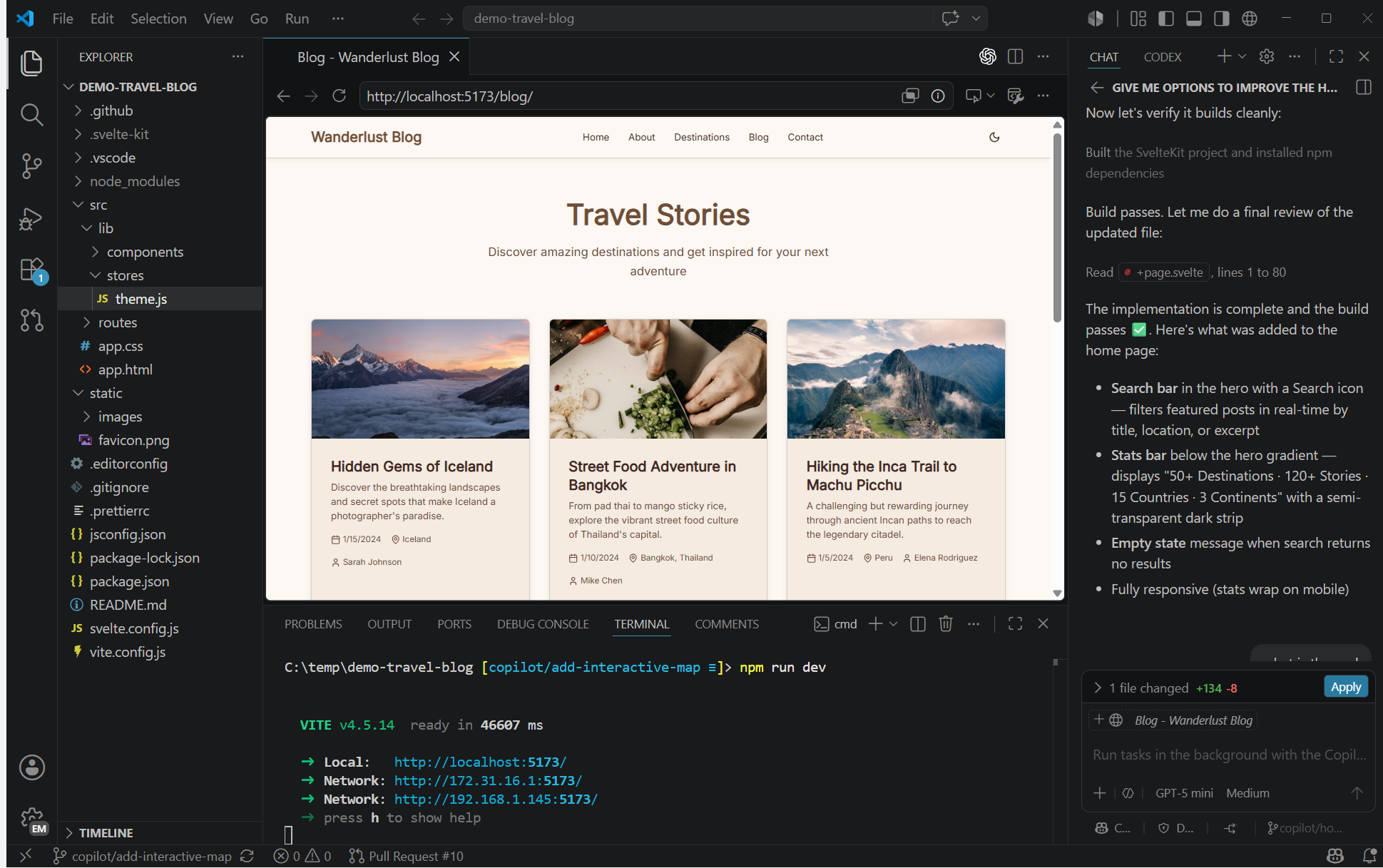
Visual Studio Code has topped developer surveys for years, and its Linux support is first-class. It is built on Electron, ships as .deb and .rpm packages, and is also available as a Snap and a Flatpak. The extension marketplace covers nearly every language and framework. VS Code moved to weekly stable releases in 2026, and Microsoft now markets it as an AI code editor, with agent features built in that you can use or ignore.
Best for: developers who want debugging, Git, extensions, and remote tools in one window.
Key features
- IntelliSense code completion and a built-in debugger
- Integrated terminal and Git tools
- Remote development over SSH and in Dev Containers
- Extension marketplace with themes, linters, formatters, and language support
- Built-in AI chat and agent features, including GitHub Copilot
- Settings Sync and Profiles for moving your setup between machines
Pros
- Works for nearly any language with the right extension
- Gentle learning curve and sensible defaults
- Huge community, so most questions already have an answer
Cons
- Heavy on RAM compared with native editors, because it runs on Electron
- Microsoft’s build includes telemetry (which you can turn off), and the marketplace terms restrict its use to Microsoft’s own products
- Updates arrive weekly, so expect frequent restarts
Want a build without Microsoft’s telemetry? VSCodium is a community build of the same source code that uses the Open VSX extension registry instead of Microsoft’s marketplace.
Sublime Text
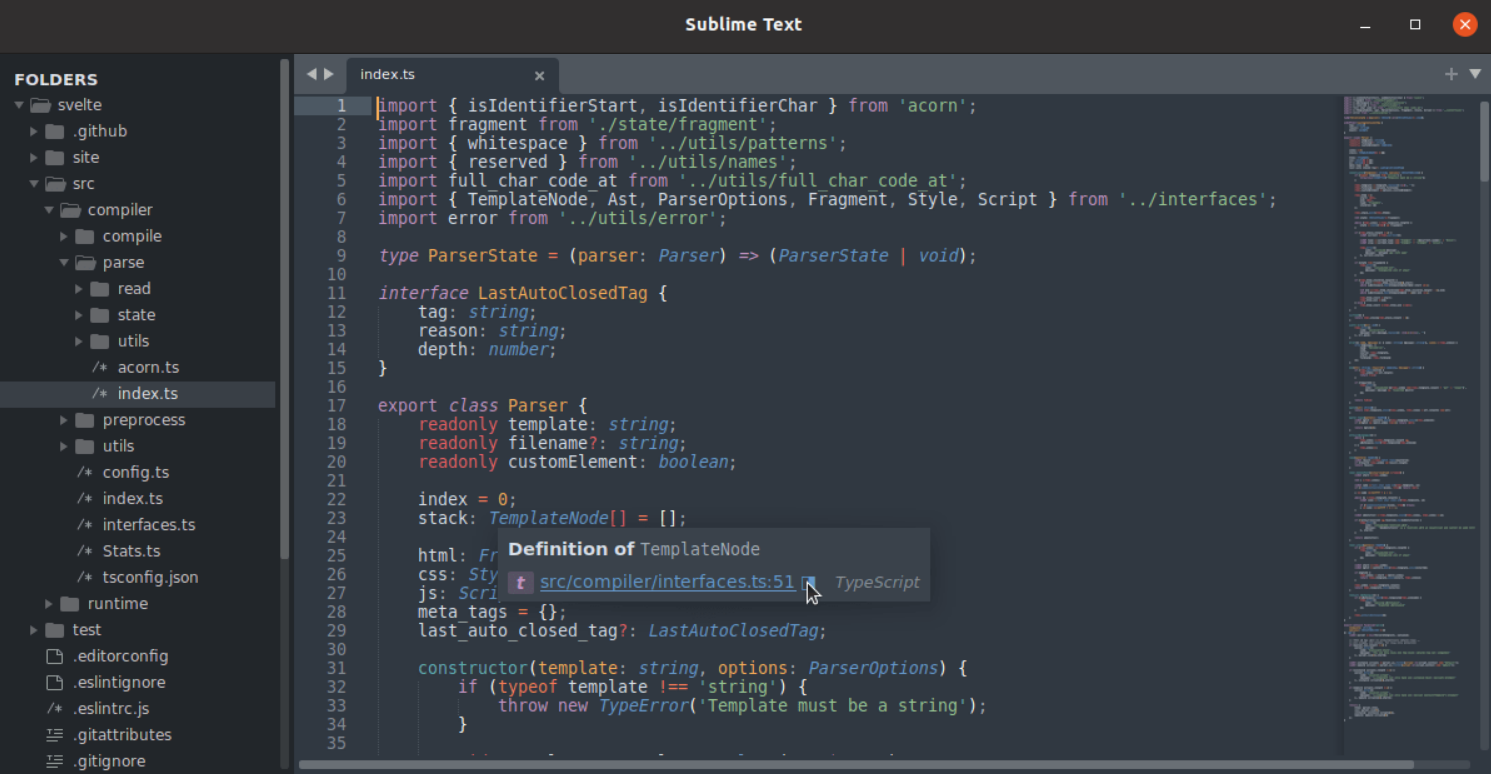
Sublime Text has been the benchmark for editor speed since 2008. It is closed source, written in C++ with its own UI toolkit, and it opens huge files that make other editors stall. Sublime Text 4 added GPU rendering, tab multi-select, and native Linux ARM64 builds.
A personal license costs $99 as a one-time purchase and includes three years of updates. The editor keeps working after that, but further updates need an upgrade. You can evaluate it for free with no time limit, with occasional purchase prompts, and business licenses are sold as annual subscriptions. If you make money with it, buy a license.
Best for: developers who value speed and polish and don’t mind paying for software.
Key features
- Goto Anything for jumping to files, symbols, and lines
- Multiple selections and multi-cursor editing
- Command Palette and a Python 3.8 plugin API
- Package Control for installing community packages
- LSP support through the community LSP package
- One license covers Linux, Windows, and macOS
Pros
- Very fast with large files and big projects
- Clean interface and low resource use
- Stable, mature, and consistent across platforms
Cons
- Not open source, and continued use requires a paid license
- No built-in debugger, and fewer IDE features than VS Code
- Git tools, language servers, and other extras depend on packages or the separate Sublime Merge app
Zed
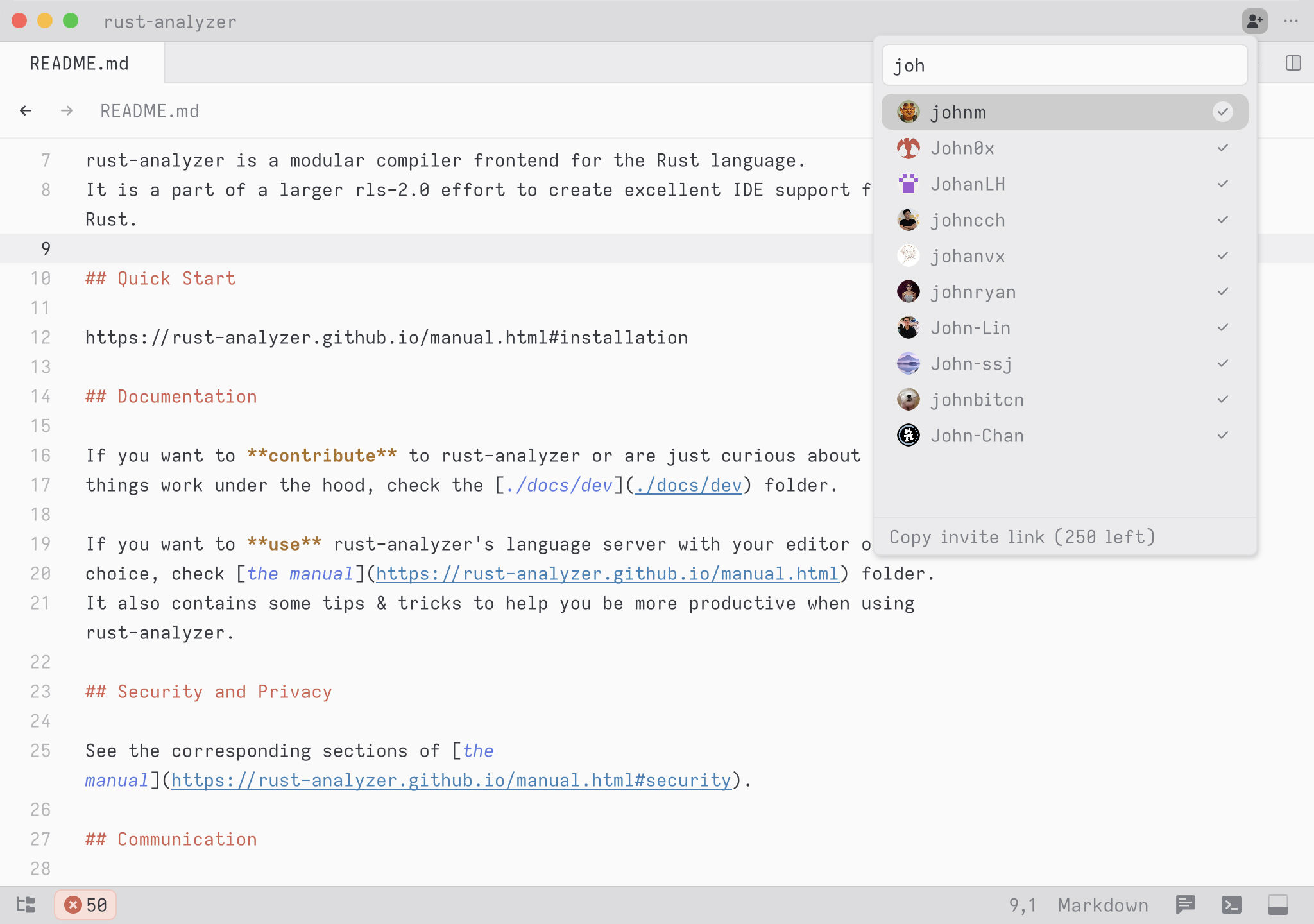
Zed comes from the team behind Atom and Tree-sitter. It is written in Rust with its own GPU-accelerated interface, and it reached version 1.0 on April 29, 2026, after years of preview builds. It runs natively on Linux, with real-time collaboration, Git integration, a debugger, and AI agents built in.
The editor is open source, mostly under GPL-3.0 or later, with AGPL and Apache 2.0 components. AI features are optional: you can turn them off in settings, bring your own API keys, or pay for Zed’s hosted plans.
Best for: developers who want a fast, modern editor with built-in collaboration and AI, and who can live without a huge extension catalog.
Key features
- GPU-accelerated interface that stays smooth on large files
- Multiplayer editing and shared projects built in
- Built-in terminal, Git panel, and debugger
- Language servers and Tree-sitter support built in, with an extension system for more languages and themes
- Vim mode if you want modal editing
Pros
- Quick startup and responsive typing
- Modern defaults with very little to configure
- Open source and released often
Cons
- Smaller extension library than VS Code
- Needs a GPU with Vulkan support, so older hardware and some virtual machines struggle
- AI features are prominent in the interface, which not everyone wants
Kate
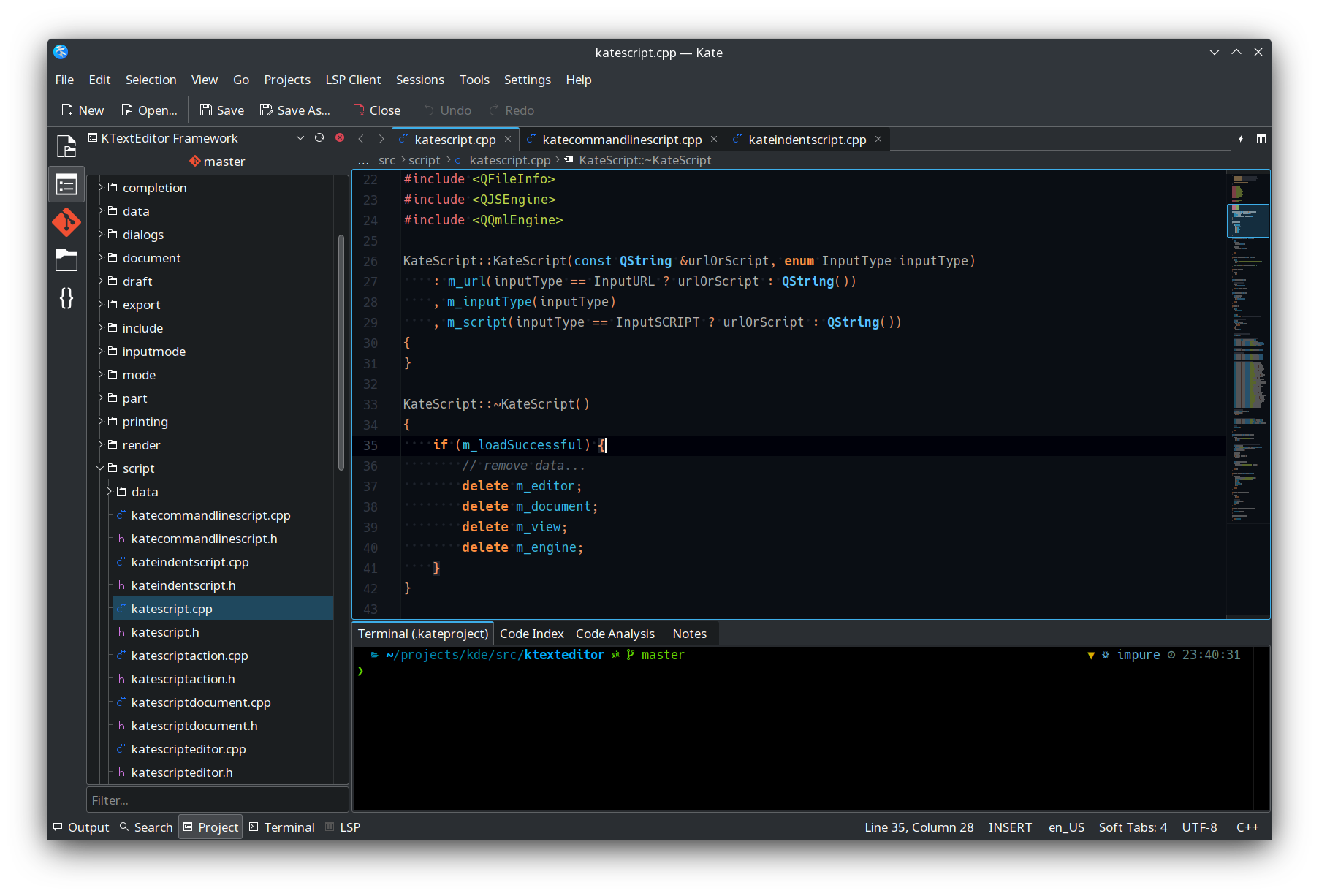
Kate is KDE’s advanced text editor, and it is the strongest native Linux GUI option if you want IDE-style features without a heavy IDE. It runs on GNOME, Xfce, and every other Linux desktop, as well as on Windows and macOS. Installed from a distro repository on GNOME or Xfce, it pulls in KDE libraries, while the Flatpak and Snap versions bundle them.
Best for: anyone who wants a full-featured, open-source GUI editor that feels at home on Linux.
Key features
- Built-in LSP client with completion and diagnostics (language servers are installed separately)
- Folders opened as projects, with Git integration and folder-wide search
- Multiple cursors and selections, splits, and tabs
- Integrated terminal and a Vi mode
- Syntax highlighting for more than 300 languages
- Debugger support through DAP, and code formatting with tools such as clang-format and prettier
Pros
- Most features work out of the box, with no extension hunting
- Sessions restore all your open files and layout
- Free software under the GPL and LGPL
Cons
- Looks and behaves best on KDE, and can feel out of place on other desktops
- No extension marketplace, so fewer add-ons than VS Code
- Language servers must be installed separately
GNOME Text Editor
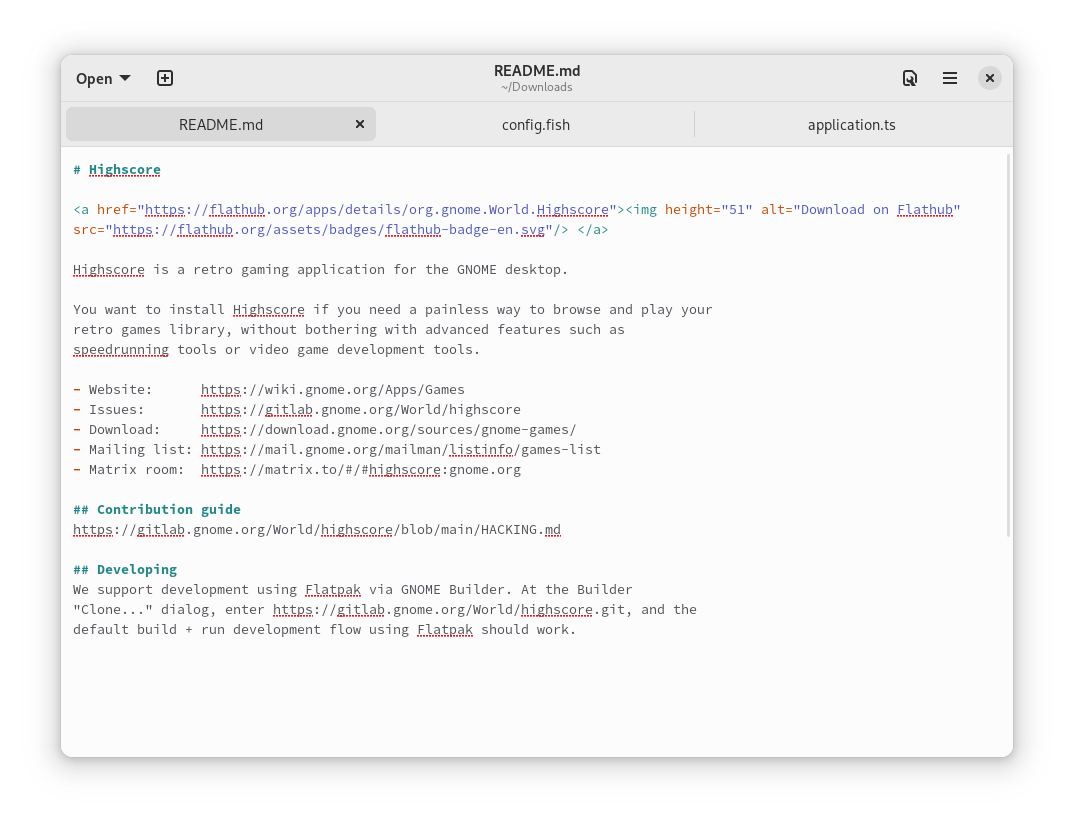
GNOME Text Editor is the default editor in recent GNOME releases. It replaced gedit in GNOME 42 in March 2022, and Ubuntu made the same switch in 22.10. It uses GTK4 and libadwaita, follows the system dark mode setting, and autosaves unsaved drafts, so closing a window rarely costs you text. It does not support plugins, by design.
Best for: notes, config files, and quick edits on GNOME.
Key features
- Tabs, syntax highlighting, and search and replace
- Autosaved drafts and session restore
- Several color schemes that follow light and dark mode
- Overview map, current-line highlighting, and an optional grid pattern
Pros
- Clean, fast, and matches the GNOME desktop
- Nothing to configure
- Rarely loses unsaved work
Cons
- No plugins, no language server support, and no project tree
- Looks out of place on non-GNOME desktops
- Too basic for serious development
Geany
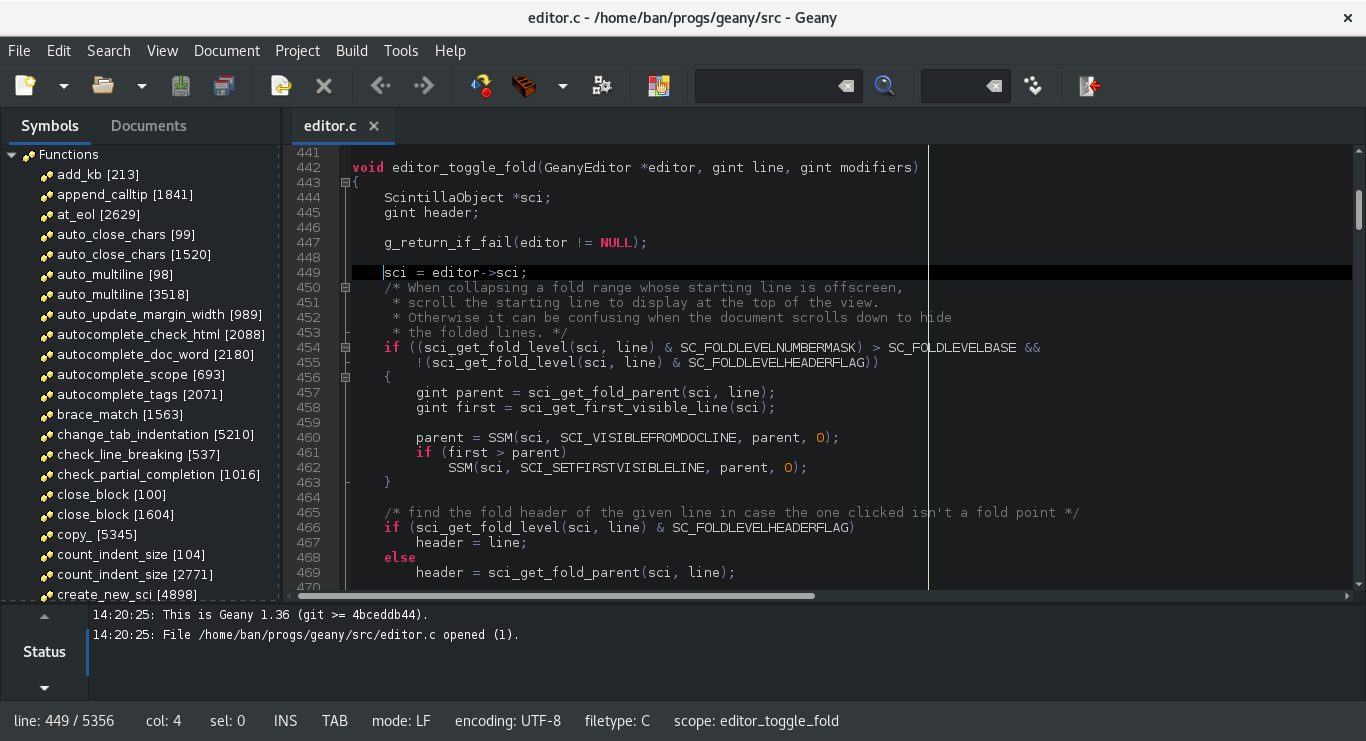
Geany is a small, fast editor with IDE touches, built on GTK and Scintilla. It starts almost instantly, compiles and runs code with a keypress, and has few dependencies, which makes it a good fit for older hardware. Geany 2.1 arrived in July 2025.
Best for: quick coding sessions in C, Python, PHP, and similar languages on modest hardware.
Key features
- Symbol list and code navigation
- Configurable build commands to compile and run code
- Code folding, auto-completion, and snippets
- Simple project management
- Plugins through the Geany-Plugins collection
Pros
- Very fast startup and low memory use
- IDE-style build tools without IDE bloat
- Open source under the GPL 2.0 or later
Cons
- The GTK3 interface looks dated next to newer editors
- Language server support is limited and less polished than in VS Code or Kate
Lite XL
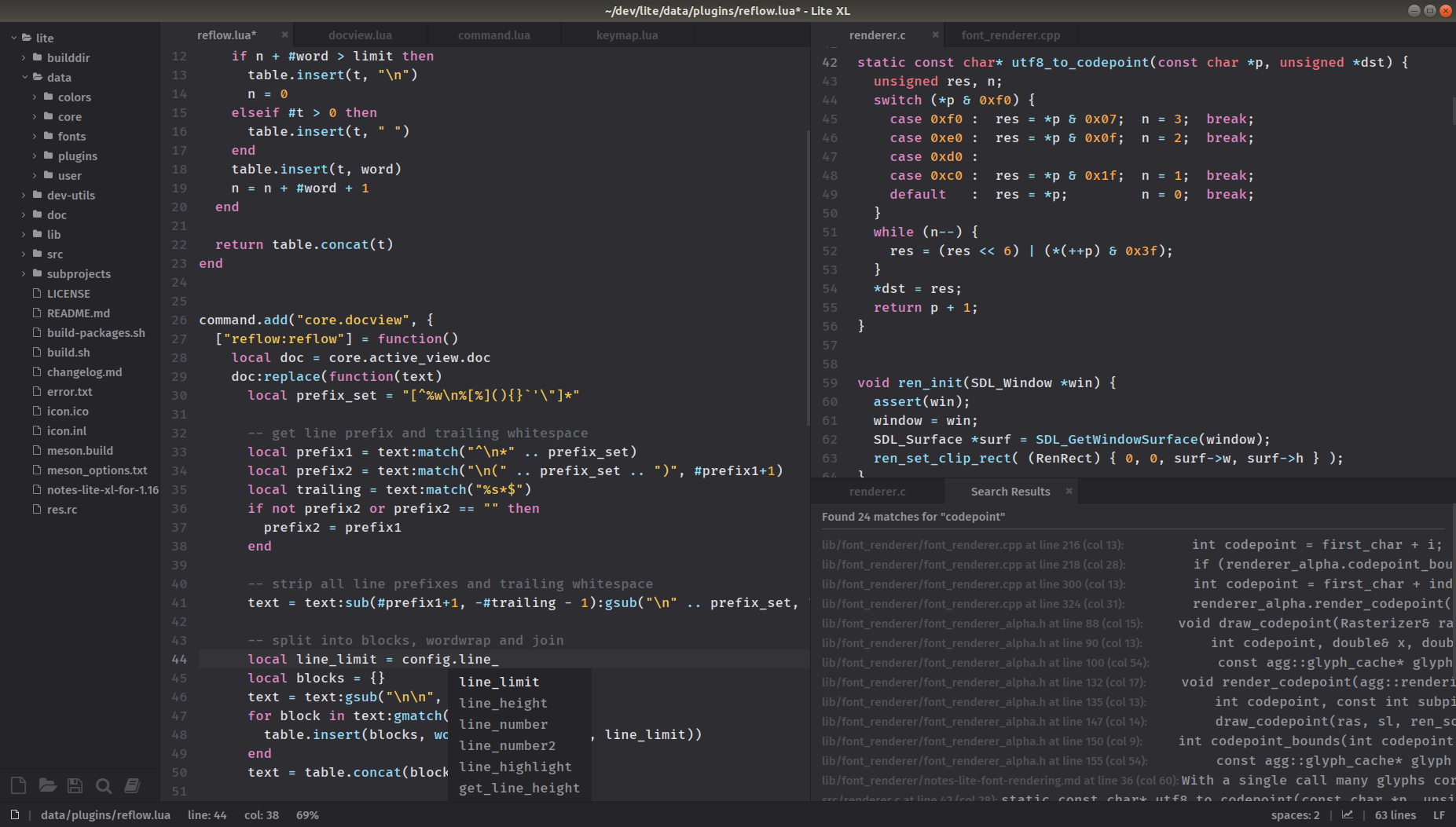
Lite XL is a lightweight editor written mostly in Lua, built on the original lite project. It is small, starts quickly, and nearly every part of it can be changed with Lua plugins. It supports high-DPI screens on Linux and bundles several color themes.
Best for: tinkerers, and anyone who wants a minimal, fast editor on modest hardware.
Key features
- Plugins and themes written in Lua, with a community plugin repository
- Project directories and workspace restore built in
- Configuration through a Lua user module
Pros
- Very small footprint and quick startup
- Easy to modify if you know a little Lua
Cons
- Smaller community and fewer built-in features than Kate or VS Code
- Language server and Git integration need plugins, so expect some setup time
Mousepad
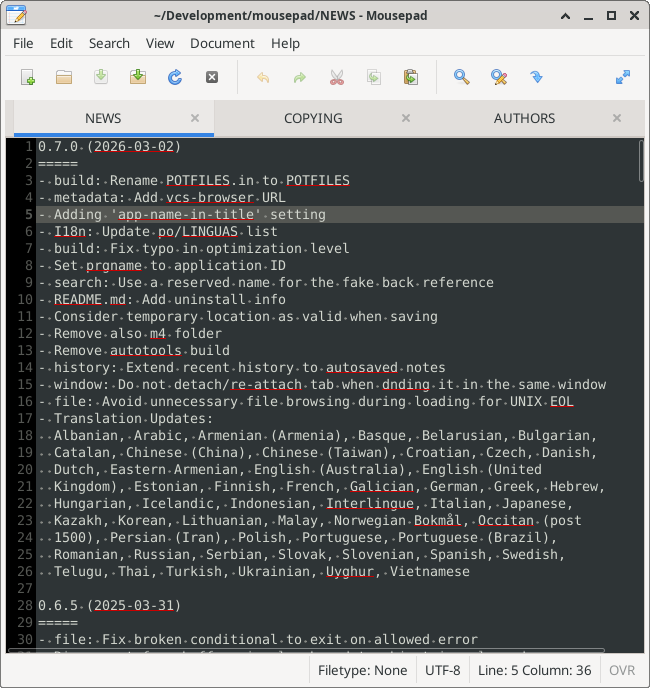
Mousepad is the default text editor on Xfce. It is a GTK-based editor with tabs, syntax highlighting, and search and replace, and it does little else, quickly. It is light on dependencies, which makes it a good fit for Xfce, LXQt, or any minimal setup.
Best for: Xfce users, and anyone who wants a basic, fast editor.
Key features
- Tabs, line numbers, and syntax highlighting
- Search and replace with regular expressions
- A small set of plugins, such as spell checking
Pros
- Quick to open and light on memory
- Straightforward, with nothing to learn
Cons
- Few coding features: no language server support and no project tree
- Small plugin set
Other Linux Text Editors Worth Knowing
A few more editors didn’t make the main list but suit specific cases.
- VSCodium: a community build of VS Code’s source without Microsoft’s telemetry and branding, using the Open VSX registry for extensions.
- Kakoune: the selection-first modal editor that inspired Helix, scriptable through shell commands.
- gedit: the former GNOME default, still available in most repositories, with the plugin support that GNOME Text Editor lacks.
- KWrite: a simpler front end to the same editing component Kate uses.
- Xed, Pluma, and FeatherPad: the default editors on Cinnamon, MATE, and LXQt.
- Neovide: a graphical front end for Neovim with smooth scrolling and animations.
- Notepad Next: an open-source recreation of the Notepad++ interface, available as a Flatpak and an AppImage.
Default Text Editors on Popular Linux Desktops
What you already have depends on your distro and desktop environment. Here is what ships by default on the most common setups.
- Terminal, Debian and Ubuntu: Nano. Many other distributions default to vi or Vim.
- GNOME: GNOME Text Editor, which replaced gedit in GNOME 42.
- KDE Plasma: Kate and KWrite.
- Xfce: Mousepad.
- Cinnamon (Linux Mint): Xed.
- MATE: Pluma.
- LXQt: FeatherPad.
How to Choose the Right Text Editor for Linux
Terminal or GUI?
Terminal editors start instantly, run over SSH, work on servers with no desktop, and keep your hands on the keyboard. The trade-off is a steeper learning curve, since you can’t browse menus to find features. Graphical editors flip that deal: menus, mouse support, file trees, and debuggers make them easier to pick up and better for large projects, but they need a desktop session and more memory.
Most people end up using both. Nano or Vim handles the quick job on a server, and a GUI editor handles the daily work on the desktop.
Match the Editor to the Job
- Editing config files over SSH: Nano for the simplest option, Micro if you want desktop-style shortcuts, or Vim if you already know it.
- Daily web or app development: VS Code for the widest extension support, or Zed if you want speed with built-in AI and collaboration.
- A fast, keyboard-driven workflow: Neovim for maximum control, or Helix for good defaults without configuration.
- A native Linux GUI editor: Kate on KDE or any other desktop, or GNOME Text Editor for plain notes on GNOME.
- Older or low-powered hardware: Geany, Mousepad, Lite XL, or Micro.
- Large files and raw speed: Sublime Text, Vim, or Neovim.
- Notes, writing, and task management: Emacs with Org mode.
- Open source only: Kate, Neovim, Emacs, Helix, Zed, or VSCodium.
Using AI coding tools? VS Code and Zed have chat and agent features built in. Neovim and Emacs get similar features through plugins and packages. Editors such as Nano and GNOME Text Editor keep things simple and have no AI features at all.
How to Install These Text Editors
Most of the editors above are in your distro’s package repositories. Pick the ones you want and drop the rest from the command.
Debian, Ubuntu, and Linux Mint
sudo apt install nano vim neovim emacs micro geany kate mousepad gnome-text-editorFedora
sudo dnf install nano vim neovim emacs micro helix geany kate mousepad gnome-text-editorArch Linux
sudo pacman -S nano vim neovim emacs micro helix geany kate mousepad gnome-text-editor zedFlatpak (any distro)
flatpak install flathub com.visualstudio.code dev.zed.Zed org.kde.kate org.gnome.TextEditor com.helix_editor.HelixSnap (any distro with snapd)
sudo snap install code --classic
sudo snap install sublime-text --classic
sudo snap install helix --classic
Zed (official install script)
curl -f https://zed.dev/install.sh | shDistro repositories sometimes lag on Neovim, Emacs, and Helix. If you need the newest release, use the project’s own packages, an AppImage, a PPA, or Flatpak. Sublime Text also maintains its own apt, dnf, and pacman repositories, which are listed on its website.
How to Change the Default Text Editor in Linux
Installing a new editor doesn’t make it the default. These commands do.
Set the default terminal editor for your user
export EDITOR=nvim
export VISUAL=nvim
Add those lines to ~/.bashrc or ~/.zshrc to make them permanent. Replace nvim with nano, vim, or micro as needed.
Set the system-wide default on Debian and Ubuntu
sudo update-alternatives --config editorRun select-editor instead to change it for your own account only.
Set the editor Git uses
git config --global core.editor "nvim"Set the default GUI editor for text files
xdg-mime default org.kde.kate.desktop text/plainSwap in your editor’s desktop file, such as org.gnome.TextEditor.desktop. Check the current default with xdg-mime query default text/plain.
Which Linux Text Editor Is Best?
For most people, a two-editor setup covers everything: Nano or Vim for the terminal, and VS Code or Kate for the desktop. Add Neovim or Helix if you want to go deep on keyboard-driven editing, Sublime Text or Zed if speed is the priority, and Emacs if you want a single environment for everything.
Every editor here can be tried for free, so install two or three, use each for a week on real work, and keep the one you open without thinking.
Linux Text Editor FAQ
What is the best text editor for Linux?
For most people, Visual Studio Code is the best all-round choice. Kate is the best native Linux GUI editor, Neovim is the best terminal editor for power users, and Nano is the easiest for quick edits. The right pick depends on how much time you spend in a terminal, how much you want to customize, and how much memory you can spare.
What is the best text editor for Linux beginners?
Nano is the best terminal editor for beginners because its shortcuts are listed on screen. Micro is a good alternative if you prefer familiar shortcuts such as Ctrl+S and Ctrl+C. On a desktop, GNOME Text Editor, Kate, and Mousepad all work like a standard notepad app, with menus and mouse support.
What is the best code editor for Linux?
Visual Studio Code has the largest extension library and strong debugging tools. Zed and Sublime Text are faster and lighter. Neovim and Emacs offer the deepest customization for people willing to learn them, and Kate is a solid open-source option with built-in language server support.
What is the difference between Vim and Neovim?
Neovim is a fork of Vim that adds Lua scripting, a built-in language server client, Tree-sitter support, and, since version 0.12, a built-in plugin manager. Vim is more conservative and ships on more systems by default. The core editing commands are the same, so learning one teaches you the other.
Is Vim or Nano better?
Nano is better if you want to start editing immediately with no learning curve. Vim is better if you edit text often, because its modal commands let you move and change text much faster once you know them. Many Linux users keep both: Nano for quick fixes, and Vim for heavier work or for servers that only have vi.
What is the default text editor in Linux?
It depends on the distribution and desktop. In the terminal, Nano is the default on Debian and Ubuntu, while many other systems use vi or Vim. On the desktop, GNOME uses GNOME Text Editor, KDE Plasma ships Kate and KWrite, Xfce uses Mousepad, Linux Mint’s Cinnamon uses Xed, and MATE uses Pluma.
What is the lightest text editor for Linux?
Nano, Vim, and Micro use the least memory, and all three run fine in a plain terminal. Among graphical editors, Mousepad, Geany, and Lite XL are very light. Visual Studio Code, which is built on Electron, needs noticeably more RAM.
How do I change the default text editor in Linux?
In the terminal, set the EDITOR variable in your shell configuration, for example by adding export EDITOR=nano to ~/.bashrc. On Debian and Ubuntu, run sudo update-alternatives --config editor to change the system-wide default, or select-editor to change it for your own account. For graphical apps, run xdg-mime default followed by your editor’s desktop file and text/plain, for example xdg-mime default org.kde.kate.desktop text/plain.
Is Visual Studio Code free on Linux?
Yes. VS Code is free to download and use, and its source code is released under the MIT license. Microsoft’s own build includes telemetry and is distributed under a separate license, so privacy-minded users often choose VSCodium, a community build without Microsoft’s branding and telemetry.
Is there a Notepad++ for Linux?
Notepad++ is a Windows application. On Linux you can run it through Wine or try community recreations such as Notepad Next. Among established native editors, Kate, Geany, and Sublime Text are the closest everyday replacements, and VS Code covers heavier development work.