Most Linux users start with Gmail in a browser tab and never look further. That works until you juggle three accounts, want your mail available offline, or start wondering who else gets to see the metadata. A desktop email client solves all three, and Linux has plenty of good ones.
This guide covers 13 email clients for Linux, from Thunderbird to terminal tools like NeoMutt and privacy-first apps from Proton and Tuta. You will also learn what an email client does, how webmail compares with installed software, and why open source matters when the app holds the password reset links for your whole digital life.
Quick Picks: The Best Email Clients for Linux
Short on time? Here is where each client fits best.
- Best overall: Thunderbird
- Best Thunderbird alternative: Betterbird
- Best for GNOME: Evolution (full suite) or Geary (simple and light)
- Best for KDE Plasma: KMail inside Kontact
- Best for old hardware: Claws Mail
- Best modern interface: Mailspring
- Best for the terminal: NeoMutt or aerc
- Best for end-to-end encryption: Proton Mail or Tuta
- Best closed source options: BlueMail or Vivaldi Mail
Comparison Table: Best Linux Email Clients Side by Side
| Client | License and price | Best for | Key features | Pros | Cons |
|---|---|---|---|---|---|
| Thunderbird | Open source (MPL 2.0). Free | All-round daily use | IMAP, POP3, Exchange, calendar, tasks, OpenPGP, add-ons, unified inbox | Complete, huge add-on library, built-in encryption | High RAM use, some dated UI, telemetry to review |
| Betterbird | Open source (MPL 2.0). Free | Thunderbird fans who want fixes | Thunderbird features plus extra patches and options | Add-on compatible, fewer annoyances | Small team, trails upstream, Flatpak or tarball install |
| Evolution | Open source (LGPL). Free | GNOME desktops, Exchange users | Mail, calendar, tasks, contacts, Exchange, OpenPGP, S/MIME | Full suite, strong Microsoft support | Dated look, slower with huge mailboxes |
| KMail (Kontact) | Open source (GPL). Free | KDE Plasma, power users | Akonadi, Sieve filters, calendar, contacts, GnuPG, S/MIME | Deep customization, excellent encryption | Heavy, complex, many dependencies |
| Geary | Open source (LGPL). Free | Simple, GNOME-style mail | Conversation view, GNOME Online Accounts, fast search | Clean, light, easy setup | No calendar, limited filters and encryption |
| Claws Mail | Open source (GPL). Free | Old hardware, keyboard users | Plugins, PGP, S/MIME, spam filtering, RSS | Very fast, tiny footprint, plain-text-first | Old interface, plugin setup, rough HTML mail |
| Mailspring | Open source client (GPLv3). Free, paid Pro | Modern interface, productivity | Unified inbox, themes, local sync, send later and read receipts (Pro) | Polished, usable free tier | Electron RAM use, paywalled extras, no calendar |
| NeoMutt | Open source (GPL). Free | Terminal and scripting fans | Keyboard driven, GnuPG, works with mbsync, msmtp, notmuch | Fast, flexible, tiny resource use | Steep learning curve, needs helper tools |
| aerc | Open source (MIT). Free | Terminal users who want modern defaults | IMAP, JMAP, Maildir, notmuch, embedded terminal, Vim-style keys | Easier than Mutt, scriptable | Smaller community, HTML mail needs filters |
| Proton Mail | Open source apps (GPLv3). Free and paid plans | End-to-end encryption | Encrypted mail, calendar, contacts, desktop app, Bridge for IMAP | Strong privacy, audited, Linux apps | Bridge is paid, desktop app wraps the web client |
| Tuta Mail | Open source apps (GPLv3). Free and paid plans | Encrypted mail and calendar | Encrypts subject lines, encrypted calendar, AppImage app | Encrypts more data, simple to use | No IMAP, no third-party clients, no PGP |
| BlueMail | Closed source. Free | Easy multi-account setup | Unified inbox, calendar, dark mode, many providers | Quick setup, clean look, free | Cannot be audited, vendor cloud dependence |
| Vivaldi Mail | Mostly closed source. Free | Browser and mail in one app | IMAP, POP3, labels, calendar, feed reader | All-in-one, free, flexible layouts | Requires Vivaldi, limited encryption, less mature |
What Is an Email Client and What Should It Do?
An email client is the app that connects to your mail server, downloads your messages, and lets you read, write, search and organize them. Your provider (Gmail, Outlook, Fastmail, your own domain) stores the mail. The client is the window you use to reach it.
Clients talk to servers through a handful of standard protocols:
- IMAP: keeps mail on the server and syncs the same folders to every device. Use this for almost everything.
- POP3: downloads mail to one machine and often removes it from the server. Fine for a single-device archive, risky otherwise.
- SMTP: sends outgoing mail.
- CalDAV and CardDAV: sync calendars and contacts.
- EWS: Exchange Web Services, used by many corporate Microsoft accounts.
A good client does more than fetch messages. These are the features worth checking before you commit:
- Modern sign-in (OAuth2). Gmail and Microsoft 365 have phased out plain password logins for many third-party apps, so OAuth2 support matters.
- Fast search. You will search far more often than you browse folders.
- Multiple accounts and a unified inbox. One view for personal, work and side-project mail.
- Filters and rules. Sort newsletters, receipts and mailing lists automatically.
- Offline access. Read and draft mail without a connection, then sync later.
- Encryption. OpenPGP, S/MIME, or both.
- Remote content blocking. Stops tracking pixels from reporting when you open a message.
- Calendar and contacts. Built in or through add-ons.
- Good Linux packaging. Native Wayland and HiDPI support, desktop notifications, and an install option for your distro (deb, rpm, Flatpak or Snap).
- Active maintenance. An email app handles untrusted content all day, so security updates are not optional.
Built-In Email Clients on Linux Distros
Linux has no single default mail app. What you get depends on your distro and desktop environment.
- Thunderbird ships with Ubuntu (as a Snap in recent releases), Linux Mint and several other distros.
- Evolution is the GNOME groupware suite and is common on GNOME-based systems, including Debian’s GNOME desktop.
- Geary is GNOME’s lightweight client. The Mail app in elementary OS is built on it.
- KMail comes with KDE’s Kontact suite and is available on every Plasma-based distro.
- Minimal distros such as Arch ship without a mail client. You install your own.
For many people the default is enough. Thunderbird in particular is a complete product, not a placeholder. One Ubuntu note: the Snap version can start slowly on the first launch. If that bothers you, install the Flatpak build instead.
Webmail vs Desktop Email Clients on Linux
Webmail runs in your browser. Gmail, Outlook.com, Yahoo Mail, Fastmail and the Proton Mail web app are all examples. A desktop client is software you install and point at the same accounts.
Webmail: Strengths and Weaknesses
Pros
- No setup. Log in and start.
- The same interface on every device.
- Provider-only features such as Gmail’s search operators, categories and spam filtering work fully.
- Nothing is stored locally, so a lost laptop exposes less.
Cons
- Offline use is limited or missing.
- Each provider is its own silo, so you juggle tabs for multiple accounts.
- The provider’s scripts and analytics run in your browser.
- Notifications depend on the browser and can be unreliable.
Desktop Email Clients: Strengths and Weaknesses
Pros
- One unified inbox across Gmail, Outlook, Fastmail and your own domain.
- Offline access and fast search over a local copy.
- Privacy controls like remote content blocking and optional encryption.
- Native notifications and desktop integration.
- You control backups.
Cons
- Setup takes a few minutes, especially with OAuth2.
- Provider-specific extras do not carry over. Gmail labels, for example, map awkwardly to IMAP folders.
- Mail is cached on your disk, so you need to protect that disk.
- Searching very large mailboxes can be slow on some clients.
| Factor | Webmail | Desktop client |
|---|---|---|
| Setup | None | A few minutes per account |
| Offline use | Limited | Full |
| Multiple providers | Separate tabs | One unified inbox |
| Privacy controls | Set by the provider | Set by you |
| Provider-specific features | Full | Partial |
| Local data to protect | No | Yes |
| Cost | Free tiers common | Mostly free |
You do not have to pick one. Plenty of people run Thunderbird daily and open webmail only for features that need it. Chromium-based browsers can also install Gmail or Outlook as a standalone app window, which is a decent middle ground.
Privacy and Open Source: Why It Matters for Email
Your inbox holds password reset links, invoices, tax documents and years of private conversation. Whoever controls your email can reach most of your other accounts. That makes the choice of client a security decision as much as a convenience one.
What Open Source Gets You
- Auditable code. Anyone can inspect how the app handles your credentials and messages.
- No hidden hooks. Tracking, ads and telemetry are visible in the source and easier to remove.
- Longevity. If the project dies, the community can fork it. Betterbird is a good example of that process working.
- Distro vetting. Packages in distro repositories get reviewed and patched by maintainers.
Open source is not automatic privacy. A neglected project with no security updates is worse than a well-maintained closed one. Look at release frequency and how fast bugs get fixed.
What Closed Source Asks You to Trust
With a closed source client you cannot verify what happens to your login details or message data. Some clients route mail through the vendor’s servers to enable push notifications or extra features. That is not always a problem, but it means the privacy policy carries more weight than the code. Read it before connecting a sensitive account.
A Practical Privacy Checklist for Any Client
- Block remote images and content by default. Tracking pixels tell senders when and where you opened a message.
- Review telemetry settings. Turn off anything you do not want to share.
- Use OpenPGP or S/MIME when your contacts support it. Remember that encryption does not hide who you wrote to, and in many setups the subject line stays visible.
- Encrypt your disk. Desktop clients cache mail locally. LUKS protects that cache if your laptop is stolen.
- Prefer OAuth2 or app-specific passwords over your main account password.
- Check where the client connects. Direct connections to your mail server are better than a vendor relay.
- Keep the client updated. Email apps parse hostile content all day.
Free and Open Source Email Clients for Linux
1. Thunderbird: Best Overall Email Client for Linux
License: MPL 2.0 | Price: Free
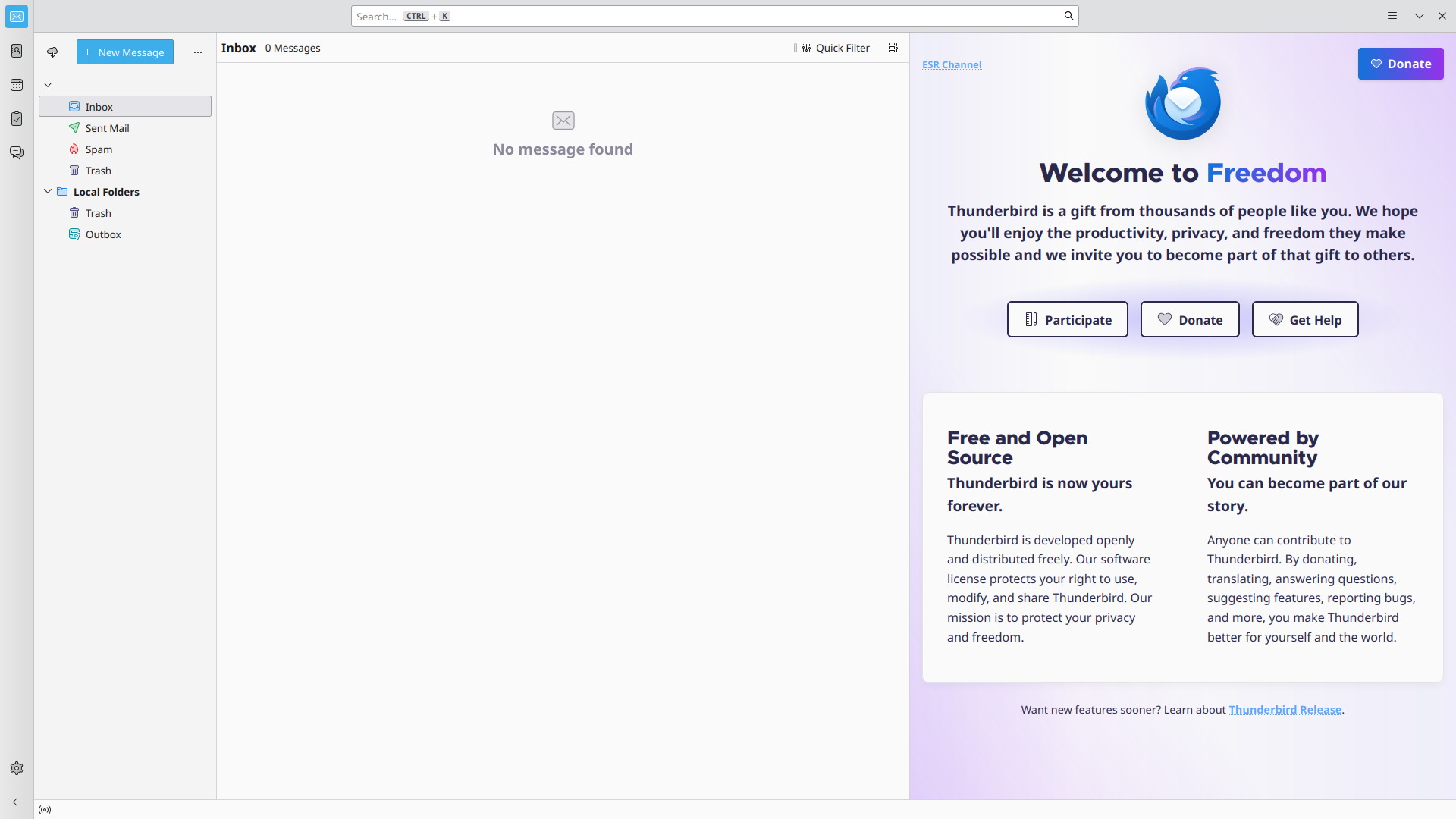
Thunderbird is the default recommendation for good reason. One app covers IMAP, POP3, calendars, contacts, tasks, RSS feeds and newsgroups, and recent releases add native Microsoft Exchange support. OpenPGP encryption is built in, so you no longer need the old Enigmail add-on. The team redesigned the interface in 2023, and the add-on library fills most remaining gaps.
Pros
- Complete feature set in a single app
- Built-in OpenPGP encryption
- Large add-on library
- Strong filters, search and unified inbox
- Available on every major distro and as a Flatpak
Cons
- Memory use grows with big mailboxes
- Some corners of the interface still feel dated
- Exchange support is newer than its IMAP support and still maturing
- Telemetry settings are worth reviewing
2. Betterbird: Best Thunderbird Alternative
License: MPL 2.0 | Price: Free
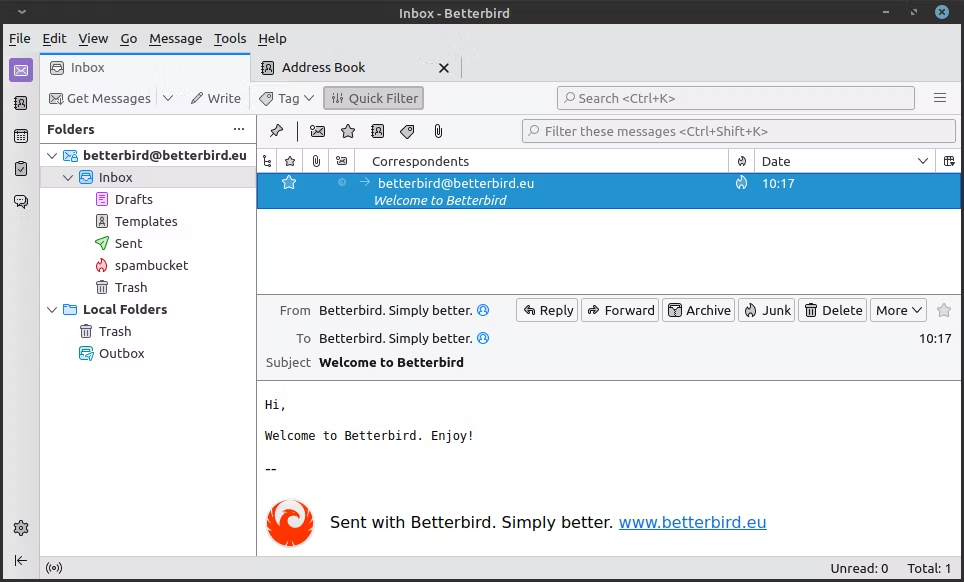
Betterbird is a fork of Thunderbird that adds fixes and features the main project has been slow to ship, while staying compatible with Thunderbird add-ons. If you like Thunderbird but keep hitting the same small annoyances, try this first.
Pros
- Familiar Thunderbird workflow
- Patches for long-standing bugs and extra options
- Works with existing Thunderbird add-ons
Cons
- Small team, so releases trail upstream Thunderbird
- Rarely in distro repositories (install through Flatpak or a tarball)
3. Evolution: Best for GNOME and Exchange Users
License: LGPL | Price: Free
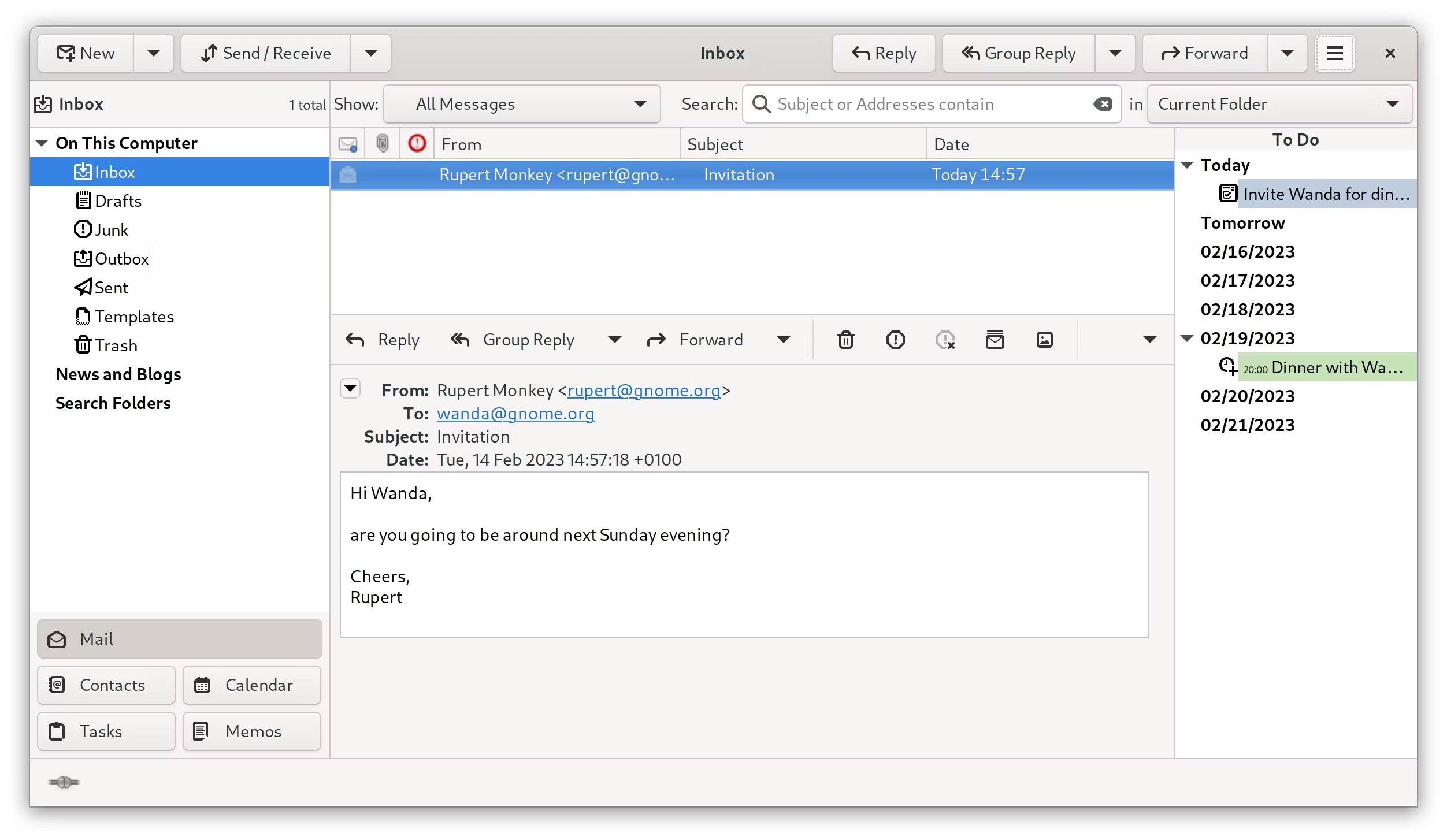
Evolution is GNOME’s groupware suite: mail, calendar, contacts, tasks and memos in one window. It has long been a top Linux choice for people who need to connect to Microsoft Exchange or Microsoft 365, and it handles OpenPGP and S/MIME out of the box.
Pros
- Strong Exchange and Microsoft 365 support
- Search folders (vFolders) for saved searches
- Full calendar, contacts and task management
- OpenPGP and S/MIME support
Cons
- Dated interface
- Can slow down with very large mailboxes
- Pulls in many GNOME components on other desktops
4. KMail (Kontact): Best for KDE Plasma and Power Users
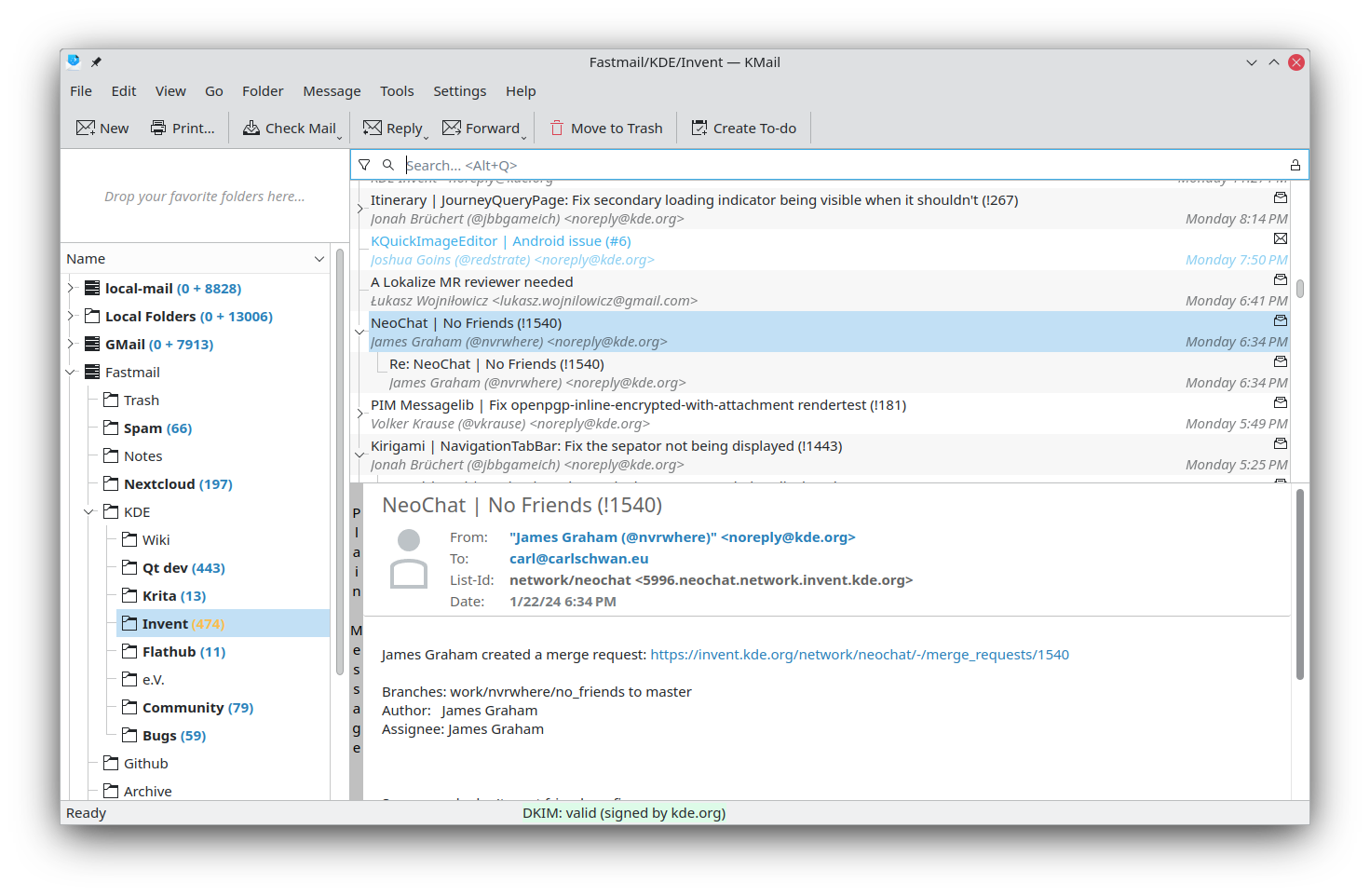
License: GPL | Price: Free
KMail is the mail component of Kontact, KDE’s personal information suite. It sits beside KOrganizer for calendar, KAddressBook for contacts and Akregator for feeds. Deep customization and tight GnuPG and S/MIME integration make it popular with privacy-minded KDE users.
Pros
- Highly configurable, including server-side Sieve filters
- Excellent encryption integration
- Fits Plasma naturally
- Full PIM suite when you want it
Cons
- The Akonadi backend is resource hungry
- Setup confuses newcomers
- Brings many KDE dependencies on non-KDE desktops
5. Geary: Best Simple Email Client
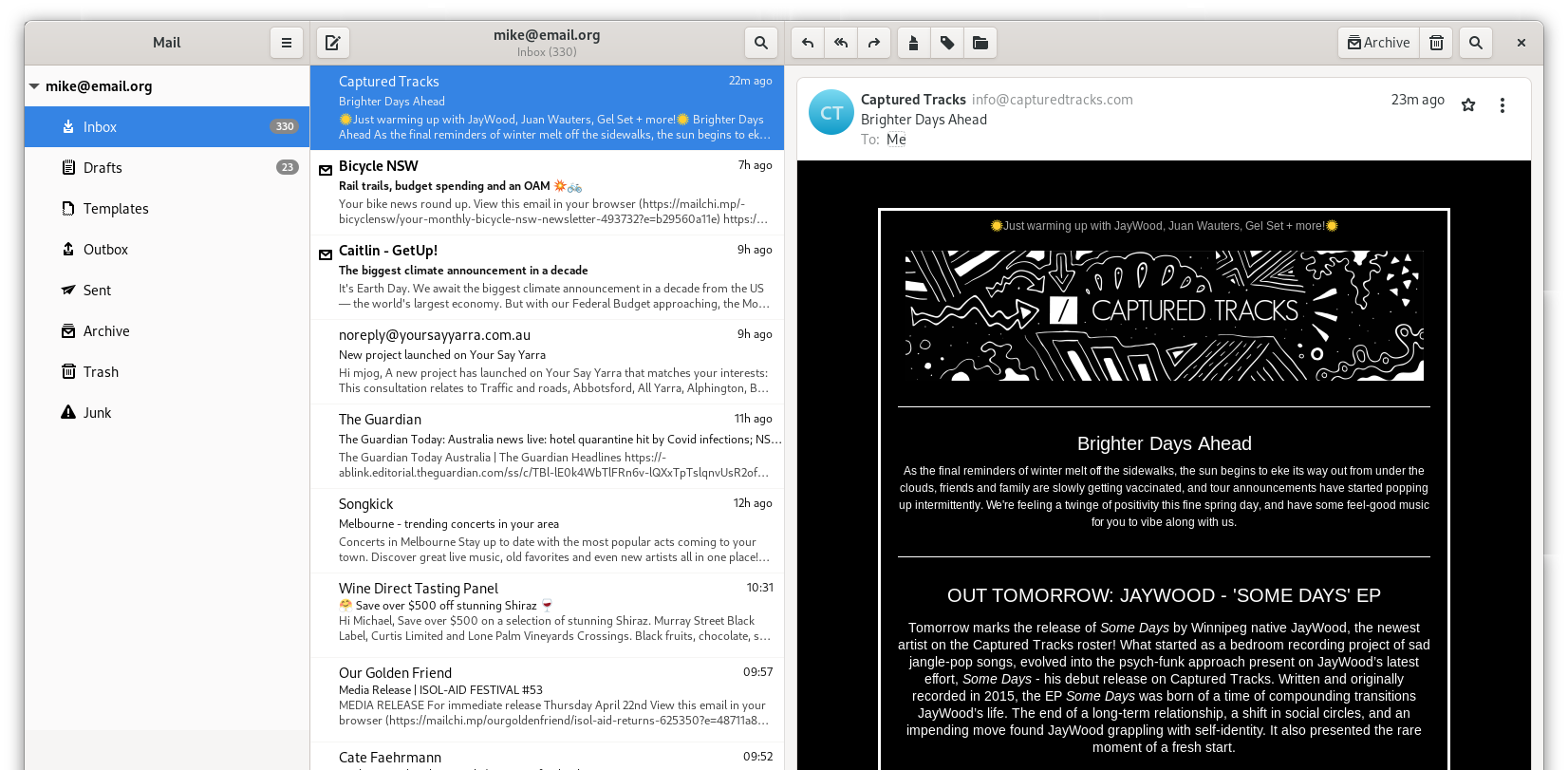
License: LGPL | Price: Free
Geary is a small, clean client from the GNOME project. It groups messages into conversations, searches quickly and picks up accounts from GNOME Online Accounts. If you want to read and send mail without a pile of settings, it fits well.
Pros
- Light and easy to set up
- Clean conversation view
- Modern GTK look that matches GNOME
Cons
- No built-in calendar or contacts suite
- Limited filtering and encryption options
- Too basic for heavy mail users
6. Claws Mail: Best Lightweight Email Client
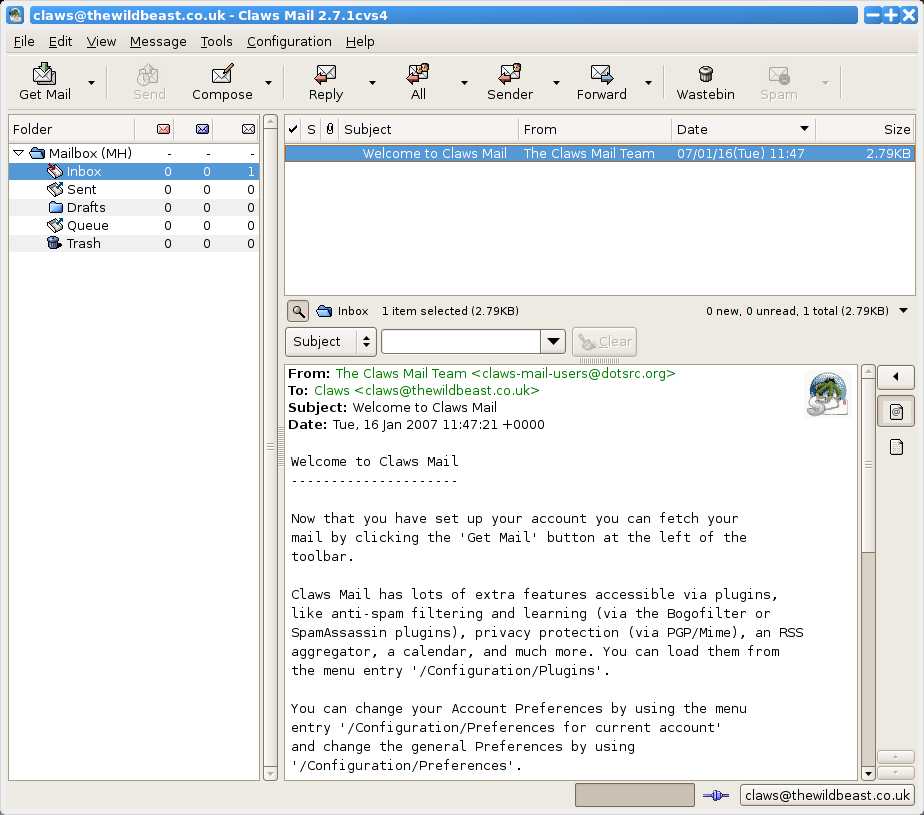
License: GPL | Price: Free
Claws Mail is a long-running GTK client that favors speed and keyboard control over looks. Features come from plugins, including PGP, S/MIME, spam filtering, RSS and calendar support. It starts fast and uses little memory, which makes it a favorite on older laptops.
Pros
- Very low resource use
- Plugin architecture and detailed filtering
- Plain-text-first display avoids most tracking pixels
- Keyboard friendly
Cons
- Old-school interface
- OAuth2 and plugin setup take extra work
- HTML mail needs a plugin and looks rough
7. Mailspring: Best Modern Interface (Free and Paid Pro)
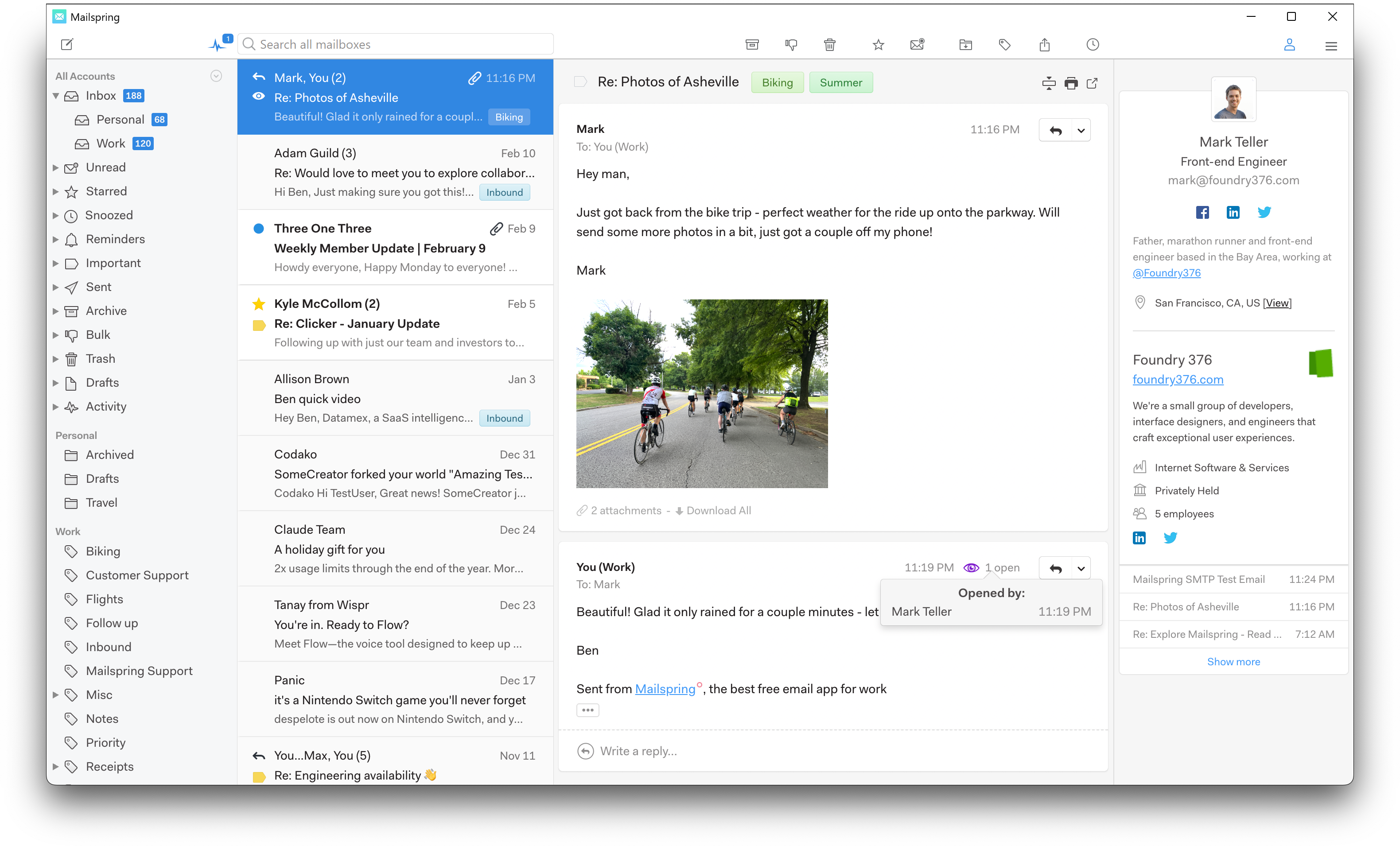
License: GPLv3 client | Price: Free, with a paid Pro subscription
Mailspring is the successor to Nylas Mail. The client code is open source and mail syncs locally through a bundled sync engine. It has the most modern look of the graphical options. The free version covers the basics. Mailspring Pro, a paid subscription, adds extras such as read receipts, link tracking and send later.
Pros
- Polished interface with themes and layout options
- Unified inbox and local sync
- Usable free tier
Cons
- Built on Electron, so memory use is high
- Some of the most useful extras sit behind the paywall
- No built-in calendar
- Read receipts and link tracking raise privacy questions for the people you email
8. NeoMutt: Best Terminal Email Client for Power Users
License: GPL | Price: Free
NeoMutt is a terminal client that descends from Mutt. It is fast, scriptable and built around the keyboard. Most people pair it with mbsync for syncing, msmtp for sending and notmuch for search. Once configured, it moves through mail faster than most graphical clients.
Pros
- Minimal resource use
- Endless customization and scripting
- Strong GnuPG integration
- Works over SSH on any machine
Cons
- Steep learning curve
- Needs helper tools for a complete setup
- HTML mail depends on external text converters
- OAuth2 logins require extra scripts
9. aerc: Best Modern Terminal Client
License: MIT | Price: Free
aerc is a newer terminal client written in Go. It uses Vim-style keys, includes an embedded terminal so you can write mail in your own editor, and supports IMAP, JMAP, Maildir and notmuch. Setup is friendlier than Mutt, and the config files are readable.
Pros
- Easier to configure than Mutt-style clients
- Good protocol support, including JMAP
- Scriptable and fast
Cons
- Smaller community and fewer tutorials
- HTML mail needs filter setup
- Behavior can change between releases
Privacy-Focused Email Apps for Linux
These two are tied to their own email services. You get a client and a provider as one package, which is the point.
10. Proton Mail: Best for End-to-End Encryption with Linux Support
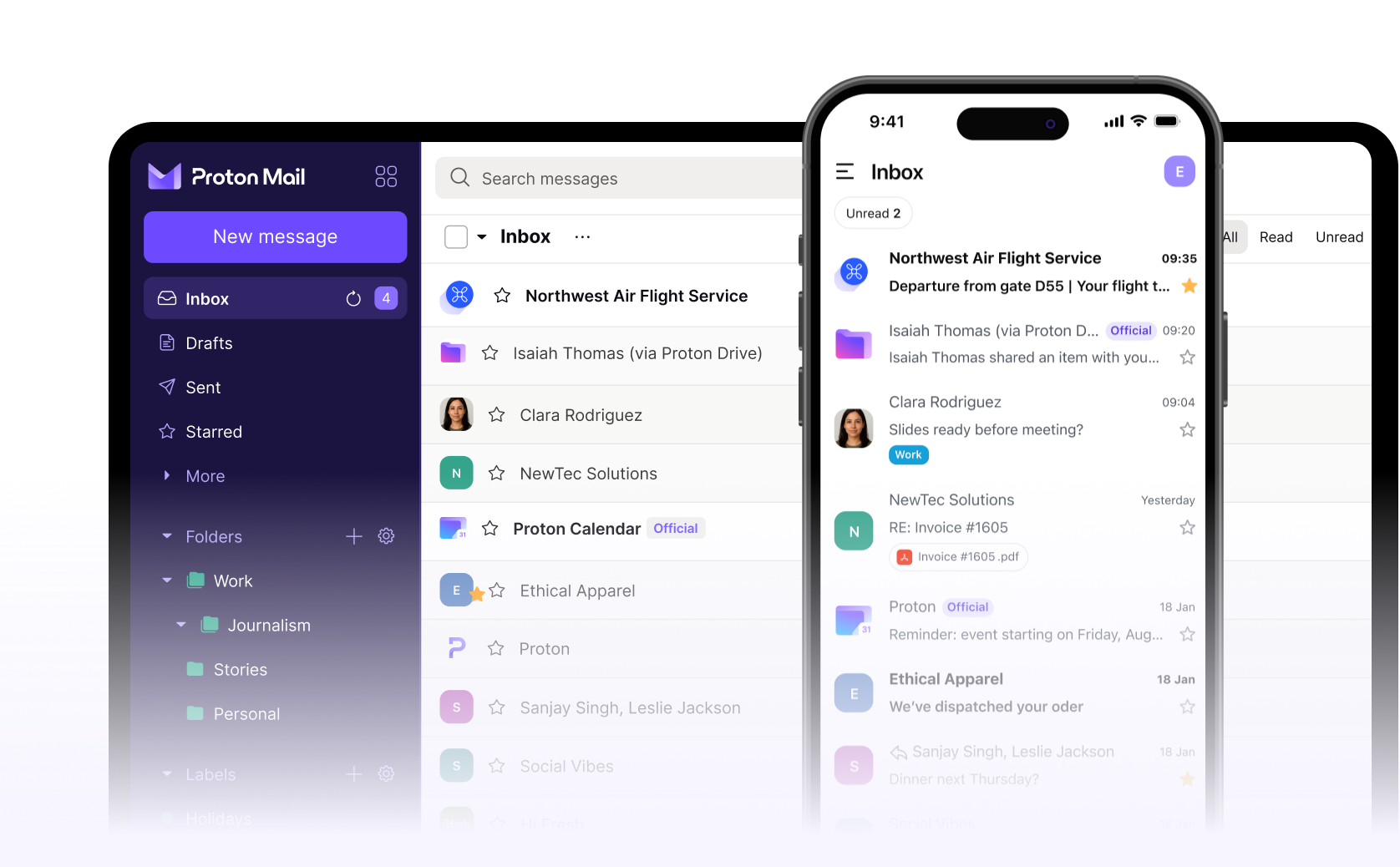
License: Open source apps (GPLv3) | Price: Free and paid plans
Proton Mail is a Switzerland-based encrypted email service. Its apps are open source and have been independently audited. On Linux you can use the desktop app, which wraps the web client, or Proton Mail Bridge, a local app that lets Thunderbird and other IMAP clients connect to your encrypted mailbox. Bridge requires a paid plan.
Pros
- End-to-end encryption between Proton users
- Open source and audited apps
- Built-in calendar and contacts
- Works with Thunderbird through Bridge
Cons
- Bridge needs a paid plan
- Free plan has storage and sending limits
- The desktop app is mostly the web client in a window
- Encrypting to non-Proton recipients needs password-protected messages or PGP
11. Tuta Mail: Best Encrypted Mail and Calendar
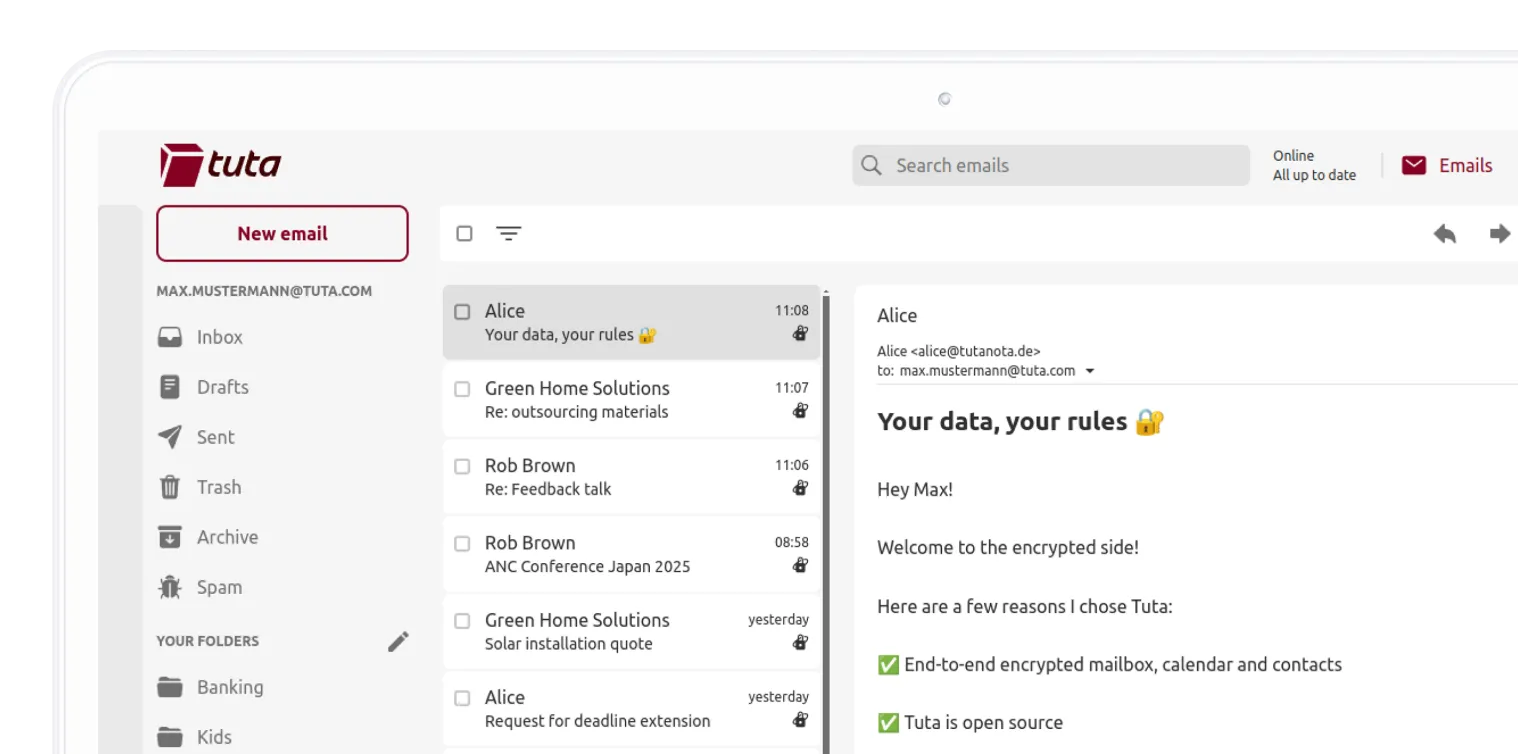
License: Open source apps (GPLv3) | Price: Free and paid plans
Tuta Mail, formerly Tutanota, is a German encrypted email service with open source client apps. It encrypts message bodies, subject lines, contacts and calendar entries, and the Linux desktop app comes as an AppImage. Tuta does not support IMAP or SMTP, so you can use it only through its own apps.
Pros
- Encrypts more data than most providers, including subject lines
- Encrypted calendar built in
- Free plan available
- Simple interface
Cons
- No third-party clients, so no Thunderbird
- Cannot pull in accounts from other providers
- No OpenPGP interoperability
- Fewer organization and search tools than Thunderbird
Paid and Closed Source Email Clients for Linux
Paid, closed source email clients are rare on Linux. Popular names such as Mailbird, eM Client, Postbox and Spark target Windows and macOS and, at the time of writing, have no native Linux build. Microsoft Outlook has no Linux desktop app either. Use Outlook on the web, or connect your Microsoft account to Thunderbird or Evolution.
In practice, paid options on Linux come in three forms: closed source clients like the two below, subscriptions that unlock features in an open client (Mailspring Pro, covered above), and paid services whose app or bridge runs on Linux (Proton, covered above).
12. BlueMail: Best Free Closed Source Client
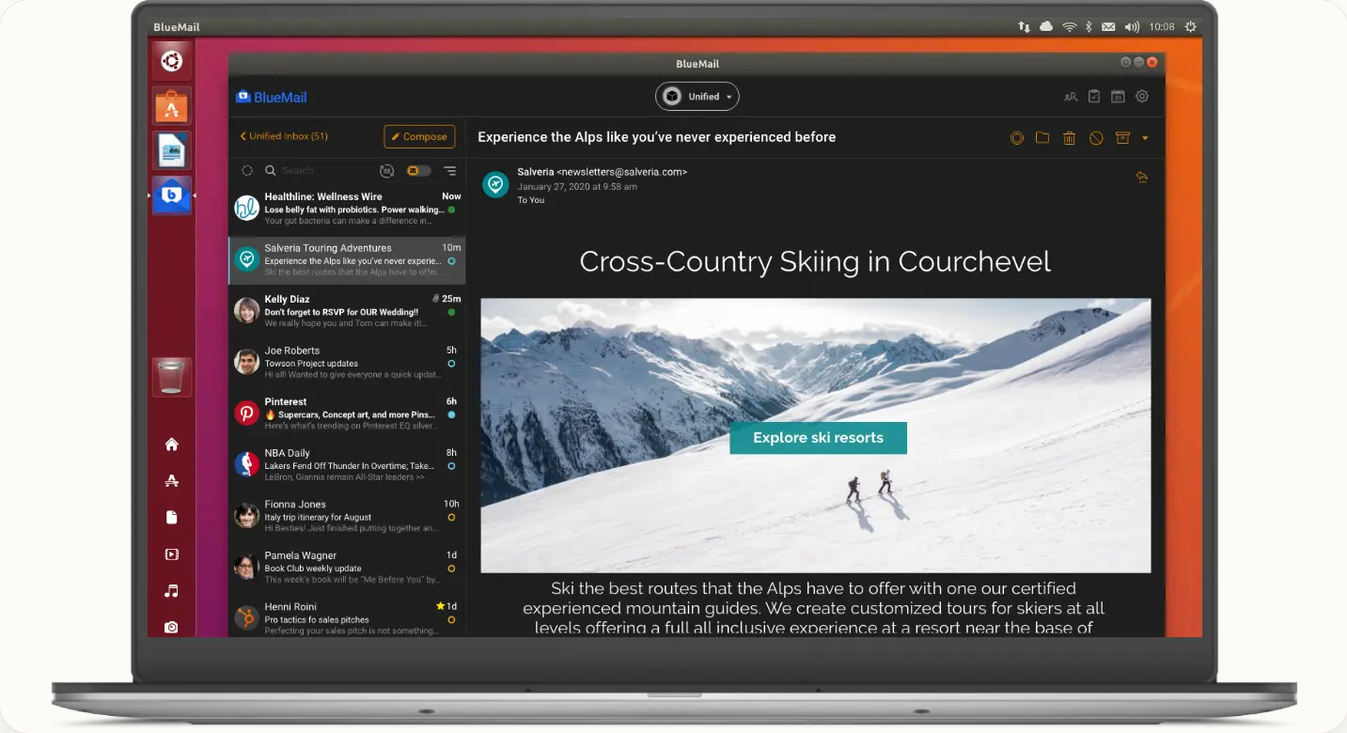
License: Closed source | Price: Free
BlueMail is a closed source client from Blix Inc. It handles multiple accounts through a unified inbox, includes a calendar and dark mode, and sets up quickly. Linux builds are offered through Snap and the vendor’s website.
Pros
- Fast setup across many providers
- Clean unified inbox
- Calendar included
- Free to use for personal accounts
Cons
- Closed source, so nobody outside the company can audit it
- Heavier than native clients
- Your privacy depends on the vendor’s policy and cloud components
13. Vivaldi Mail: Best Email Built Into a Browser
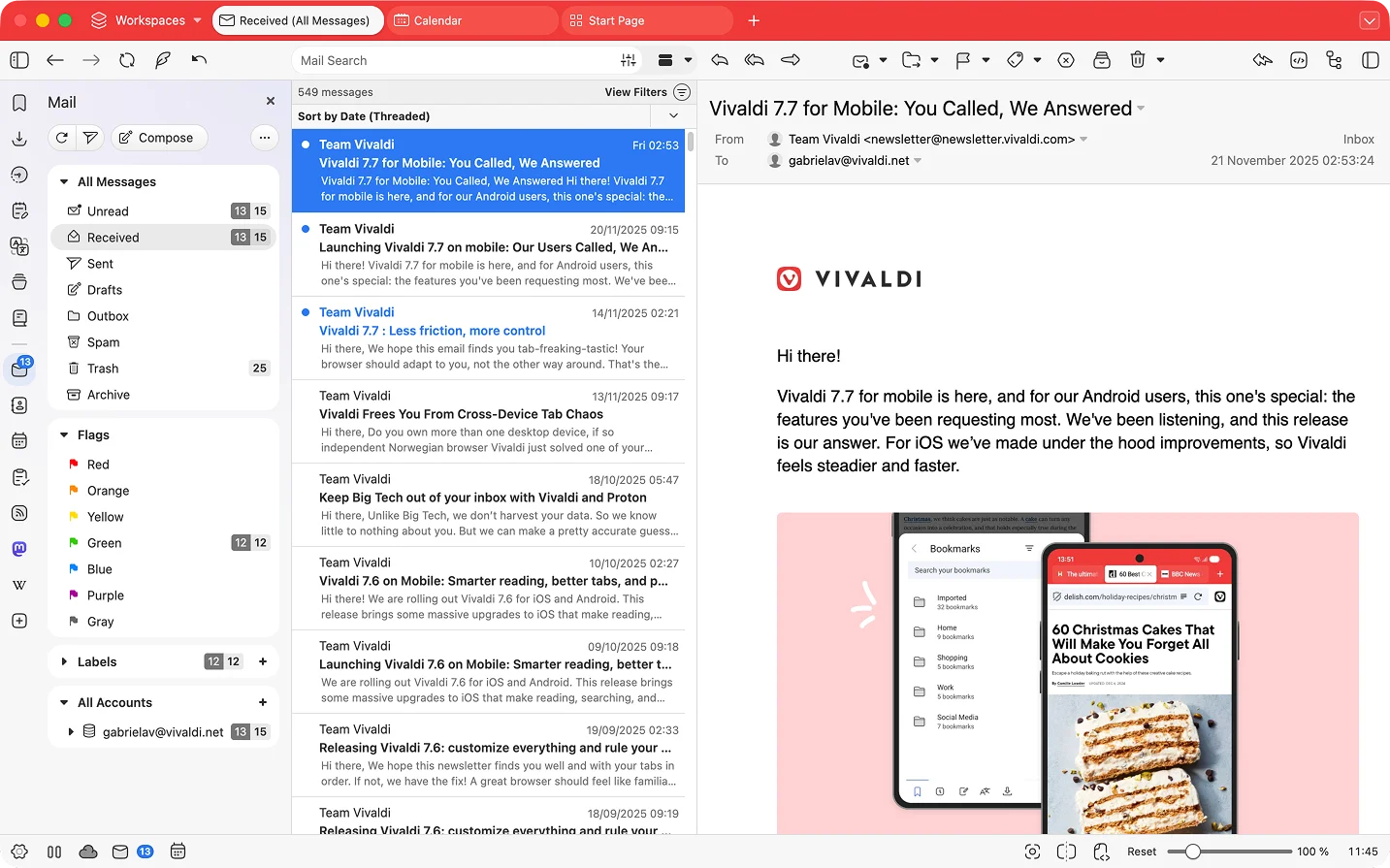
License: Mostly closed source | Price: Free
Vivaldi is a Chromium-based browser with a built-in mail client, calendar and feed reader. The mail module supports IMAP and POP3 and offers a three-pane layout, labels and a unified view. The browser’s interface is not fully open source, so it sits in this category.
Pros
- Mail, calendar, feeds and browsing in one app
- Free
- Flexible layouts
Cons
- You must run Vivaldi to use it
- Not fully open source
- Limited encryption options
- Less mature than dedicated mail clients
Pick the Right Email Provider Too
A great client cannot fix a provider you do not trust. Any provider with standard IMAP and SMTP works with the open source clients above.
- Fastmail: paid, with strong standards support (IMAP, JMAP, CalDAV) and a clean web app.
- Proton Mail and Tuta: end-to-end encrypted, covered above.
- Mailbox.org and Posteo: inexpensive European providers with a privacy focus and standard IMAP.
- Gmail and Outlook.com: free and convenient, with the usual trade-offs around data collection. They work well with desktop clients over OAuth2.
How to Choose the Right Linux Email Client
- You want one app that does everything: Thunderbird.
- You use a GNOME desktop and Exchange at work: Evolution.
- You run KDE Plasma and like to tweak: KMail in Kontact.
- You want something quick and plain: Geary.
- You have an old laptop: Claws Mail, or a terminal client.
- You care how the app looks: Mailspring.
- You live in the terminal: aerc if you want an easier start, NeoMutt if you want maximum control.
- You want end-to-end encryption from the start: Proton Mail or Tuta.
- You want a free closed source option: BlueMail, or Vivaldi Mail if you already use the browser.
How to Install the Best Linux Email Clients
Most clients are in your distro’s package manager. Flatpak works on any distro and usually gives you a newer version.
# Debian, Ubuntu, Linux Mint
sudo apt install thunderbird

# Fedora
sudo dnf install thunderbird

# Arch
sudo pacman -S thunderbird

# Any distro with Flatpak
flatpak install flathub org.mozilla.Thunderbird
flatpak install flathub eu.betterbird.Betterbird
flatpak install flathub org.gnome.Evolution
flatpak install flathub org.kde.kmail2
flatpak install flathub org.gnome.Geary
flatpak install flathub org.claws_mail.Claws-Mail
flatpak install flathub com.getmailspring.Mailspring
Setup tips that save time:
- Choose IMAP over POP3 unless you have a specific reason not to.
- Sign in with OAuth2 when the client offers it. Use an app-specific password only when it does not.
- Turn on two-factor authentication for the mail account itself.
- Switch off remote content loading before you open your first message.
- Send a test message to yourself and check that replies arrive.
Migrating and Backing Up Your Email
- IMAP accounts: your mail lives on the server, so switching clients usually means adding the account again.
- POP3 and local folders: copy the profile folder. Thunderbird keeps it in
~/.thunderbird, or in~/.var/app/org.mozilla.Thunderbird/.thunderbirdfor the Flatpak. - Export options: most clients can export to mbox. The ImportExportTools NG add-on helps with Thunderbird.
- Independent archive: use mbsync to keep a Maildir copy of your mailbox, separate from any client.
- Encryption keys: export your OpenPGP keys and store the backup somewhere safe. Lose the key and you lose access to old encrypted mail.
Which Linux Email Client Should You Pick?
Start with Thunderbird. It is free, open source, well maintained and covers nearly every need. If it feels heavy or clumsy, try Betterbird for a tuned version or Geary and Claws Mail for something lighter. Pick Evolution or KMail if your desktop and workflow lean toward a full groupware suite, and move to NeoMutt or aerc once you want your mail to live in the terminal.
If privacy is the main goal, choose the provider and the client together. Proton Mail and Tuta give you end-to-end encryption with Linux apps. A privacy-focused IMAP provider with Thunderbird gives you more freedom to switch later. Closed source clients like BlueMail and Vivaldi Mail are fine for convenience, but they ask for more trust.
Which email client do you use on your Linux machine? Tell us in the comments.
Frequently Asked Questions About Email Clients for Linux
What is the best email client for Linux?
Thunderbird is the best all-round email client for Linux. It is free, open source, available on every major distro, and includes calendar, contacts and built-in OpenPGP encryption. If you want something lighter, try Claws Mail or Geary. For a modern interface, try Mailspring. Terminal users should look at NeoMutt or aerc.
Does Linux come with a built-in email client?
It depends on the distro and desktop. Ubuntu and Linux Mint include Thunderbird, GNOME-based systems often offer Evolution or Geary, and KDE Plasma systems offer KMail through Kontact. Minimal distros such as Arch ship without one, so you install your own from the package manager or Flathub.
Is a desktop email client better than webmail?
Neither is better for everyone. Webmail needs no setup and offers provider-specific features. A desktop client gives you offline access, a unified inbox across providers, fast local search and more control over privacy settings such as remote content blocking. Many people use both.
Can I use Gmail or Outlook with a Linux email client?
Yes. Most major clients, including Thunderbird, Evolution, Geary and Mailspring, support Gmail and Microsoft accounts through OAuth2 sign-in. Some corporate Microsoft 365 tenants restrict third-party apps, so check with your IT team if the login fails.
What is the most private email client for Linux?
For the client itself, open source apps such as Thunderbird, Claws Mail and NeoMutt give you the most control, because their code can be audited and they connect directly to your mail server. For the full chain, pair a client with a privacy-focused provider such as Proton Mail or Tuta, and block remote images in every app you use.
Is there a Linux version of Microsoft Outlook?
No. Microsoft does not offer a native Outlook desktop app for Linux. You can use Outlook on the web, install it as a web app from a Chromium-based browser, or connect your Outlook or Microsoft 365 account to Thunderbird or Evolution.
What is the lightest email client for Linux?
Claws Mail and NeoMutt use little memory and run well on old hardware. Geary is a light graphical option with a modern look. Electron-based apps such as Mailspring use noticeably more RAM.
Can I use Proton Mail with Thunderbird on Linux?
Yes, with Proton Mail Bridge. Bridge runs locally and exposes IMAP and SMTP so Thunderbird and other clients can connect to your Proton mailbox. Bridge requires a paid Proton plan. Free accounts can use the Proton web app or the desktop app instead.
Do I need a paid email client on Linux?
No. The best Linux email clients are free. Paid options mostly add extra features, such as Mailspring Pro, or come bundled with a service, such as Proton Mail Bridge on a paid Proton plan.