
Linux doesn’t hand every user the same calendar setup. Depending on your desktop environment, you might already have a solid calendar app installed, or you might have nothing more than a clock with a tiny date popup. This guide covers both sides of that gap: the calendar apps already sitting on your system right now, and the better options worth installing if your default doesn’t cut it.
Quick Comparison: Best Calendar Apps for Linux
Here’s how the main options stack up before we get into the details.
| App | Cost | Type | Sync Options | Best For |
|---|---|---|---|---|
| GNOME Calendar | Free | Open source | CalDAV, Google Calendar, Nextcloud | Default GNOME desktops |
| KOrganizer | Free | Open source | CalDAV, Kolab, Exchange (plugin) | KDE users already in Kontact |
| Merkuro Calendar | Free | Open source | CalDAV, Google Calendar, Outlook | KDE users who want a modern app |
| Orage | Free | Open source | Local ICS import/export | Lightweight XFCE setups |
| Calendar (Maya) | Free | Open source | Google Calendar, CalDAV | elementary OS users |
| Thunderbird | Free | Open source | CalDAV, Google Calendar, ICS | Email and calendar together |
| Nextcloud Calendar | Free, self-hosted | Open source | CalDAV (self-hosted) | Privacy-first individuals and teams |
| Evolution | Free | Open source | CalDAV, Exchange, Google Calendar | Outlook-style workflow |
| Proton Calendar | Free / Paid | Source-available | Proton ecosystem, ICS import | End-to-end encrypted privacy |
| Rainlendar | Free / Paid (€9.95) | Proprietary | ICS, Google Calendar (Pro only) | Skinnable desktop widget style |
| Calcurse | Free | Open source | ICS import/export | Terminal and server use |
| Google Calendar | Free | Proprietary | Universal via CalDAV | Zero setup, universal syncing |
The Calendar Apps Already on Your Linux Desktop
Not every desktop environment treats calendars the same way. Some distros give you a full app on first boot. Others give you barely anything. Here’s what you’re likely already working with.
GNOME Calendar
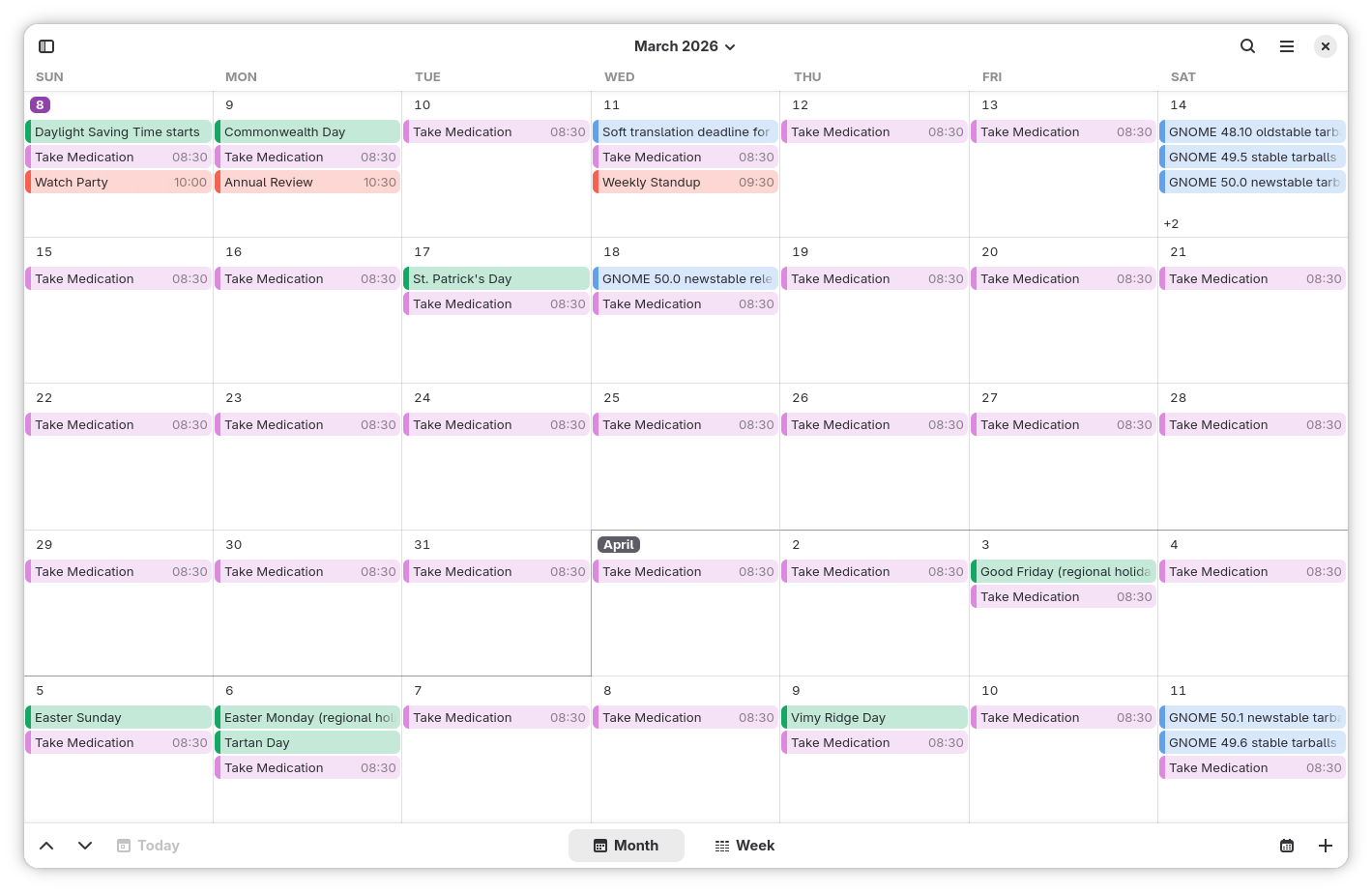
GNOME Calendar comes pre-installed on Ubuntu, Fedora Workstation, Debian’s GNOME edition, Pop!_OS, and basically any distro that ships the standard GNOME desktop. It’s the calendar most new Linux users open without ever realizing it has a name.
Key features:
- Month view with infinite scroll, a week timetable, and a schedule/list view
- Built on Evolution Data Server, the same backend used by Evolution and GNOME Online Accounts
- Syncs with Nextcloud, Google Calendar, and any CalDAV or WebDAV server
- Works fully offline with local calendars
- Clean GTK4 interface that matches the rest of GNOME
Pros:
- Already installed on most GNOME distros, no setup required
- Simple, distraction-free interface
- Reliable CalDAV and Google Calendar sync
- Lightweight and fast
Cons:
- Missing advanced features like resource booking or complex recurrence rules
- No built-in task list, pairs with GNOME To Do instead
- Desktop only, no official mobile app
KOrganizer
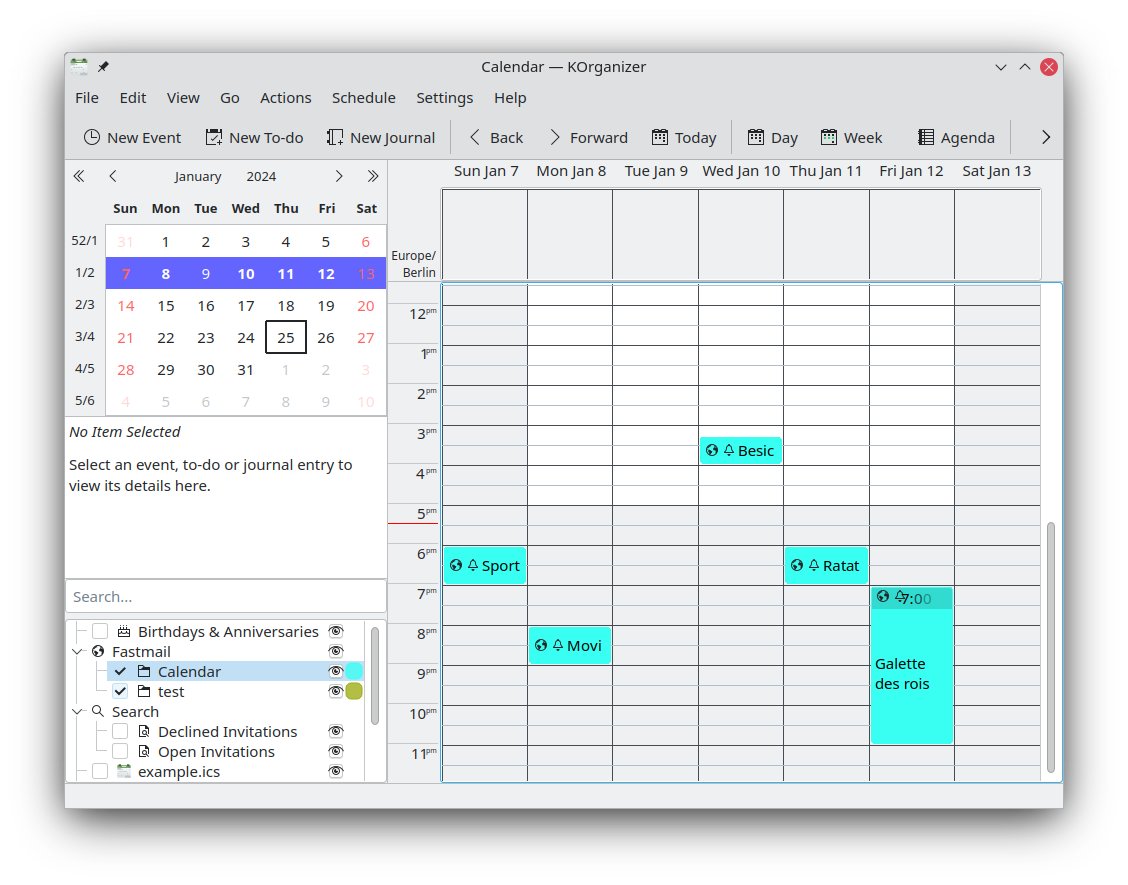
KOrganizer is KDE’s long-running calendar app, built as part of the Kontact personal information suite. KDE users have relied on it for over two decades, though on most modern KDE distros you’ll need to install it yourself rather than find it waiting after setup.
Key features:
- Full event and to-do management with detailed recurrence rules
- Akonadi backend, syncing with CalDAV, Kolab, and Exchange through plugins
- Journal and notes support alongside standard events
- Tight integration with KMail and KAddressBook through Kontact
- iCalendar and vCalendar import/export
Pros:
- One of the most feature-complete FOSS calendar apps available
- Great fit if you already use Kontact for email
- Mature and stable after more than 20 years of development
Cons:
- Interface feels dated next to GNOME Calendar or Merkuro
- Akonadi setup can be finicky, especially with Nextcloud accounts
- Not pre-installed on most Kubuntu or KDE neon systems
- Heavier than it needs to be for simple scheduling
Merkuro Calendar
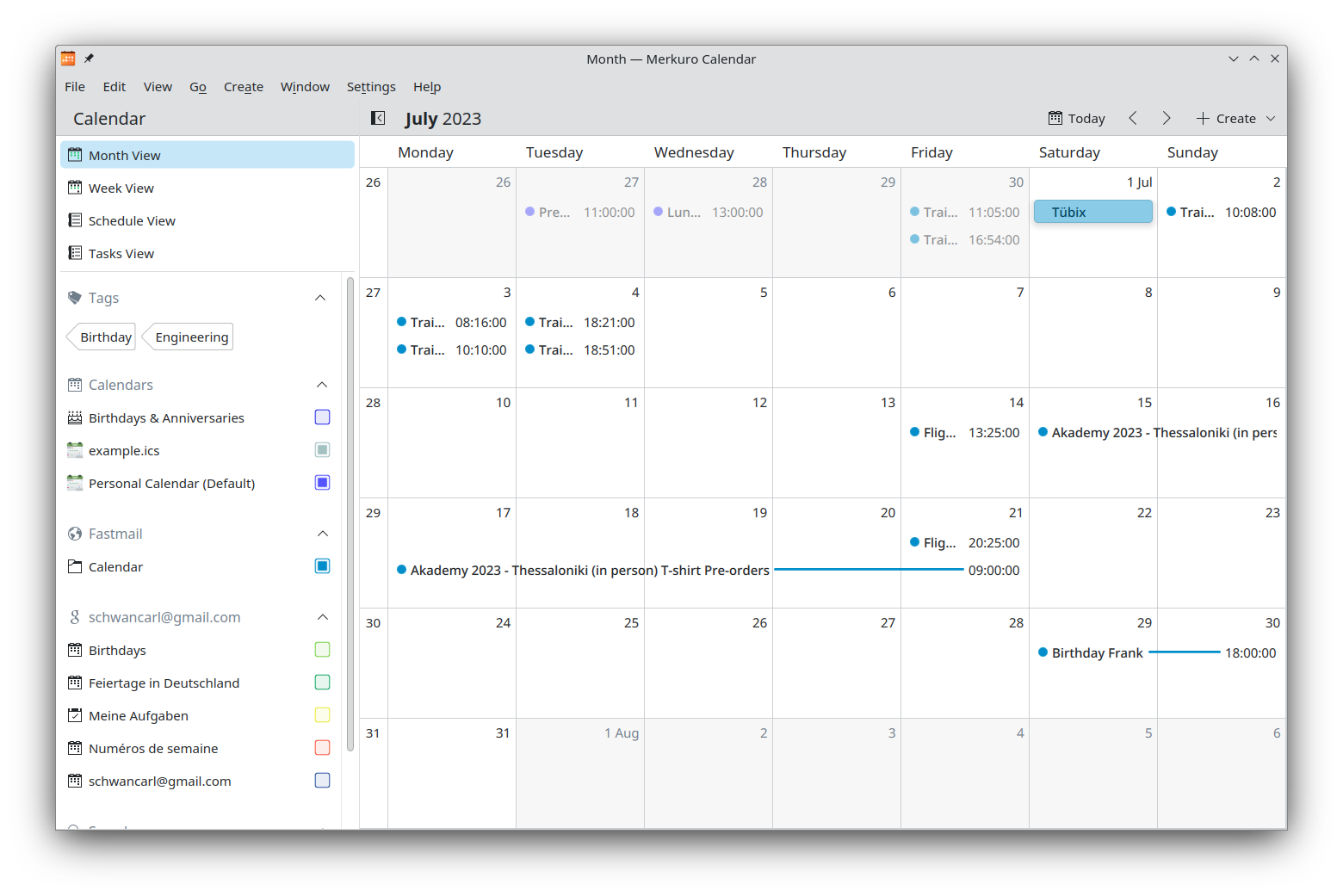
Merkuro, previously called Kalendar, is KDE’s modern take on the calendar app. Built with the Kirigami framework, it’s designed to look and behave the same whether you’re on a Plasma desktop or a Plasma Mobile phone.
Key features:
- Month, week, and schedule views, plus a dedicated tasks view with subtasks
- Syncs with Nextcloud, Google Calendar, Outlook, and standard CalDAV servers
- Shares the same Akonadi backend as KOrganizer
- Built for convergence between desktop and mobile from one codebase
Pros:
- Noticeably more modern interface than KOrganizer
- Actively developed by the KDE PIM team
- Good pick if you’re also using Plasma Mobile
Cons:
- Younger project, so occasional bugs are more common
- Not always packaged as a simple Flatpak, Akonadi dependencies can complicate installs
- Fewer power features than KOrganizer for now
Orage
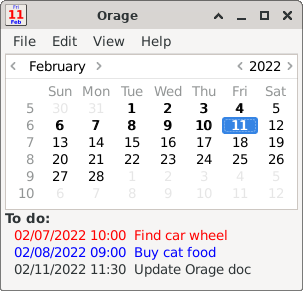
Orage is XFCE’s traditional calendar app. Older Xubuntu installs may still include it, though newer XFCE spins don’t always ship it by default anymore, since it went years without an active maintainer.
Key features:
- Simple month view built for speed over features
- Repeating appointments with pop-up or audio alarms
- Runs as a quiet background daemon so reminders fire even when the window is closed
- Uses the standard iCalendar format for import and export
Pros:
- Extremely light on resources, fits XFCE’s philosophy
- Fast to open with no learning curve
- Still packaged and updated in most major distro repositories
Cons:
- No CalDAV or cloud sync, strictly local and single-user
- Went years without active development, though maintenance has picked back up recently
- No group calendar or sharing features at all
Calendar (Maya)
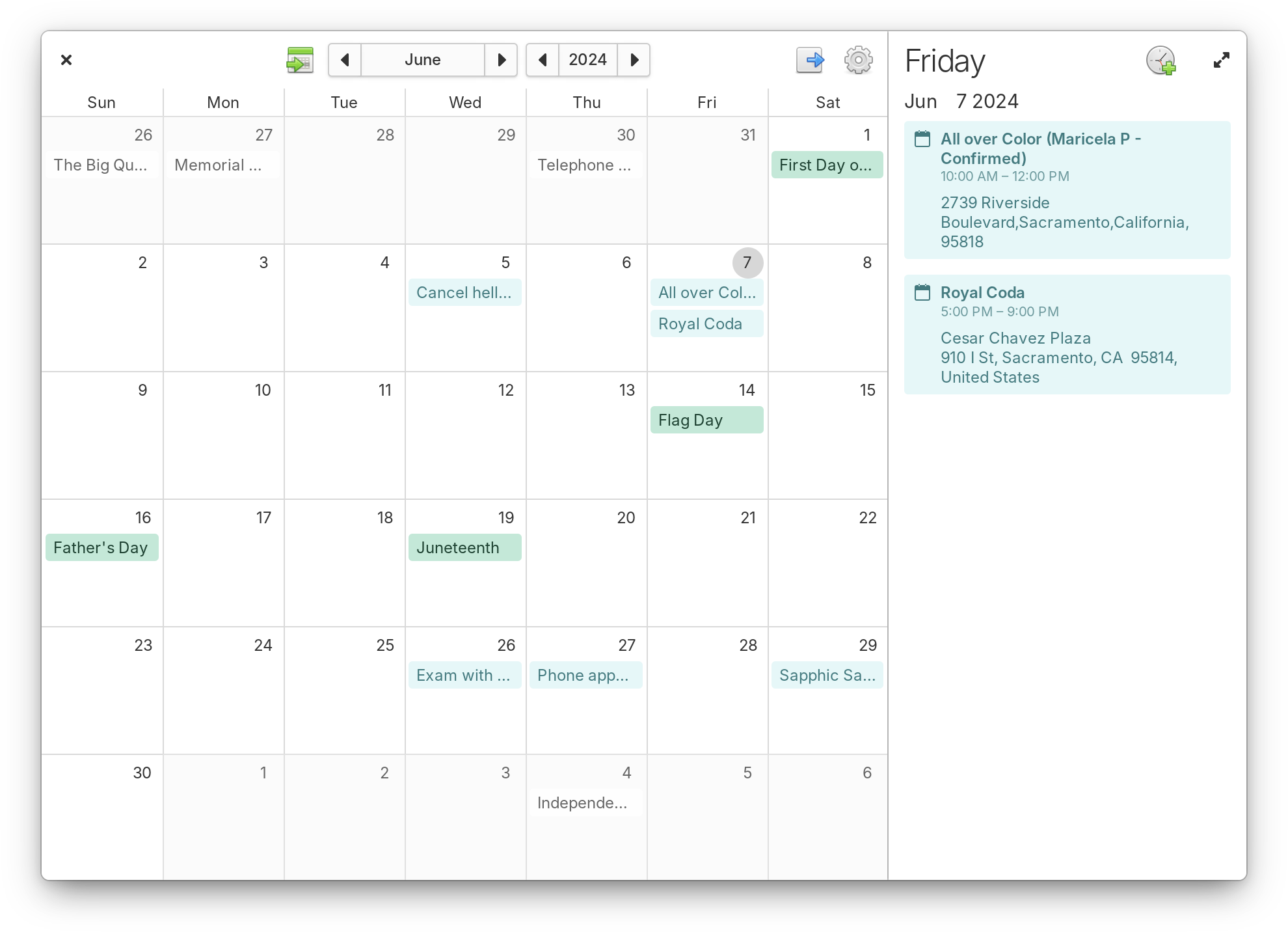
elementary OS simply calls it Calendar in the app menu, though longtime users still know it by its project name, Maya. It ships by default with every elementary OS install and matches the Pantheon desktop’s clean design.
Key features:
- Lightweight GTK app written in Vala
- Syncs with Google Calendar and CalDAV services like Nextcloud and ownCloud
- Simple month view with quick event creation
- Background daemon handles notifications
Pros:
- Fits elementary OS’s minimal design language perfectly
- Fast and easy on system resources
- Google Calendar sync works right out of the box
Cons:
- Deliberately basic feature set, no advanced recurrence or task management
- Built specifically for Pantheon, less polished outside elementary OS
- Smaller development team means slower updates than GNOME Calendar
A quick note on Cinnamon, Budgie, and LXQt: Linux Mint’s Cinnamon desktop, along with Budgie and LXQt, don’t ship a full calendar app by default. Clicking the clock in the panel shows a small date popup, but there’s no event creation or reminders built in. If you’re on one of these desktops, pick something from the next section.
The Best Calendar Apps You Can Install on Linux
If your default calendar doesn’t fit how you work, or your desktop didn’t include one at all, here are the strongest options worth installing.
Thunderbird
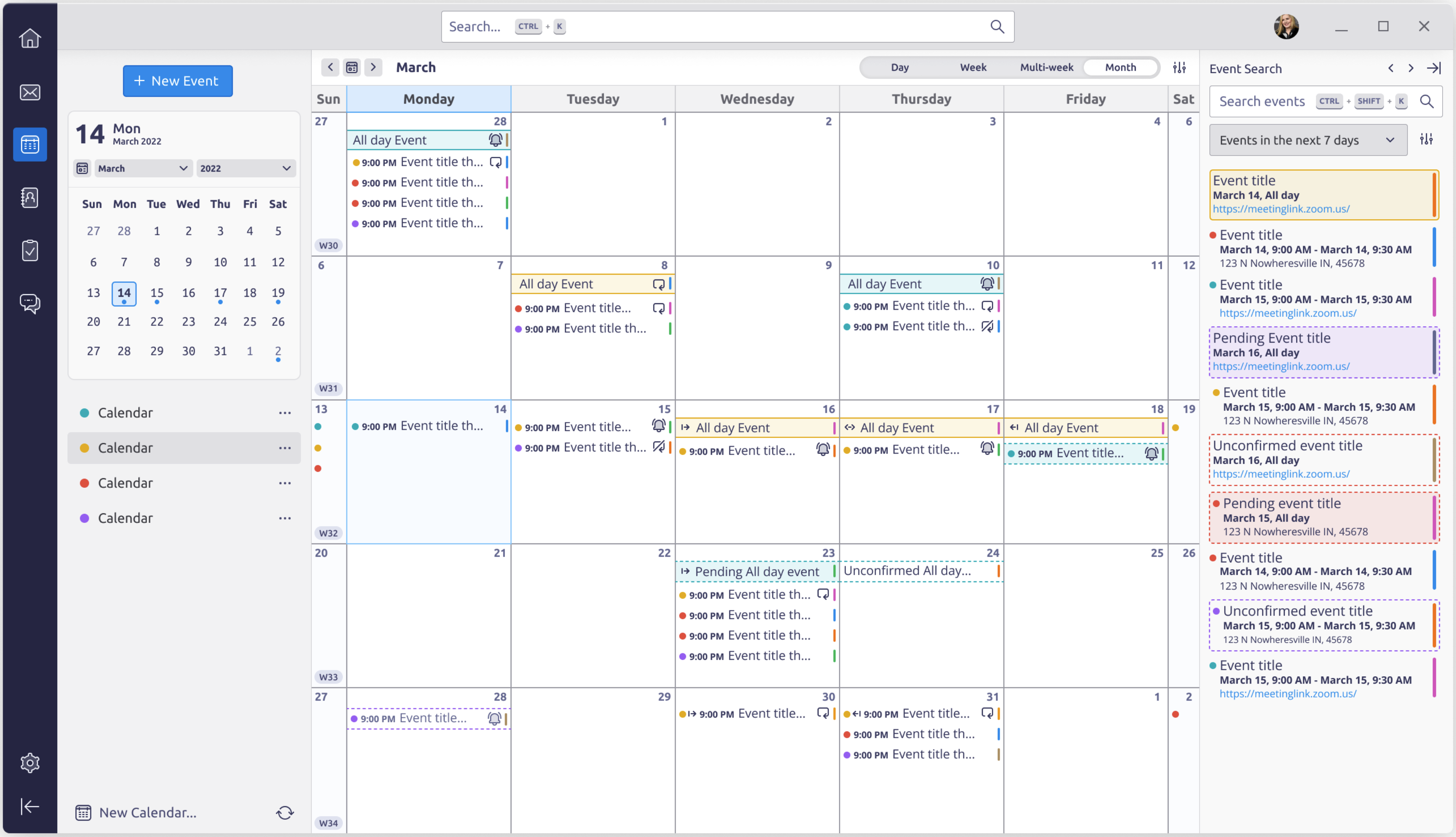
Thunderbird is best known as Mozilla’s email client, but its calendar is strong enough that some people install it for scheduling alone. The calendar used to be a separate add-on called Lightning. It now ships built in.
Key features:
- Month, week, and day views alongside your inbox
- Subscribes to CalDAV, Google Calendar, and ICS feeds
- Properly handles meeting invites, so replying to a calendar invite actually works
- Unlimited color-coded calendars with reminder pop-ups
- Getting a UI overhaul, with video conferencing and map integration planned
Pros:
- One app for email and calendar cuts down on app switching
- Reliable CalDAV and Google Calendar sync
- Cross-platform, so your setup carries over to Windows or Mac
- Backed by Mozilla with frequent updates
Cons:
- Heavier than a dedicated calendar app if you don’t need the email side
- Thunderbird for Android still doesn’t support calendar sync
- Calendar UI feels dated, though a redesign is underway
Nextcloud Calendar
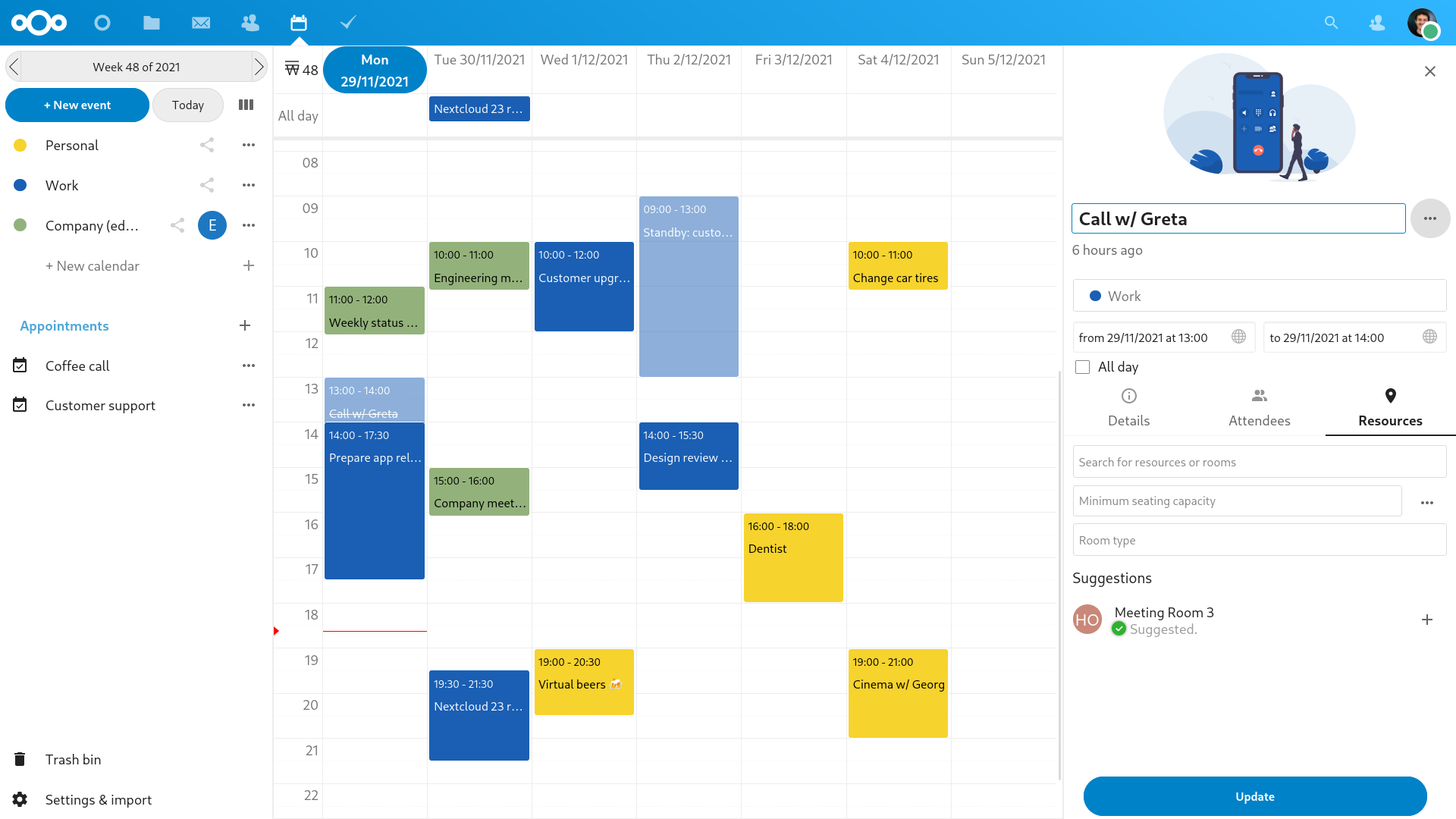
Nextcloud Calendar is the scheduling module of the Nextcloud groupware suite. If privacy is the main reason you’re shopping for a new calendar app, this is probably where you’ll land, since your events live on a server you control instead of someone else’s.
Key features:
- Full CalDAV server, syncing with Thunderbird, GNOME Calendar, Apple Calendar, and DAVx5 on Android
- Shared calendars with granular permissions
- Free/busy scheduling, attendee invites, and appointment booking links
- WebCal subscriptions for things like public holidays or sports schedules
- Integrates with Nextcloud Talk, Tasks, Contacts, and Deck
Pros:
- You own your data completely, nothing routes through a third-party server
- Standards-based, so it syncs with nearly any calendar client
- Scales from one person to an entire company
- No subscription fee when self-hosted
Cons:
- You’re responsible for setting up, updating, and securing the server, or paying a hosting provider
- Events are stored unencrypted on the server, private but not zero-knowledge
- Performance depends on your server’s hardware
Evolution
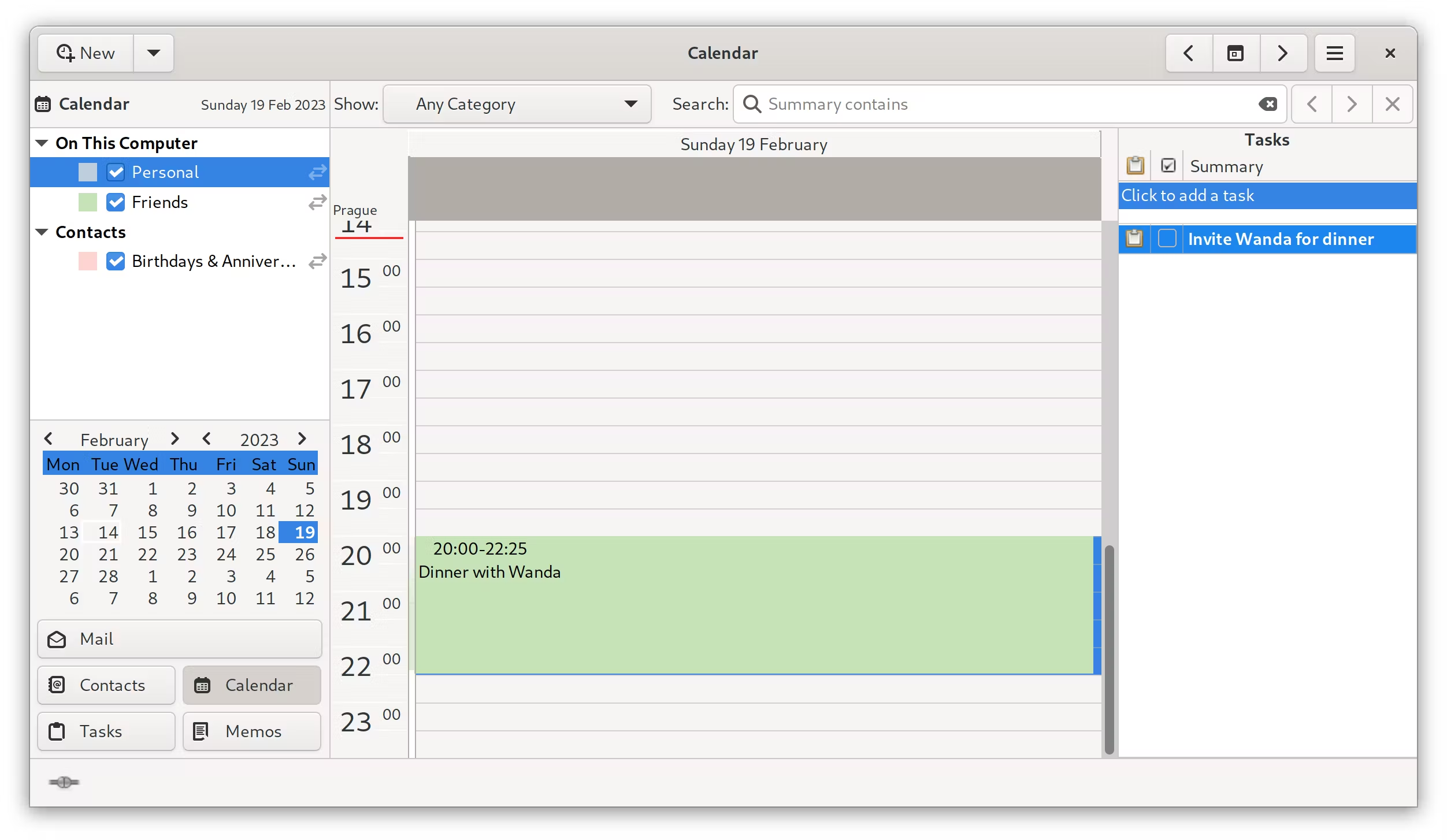
Evolution is GNOME’s full personal information suite, built for people who want email, calendar, contacts, and tasks in one Outlook-style window. It’s been part of the GNOME ecosystem for more than two decades.
Key features:
- Combines email, calendar, address book, tasks, and notes in one app
- Calendar support for iCalendar, CalDAV, WebDAV, and Google Calendar
- Exchange Web Services support through the separate evolution-ews plugin
- Default groupware client on openSUSE’s GNOME desktop
- Runs on the same Evolution Data Server as GNOME Calendar
Pros:
- One of the few FOSS options with genuine Microsoft Exchange support
- Familiar layout for anyone coming from Outlook
- Mature, stable, and well documented
Cons:
- Interface feels heavier and more corporate than GNOME Calendar
- Overkill if you only want a calendar, not an email client too
- Exchange support requires installing evolution-ews separately
Proton Calendar
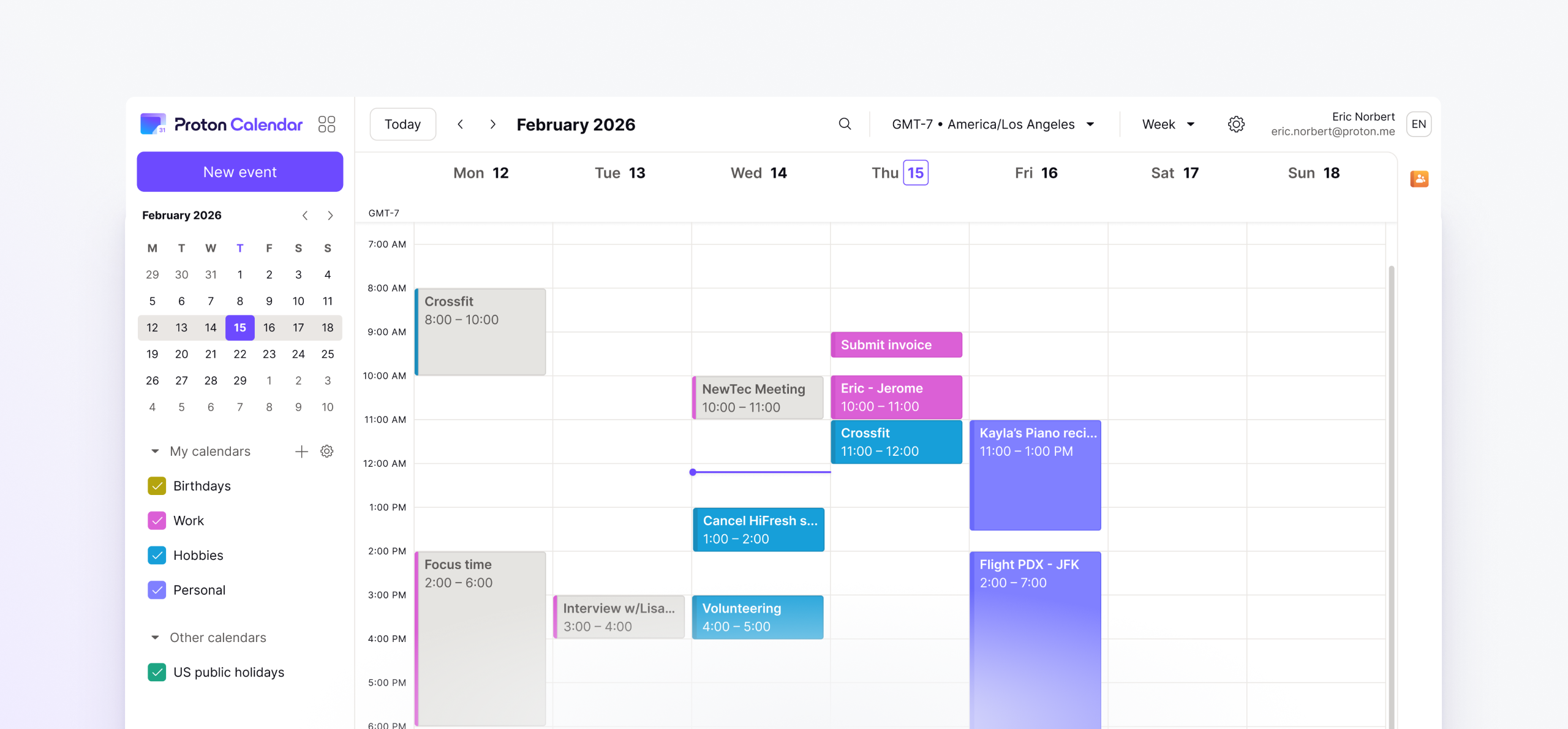
Proton Calendar is the scheduling half of Proton’s privacy-focused suite, the same Swiss company behind Proton Mail and Proton VPN. It now ships as part of Proton’s native Linux desktop app, so you’re no longer stuck using it through a browser tab.
Key features:
- End-to-end encryption on event details, so not even Proton can read your calendar
- Native Linux desktop app bundling Mail, Calendar, and Drive
- Shareable calendars and invites between Proton accounts
- Import from Google Calendar or any ICS file during setup
Pros:
- Strongest privacy story on this list, genuine end-to-end encryption
- Clean, modern interface
- Native Linux app now available instead of only a web app
Cons:
- Free plan is limited, full functionality needs a paid Proton subscription
- No CalDAV support, so it doesn’t play well with third-party calendar apps
- Newer to Linux than the Windows and macOS versions, so expect occasional rough edges
Rainlendar
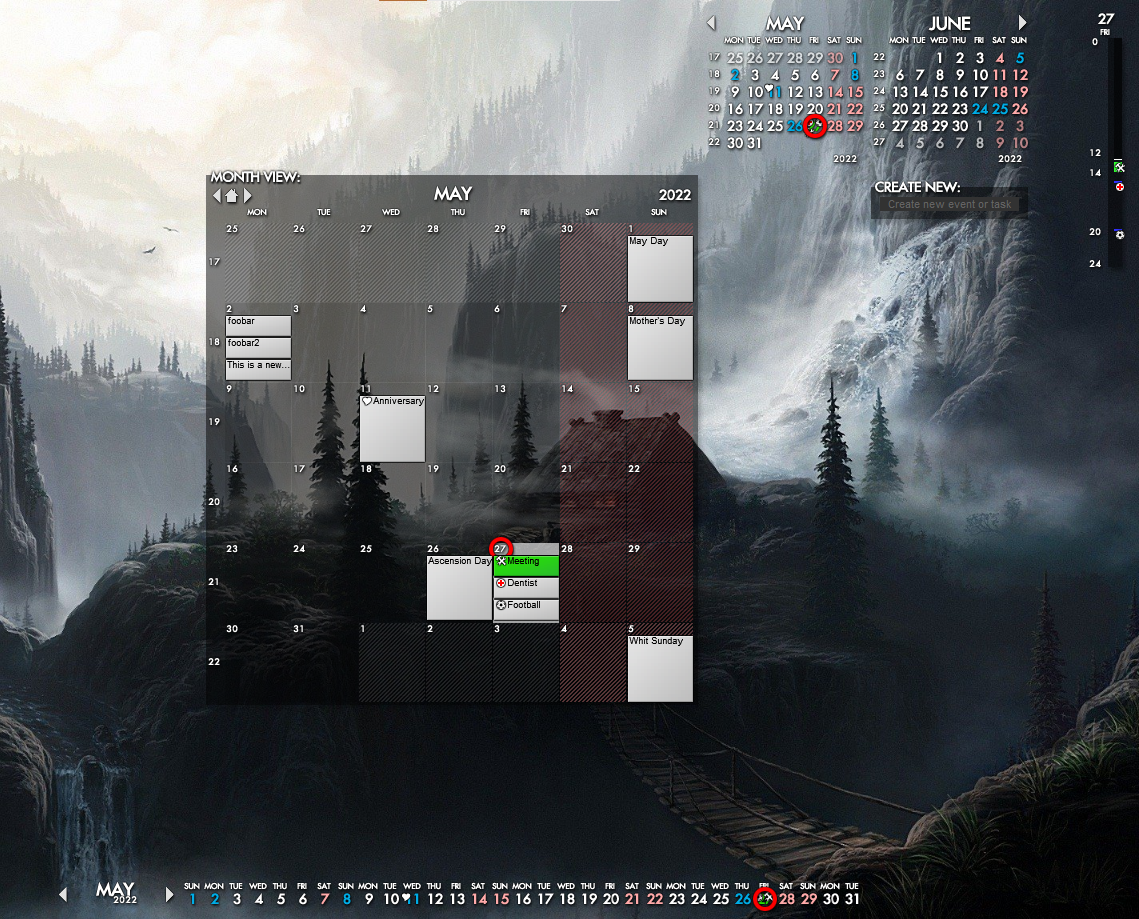
Rainlendar is a skinnable desktop calendar that sits directly on your wallpaper instead of living in its own app window. It has kept a loyal following since the early 2000s.
Key features:
- Fully skinnable interface with hundreds of community themes
- Event and to-do lists with customizable alarms
- Stores data in standard iCalendar format
- Pro version adds network shared calendars plus Google Calendar and Outlook sync
Pros:
- Genuinely unique look, nothing else on this list works quite like it
- Free Lite version covers the basics well
- Cross-platform, so the same setup works on Windows and Mac too
Cons:
- Lite version can’t sync with Google Calendar or other services
- Pro license costs €9.95, a one-time fee most apps here don’t charge
- Desktop-pinned style isn’t for everyone, especially minimalist setups
Calcurse
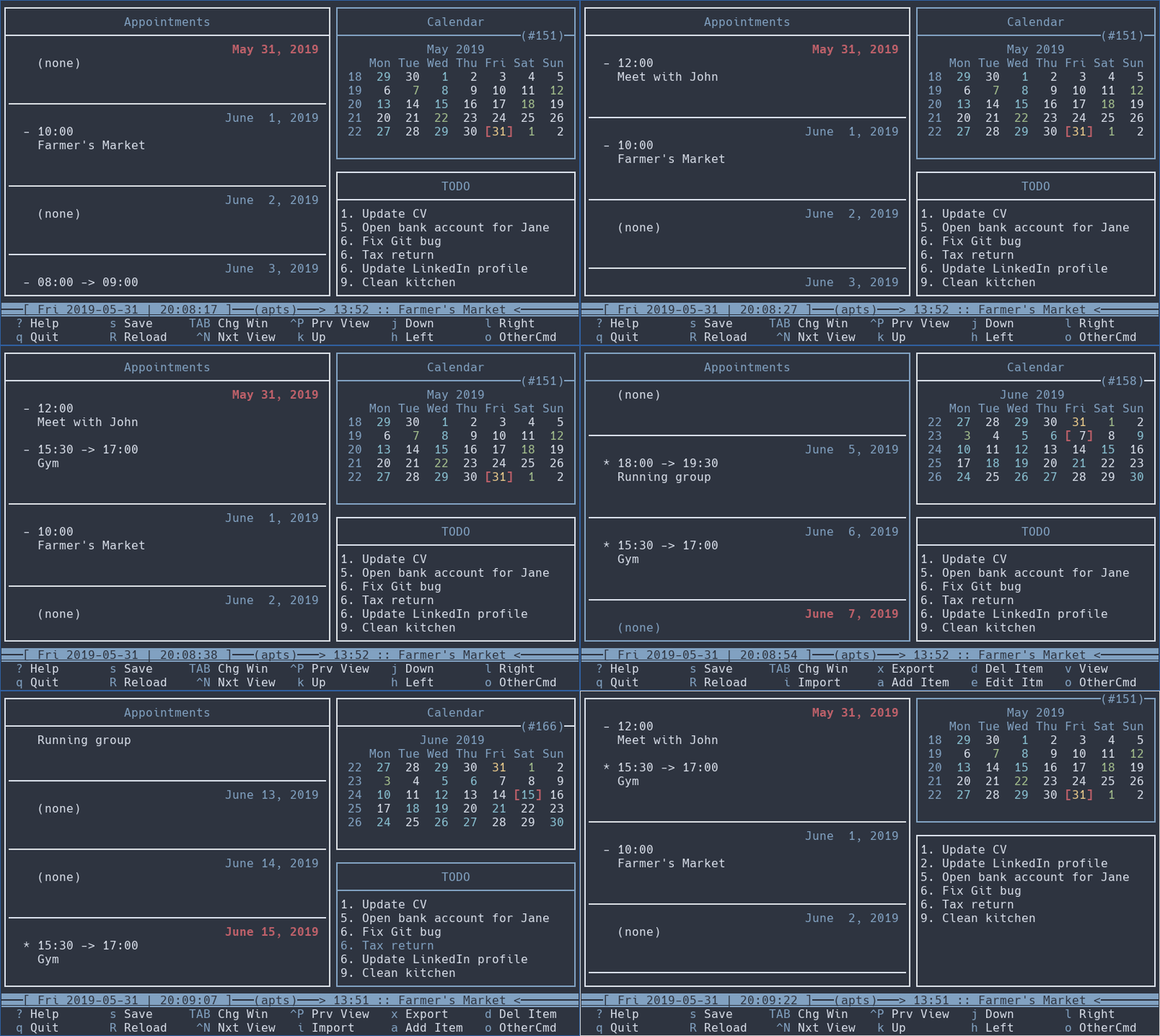
Calcurse is what happens when someone builds a calendar for people who never want to leave the terminal. It’s a text-based scheduler that runs entirely in your shell.
Key features:
- Three-panel ncurses interface for appointments, calendar, and to-do list
- Import and export in iCalendar and Postscript formats
- Built-in notification daemon
- Fully scriptable through command line flags
Pros:
- Runs great over SSH on a remote server or low-power device
- Nearly zero resource usage
- Fast, keyboard-driven workflow once you learn the shortcuts
Cons:
- Steep learning curve if you’ve never used an ncurses app before
- No built-in CalDAV or cloud sync, ICS import and export is manual
- Not a fit if you want a visual, mouse-driven calendar
Google Calendar
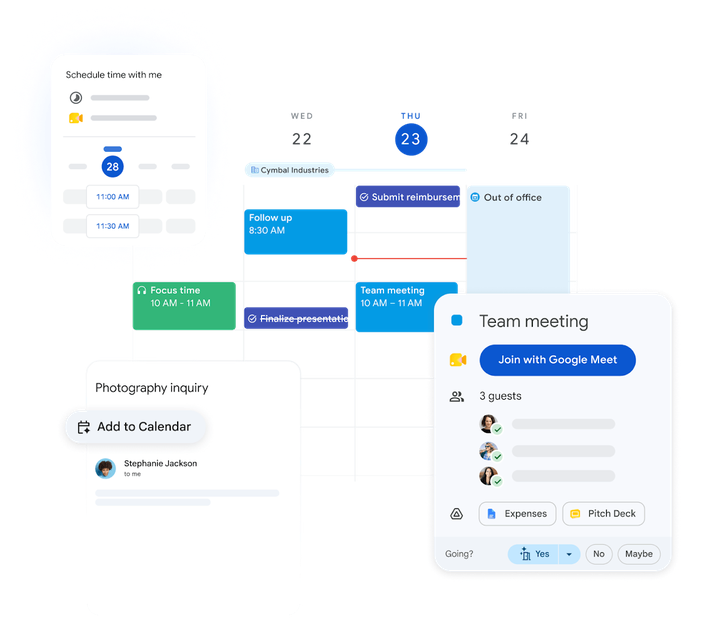
There’s no official native Google Calendar app for Linux, but that hasn’t stopped it from being one of the most used calendars among Linux users. Most people just install it as a browser app instead.
Key features:
- Full scheduling, reminders, and Google Meet integration
- Installable as a Progressive Web App from Chrome, Edge, or Chromium for an app-like window and icon
- Works everywhere, since nearly every other app on this list can sync with it
- Real-time sharing and collaboration with any Google account
Pros:
- Universal, practically everything already talks to it
- No installation or maintenance, it just works in the browser
- Free with a Google account, generous features
Cons:
- No true native Linux app, so it depends on your browser or PWA staying set up
- Your data lives on Google’s servers, a dealbreaker for privacy-focused users
- PWA notifications on Linux can be inconsistent depending on your desktop environment
How to Pick the Right Calendar App for You
With this many options, the right pick usually comes down to what you’re already using and how much you care about where your data lives.
- You just want something that works: Stick with your desktop’s built-in app. GNOME Calendar, KOrganizer, Merkuro, or Calendar on elementary OS all need zero setup.
- Privacy is non-negotiable: Go with Nextcloud Calendar if you’re willing to self-host, or Proton Calendar if you’d rather not run your own server.
- You live in your inbox: Thunderbird or Evolution keep your calendar and email in the same window.
- You’re coming from Outlook: Evolution feels the most familiar, especially with an Exchange server at work.
- You never want to leave the terminal: Calcurse.
- You want your desktop to look interesting: Rainlendar’s skins turn your calendar into a piece of desktop decor.
- Everyone you coordinate with already uses Google: Install Google Calendar as a PWA and move on with your day.
Frequently Asked Questions
What is the default calendar app on Ubuntu?
Ubuntu ships GNOME Calendar by default on its standard GNOME desktop. It’s pre-installed and syncs with Google Calendar, Nextcloud, and any CalDAV or WebDAV server.
Does Linux have a built-in calendar app?
Most major desktop environments include one. GNOME uses GNOME Calendar, KDE Plasma relies on KOrganizer or Merkuro (though these aren’t always pre-installed), and XFCE has traditionally used Orage. elementary OS ships its own Calendar app. Lightweight environments like Cinnamon, Budgie, and LXQt only include a basic date applet, not a full calendar app.
What is the best free calendar app for Linux?
GNOME Calendar is the best free option if you want something already installed and simple to use. For more power without spending anything, Nextcloud Calendar (self-hosted) and Thunderbird are both excellent free choices.
Can I use Google Calendar on Linux?
Yes. Google Calendar doesn’t have a native Linux app, but you can install it as a Progressive Web App through Chrome, Edge, or Chromium, which gives it its own window and icon like a native app. Most Linux calendar apps, including GNOME Calendar, KOrganizer, Merkuro, and Thunderbird, can also sync directly with a Google Calendar account through CalDAV.
What is the most private calendar app for Linux?
Nextcloud Calendar and Proton Calendar are the top choices for privacy. Nextcloud lets you host your own server so nobody else sees your schedule, while Proton Calendar encrypts your events end-to-end on Proton’s servers.
Is KOrganizer or Merkuro better for KDE Plasma?
KOrganizer has more features and works best if you already use Kontact for email. Merkuro has a more modern interface and is built to work the same way on desktop and mobile, though it’s still younger software with a few rough edges.
Do I need to install a calendar app on Linux, or is one already there?
It depends on your distro. Ubuntu, Fedora Workstation, Pop!_OS, and other GNOME-based distros already include GNOME Calendar. Kubuntu and other KDE distros usually don’t include a calendar app out of the box, so you’ll need to install KOrganizer or Merkuro yourself. XFCE and Cinnamon-based distros like Xubuntu and Linux Mint typically need one installed manually too.