Fedora Workstation comes with GNOME, and plenty of people love it. Plenty of others want a different desktop, a lighter system, or a window manager they can drive entirely from the keyboard. That’s the job of Fedora Spins. As of Fedora 44, the official Spins page lists 12 of them, from familiar desktops like Xfce and Cinnamon to tiling setups like Sway and i3, plus a touch-first Plasma Mobile spin and a learning environment built for kids.
This guide covers all 12: what each one is, who it suits, and where it falls short. You’ll find a comparison table, a quick decision guide, install instructions, and an FAQ. The short version: pick Xfce or Cinnamon for a normal desktop, LXQt for old hardware, Sway for tiling on Wayland, and COSMIC if you want to try something new.
Version note: This article is based on Fedora 44, the current stable release, which shipped on April 28, 2026. Fedora 45 is scheduled for October 20, 2026, with October 27 as the fallback date. The Spin lineup does change between releases. Miracle, KDE Plasma Mobile, and COSMIC all arrived within the last few cycles, so check the official Spins page before you download.
In This Guide
- What Is a Fedora Spin?
- Fedora Spins Comparison Table
- Full Desktop Spins: Xfce, Cinnamon, MATE-Compiz, Budgie, COSMIC
- Lightweight Spins: LXQt and LXDE
- Tiling Spins: i3, Sway, Miracle
- Specialty Spins: KDE Plasma Mobile and SoaS
- Which Fedora Spin Should You Pick?
- Before You Install a Spin
- How to Install a Fedora Spin
- Final Verdict
- Fedora Spins FAQ
What Is a Fedora Spin?
A Fedora Spin is an official version of Fedora Linux that comes preconfigured with a specific desktop environment or window manager. The base system is the same one Workstation uses: the same DNF package repositories, the same kernel updates, the same six-month release cycle. What changes is the interface you see after you log in and the default apps that come with it.
Each Spin is distributed as a live ISO. You write it to a USB drive, boot it, try the desktop without touching your disk, and install it if you like what you see. Small volunteer teams called SIGs (special interest groups) maintain the Spins, and the Fedora Engineering and Steering Committee (FESCo) approves new ones before they ship.
Fedora’s website frames it the same way: Workstation is the GNOME version, and Spins are the same operating system with a different desktop on top.
Spins vs Editions
Editions are Fedora’s flagship products: Workstation (GNOME), KDE Plasma Desktop, Server, Cloud, CoreOS, and IoT. They get the most development and testing attention. KDE Plasma used to be listed as a Spin and now sits with the Editions, so older guides that call it a Spin are out of date. Spins generally get less QA attention than Editions, which is worth knowing if you’re picking a daily driver.
Spins vs Labs
Labs are Fedora installs bundled with software for a specific job. A Spin changes the desktop. A Lab changes the apps. The current Labs are Astronomy, Design Suite, Games, Jam (audio production), Python Classroom, Scientific, and Security Lab. They ship as live ISOs too, so people mix them up with Spins. One recent change: starting with Fedora 44, the Games Lab uses KDE Plasma instead of Xfce for new installs.
Spins vs Atomic Desktops
Atomic Desktops are image-based variants of Fedora. The whole system updates as a unit and you can roll back if an update goes wrong. Fedora currently lists Silverblue (GNOME), Kinoite (KDE Plasma), Sway Atomic, Budgie Atomic, and COSMIC Atomic. If you like the idea of Sway, Budgie, or COSMIC but want a system that’s harder to break, the Atomic version is worth a look. Everything below is about the traditional Spins, where packages are installed and updated individually with DNF.
Fedora Spins Comparison Table
Here’s every official Spin side by side. Resource use is a relative guide, not a benchmark, since real numbers depend on your hardware and the apps you run.
| Spin | Type | Session | Resource use | Best for | Learning curve |
|---|---|---|---|---|---|
| Xfce | Traditional desktop | X11 | Low | Older hardware, stable daily use | Easy |
| Cinnamon | Traditional desktop | X11 | Medium | Windows switchers | Easy |
| MATE-Compiz | Classic desktop plus 3D window manager | X11 | Low to medium | GNOME 2 fans, eye candy | Easy |
| Budgie | Modern desktop | Wayland | Medium | A tidy, simple desktop | Easy |
| COSMIC | Modern desktop with optional tiling | Wayland | Medium | Early adopters, tiling beginners | Easy to moderate |
| LXQt | Lightweight desktop | X11 by default | Very low | Old PCs, minimal setups | Easy |
| LXDE | Lightweight desktop | X11 | Very low | Very old hardware | Easy |
| i3 | Tiling window manager | X11 | Very low | Keyboard-driven workflows | Hard |
| Sway | Tiling compositor | Wayland | Very low | i3 users moving to Wayland | Hard |
| Miracle | Tiling compositor (Mir-based) | Wayland | Low | Tinkerers who want something new | Hard |
| KDE Plasma Mobile | Touch-first shell | Wayland | Medium | Tablets and 2-in-1 laptops | Easy to moderate |
| SoaS (Sugar on a Stick) | Learning environment | X11 | Low | Young learners and classrooms | Very easy |
Full Desktop Spins
These give you a panel, a menu, a file manager, and a settings app out of the box. Install one and you can start working right away.
Fedora Xfce Spin
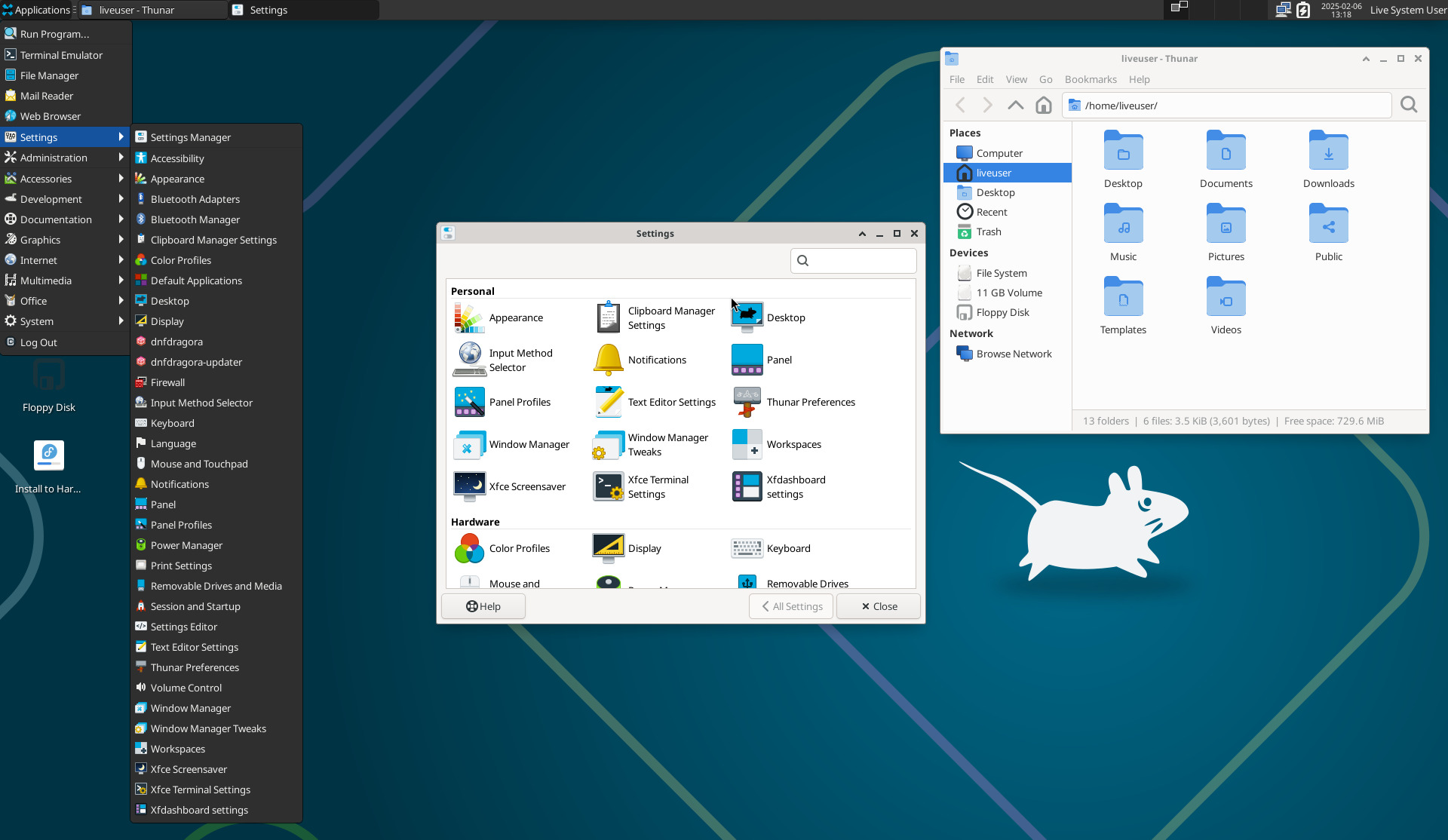
Xfce is the Spin most people mean when they ask for “lightweight Fedora.” You get a classic desktop with a panel, an app menu, a file manager, and a settings manager that does what its name says. It uses far less memory than GNOME or KDE Plasma and changes slowly, which counts as a feature if you dislike surprises.
Best for: older laptops, people who want a stable no-drama daily driver, anyone who prefers a traditional layout.
Pros
- Low RAM and CPU use
- Stable and predictable, with a long track record
- Panels and menus are easy to rearrange
- Plenty of themes and plugins
Cons
- The default look feels dated until you theme it
- Wayland support is still catching up, so you’re mostly on X11
- HiDPI and fractional scaling are weaker than on GNOME or Plasma
Fedora Cinnamon Spin
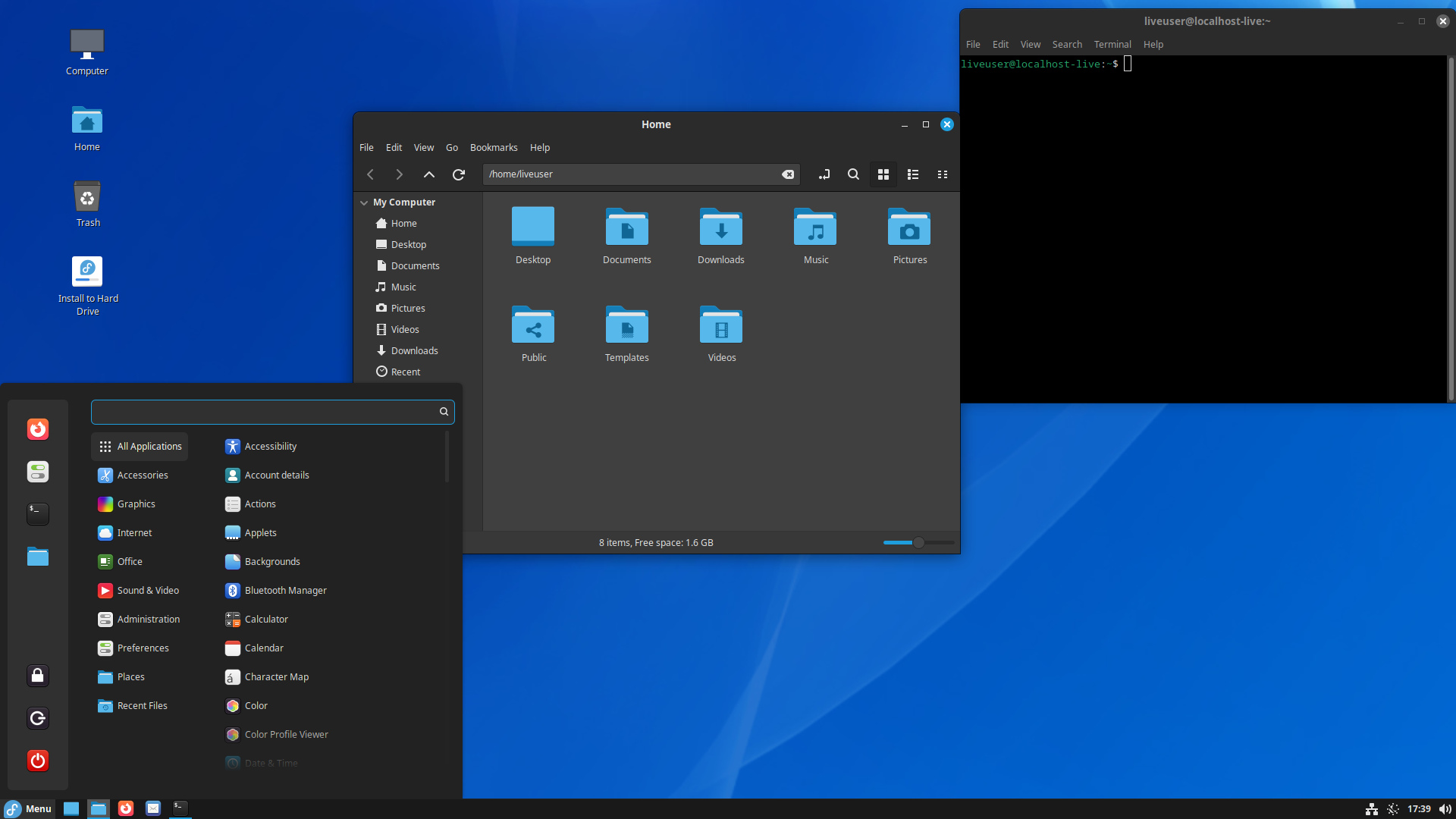
Cinnamon comes from the Linux Mint team and is built around a layout most people already know: a panel along the bottom, a start-style menu, a system tray, and a window list. Fedora describes it as a modern desktop with a traditional GNOME user experience. If you’re coming from Windows, this is probably the least confusing place to start.
Best for: Windows switchers and anyone who wants a conventional desktop with decent polish.
Pros
- Familiar layout with almost no learning curve
- Clean settings app and the Nemo file manager
- Applets, desklets, and extensions for customization
Cons
- Heavier than Xfce and LXQt
- X11-first, with Wayland support still maturing
- It’s Cinnamon on Fedora, not Linux Mint, so you won’t get Mint’s extra tools and themes
Fedora MATE-Compiz Spin
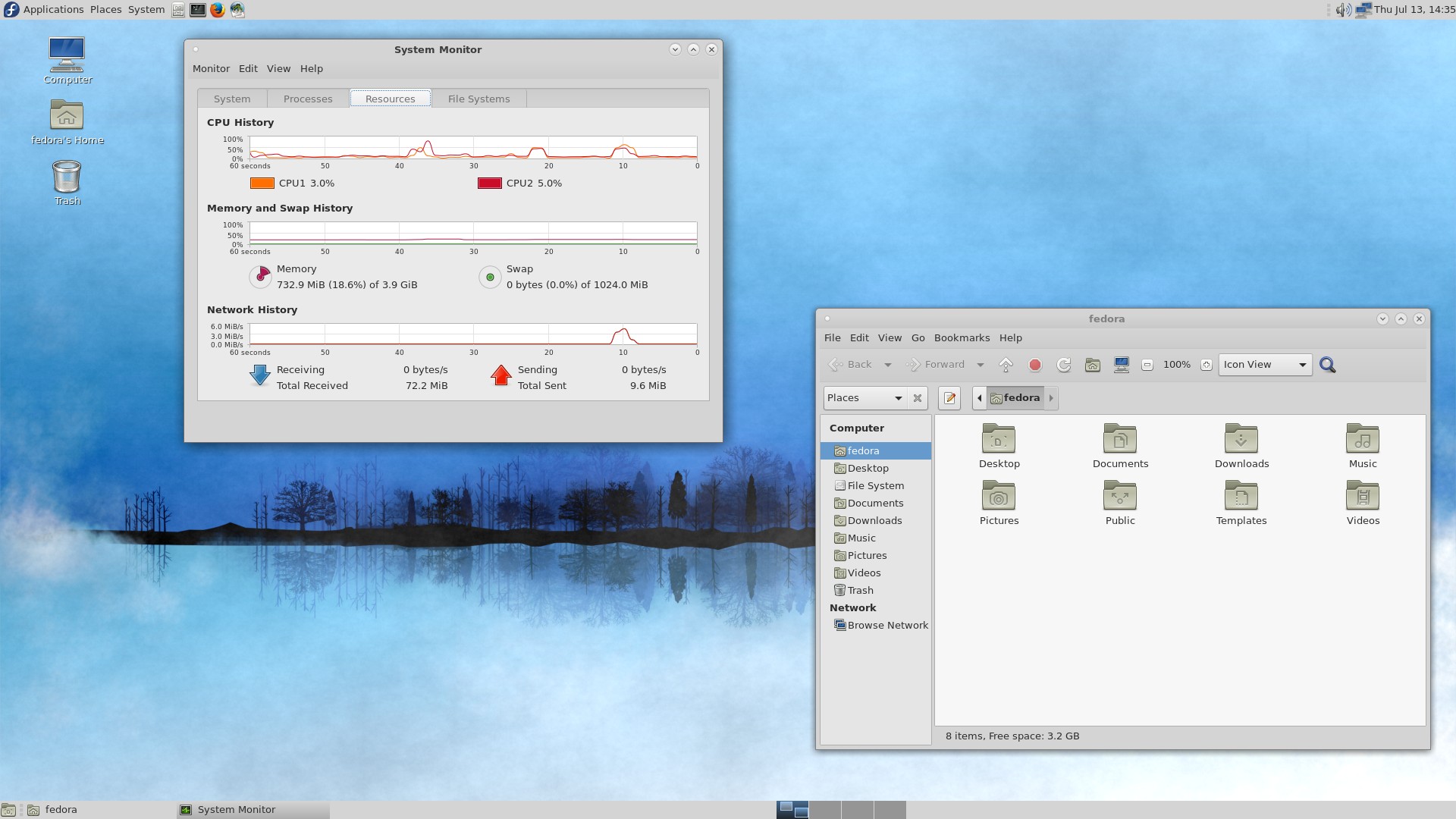
MATE carries on the GNOME 2 design: a top and bottom panel, a classic menu, and the Caja file manager. The Fedora Spin adds Compiz, a compositing window manager known for effects like the desktop cube and wobbly windows. Fedora describes it as a classic desktop with an additional 3D window manager.
Best for: people who miss GNOME 2, and anyone who wants a retro desktop with optional visual flair.
Pros
- Familiar, mature, and easy to learn
- Moderate resource use
- Compiz effects are there if you want them and ignorable if you don’t
Cons
- X11 only, which limits its long-term outlook
- Compiz is niche software and gets little attention these days
- The look is firmly retro
Official MATE-Compiz Spin page
Fedora Budgie Spin
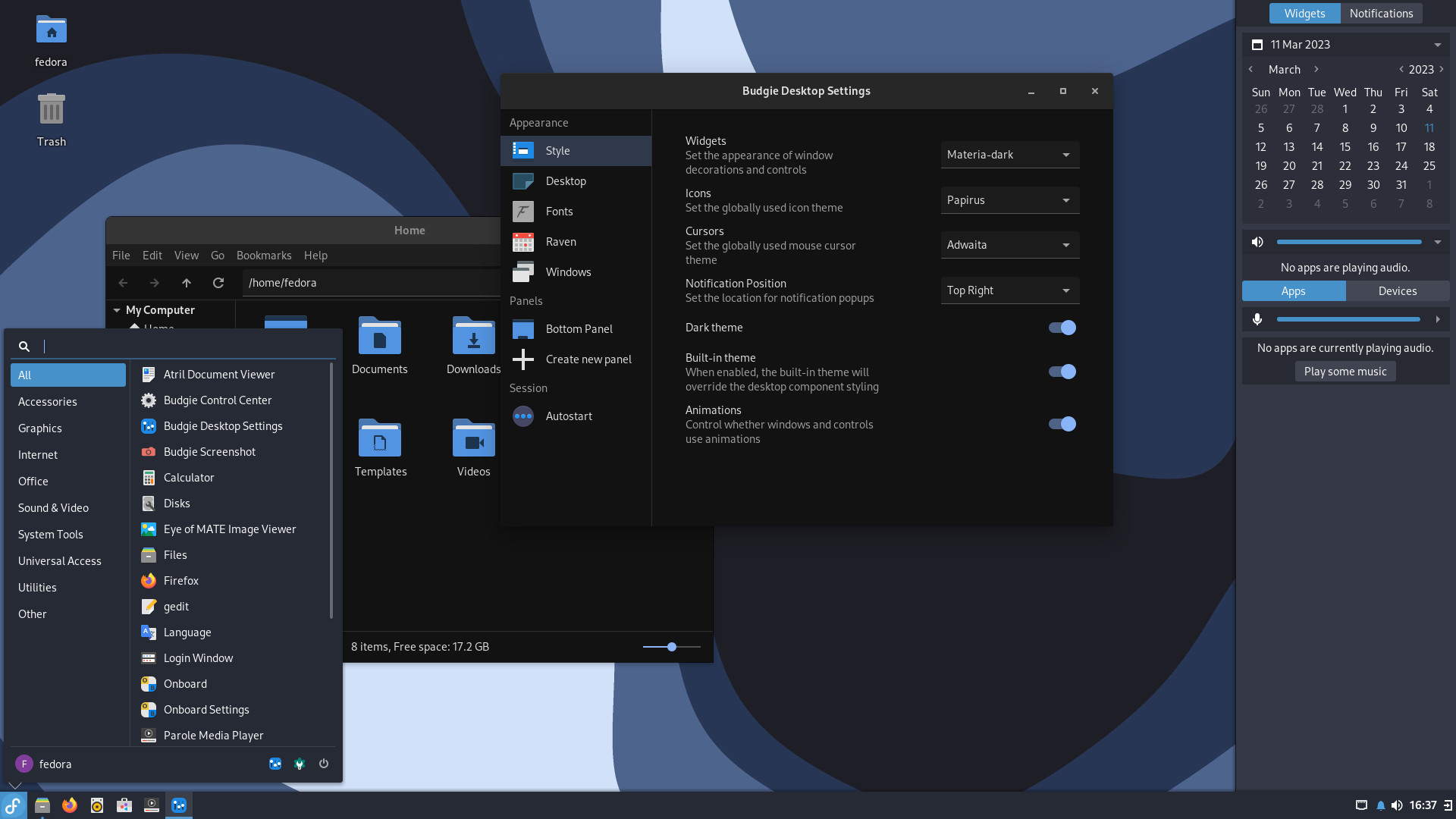
Budgie is a clean, modern desktop with a tidy panel and Raven, a side panel that holds notifications and quick settings. Version 10.10 moved Budgie from X11 to Wayland, and the Fedora 44 Spin is Wayland-native from the login screen onward, using the labwc compositor and SDDM. The Budgie team has put the 10.x series into maintenance mode and is working on Budgie 11.
Best for: people who want a simple, good-looking desktop without much tweaking.
Pros
- Uncluttered design that’s quick to learn
- Wayland-native in Fedora 44
- An Atomic version (Budgie Atomic) is available if you want an immutable system
Cons
- The 10.x series is in maintenance mode, so a bigger change is coming with Budgie 11
- Smaller community than GNOME, KDE, or Xfce
- Some third-party applets may lag behind after the move to Wayland
Fedora COSMIC Spin
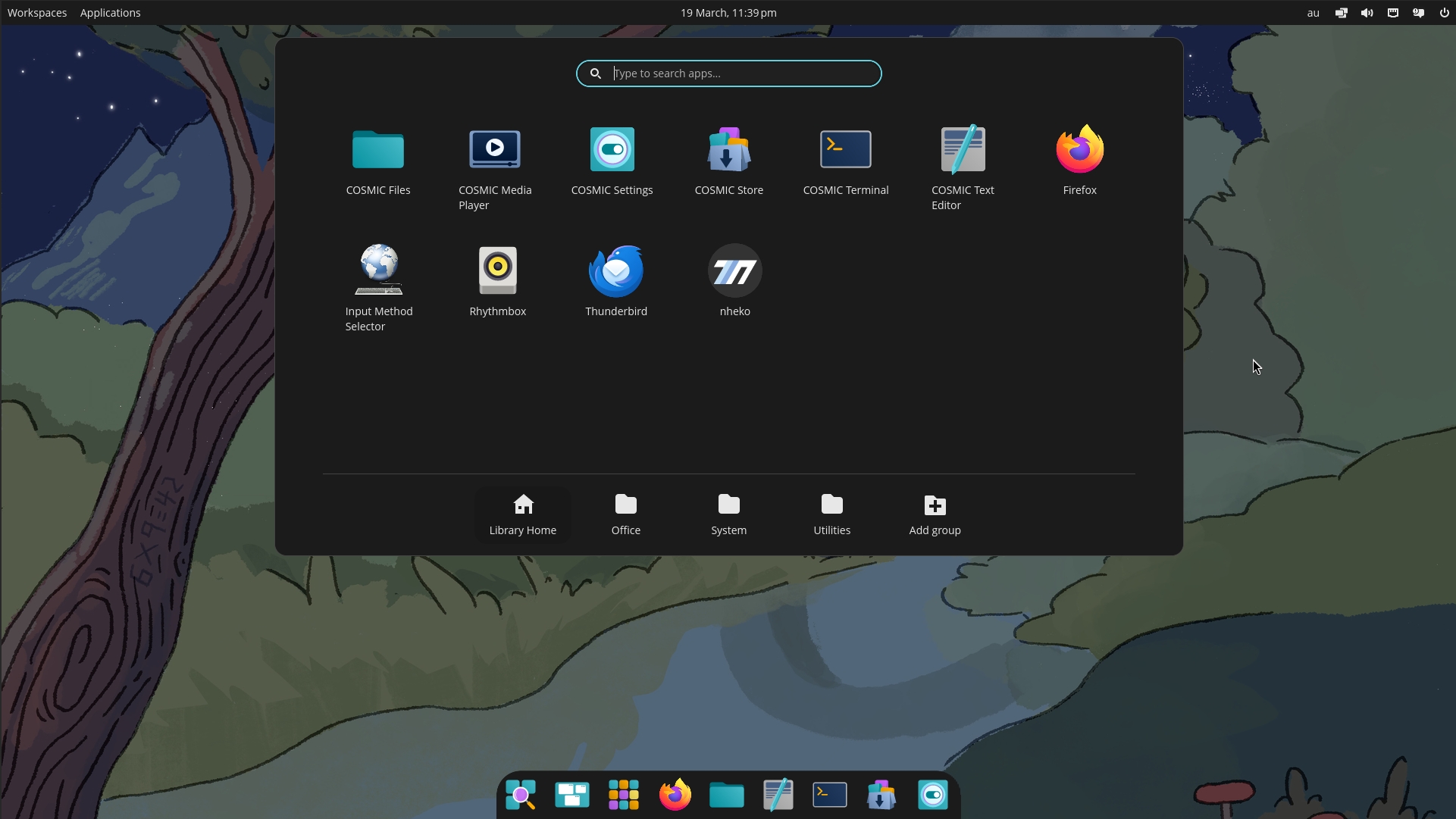
COSMIC is a new desktop from System76, the company behind Pop!_OS. It’s written in Rust, runs only on Wayland, and reached its first stable release, Epoch 1, in December 2025. The Fedora COSMIC Spin has been around since Fedora 42. Windows float by default, and you can switch on tiling whenever you like, which makes COSMIC a gentle way into tiling without giving up a normal desktop.
Best for: early adopters, Pop!_OS users who want Fedora underneath, and people curious about tiling.
Pros
- Modern, fast, and actively developed
- Built-in tiling toggle
- Good defaults with deep customization
- Atomic version (COSMIC Atomic) available
Cons
- Young, so expect missing features and rough edges
- Smaller selection of applets and companion apps
- Wayland only
- Fewer tutorials and forum answers than the older desktops
Lightweight Spins
These two target old hardware and minimal installs. Xfce, covered above, belongs in this conversation too.
Fedora LXQt Spin
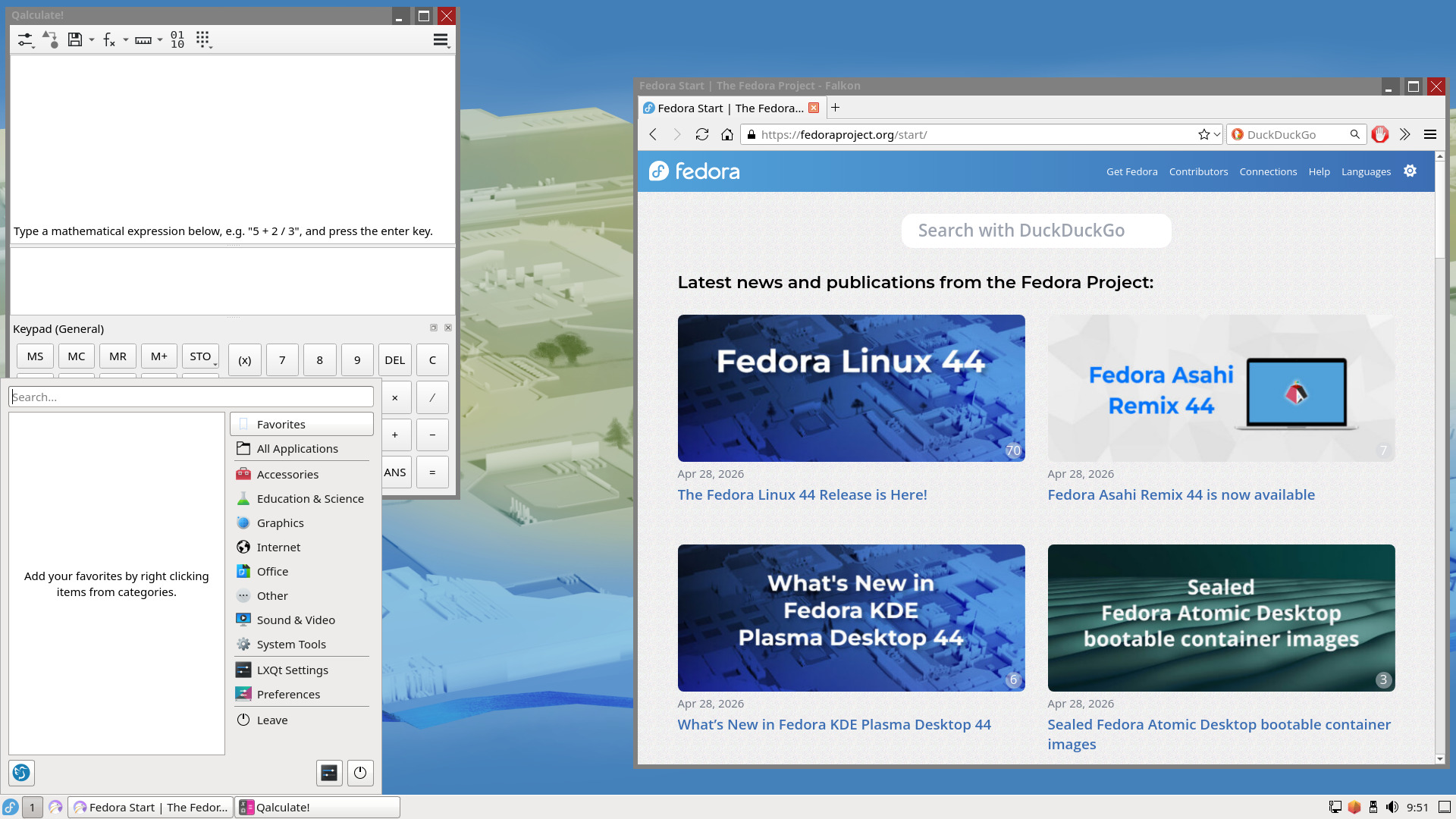
LXQt is a lightweight desktop built on Qt. It starts fast, sips memory, and keeps things simple: a panel, a menu, the PCManFM-Qt file manager, and a short list of utilities. Fedora calls it a lightweight and well-integrated LXQt desktop. Because it’s Qt-based, Qt apps blend in well.
Best for: old PCs, virtual machines, and people who want a small base to build on.
Pros
- Very low resource use
- Fast on aging hardware
- Modular, so you can strip it down further
Cons
- Spartan, with fewer built-in features than Xfce or Cinnamon
- X11 by default, and Wayland sessions need extra setup
- Limited visual polish
Fedora LXDE Spin
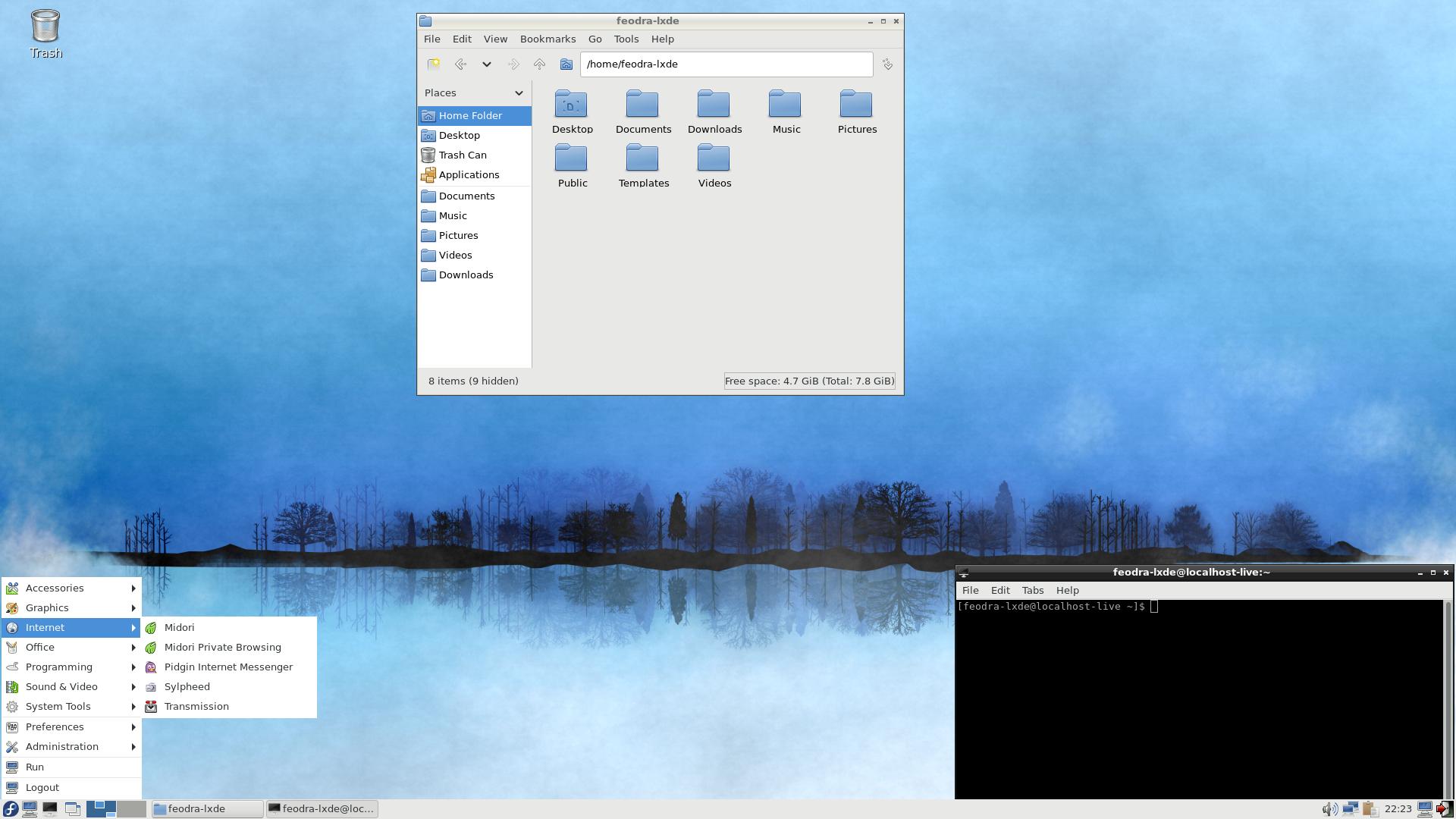
LXDE is the older sibling of LXQt. It’s GTK-based, uses the Openbox window manager, and aims for the smallest footprint possible. Fedora describes it as a light, fast, and less resource-hungry desktop. The catch is momentum: most of the LXDE community’s energy moved to LXQt, so upstream development is slow.
Best for: very old hardware where every megabyte counts.
Pros
- Among the lowest memory use of any Spin
- Snappy on ancient machines
- Simple and predictable
Cons
- Slow upstream development
- X11 only
- Sparse feature set, and LXQt is the better pick for most new installs
Tiling Spins
A tiling window manager arranges windows automatically so nothing overlaps, and you control everything with the keyboard. These Spins give you a bare-bones environment and expect you to build the rest yourself. If you enjoy that, nothing else comes close. If you don’t, it gets frustrating fast.
Fedora i3 Spin
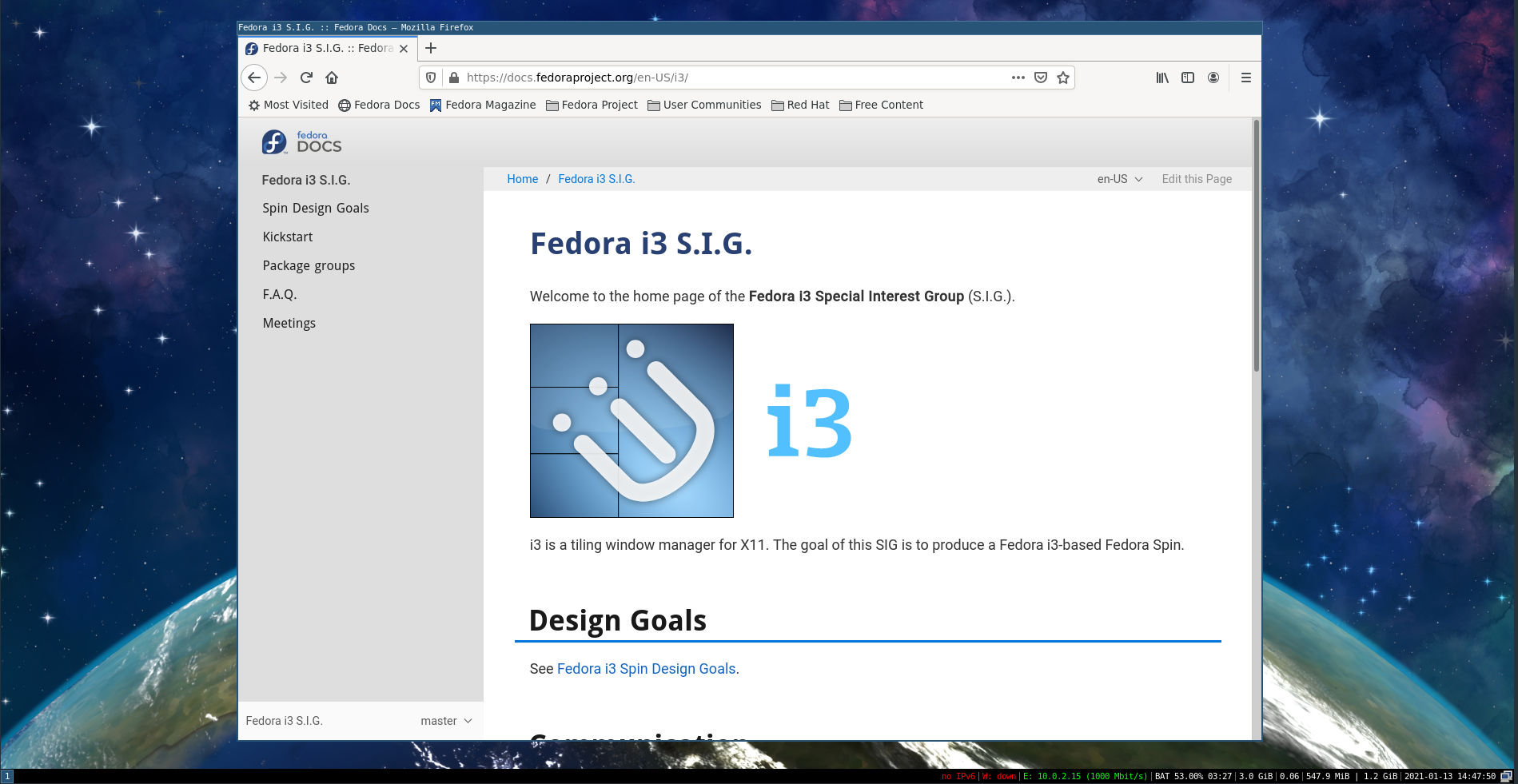
i3 is a tiling window manager for X11. Windows split the screen as you open them, you move between them with keyboard shortcuts, and a plain-text config file controls the whole thing. There’s no desktop in the usual sense, just a status bar and your windows. This was the first Fedora Spin built around a window manager instead of a full desktop environment.
Best for: keyboard-focused users who are comfortable editing config files and need X11.
Pros
- Fast and extremely light
- Efficient keyboard-driven workflow
- Mature, with years of documentation and community configs
Cons
- Steep learning curve
- X11 only
- You configure almost everything yourself, including the screen locker, display settings, and network applet
Fedora Sway Spin
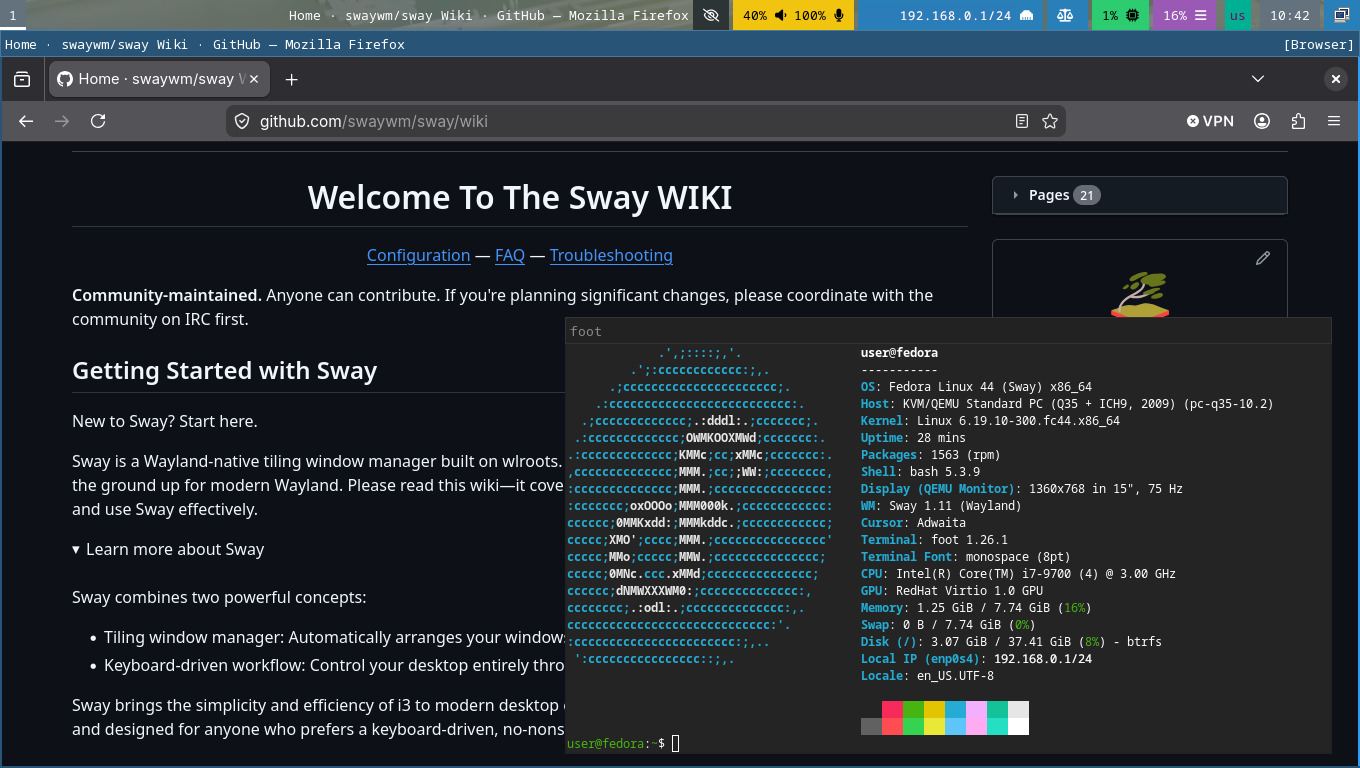
Sway is i3 for Wayland. It uses nearly the same configuration syntax and keybinding model and is built on the wlroots compositor library. If you already know i3, you’ll feel at home in minutes. If you don’t, Sway has a solid manual and a big user community.
Best for: i3 users moving to Wayland and anyone who wants a light, scriptable tiling setup.
Pros
- i3 workflow on a Wayland session
- Light on resources
- Good documentation and a large community
- Atomic version (Sway Atomic) available
Cons
- Manual setup, with few graphical tools included
- The proprietary NVIDIA driver has historically needed an “unsupported GPU” flag, so check the current state if you have an NVIDIA card
- Some conveniences, like screen sharing, need extra configuration
Fedora Miracle Spin
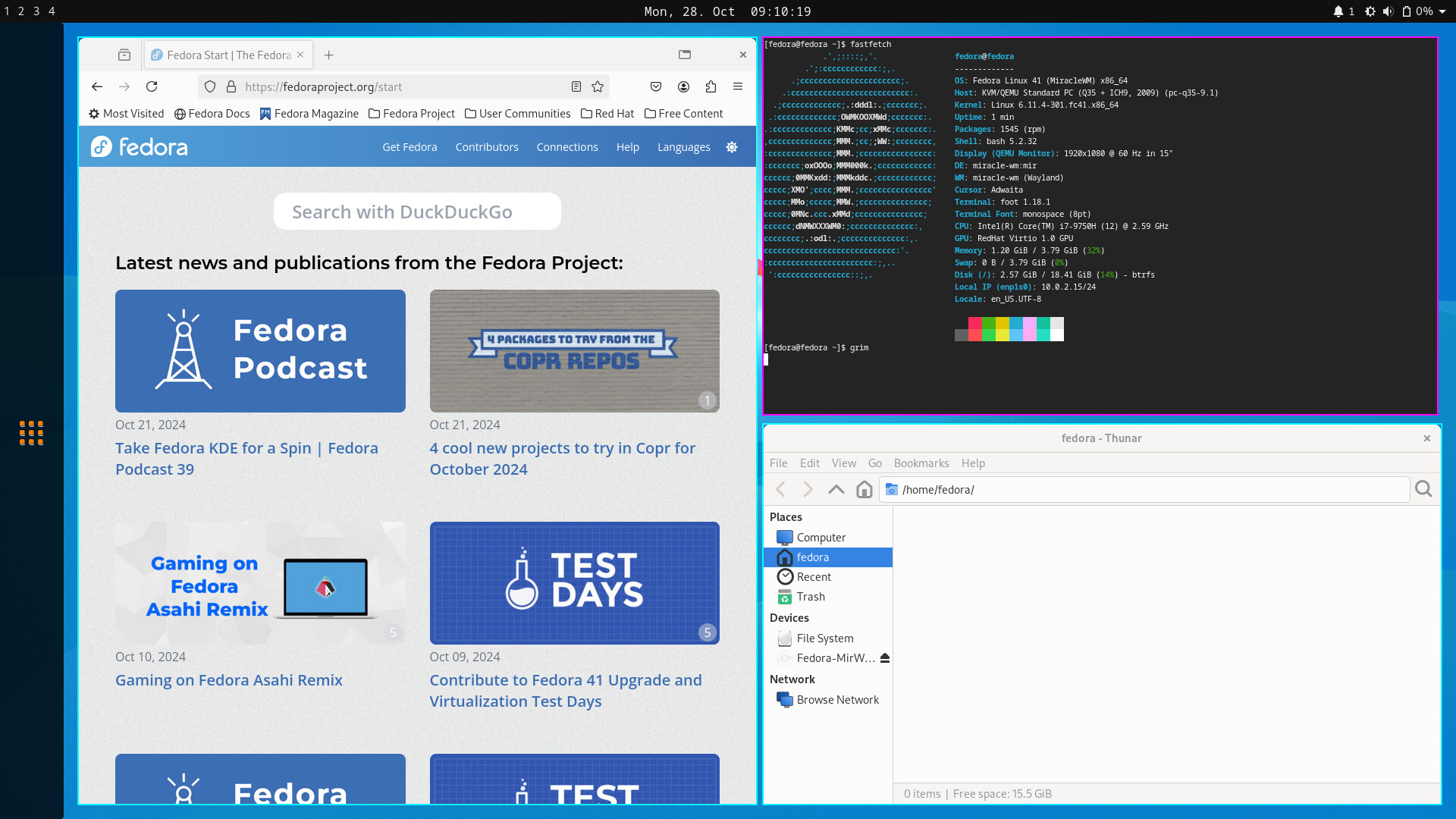
Miracle is a tiling Wayland compositor built on Mir, the display server library created by Canonical. It takes an i3-style approach to tiling. FESCo approved the Spin for Fedora 41. It’s the newest of the three tiling Spins and has the smallest community.
Best for: tinkerers who want to try a fresh take on tiling.
Pros
- Wayland-native tiling
- i3-inspired, so the concepts transfer
- Light on resources
Cons
- Young project, so expect rough edges
- Few guides and a small community
- Fewer integrations and less polish than Sway
Specialty Spins
Fedora KDE Plasma Mobile Spin
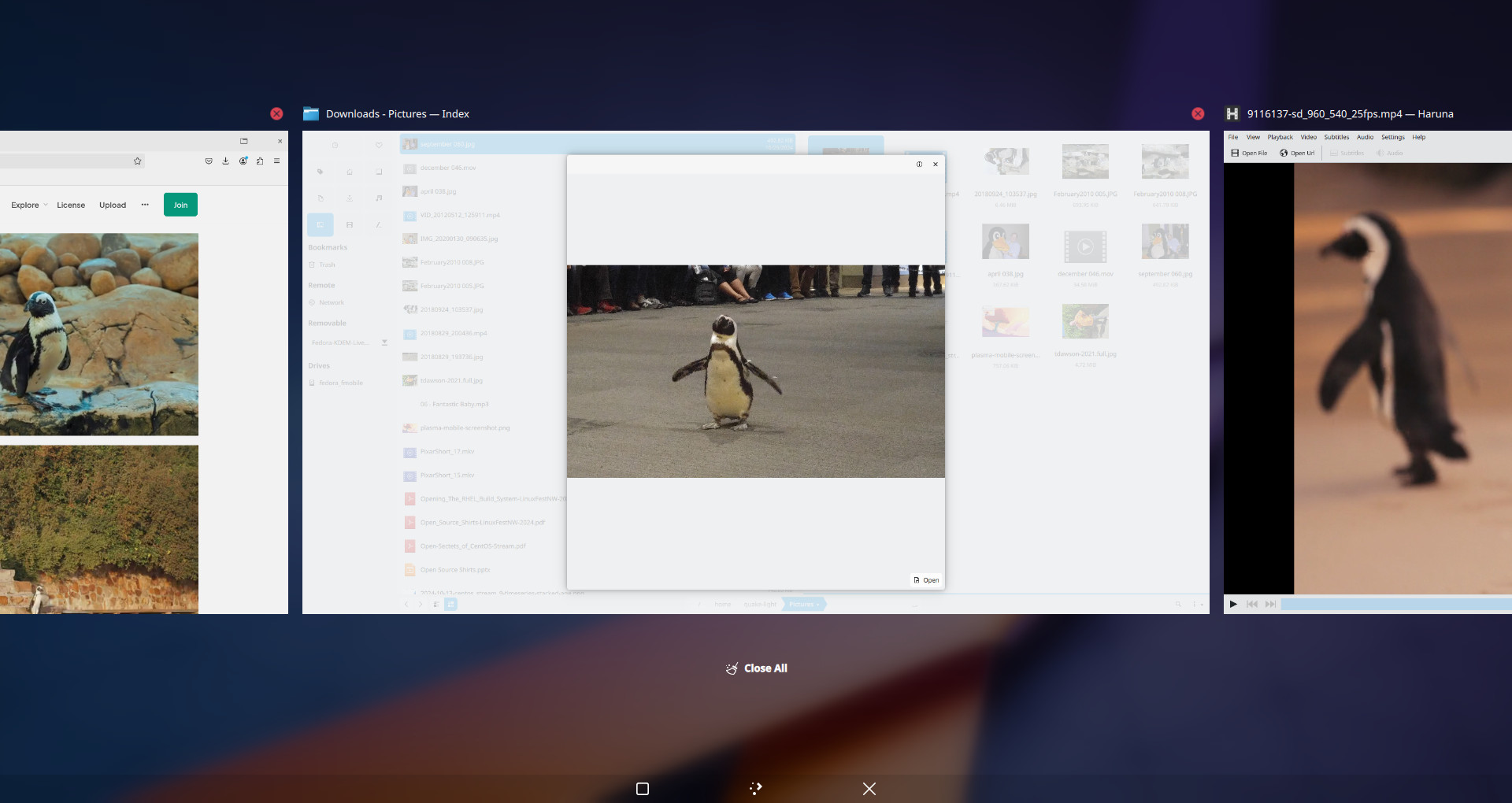
This Spin brings KDE Plasma’s touch-first mobile interface to a Fedora ISO. It was designed with phones in mind, but it works well on tablets and 2-in-1 laptops. It ships with mobile-friendly apps such as Firefox, NeoChat (a Matrix client), Index (file manager), Okular Mobile, Elisa, and Haruna. The regular Plasma Desktop is still installed as a login option, but the app set is trimmed, so this is not a replacement for the KDE Plasma Desktop Edition.
Best for: tablets, convertible laptops, and anyone who wants to experiment with Linux on touch devices.
Pros
- Touch-first interface that suits tablets and 2-in-1s
- Built on the KDE app ecosystem
- Wayland-native
Cons
- Not a full desktop experience
- Limited default apps
- Awkward with a mouse and keyboard on a regular PC
- Fedora’s menu labels it “KDE Mobile Desktop,” which can mislead people into thinking it’s the normal Plasma Desktop
Official KDE Plasma Mobile Spin page
Fedora SoaS (Sugar on a Stick)
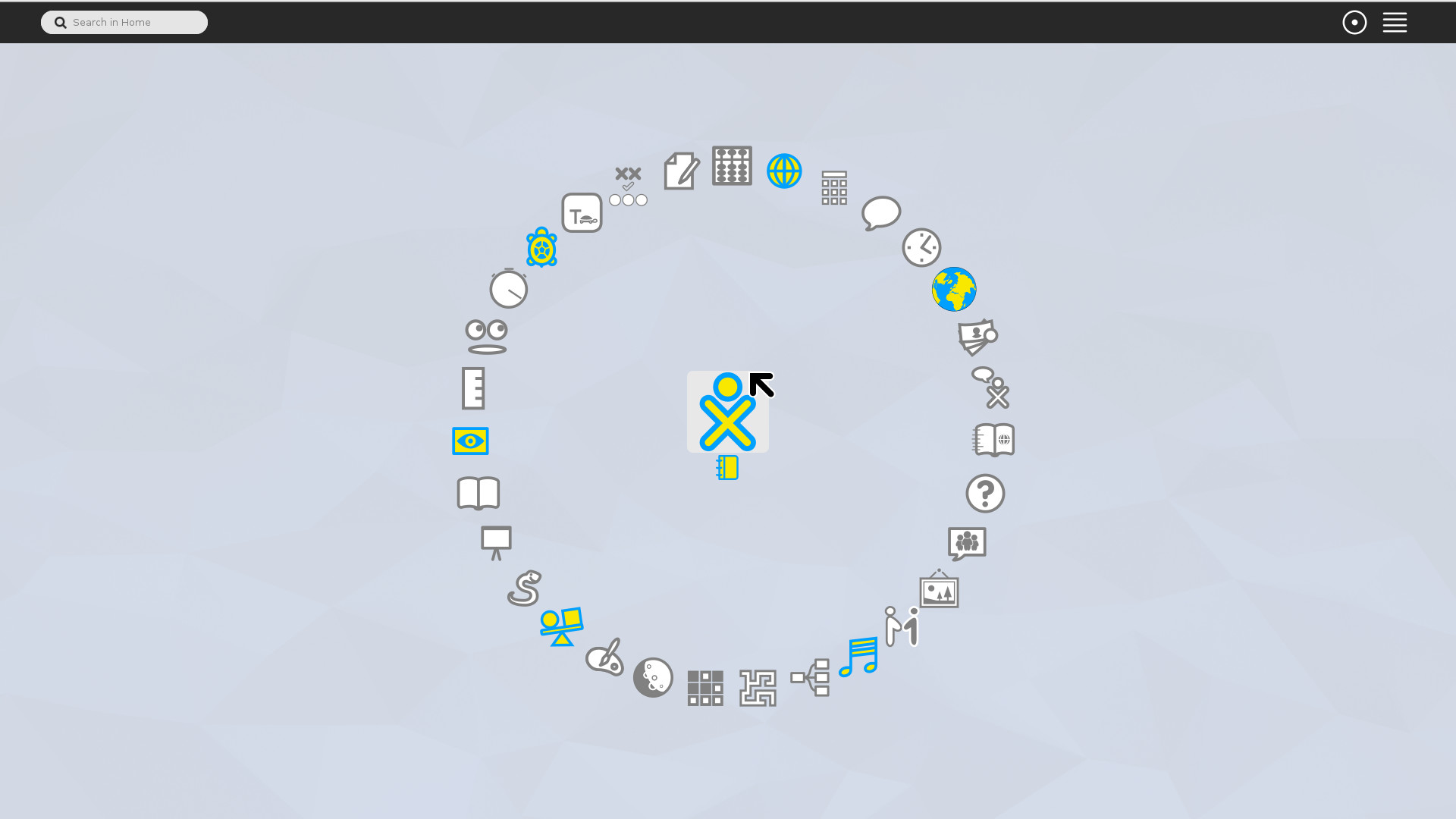
Sugar on a Stick is Fedora’s version of Sugar, the learning environment created for the One Laptop Per Child project. Instead of windows and menus, children work with activities for writing, reading, drawing, and programming, and they can collaborate with other Sugar users on the same network. It’s designed to run from a USB stick.
Best for: young learners, parents, and teachers.
Pros
- Built for children and classrooms
- Activity-based, so there’s no clutter
- Boots from a USB stick
Cons
- Not a general-purpose desktop
- Unusual interface that adults often find confusing
- Niche, with a small user base
Which Fedora Spin Should You Pick?
If you skipped straight here, this is the part that matters:
- I want something that feels like Windows: Cinnamon first, Xfce second.
- I have an old or low-spec machine: LXQt first, Xfce second. LXDE only if the machine is truly ancient.
- I want a modern desktop that feels fresh: Budgie for simplicity, COSMIC for ambition.
- I want keyboard-driven tiling: Sway if you want Wayland, i3 if you need X11, Miracle if you like experimenting.
- I want to try tiling without losing a normal desktop: COSMIC.
- I miss the classic GNOME 2 look: MATE-Compiz.
- I have a tablet or 2-in-1: KDE Plasma Mobile.
- I’m setting up a computer for a young child: SoaS.
- I want the most polished experience with the biggest community: skip the Spins. Fedora Workstation (GNOME) and the KDE Plasma Desktop Edition get the most attention.
Before You Install a Spin
- Support window. Spins follow the same lifecycle as the rest of Fedora. Each release gets updates for roughly 13 months, so plan on upgrading at least once a year. The process is covered in the Fedora upgrade guide.
- X11 and Wayland. The Linux desktop is moving to Wayland, and the Spins are at different stages of that move. Budgie, COSMIC, Sway, Miracle, and KDE Plasma Mobile are Wayland-based. Xfce, Cinnamon, MATE-Compiz, LXQt, LXDE, i3, and SoaS are mainly X11 today. If you rely on screen sharing, remote desktop tools, or X11-only apps, test them in the live session first.
- NVIDIA and codecs. Fedora doesn’t ship proprietary NVIDIA drivers or some multimedia codecs. Most people add RPM Fusion for those. Tiling compositors tend to be the pickiest about NVIDIA, so try before you commit.
- Team size. Smaller teams maintain Spins than Workstation. Bugs can take longer to fix, and the niche Spins have fewer Fedora-specific guides.
How to Install a Fedora Spin
- Download the ISO from the Fedora Spins page.
- Write it to a USB drive with Fedora Media Writer, which runs on Windows, macOS, and Linux.
- Boot from the USB drive. The boot menu key varies by manufacturer, and F12, F9, and Esc are common.
- Try the live session first. Check Wi-Fi, audio, display scaling, and anything else you depend on.
- Start the installer from the live desktop and follow the prompts.
- After the first boot, run
sudo dnf upgrade --refreshto pull the latest updates.
Try a Spin’s Desktop Without Reinstalling
You can add another desktop to an existing Fedora install using its DNF environment group, then pick the new session from the login screen. These are the group names for several of the Spin desktops:
sudo dnf install @xfce-desktop-environment
sudo dnf install @cinnamon-desktop-environment
sudo dnf install @lxqt-desktop-environment
sudo dnf install @i3-desktop-environment
sudo dnf install @sway-desktop-environment
sudo dnf install @miraclewm-desktop-environment
sudo dnf install @cosmic-desktop-environment
This is a good way to test a desktop, but it layers the new packages over your current setup. For the cleanest result, install from the Spin’s own ISO. Back up your data before making big changes to a system you care about.
Final Verdict
Most people should start with Xfce or Cinnamon. Both are stable, easy to learn, and don’t ask much of you. If your hardware is old, LXQt is the better bet. If you want the newest ideas in Linux desktops, try COSMIC or Budgie. If the keyboard is your main tool, Sway is the strongest tiling option on Fedora right now, with i3 as the X11 fallback and Miracle for experimenters.
The good news is that trying a Spin costs you one USB drive and ten minutes. Boot a few live sessions, see which one feels right, and install that one.
Fedora Spins FAQ
What is a Fedora Spin?
A Fedora Spin is an official version of Fedora Linux that comes preconfigured with a specific desktop environment or window manager, such as Xfce, Cinnamon, or Sway. It uses the same Fedora base, repositories, and release schedule as Fedora Workstation. Only the interface and default apps change.
How many Fedora Spins are there?
As of Fedora 44, the official Spins page lists 12: Xfce, Cinnamon, MATE-Compiz, i3, LXQt, LXDE, SoaS (Sugar on a Stick), Sway, Budgie, Miracle, KDE Plasma Mobile, and COSMIC. The lineup changes occasionally, so check fedoraproject.org/spins before you download.
Is KDE Plasma a Fedora Spin?
Not anymore. Fedora KDE Plasma Desktop is now a full Edition alongside Workstation (GNOME), Server, Cloud, CoreOS, and IoT. The separate KDE Plasma Mobile Spin is a touch-focused variant and not a replacement for the regular KDE Plasma Desktop Edition.
What is the difference between Fedora Workstation and a Fedora Spin?
Workstation is an Edition and uses GNOME. Spins are alternative desktops built on the same Fedora base. Editions get the most testing and development attention, while Spins are maintained by smaller community teams.
Which Fedora Spin is best for old computers?
LXQt and LXDE use the least memory, and LXQt is the better choice for new installs because it is more actively developed. Xfce is a good middle ground if you want more features and a friendlier setup. Sway and i3 also run light, but they take more setup.
Which Fedora Spin is best for beginners?
Cinnamon and Xfce have familiar layouts with a panel, menu, and window list, so they are easy for new Linux users. If you aren’t set on a Spin, Fedora Workstation (GNOME) and the KDE Plasma Desktop Edition get the most polish and community help.
Can I switch to a different Spin without reinstalling Fedora?
Yes. You can install another desktop on top of your current system with DNF, for example sudo dnf install @xfce-desktop-environment, then choose the new session at the login screen. A fresh install from the Spin’s ISO gives a cleaner result because it doesn’t carry over the old desktop’s packages.
What is the difference between a Fedora Spin and an Atomic Desktop?
Spins are traditional installs where packages are updated individually with DNF. Atomic Desktops are image-based, so the system updates as a whole and can roll back. Fedora offers Atomic versions of GNOME (Silverblue), KDE Plasma (Kinoite), Sway, Budgie, and COSMIC.
Which Fedora Spin is best for a tiling window manager?
Sway is the best pick if you want Wayland and an i3-style workflow. Choose i3 if you rely on X11-only tools. Miracle is a newer Wayland option for people who like to experiment, and COSMIC is worth trying if you want optional tiling inside a full desktop.