Linux stopped being a hobbyist-only option for creative work a while ago, and 2026 might be the best year yet to actually make the switch. GIMP shipped a real 3.0 release after twenty years on the 2.x line, Krita keeps sharpening its painting engine, and Pop!_OS now runs on a desktop environment built from scratch instead of a patched-together GNOME theme. Driver support for tablets and GPUs has gotten a lot less painful too.
None of that means every distro handles design work the same way. Some ship years-old versions of GIMP in their default repos and expect you to go hunting for a PPA. Others turn NVIDIA driver installation into an afternoon project instead of a five-minute checkbox. Pick the wrong one and you’ll spend more time troubleshooting than actually designing.
This list covers the distros that hold up for real graphic design work in 2026, based on software availability, driver support, and how much setup stands between installing the OS and actually opening a file.
Short on time? Here’s the quick version before the full breakdown.
- Ubuntu Studio: the best all-in-one setup, with creative software preinstalled and configured
- Fedora Linux (Design Suite): the freshest software versions of any mainstream distro
- Linux Mint: the easiest landing spot if you’re coming from Windows
- Pop!_OS: the best choice if you’re running an NVIDIA GPU
- Manjaro: rolling release, for designers who want new tools the moment they ship
- elementary OS: the most polished, considered interface on this list
- Zorin OS: built for teams migrating off Windows or macOS together
What to Look For in a Linux Distro for Design Work
A few things matter more here than which desktop environment looks nicest in a screenshot.
- Color management: look for solid ICC profile support in your image editor and the ability to load a custom monitor profile system-wide. This matters most for print and photography work.
- Software freshness: GIMP 3.0 and Krita 6.0 both bring real improvements over their predecessors. A distro that ships outdated versions in its default repos will hold you back unless you’re comfortable using Flatpak.
- Driver support: NVIDIA GPUs need proper proprietary drivers for GPU-accelerated tools to run well. Some distros handle this automatically, others make you dig through documentation first.
- Stability versus bleeding edge: a rolling release distro gets you new features fastest, but it also carries more risk of an update breaking something mid-project. An LTS release trades novelty for predictability.
- HiDPI and tablet support: if you work on a 4K display or with a Wacom tablet, check that your desktop environment scales cleanly and that pressure sensitivity works without extra configuration.
The Best Linux Distros for Graphic Designers
The full breakdown covers what each distro ships with, where it falls short, and who it actually makes sense for.
1. Ubuntu Studio
Ubuntu Studio is built specifically for creative work, and it’s not just graphic design it targets. It’s an official Ubuntu flavor for anyone working in audio, video, photography, publishing, or graphics, and the graphics side holds up well on its own.
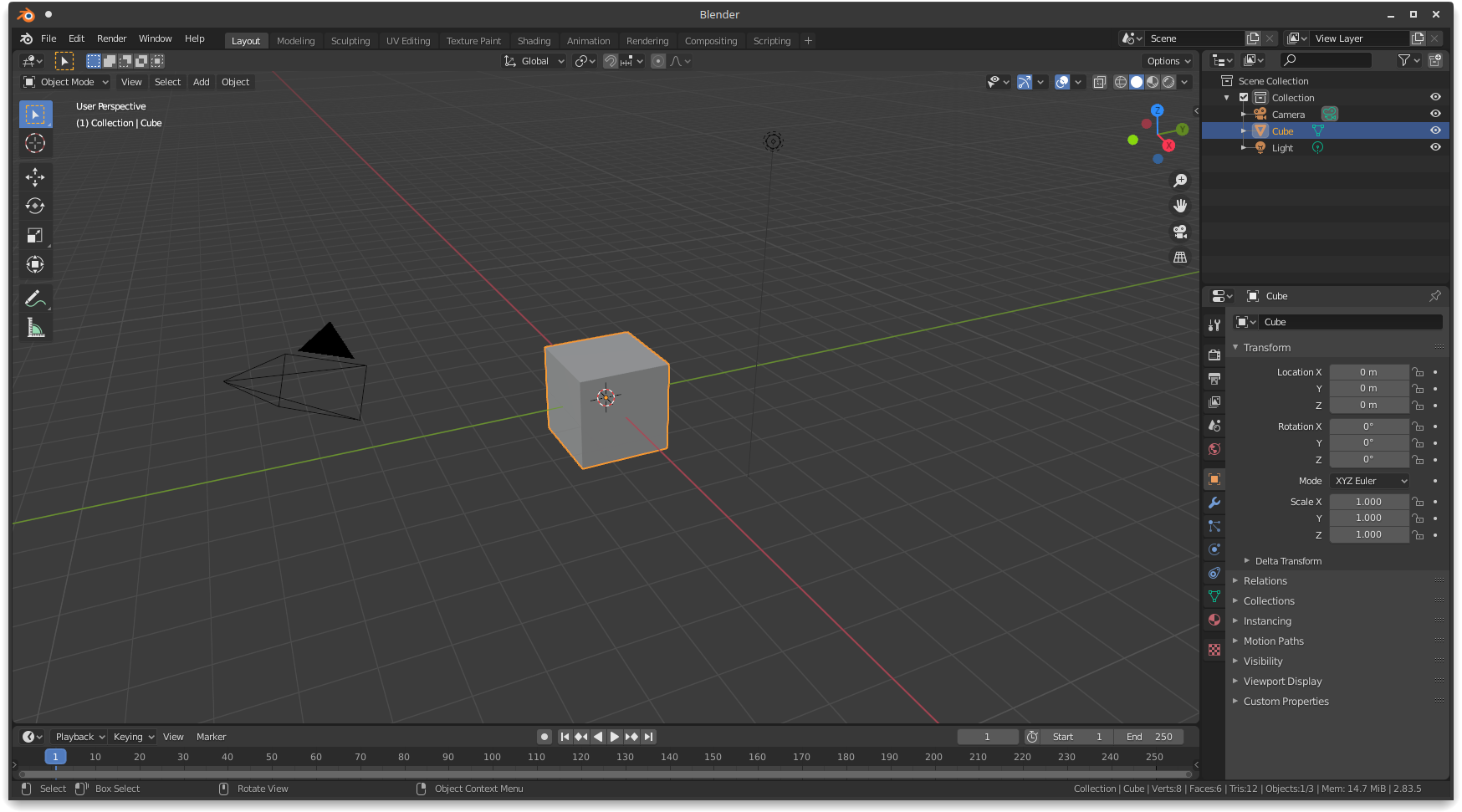
The current release, 26.04 LTS (“Resolute Raccoon”), landed in April 2026 and runs on KDE Plasma. It ships with GIMP, Inkscape, Krita, Scribus, Blender, and digiKam already installed and configured, so there’s no cobbling a creative toolkit together from scratch. Since the 24.10 release, you can also do a minimal install and pick only the workflow you actually need instead of getting audio and video tools you’ll never open.
Key Features
- GIMP, Inkscape, Krita, Scribus, Blender, and digiKam preinstalled and configured
- KDE Plasma desktop with three selectable layouts as of the 26.04 release
- Minimal install option to choose just the graphics workflow
- Low-latency kernel tuning, useful if you ever touch audio or video too
- Three-year LTS support window, through April 2029
Pros:
- Zero setup time for a complete creative toolkit
- KDE Plasma is deeply customizable once you’re settled in
- Backed by Ubuntu’s package repository and community size
- Long support window for an LTS release
Cons:
- KDE Plasma feels heavier than something like Xfce on older hardware
- The broader multimedia focus means unused tools if you only do graphics work
- Less beginner-friendly out of the box than Mint or Zorin
Best for: designers who want a fully equipped creative workstation without installing a single app themselves.
2. Fedora Linux (Design Suite)
Fedora Linux 44 is the current release as of mid-2026, and it’s a solid pick if you want your creative software close to its actual upstream version instead of an older backport. Fedora’s six-month release cycle means GIMP, Krita, and Inkscape updates land on your machine faster than on Ubuntu-based distros.
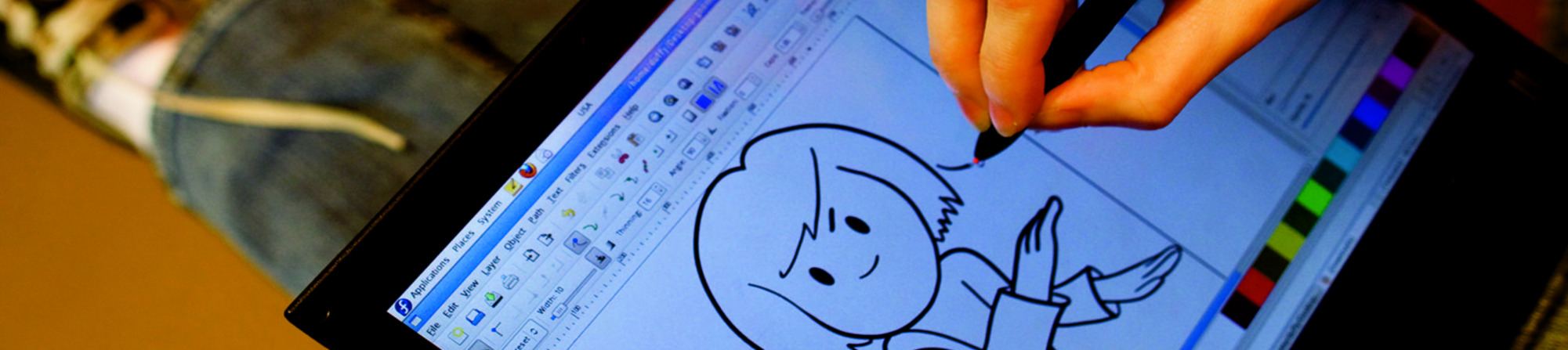
What makes Fedora worth a special mention here is the Design Suite, a Fedora Labs spin built specifically for designers. It comes preloaded with current versions of GIMP, Inkscape, Krita, Darktable, Scribus, and Blender, kept up to date by the Fedora Design Team, the same people who produce the artwork for the Fedora Project itself.
Key Features
- Fedora Design Suite spin ships current versions of GIMP, Inkscape, Krita, Darktable, Scribus, and Blender
- Six-month release cycle keeps creative software close to upstream
- Choice of GNOME or KDE Plasma editions
- Mature, well-tested Wayland support
- Flathub access out of the box for anything not in the main repos
Pros:
- Among the freshest software versions of any mainstream distro
- Design Suite saves you from hunting down and installing tools individually
- Strong first-party Wayland and HiDPI support
- Backed by Red Hat, so the underlying platform is well funded and tested
Cons:
- 13-month support window means more frequent upgrades than an LTS distro
- NVIDIA proprietary drivers need RPM Fusion, an extra repository to set up first
- The six-month cadence can feel like a treadmill if you’d rather not touch your OS often
Best for: designers who want the newest version of their tools without waiting on backports.
3. Linux Mint
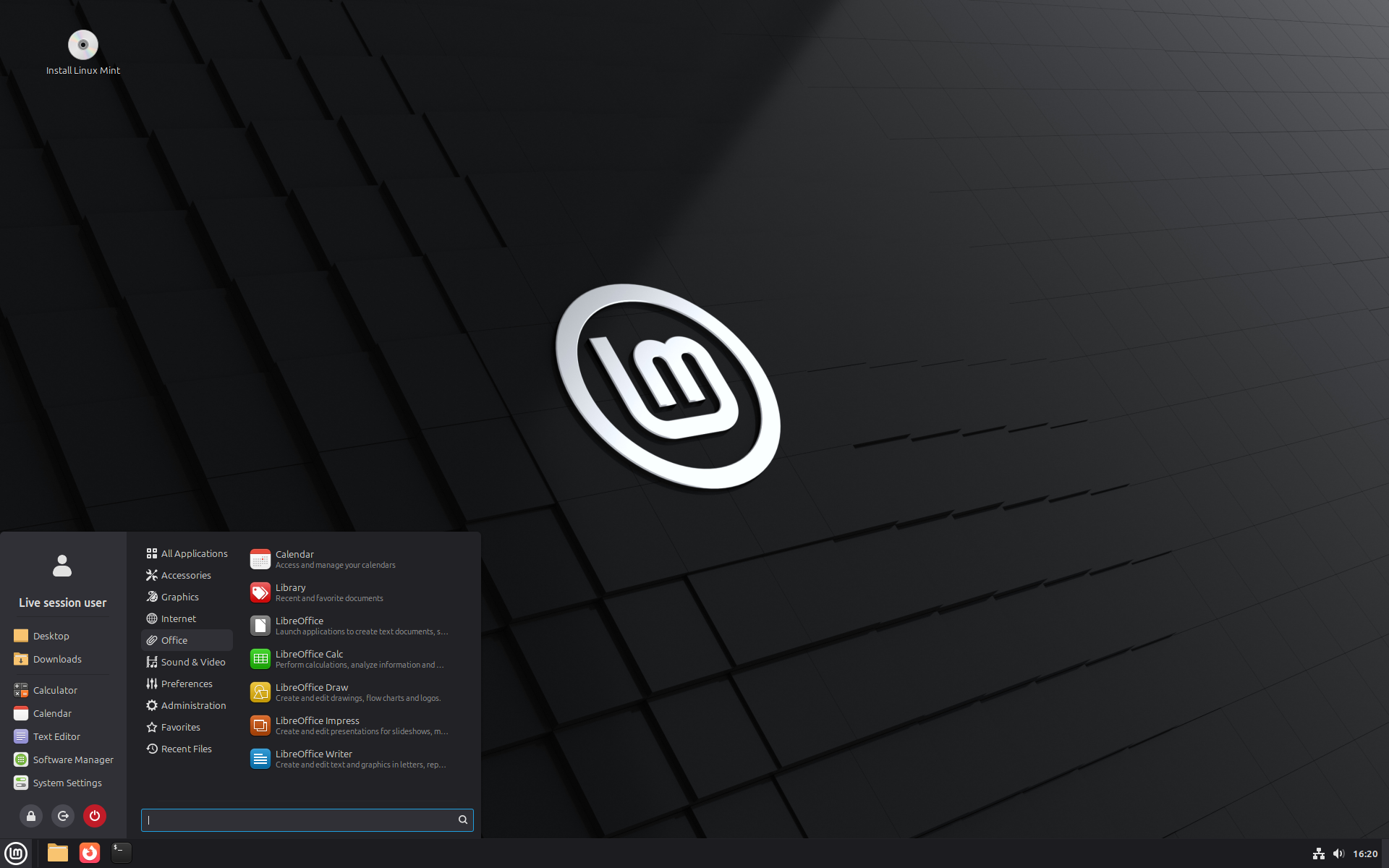
If you’re moving from Windows and want your design software to work without becoming a Linux systems administrator first, Linux Mint is the safest bet on this list. The current release, Mint 22.3 (“Zena”), is built on Ubuntu 24.04 LTS and runs the Cinnamon desktop, which looks and behaves close enough to Windows that the learning curve is minimal.
The Software Manager makes installing GIMP, Inkscape, and Krita a couple of clicks, either from the standard repos or as Flatpaks if you want newer versions. Mint also changes very little from release to release, so tutorials and forum answers you find today will still hold up a couple of years from now.
Key Features
- Cinnamon desktop with a familiar, Windows-like layout
- Software Manager with one-click installs for GIMP, Inkscape, Krita, and more
- Built on Ubuntu 24.04 LTS, supported through April 2029
- Also available in MATE and Xfce editions for older hardware
Pros:
- The gentlest learning curve of any distro on this list
- Extremely stable, rarely breaks between updates
- Huge community, so troubleshooting help is easy to find
- Runs well on modest hardware, especially the Xfce edition
Cons:
- Default repos can lag behind on the newest software versions (Flatpak solves this)
- Cinnamon isn’t as visually customizable as KDE Plasma
- Less exciting than newer desktop environments if you like tinkering
Best for: designers switching from Windows who want their system to just work from day one.
4. Pop!_OS
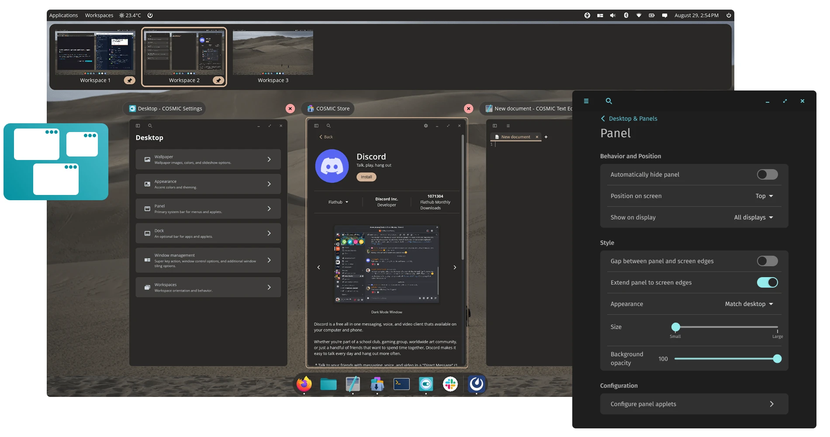
Pop!_OS has quietly become one of the more interesting distros on this list, mostly because of what’s under the hood now. System76 moved COSMIC, its from-scratch desktop environment written in Rust, out of beta in December 2025. It’s no longer a GNOME theme with extensions bolted on. It’s a completely new desktop, and it was built with creative multitasking in mind.
For graphic designers, the real draw is still hardware support. Pop!_OS ships a dedicated ISO with NVIDIA drivers preinstalled, which matters if you’re doing GPU-accelerated work in Blender, running Krita’s canvas acceleration, or processing RAW files in Darktable. COSMIC’s built-in tiling also makes it easy to keep a reference image, your canvas, and a browser tab all visible at once without manually resizing windows.
Key Features
- COSMIC desktop, a Rust-based environment with built-in keyboard-driven tiling
- Dedicated NVIDIA ISO with drivers preinstalled
- Automatic hybrid graphics switching for laptops with two GPUs
- Pop!_Shop for straightforward software installs
- Workspaces and window stacking built for multitasking
Pros:
- Best out-of-box NVIDIA support of any distro on this list
- COSMIC’s tiling is genuinely useful for reference-heavy design work
- Built on Ubuntu, so the underlying package ecosystem is huge
- Actively developed, with frequent COSMIC updates
Cons:
- COSMIC is still young, so you’ll occasionally hit rough edges older desktops don’t have
- Some GNOME extensions and themes from the old Pop!_OS no longer apply
- Smaller company behind it than Canonical or Red Hat, if that matters to you
Best for: designers with NVIDIA GPUs doing 3D rendering, RAW processing, or anything else that benefits from solid GPU acceleration.
5. Manjaro (KDE Plasma Edition)
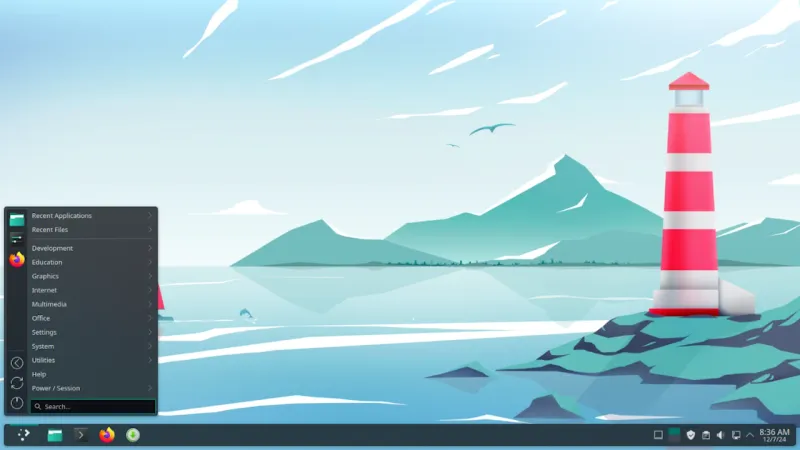
Manjaro is the pick for designers who don’t want to wait for anything. It’s a rolling release distro built on Arch Linux, meaning once you install it, you keep getting the latest version of GIMP, Krita, or Inkscape as soon as it’s packaged, with no waiting for the next distro version to ship it.
The KDE Plasma edition is the one worth grabbing for design work. It’s polished, handles HiDPI displays and tablet input well, and Manjaro’s Pamac package manager gives you graphical access to the Arch User Repository (AUR), which has packages and plugins you won’t find anywhere else.
Key Features
- Rolling release means consistently current software versions
- KDE Plasma 6 edition with strong HiDPI and tablet support
- Pamac package manager with graphical AUR access
- Multiple kernel versions available and easy to switch between
- Also available in GNOME and Xfce editions
Pros:
- Always current creative software without reinstalling the OS
- AUR access opens up plugins and tools not packaged elsewhere
- KDE Plasma is one of the most flexible desktops available
- Solid performance even on mid-range hardware
Cons:
- Rolling releases carry more risk of an update breaking something mid-project
- AUR packages are community maintained, not officially vetted
- Requires more comfort with troubleshooting than Mint or Zorin
Best for: designers who want the newest features in their creative software and don’t mind occasionally maintaining their system.
6. elementary OS
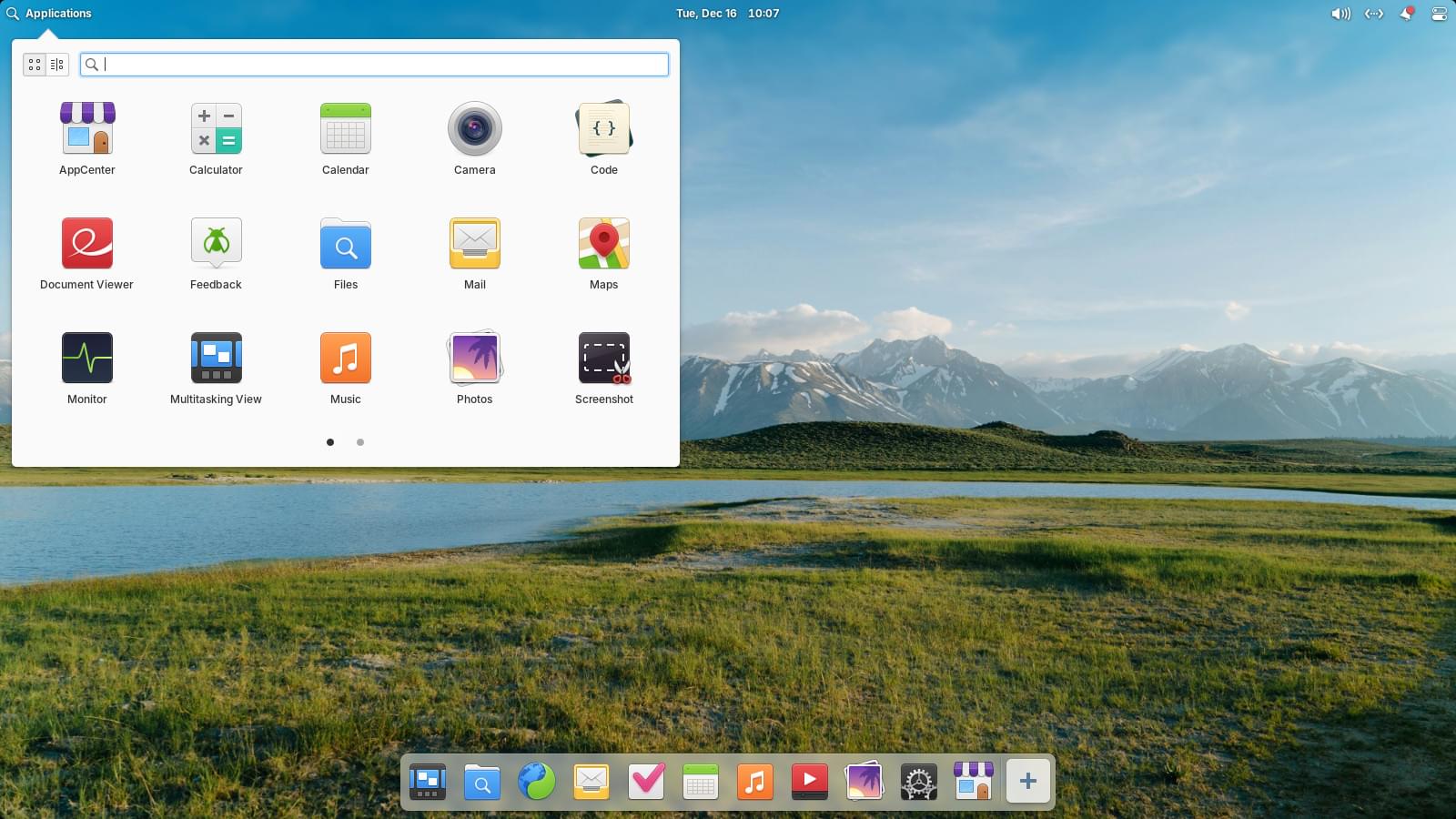
elementary OS cares about design in a way most distros don’t bother with, which tracks for an OS built by and for people who care how things look. The Pantheon desktop is clean and consistent, closer to macOS than anything else on this list, right down to the animations and typography.
The AppCenter is curated rather than an open firehose of packages. GIMP, Inkscape, and Krita are all available, but the selection is smaller than what you’d get on Ubuntu or Fedora. You can still add Flathub or other repositories if you need something outside the curated store.
Key Features
- Pantheon desktop with a cohesive, macOS-like design language
- Curated AppCenter with a pay-what-you-want model for apps
- Built on Ubuntu LTS for underlying stability
- Strong focus on privacy, with minimal data collection by default
Pros:
- The most polished, considered UI of any distro on this list
- Strong typography and attention to detail throughout the system
- Lightweight and responsive on modern hardware
- Supports indie developers directly through AppCenter payments
Cons:
- Smaller default app selection than Ubuntu or Fedora based distros
- Slower release cadence, so newer hardware support can lag
- Less pre-installed creative software than Ubuntu Studio, so you’re building your own toolkit
Best for: designers who want their operating system to feel as intentional as the software they use to design.
7. Zorin OS
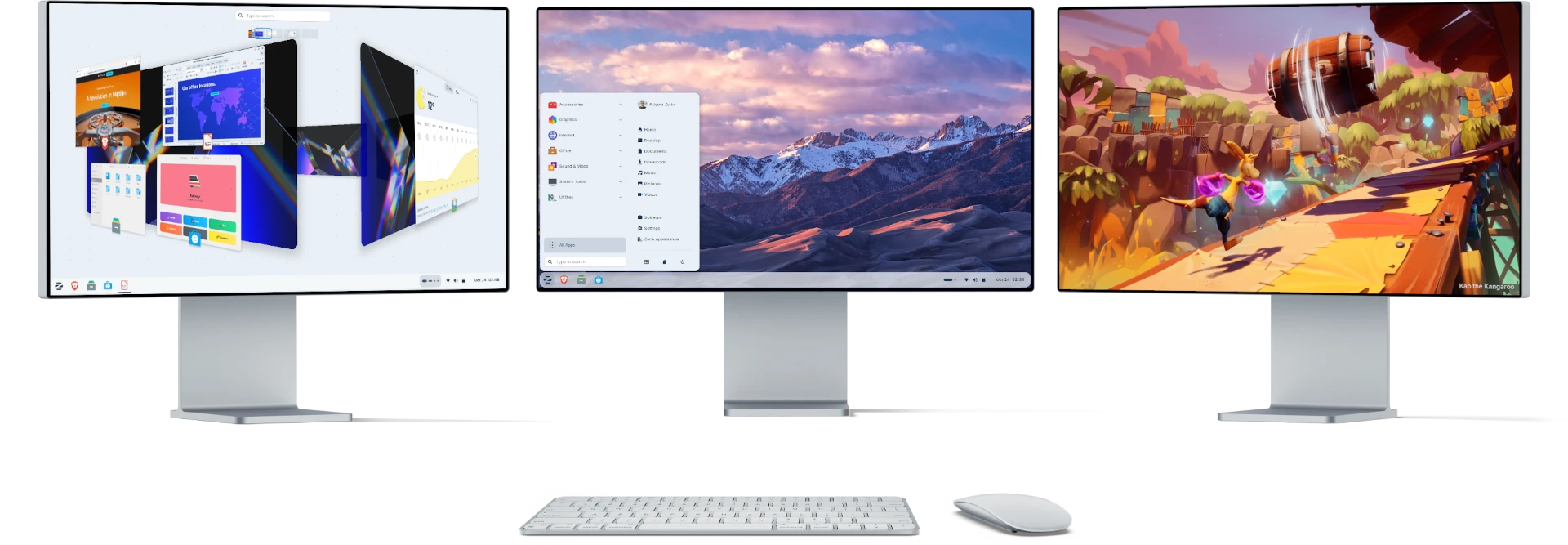
Zorin OS exists to make switching from Windows or macOS as painless as possible, and the 18.1 release, based on Ubuntu 24.04 LTS, does that well. The Zorin Appearance app lets you flip the desktop layout to look like Windows 11, macOS, or a more traditional GNOME setup, which shortens the adjustment period for a team migrating off Windows all at once.
The free edition covers what a graphic designer actually needs: GIMP, Inkscape, and access to Ubuntu’s full software ecosystem. Zorin OS Pro adds more layout options and some bundled creative templates, but it’s a nice-to-have rather than a requirement.
Key Features
- Multiple desktop layouts mimicking Windows, macOS, or GNOME
- Zorin OS Lite edition (Xfce based) for older hardware, new as of 18.1
- Built on Ubuntu 24.04 LTS with support through mid-2029
- Wine and Bottles included for running some Windows applications
Pros:
- Easiest adjustment period for anyone coming from Windows or macOS
- Fully capable design software available in the free edition
- Lite edition extends support to genuinely old hardware
- Clean, modern interface without much configuration required
Cons:
- Some layout options and templates are locked behind the paid Pro edition
- Smaller community than Ubuntu or Mint, so support resources are thinner
- No major architectural differences from the other Ubuntu-based picks here
Best for: freelancers or studios migrating a whole team from Windows without wanting to retrain everyone on a new interface.
A Couple of Others Worth a Look
openSUSE Tumbleweed is worth considering if you want Manjaro’s rolling release model with more rigorous automated testing behind each update before it reaches your machine. Garuda Linux is another rolling release option, built on Arch, with a strong focus on out-of-box performance tuning and a dedicated KDE Plasma edition. Neither is essential, but both are solid if none of the seven above quite fit.
Essential Open Source Design Software for Linux
Whichever distro you land on, most of these tools are available everywhere through your package manager or Flatpak. The tools people actually reach for:
- GIMP: raster image editing, the closest thing Linux has to Photoshop. Version 3.0 brought a modern GTK3 interface, native Wayland support, and real HiDPI scaling.
- Krita: built for digital painting and illustration rather than photo editing. Stronger brush engine than GIMP and a better fit for concept art or comic work.
- Inkscape: vector graphics, the open source answer to Illustrator. Solid SVG support, which matters for web and icon design.
- Scribus: desktop publishing, the closest match to InDesign. Handles CMYK and PDF/X export properly, which GIMP and Krita don’t do natively.
- Darktable and RawTherapee: RAW photo processing, both playing the Lightroom role. Darktable leans toward a non-destructive workflow, RawTherapee toward fine-grained manual control.
- digiKam: photo management and cataloging for anyone dealing with large image libraries.
- Blender: 3D modeling and rendering, useful if your work touches product mockups, motion graphics, or 3D branding assets.
Setting Up Linux for Graphic Design
- Install proprietary GPU drivers: if you’re on NVIDIA, this is the single biggest factor in how smooth your experience will be. Pop!_OS and Ubuntu-based distros make this close to automatic; Fedora needs RPM Fusion set up first.
- Calibrate your monitor: use DisplayCAL with a hardware colorimeter if you do print or color-critical work. Don’t trust factory display settings for client work.
- Set up ICC profiles: GIMP, Krita, and Darktable all support ICC color management, but you’ll usually need to load your monitor’s profile manually.
- Get your tablet working: most Wacom and Huion tablets work out of the box thanks to the libwacom project, and KDE Plasma has a dedicated tablet settings panel. Test pressure sensitivity before assuming it’s broken.
- Use Flatpak for the newest app versions: if your distro’s repos lag, Flathub almost always has a current build of GIMP, Krita, or Inkscape.
- Install proper fonts: grab the Microsoft core fonts package for compatibility with client files, plus Google Fonts or a font manager for anything else you work with regularly.
Frequently Asked Questions
Is Linux good for graphic design in 2026?
Yes, for most day-to-day work. GIMP, Krita, Inkscape, and Scribus cover image editing, painting, vector work, and print layout at a professional level. The gap that remains is Adobe’s own ecosystem: if a client or employer requires native Photoshop or Illustrator files with perfect fidelity, you’ll still need a workaround.
Can I run Photoshop or Illustrator on Linux?
Not natively. Adobe doesn’t build for Linux, and that’s unlikely to change. Some people run Creative Cloud apps through Wine or CrossOver with mixed results, others keep a Windows virtual machine specifically for Adobe software, and Photopea, a browser-based Photoshop-like editor, covers a lot of quick edits without installing anything.
What’s the best free alternative to Photoshop on Linux?
GIMP, especially since the 3.0 release closed a lot of the gap in interface and usability. If your work leans more toward painting and illustration than photo editing, Krita is often the better fit.
Which Linux distro is best for beginners doing graphic design?
Linux Mint or Zorin OS. Both are built on Ubuntu LTS, both are stable, and both are designed to feel familiar if you’re coming from Windows.
Do graphics tablets like Wacom work on Linux?
Yes, most modern tablets work out of the box thanks to the libwacom project, which most major distros ship by default. KDE Plasma in particular has solid built-in tablet configuration. Older or less common tablet brands may need extra setup, so it’s worth checking compatibility before committing to a specific model.
Can I do print design and CMYK work on Linux?
Yes, but not through GIMP, which is built around RGB and doesn’t handle CMYK natively. Scribus is the tool made for it, with proper CMYK support and PDF/X export for commercial printing.
Do I need a powerful computer for graphic design on Linux?
Less than you’d think. GIMP, Inkscape, and Scribus run comfortably on modest hardware. Where you’ll actually want more RAM and a decent GPU is Krita for large canvas painting, Blender for 3D work, and Darktable if you’re batch processing RAW photos.
Which Linux Distro Should You Actually Pick?
- New to Linux and coming from Windows: Linux Mint or Zorin OS
- Want everything preinstalled and ready to go: Ubuntu Studio
- Running an NVIDIA GPU for 3D or RAW work: Pop!_OS
- Want the newest software versions without waiting: Manjaro or Fedora
- Care about UI polish as much as the tools themselves: elementary OS
None of these are wrong choices. The software is largely the same everywhere, since GIMP is GIMP no matter which distro it’s running on. What actually changes is how much setup stands between you and opening it for the first time.