Every Linux distro ships with a terminal already installed. Most people never think about it again. That’s a mistake if you spend any real time on the command line, because the terminal emulator you pick affects how fast your system feels, how much you can customize, and whether features like image previews, GPU rendering, or built-in multiplexing are even available to you.
This guide covers the best terminal emulators for Linux in 2026: what comes pre-installed on major distros, the free and open source options worth switching to, and a handful of paid tools that do something the free ones don’t. Free and open source software gets most of the space here on purpose. On Linux specifically, FOSS terminal emulators have been setting the pace for years. Paid tools show up too, but they have to earn it.
Jump to:
- Quick answer
- Pre-installed terminal emulators
- Best FOSS terminal emulators
- Best paid terminal emulators
- FOSS vs paid: which to pick
- How to choose one
- FAQ
Quick Answer: Best Linux Terminal Emulators at a Glance
- Best overall: Kitty
- Best for raw speed: Alacritty
- Best all-in-one, no multiplexer needed: WezTerm or Ghostty
- Best pre-installed option: Konsole on KDE, GNOME Terminal on GNOME
- Best for managing many servers at once: Terminator
- Best for Wayland tiling setups: Foot
- Best paid option: Warp
The Terminal Emulator You Already Have (Pre-Installed Defaults)
Before you install anything new, it helps to know what you’re starting with. Every major desktop environment ships its own terminal, and these are technically free and open source too. They just don’t try to do anything fancy.
GNOME Terminal
GNOME Terminal is the default on Ubuntu, Fedora Workstation, Debian’s GNOME spin, and most GNOME-based distros. It’s built on VTE, the same terminal widget library that powers several other terminals on this list, so the core typing experience is solid even when the extras aren’t.
GNOME itself has been nudging distros toward a newer, more minimal app called GNOME Console (you might see it listed as “Console” or by its old codename, kgx) since GNOME 42. In practice, Ubuntu and Fedora have both stuck with GNOME Terminal for years, because Console dropped features like a full preferences dialog and had accessibility gaps with the Orca screen reader. That’s improving slowly, so don’t be surprised if a future GNOME upgrade nudges you toward it.
Key features:
- Tabs and basic color profiles
- Searchable scrollback
- Simple keyboard shortcut customization
- Identical experience across every GNOME-based distro
Pros:
- Zero setup, it’s already there
- Stable and predictable
- Solid accessibility support
Cons:
- No GPU-accelerated rendering
- Limited customization compared to nearly everything else on this list
- Feature development has slowed as GNOME focuses on Console instead
Konsole
Konsole ships with KDE Plasma, so if you run Kubuntu, KDE neon, the Fedora KDE spin, or openSUSE with Plasma, it’s already on your machine. It’s been part of KDE since the late 1990s, and it shows. This is a mature, deeply integrated tool, not an afterthought.
Key features:
- Split-view panes, horizontal and vertical, with no plugin required
- Multiple profiles for different fonts, colors, and shells
- SSH connection bookmarking
- Notifications when a background tab finishes a long-running command
- Export scrollback as plain text or HTML
Pros:
- Everything is configurable through the GUI, no text file editing required
- Split panes and profiles are built in, not bolted on
- Tight integration with the rest of Plasma, including Dolphin and KRunner
Cons:
- Pulls in KDE Frameworks and Qt dependencies if you’re not already on Plasma
- No GPU-accelerated rendering
- Feels like a KDE app first and a standalone terminal second
Xfce Terminal
xfce4-terminal is what you get on Xubuntu, MX Linux, and any Xfce-based setup. It’s built on the same VTE library as GNOME Terminal, and it follows Xfce’s whole philosophy: light on resources, short on frills.
Key features:
- Tabs and basic profile switching
- Low memory footprint
- Optional drop-down mode depending on how your distro packages it
Pros:
- Very light on system resources, good for older hardware
- Simple enough that there’s nothing to learn
Cons:
- Feature set is thin next to Konsole or the GPU-accelerated options
- Styling options are limited
A couple of other defaults worth knowing by name: MATE Terminal, a GNOME Terminal fork that ships with the MATE desktop, and LXTerminal, the lightweight default on LXDE and LXQt. Both follow the same pattern as the ones above: perfectly fine for basic use, nothing you’d seek out on purpose.
Best FOSS Linux Terminal Emulators to Install
This is the part that actually matters. Once you’re willing to install something new, free and open source terminal emulators cover almost everyone’s needs, including things paid tools charge for elsewhere: GPU rendering, image previews, ligatures, built-in multiplexing, and scripting.
Kitty
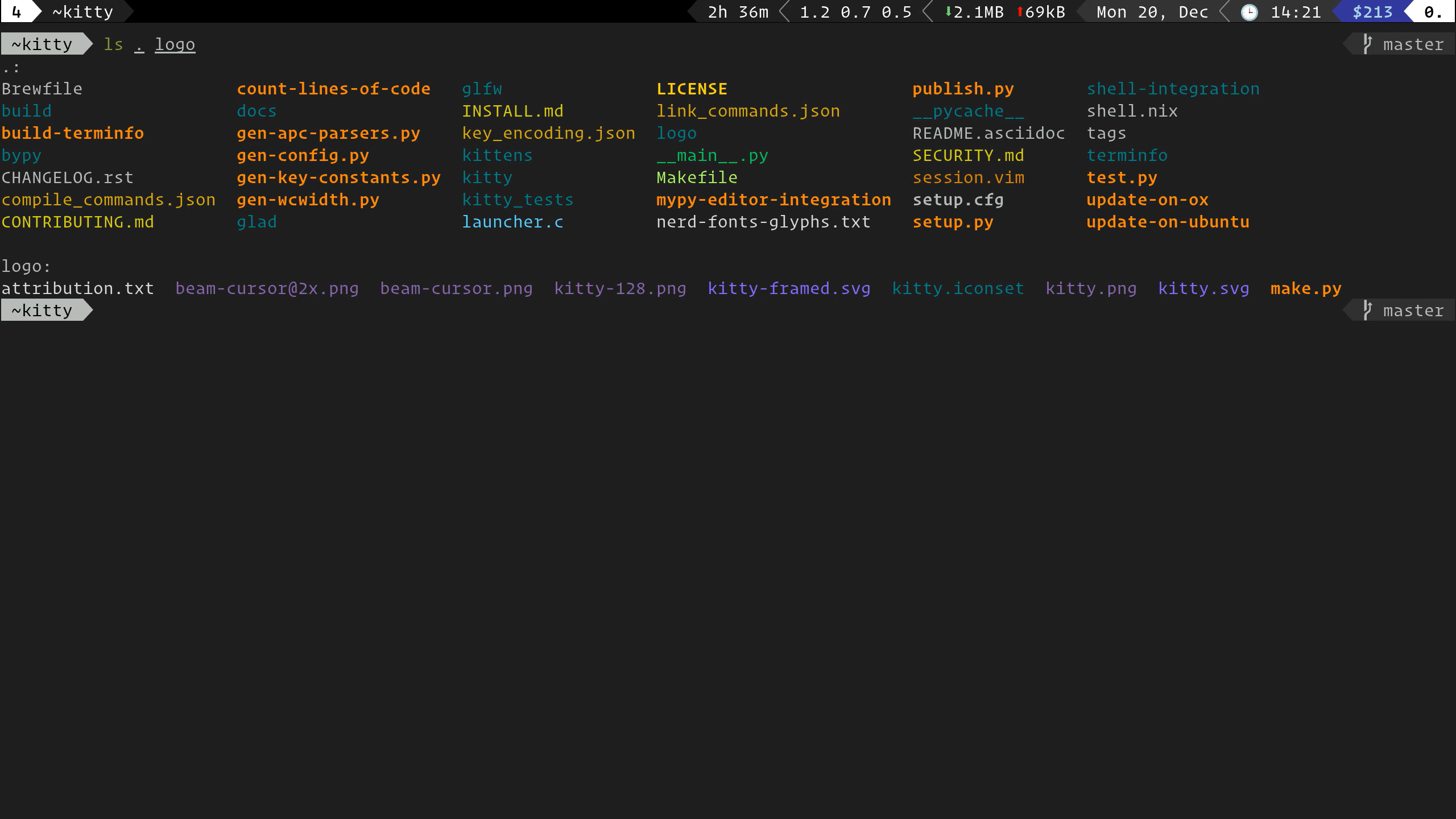
Kitty is built by Kovid Goyal, the same developer behind the Calibre ebook software, and it plays like a tool made by someone who wanted every feature under one roof. It’s GPU-accelerated, scriptable, and about as feature-dense as terminal emulators get without turning into an IDE.
Key features:
- Kitty graphics protocol for rendering images and previews directly in the terminal
- Font ligatures and per-glyph font substitution
- “Kittens,” small Python scripts that extend or automate the terminal
- Remote control over a socket, so external scripts can drive the terminal
- Built-in tabs, splits, and multiple window layouts, no multiplexer needed
- Edit or download remote files over an existing SSH session
Pros:
- One of the fastest terminals available thanks to GPU rendering and threaded drawing
- Doesn’t require tmux or screen for tabs and splits
- Deep scripting support through kittens and remote control
- Actively developed with genuinely good documentation
Cons:
- Configuration has a real learning curve past the defaults
- Some default keybindings differ from what you’re used to elsewhere
- Leans on Python for its extension system, which some minimalists avoid on principle
Best for: anyone who wants one terminal to do everything, without gluing together a multiplexer and a dozen plugins.
Alacritty
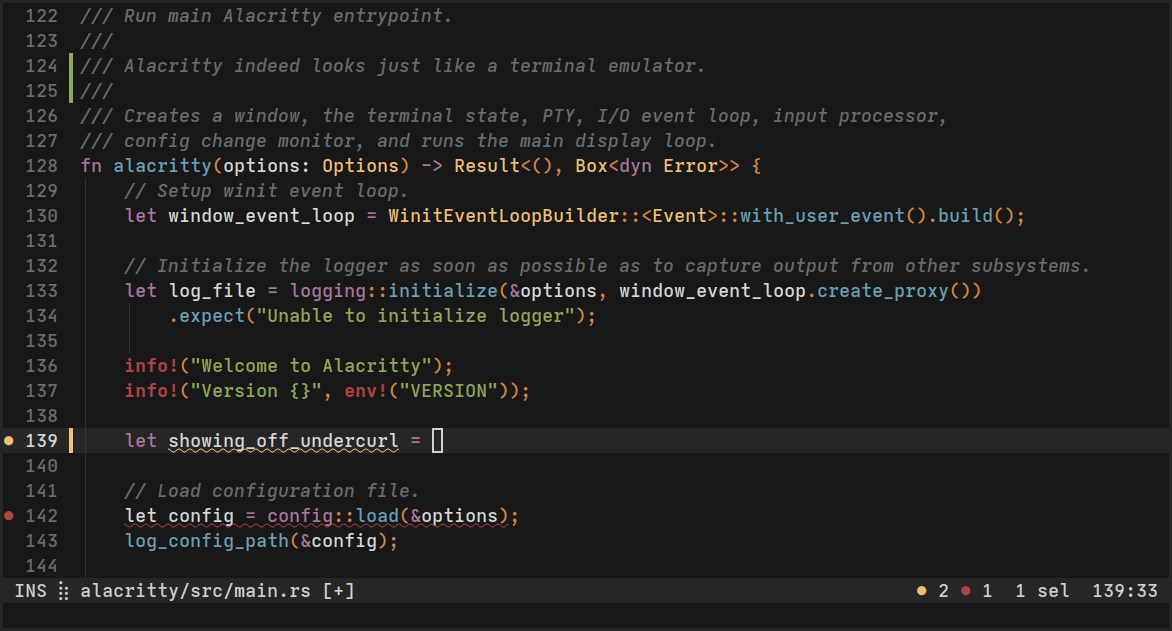
Alacritty takes the opposite approach. It’s written in Rust, GPU-accelerated, and built around one idea: render text as fast as physically possible and leave everything else to other tools. It doesn’t have tabs. It doesn’t have splits. That’s on purpose, not an oversight. The maintainers have said as much every time someone opens a feature request for it.
Key features:
- OpenGL-based GPU rendering tuned for throughput and low latency
- Single TOML config file, easy to track in a dotfiles repo
- Cross-platform: Linux, macOS, Windows, and FreeBSD, all sharing one config format
- Vi mode for keyboard-only scrollback navigation and selection
Pros:
- About as fast and low-latency as terminal rendering gets
- Minimal resource usage even under heavy output, like build logs or journalctl -f
- Dead simple config that’s easy to version control
Cons:
- No built-in tabs or splits, so you’ll need tmux, zellij, or your window manager for that
- No image protocol support
- Renders wide characters and emoji noticeably worse than Kitty or Ghostty
Best for: people who already live in tmux and just want the fastest possible renderer underneath it.
WezTerm
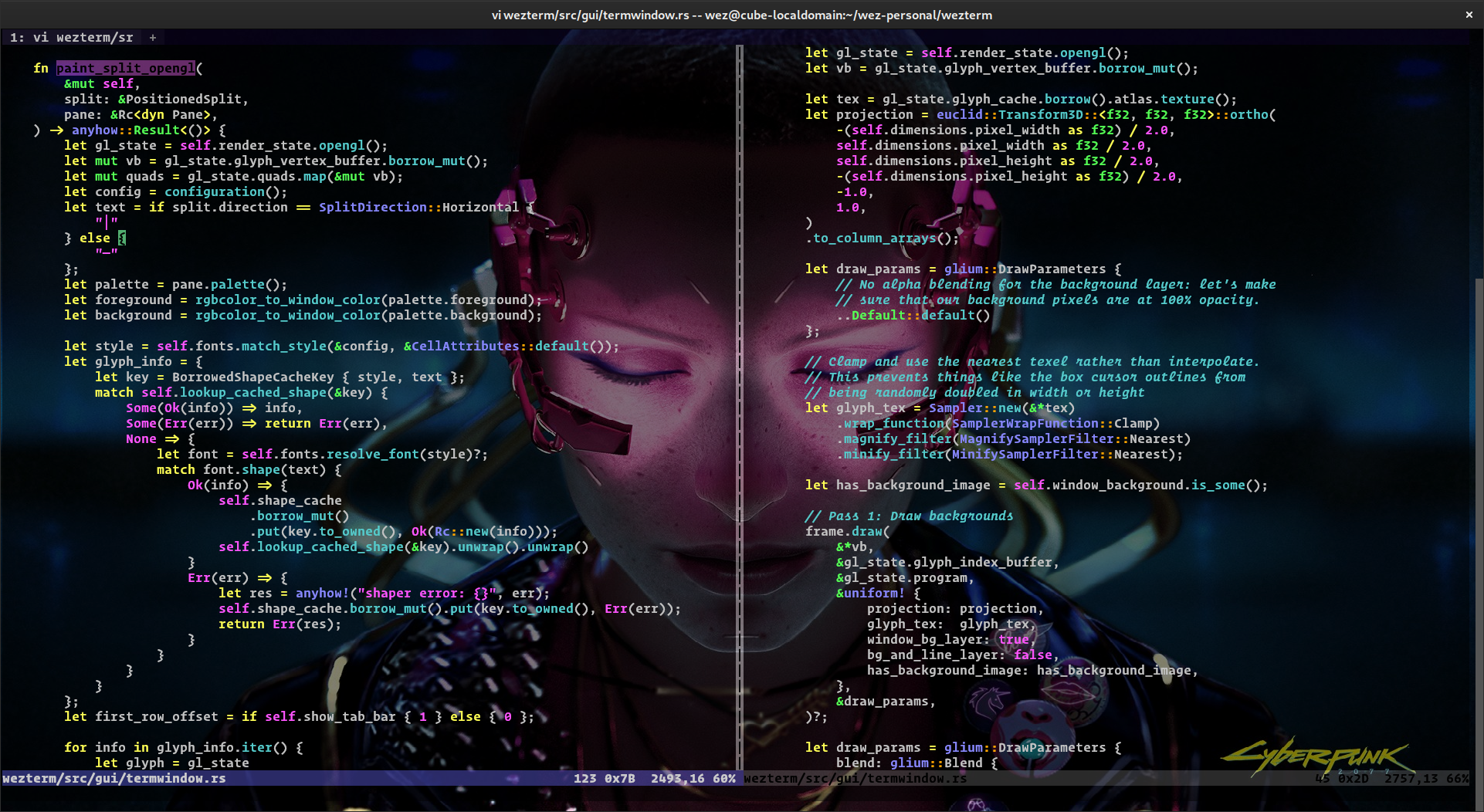
WezTerm, written in Rust by Wez Furlong, sits between Kitty and Alacritty. It’s GPU-accelerated like both of them, but it also bundles its own multiplexer, so you get tabs, panes, and workspaces without installing tmux. Configuration is written in Lua, which sounds intimidating until you realize it means your config file can include actual logic instead of just key-value pairs.
Key features:
- Built-in multiplexing: tabs, panes, and workspaces, including multiplexing over SSH without needing tmux on the remote end
- Lua-based configuration with conditionals and functions
- Support for Sixel, the Kitty graphics protocol, and the iTerm2 image protocol
- Ligatures, true color, and dynamic color scheme switching
- One config file that works the same on Linux, macOS, and Windows
Pros:
- Replaces tmux for most people, not just the terminal itself
- Supports more image protocols than almost anything else on this list
- Your setup carries over cleanly if you use more than one operating system
Cons:
- Lua config is more to learn than a flat file if you’ve never touched Lua
- Slightly heavier than Alacritty in day-to-day resource use
- Occasional GPU driver quirks reported on some Linux setups
Best for: people who want tmux-level multiplexing without actually running tmux.
Ghostty
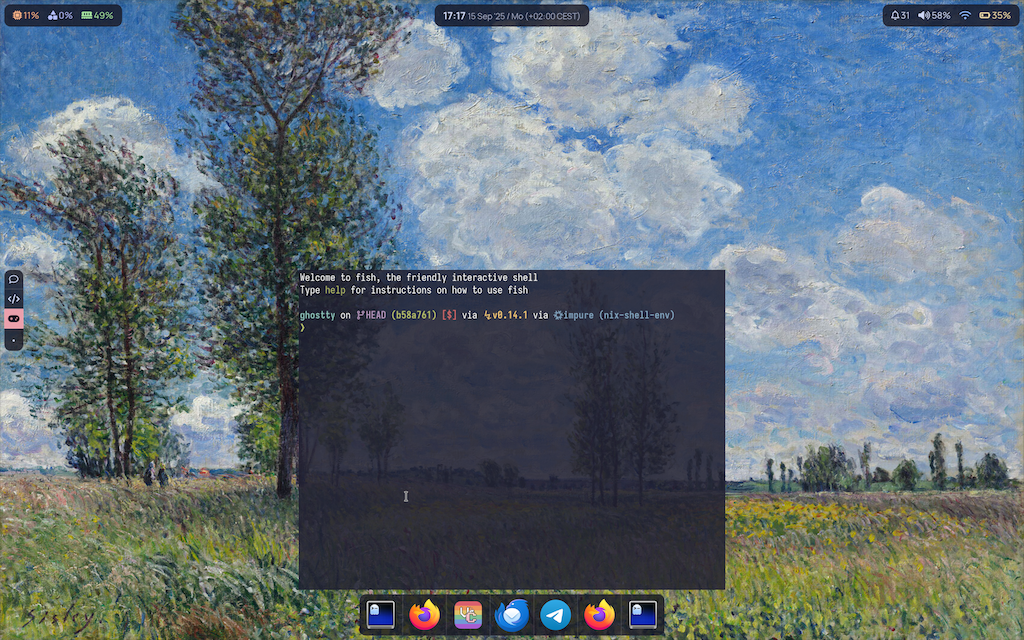
Ghostty is the newest name on this list and probably the one generating the most buzz. It’s built by Mitchell Hashimoto, co-founder of HashiCorp, written in Zig, and released as fully open source under the MIT license. In late 2025 the project became a non-profit under Hack Club’s fiscal sponsorship, which says something about where Hashimoto wants this to go long term. Not a company, a community project.
What makes Ghostty different isn’t any single feature. It refuses to trade off speed, features, or a native look and feel for one another. On Linux it uses GTK4 and libadwaita, so it actually looks like it belongs on your desktop instead of looking like a port from somewhere else.
Key features:
- Native GTK4 and libadwaita interface on Linux, Metal-based rendering on macOS
- Built-in tabs, splits, and multiple windows without a multiplexer
- Hundreds of bundled color themes
- Broad standards compliance, including support for the Kitty graphics protocol
Pros:
- Feels genuinely native on a Linux desktop instead of custom-drawn
- Fast, GPU-accelerated rendering that holds up against Kitty and Alacritty
- Rapidly growing community and a fast release cadence
Cons:
- Younger project, so configuration options and defaults are still shifting between releases
- Smaller scripting and plugin ecosystem than Kitty’s kittens
- Some advanced Kitty-specific community tooling doesn’t work here yet
Best for: GNOME and libadwaita users who want something that looks native and performs on par with the GPU-accelerated options.
Terminator
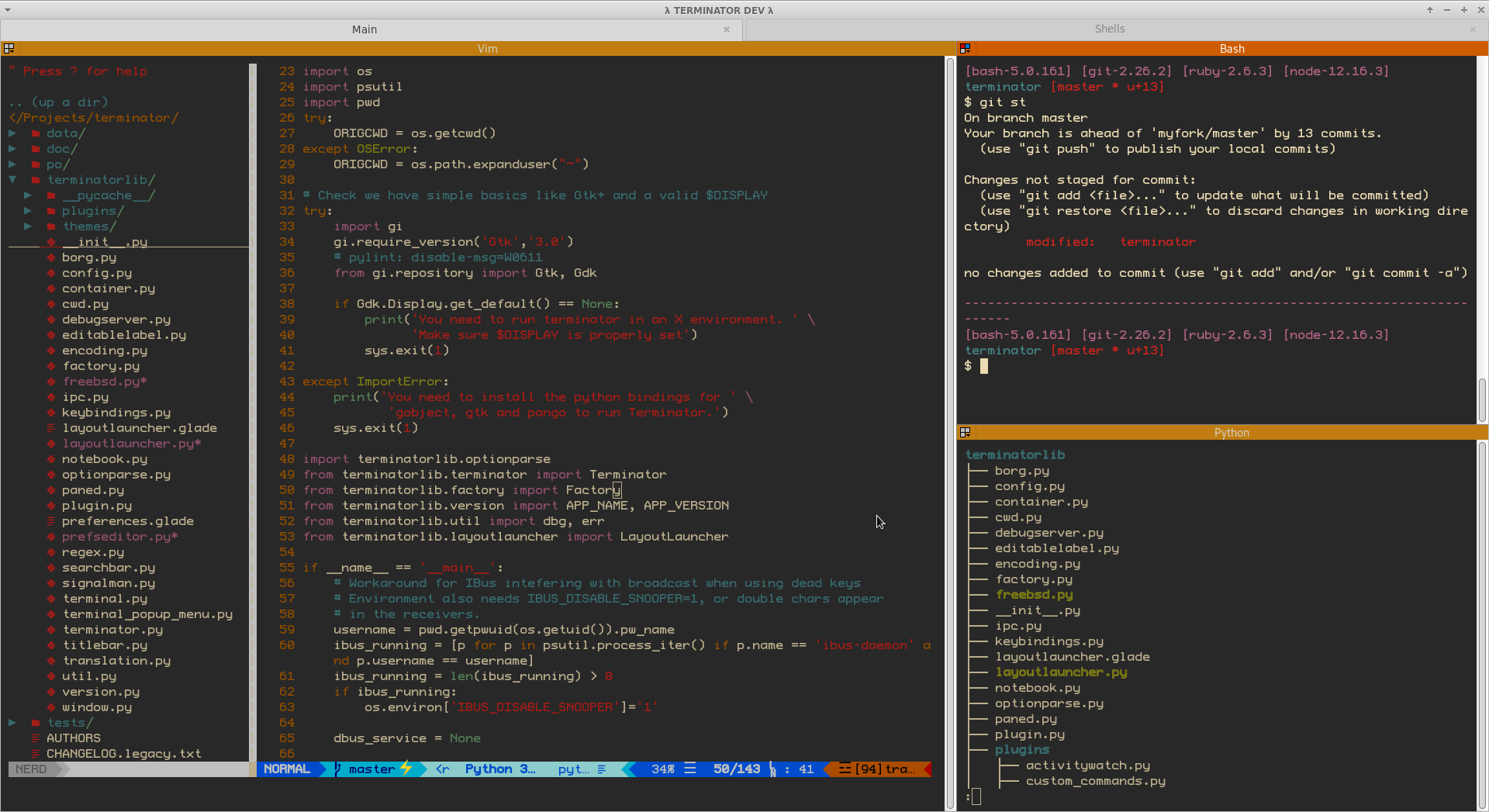
Terminator has been around since 2007 and does one thing that almost nothing else on this list does well: it lets you arrange a grid of terminals in a single window and type into all of them, or a chosen group of them, at once. If you’ve ever had to run the same command across ten servers, you already understand why that matters.
Key features:
- Arrange any number of terminals in a grid, split however you want
- Group terminals and broadcast keystrokes to the whole group
- Save and reload custom layouts
- Built-in session logging
Pros:
- Broadcasting input to multiple terminals is genuinely useful for sysadmin work
- Grid layouts are more flexible than simple split panes
- Finished its move to GTK3 and Python 3 a while back and still gets maintenance releases
Cons:
- No GPU acceleration, so it can feel sluggish under heavy scrollback
- Visual style hasn’t changed much in years
- Development pace is slow compared to the newer GPU-accelerated terminals
Best for: admins and anyone else who regularly needs to run identical commands across many machines at once.
Tilix
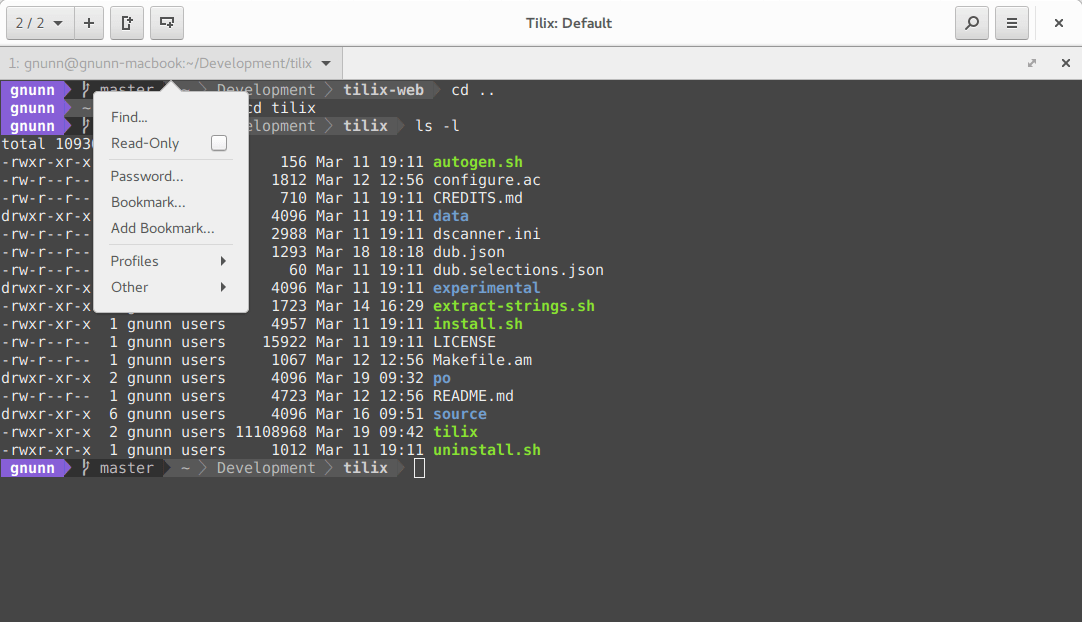
Tilix covers similar ground to Terminator: tiling layouts, drag-and-drop rearranging, synced input, but with a more modern GTK3 interface and a genuinely good Quake-style drop-down mode built in. The catch, and it’s a real one, is that the project has openly been looking for a new maintainer for years. The current developer has said plainly that he considers it feature-complete for his own needs and only does the minimum to keep it running.
Key features:
- Drag-and-drop terminal rearranging, including detaching one into its own window
- Synchronized input across grouped terminals
- Saved layouts you can reload later
- Built-in drop-down (Quake) mode
Pros:
- One of the smoothest tiling and drag-and-drop experiences on Linux
- Drop-down mode works out of the box, no extra configuration needed
- Still packaged and maintained in every major distro’s repos
Cons:
- Officially in “maintainers wanted” status, so don’t expect new features
- No GPU rendering
- Built on GTK3 with no GTK4 port in progress
Best for: people who want Terminator’s tiling idea with a more polished interface, as long as you’re fine with a project that’s coasting.
Foot
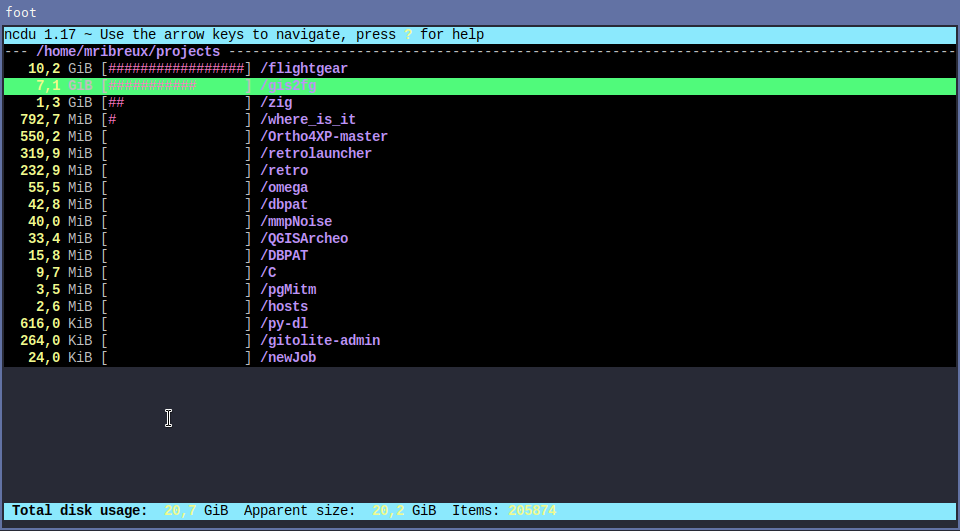
Foot is what you install when Wayland is the whole point. It doesn’t run on X11 at all, and it doesn’t try to. In exchange, you get one of the lightest, fastest terminal emulators available for wlroots-based compositors like Sway and Hyprland.
Key features:
- Wayland-native with no X11 fallback whatsoever
- Server or daemon mode, where one background process serves multiple windows
- Sixel image support
- Scrollback search and on-the-fly, DPI-aware font scaling
Pros:
- Extremely small footprint in dependencies, disk space, and memory
- Starts almost instantly, especially in daemon mode
- Built specifically for tiling Wayland setups, not adapted to them after the fact
Cons:
- Wayland only, so it’s not an option if you’re still on X11
- No GPU-accelerated rendering path like Kitty or Alacritty
- Configuration is text-file only, with no GUI settings panel
Best for: Sway and Hyprland users who want the lightest terminal that still supports Sixel graphics.
A few more FOSS options worth knowing the names of, even without a full writeup here: xterm, the original terminal emulator that’s been around since 1984 and is still the baseline every other terminal measures itself against; rxvt-unicode (urxvt), a lightweight classic still popular in minimalist window manager setups; Terminology, built by the Enlightenment project with genuinely unusual features like inline video and file thumbnails; and Guake and Yakuake, dedicated drop-down terminals for GNOME and KDE, if all you want is instant keyboard-triggered access.
Best Paid Linux Terminal Emulators
Most Linux users never need to pay for a terminal. The free options above cover speed, images, scripting, and multiplexing without a subscription in sight. Still, a few paid tools do something specific enough to justify their price for certain people. Here’s where they actually make sense.
Warp
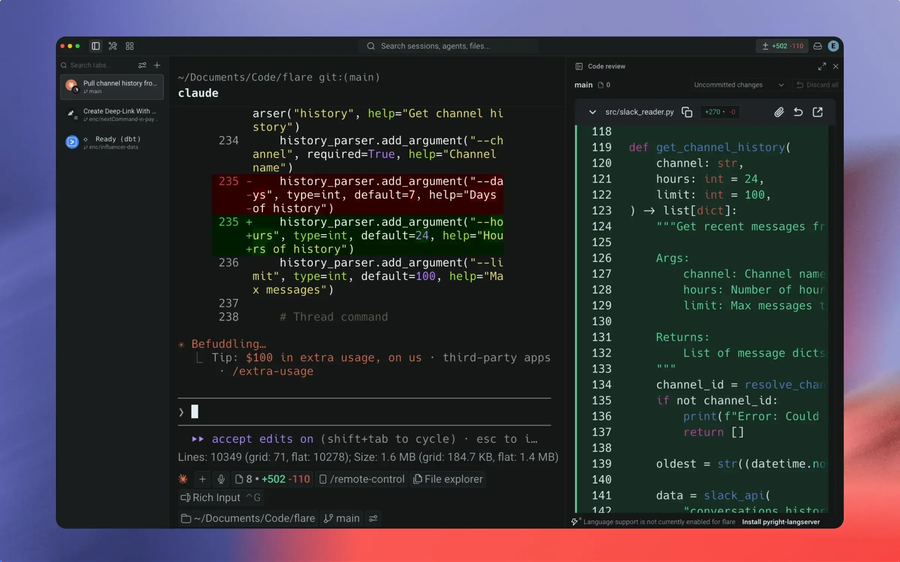
Warp built its name on an AI-native terminal with a “blocks” interface, where each command and its output become a single, collapsible, shareable unit instead of a wall of scrolling text. It launched on macOS first, added Linux in February 2024, and reached Windows in February 2025.
The interesting twist: in April 2026, Warp open-sourced its terminal client, splitting the license by component (its UI framework under MIT, the rest under AGPLv3), with OpenAI signed on as the repository’s founding sponsor. That’s a real shift for a tool that spent years as closed-source software requiring a mandatory account. The code is now auditable and forkable. What hasn’t changed is the business model: the hosted AI features still run on a credits system, and you still need to log in to use the app at all.
Key features:
- Blocks UI that turns each command and its output into a shareable unit
- Natural-language command generation and an autonomous Agent Mode for multi-step tasks
- Warp Drive for sharing commands, workflows, and runbooks across a team
- Client source code now available on GitHub
Pros:
- The AI assistance is genuinely well integrated, not bolted on as an afterthought
- Blocks make copying, sharing, and debugging command output noticeably easier
- Free tier includes a fully functional terminal, not just a trial
- Code is now open source and auditable
Cons:
- Requires an account and login even for basic terminal use, a dealbreaker for some
- Full AI usage is metered by credits and gated behind paid plans, with the entry-level paid tier starting around $20/month
- Feels heavier than a classic terminal if you don’t care about the AI features at all
Best for: developers who want AI command help built into their shell and don’t mind an account-based, subscription-adjacent tool.
Termius
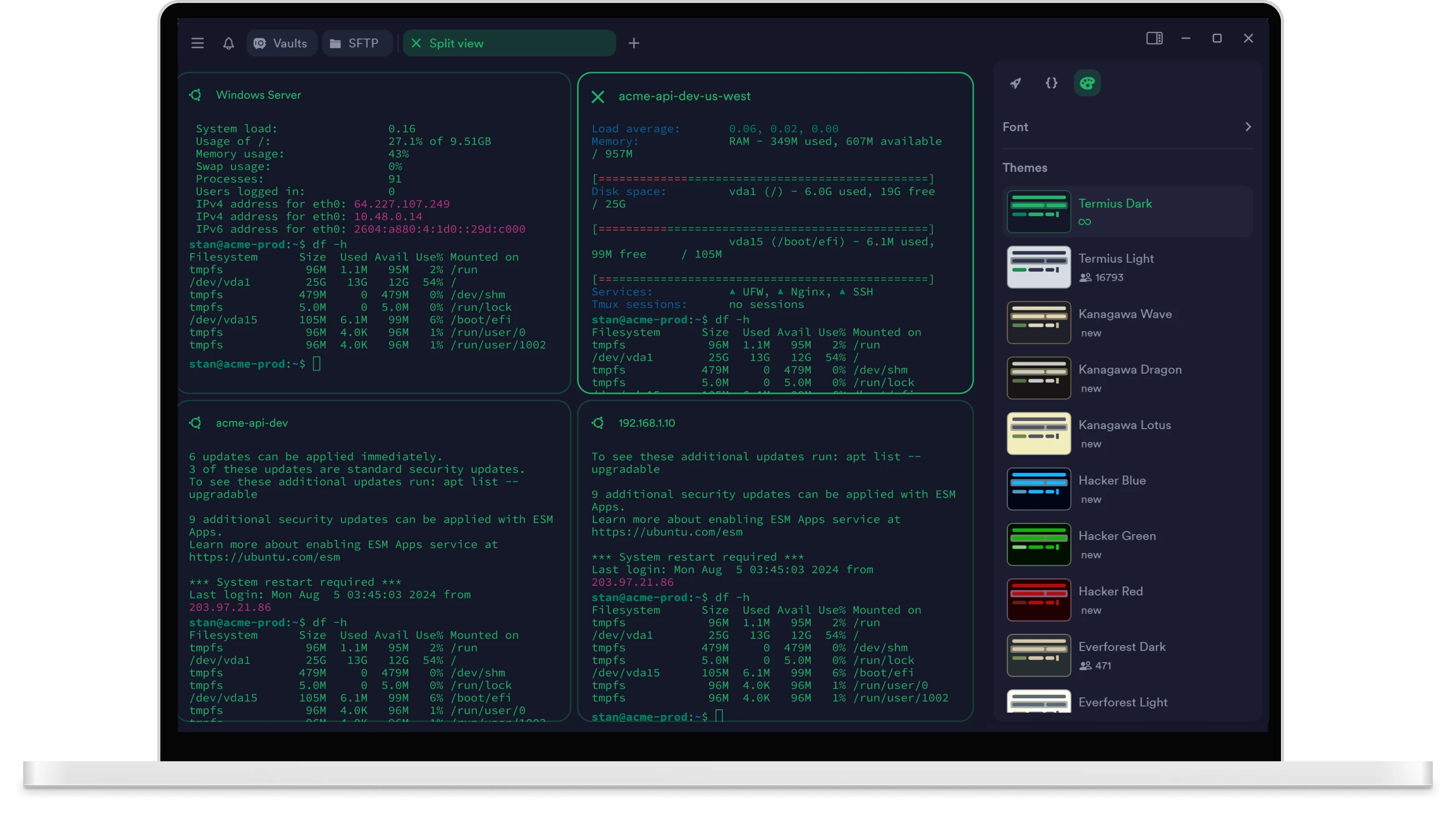
Termius isn’t really a terminal emulator in the traditional sense. It’s an SSH and SFTP client with a terminal built in, designed around managing a lot of remote hosts from a lot of devices. The free Starter plan is a complete single-device SSH client: SSH, SFTP, port forwarding, and AI autocomplete are all included, and Termius explicitly allows commercial use on it.
What you’re actually paying for is sync. On the free plan, your hosts and keys live in a local vault on one device only. Add a second device and you’re in Pro territory.
Key features:
- SSH, SFTP, Mosh, Telnet, and port forwarding
- Host and SSH key management through a built-in vault
- AI autocomplete for commands
- Cross-device sync, on paid tiers only
Pros:
- The free tier is a complete, real SSH client, not a crippled demo
- Clean, modern interface across desktop and mobile
- Genuinely useful if you jump between a laptop, a desktop, and a phone to manage servers
Cons:
- The one feature most people actually want, sync, sits behind a subscription, around $10 per user per month billed annually
- It’s an SSH manager first and a general local terminal replacement second
- Overkill if you only ever connect from one machine
Best for: people who SSH into servers from more than one device and want their hosts and keys to follow them.
FOSS vs Paid: Which Should You Actually Pick?
For nearly everyone reading this, the answer is FOSS. Kitty, WezTerm, and Ghostty alone cover GPU rendering, image previews, scripting, and built-in multiplexing, the exact features paid terminals used to charge for. None of them require an account. None of them phone home. You install them, write a config file, and that’s the entire relationship.
Paid tools earn a spot on this list for narrower reasons. Warp makes sense if you specifically want AI command help woven into your shell and don’t mind logging in. Termius makes sense if you manage servers from three different devices and want that state to follow you.
How to Pick the Right Terminal Emulator for You
- You just want it to work: stick with your distro’s default, Konsole on KDE or GNOME Terminal on GNOME.
- You want the fastest possible renderer and already use tmux: Alacritty.
- You want speed plus everything built in, no multiplexer required: Kitty or WezTerm.
- You want the newest, most native-feeling option on a GNOME desktop: Ghostty.
- You regularly run the same command across a pile of servers: Terminator.
- You’re on Sway, Hyprland, or another wlroots compositor: Foot.
- You want AI command help and don’t mind an account: Warp.
- You SSH from your phone and your laptop constantly: Termius.
Frequently Asked Questions
What is the best Linux terminal emulator in 2026?
There isn’t one answer that fits everyone, but Kitty is the strongest all-around pick for most people: GPU-accelerated, feature-dense, and it doesn’t require tmux for tabs or splits. If raw speed matters more than features, Alacritty is faster. If you want something that looks native on a modern GNOME desktop, Ghostty is worth a look too.
Do I actually need to switch from my distro’s default terminal?
No. GNOME Terminal, Konsole, and Xfce Terminal all handle everyday command-line work fine. Switching only makes sense if you specifically want GPU-accelerated rendering, image previews, built-in multiplexing, or heavier scripting than the default offers.
Which is better, Kitty or Alacritty?
It depends on what you want the terminal to do by itself. Kitty builds tabs, splits, image previews, and scripting into the terminal itself. Alacritty deliberately leaves all of that out and focuses purely on rendering speed, expecting you to pair it with tmux or a window manager. Neither is objectively better, they’re built around opposite philosophies.
What does GPU acceleration actually do for a terminal?
It offloads text rendering to your graphics card instead of the CPU, which matters most when a terminal is producing a lot of output fast, like build logs, streaming logs, or large file dumps. On light everyday use you may not notice much difference, but under heavy scrollback it keeps typing and scrolling smooth instead of stuttering.
Are there good terminal emulators for Wayland?
Yes. Foot is Wayland-native and built specifically for wlroots compositors like Sway and Hyprland. Kitty, Alacritty, WezTerm, and Ghostty all run well under Wayland too, they just aren’t Wayland-exclusive the way Foot is.
Is Warp worth paying for?
The free tier is a fully working terminal, so you can try the blocks interface and basic AI features at no cost. Whether it’s worth paying for the Build plan and above comes down to how much you’d actually use the AI command generation and team features day to day. If you mainly want a fast, no-frills terminal, a free FOSS option will do the same job without an account requirement.
What terminal emulator does Ubuntu use by default? What about Fedora?
Both Ubuntu and Fedora Workstation ship GNOME Terminal by default, even though GNOME upstream has recommended the newer GNOME Console app since GNOME 42. Kubuntu and the Fedora KDE Plasma spin use Konsole instead, since they run KDE Plasma rather than GNOME.
How do I change my default terminal emulator on Linux?
Install the terminal you want through your distro’s package manager, then set it as default under your desktop’s Settings > Default Applications, or with update-alternatives on Debian-based distros. Most file managers also let you right-click inside a folder to open a terminal there directly.