Every Linux distro ships with a default desktop environment, but that default is rarely the best fit for the person actually using the computer. Some people want a taskbar and start menu that feels like Windows. Some want as little visual noise as possible. Some are running a ten year old laptop with 4GB of RAM and just need something that won’t choke on a browser with twelve tabs open.
The desktop environment (DE) is the single biggest thing that changes how Linux feels day to day, more than the distro itself in most cases. Two people running the same version of Fedora can have completely different experiences depending on whether they picked GNOME or KDE Plasma at install time.
This guide covers the best Linux desktop environments available right now, what each one does well, where it falls short, and which distros let you try more than one without reinstalling anything.
What Is a Desktop Environment (and How Does It Actually Work)?
A desktop environment is the graphical layer you interact with after Linux finishes booting: the taskbar, the app launcher, the file manager, the settings app, the window borders, all of it. The kernel handles your hardware. Your distro bundles the kernel with software and a package manager. The desktop environment sits on top of all that and turns a working Linux system into something you can actually click around in.
A DE isn’t one program. It’s a bundle of separate pieces working together:
- A window manager or compositor: draws, moves, resizes, and snaps your windows. Older setups run this on X11. Most current desktop environments are shifting to Wayland compositors, which talk to your graphics hardware more directly and handle security better.
- A panel or dock: your taskbar, app launcher, system tray, and clock.
- A file manager: Nautilus in GNOME, Dolphin in KDE Plasma, Thunar in Xfce, and so on.
- A settings app: one place to control displays, sound, network, users, and appearance.
- A theming and icon system: the part you notice first and that matters least for how the thing actually functions.
Swap the desktop environment and none of that touches your kernel, your files, or most of your installed applications. You’re changing the shell around your system, not the system underneath it. That’s also why you can install two or three desktop environments side by side and just pick a different one from the login screen each time you boot.
The Best Linux Desktop Environments in 2026
Here’s how the major desktop environments stack up right now: what they’re built for, who maintains them, and where each one tends to fall apart.
1. GNOME
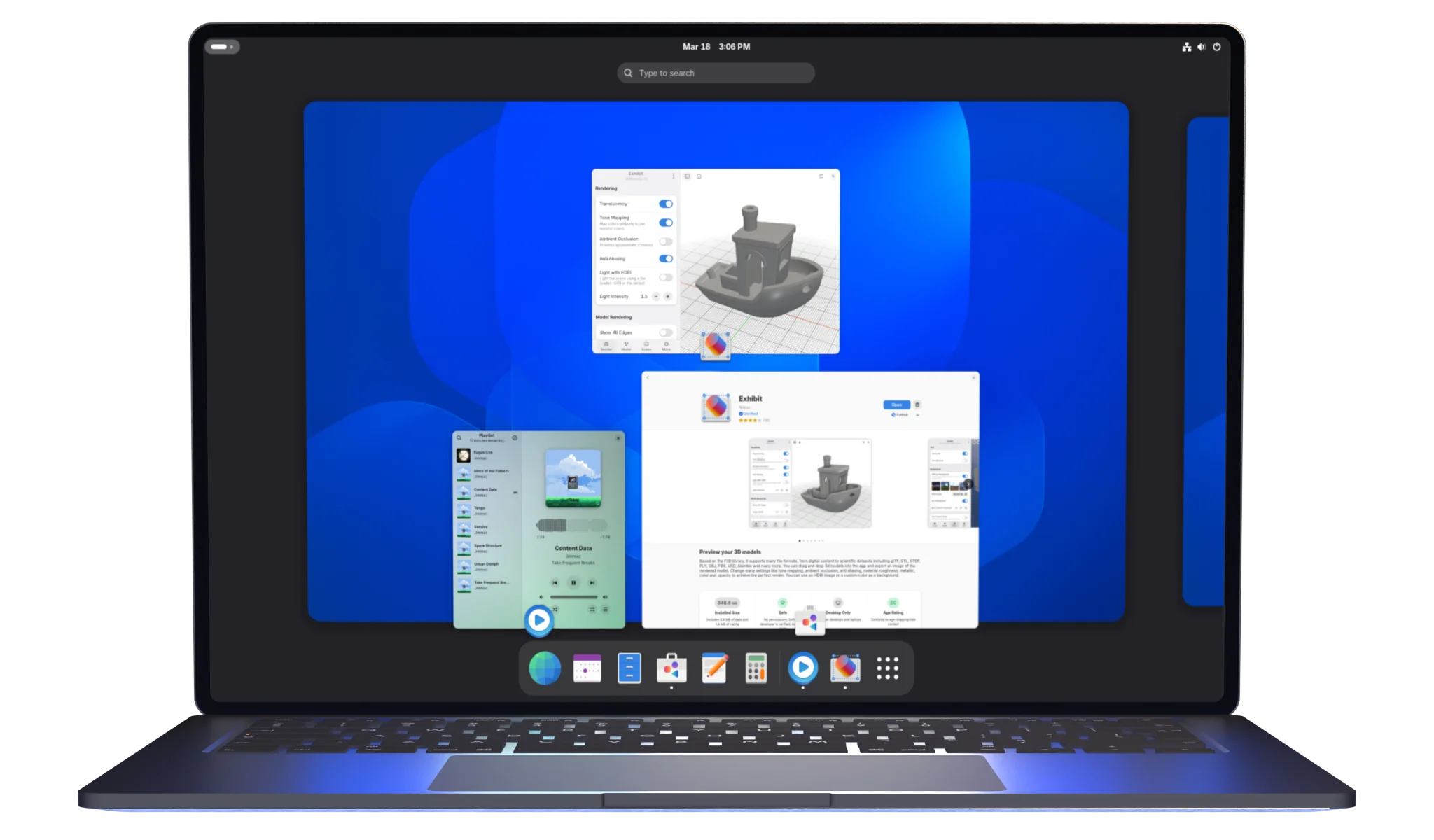
Fedora Workstation, Debian, and RHEL all default to GNOME, and it’s built around an idea most desktops don’t share: no traditional taskbar at all. Hit the Super key and an Activities overview shows every open window and app launcher on one screen. GNOME 50 “Tokyo” landed in March 2026 and shipped inside Ubuntu 26.04 LTS, adding variable refresh rate support, fractional scaling turned on by default, and parental controls built directly into Settings.
Default on: Fedora Workstation, Debian, RHEL, Ubuntu
Key features:
- Activities overview replaces a traditional taskbar and app switcher
- GNOME Extensions for adding back panels, docks, and tray icons
- Tight touchpad and gesture support
- One of the most mature native Wayland experiences on Linux
Pros
- Clean and consistent, nothing feels bolted on
- Excellent on laptops, touchscreens, and HiDPI displays
- Huge community and documentation, so problems are easy to search for
Cons
- Not very customizable out of the box; you need extensions for a dock or a visible system tray
- Extensions regularly break after major version updates
- The workflow takes an adjustment period if you’re coming from Windows
2. KDE Plasma
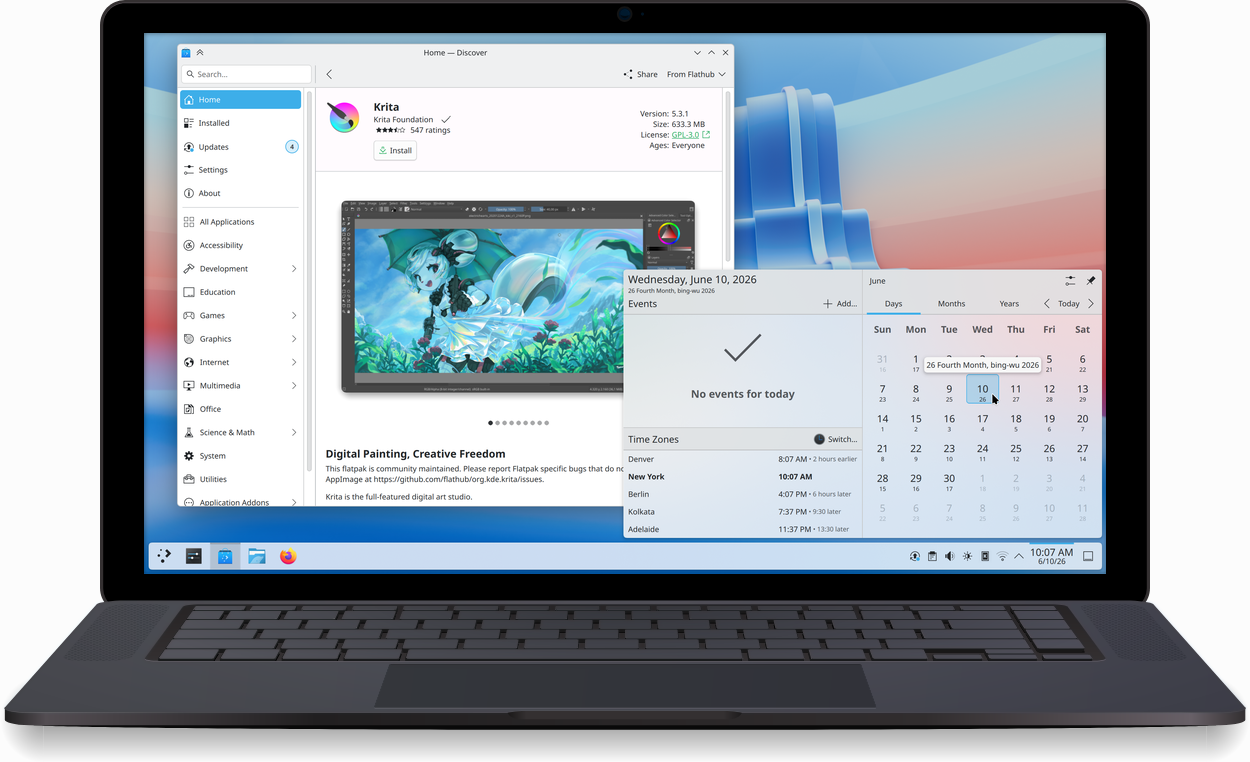
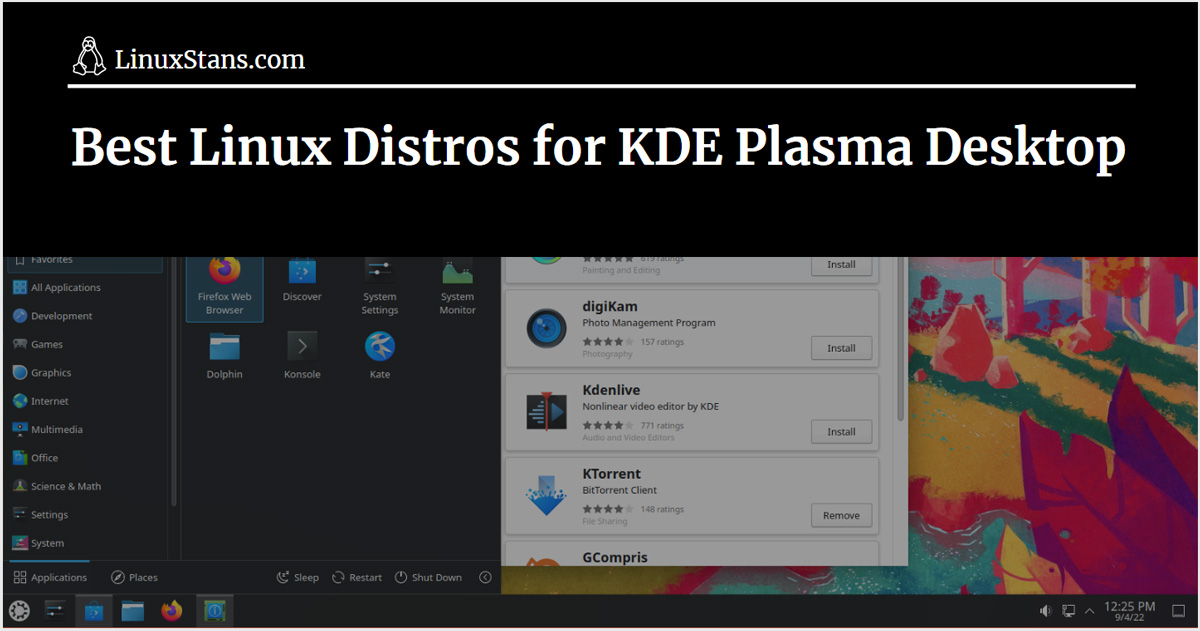
Few desktop environments let you reshape absolutely everything the way KDE Plasma does. It’s the default on Kubuntu, Fedora KDE, openSUSE, and Manjaro’s KDE edition. Plasma 6.7 is the current stable line, with Plasma 6.8 due October 14, 2026, timed to KDE’s 30th anniversary. Out of the box it looks closer to Windows than GNOME does, with a bottom panel, a start menu style launcher, and a system tray, though almost nothing about that layout is fixed in place.
Default on: Kubuntu, Fedora KDE, openSUSE, Manjaro KDE, KDE neon
Key features:
- Widgets (“Plasmoids”) for panels and the desktop
- Per-screen virtual desktops, added in Plasma 6.7
- Global Themes that can restyle the entire desktop in one click
- KRunner, a keyboard-driven launcher and command runner
Pros
- The most customizable desktop environment on Linux, full stop
- Lighter on resources than its feature list suggests
- Native Wayland session is mature and stable in the 6.x series
- Familiar taskbar layout for anyone switching from Windows
Cons
- The sheer number of settings can overwhelm a first time user
- Community themes vary a lot in polish
- Default configuration can feel busy compared to GNOME
3. Cinnamon
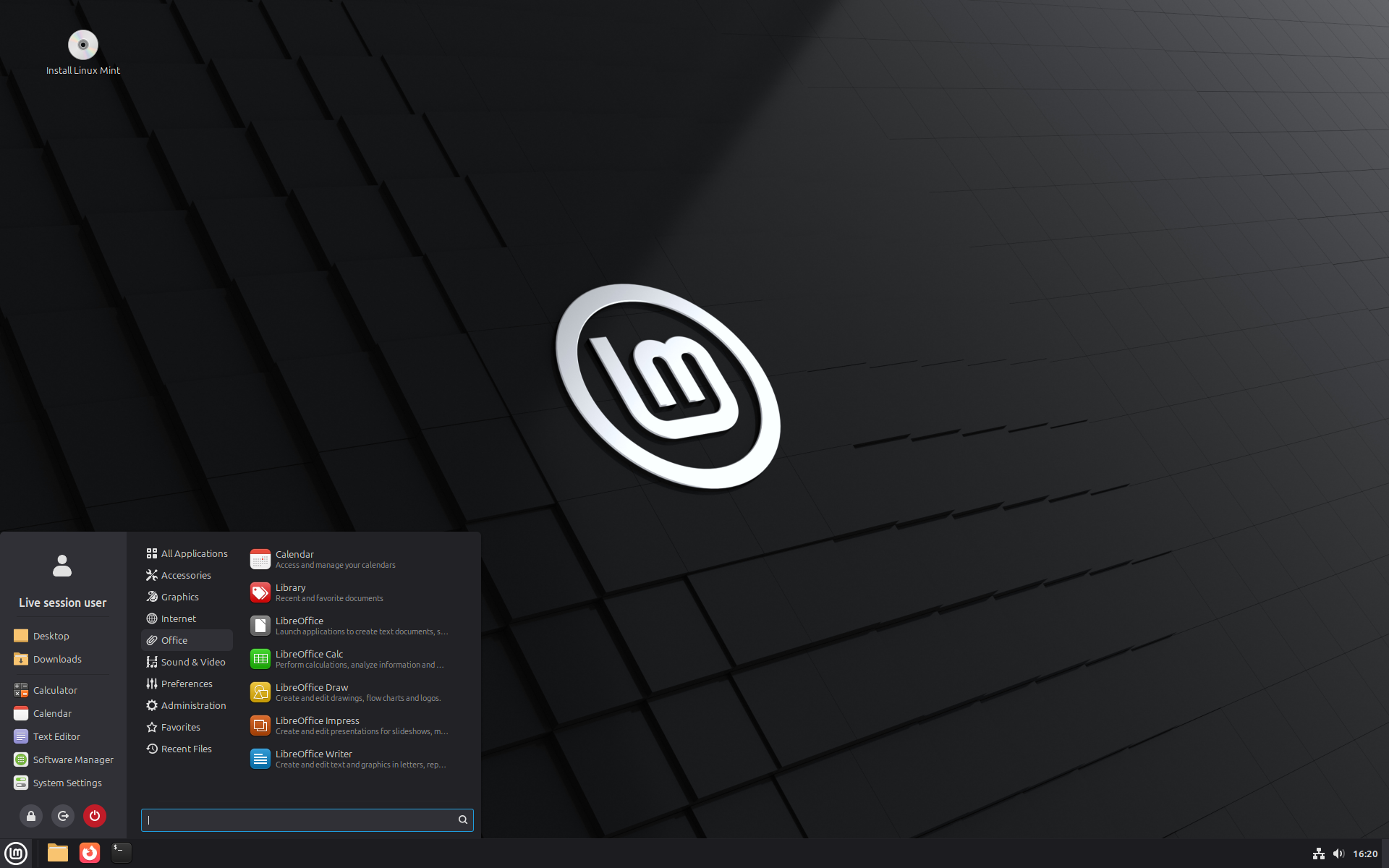
Ask a longtime Windows user which Linux desktop feels the most familiar, and the answer is usually Cinnamon. It’s Linux Mint’s desktop, built as a fork of GNOME Shell for people who never wanted GNOME 3’s redesign in the first place: bottom panel, start menu, system tray, window list. Linux Mint 22.3 “Zena” currently runs Cinnamon 6.2, with Mint 23 due around the end of 2026 on an Ubuntu 26.04 base and a newer Cinnamon line.
Default on: Linux Mint
Key features:
- Nemo file manager, a more feature complete fork of Nautilus
- Applets and desklets for the panel and desktop
- A traditional window list instead of an overview screen
Pros
- The easiest desktop environment for Windows switchers to sit down and use immediately
- Feels complete without installing extensions
- Conservative development pace means it rarely breaks between updates
Cons
- Wayland support is still experimental in places
- Fewer technical innovations than GNOME or KDE Plasma
- Mostly built for and tied to Linux Mint, even though it’s installable elsewhere
4. Xfce
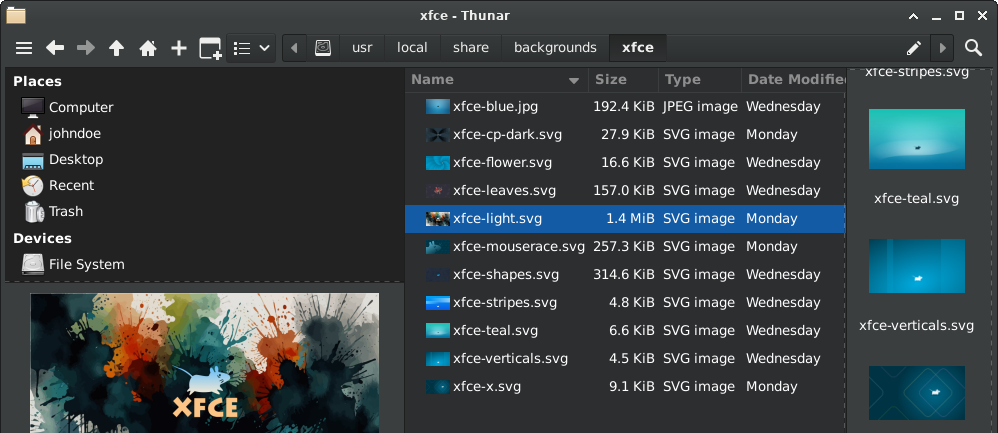
Old laptop, low RAM, and you still want a real desktop instead of a bare window manager? That’s Xfce’s whole pitch, and it’s the main desktop on Xubuntu and MX Linux. Xfce 4.20 is the current stable release, and it added preliminary Wayland support through third party compositors like Labwc, since Xfce doesn’t have its own Wayland compositor yet. That’s coming later through a project called Xfwl4, but for now Xfce is still primarily an X11 desktop.
Default on: Xubuntu, MX Linux, Manjaro Xfce
Key features:
- Thunar file manager, fast and simple
- Whisker Menu, a searchable application launcher
- A highly modular panel you can rebuild from scratch
Pros
- Very low RAM and CPU use
- Extremely stable; updates rarely break things
- Still fully customizable despite the small footprint
Cons
- Looks dated out of the box until you theme it
- Wayland support still lags behind GNOME and KDE Plasma
- Fewer visual effects and animations
5. MATE
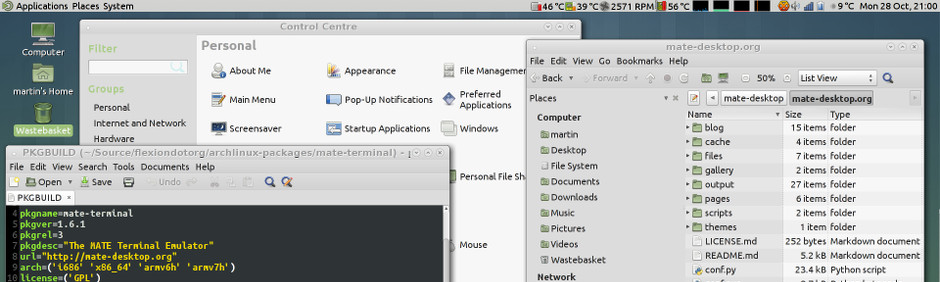
MATE is what you get if you liked GNOME 2 and never wanted it to change. It’s a continuation of that codebase, maintained separately once GNOME moved to the Shell based GNOME 3 design. Ubuntu MATE and the Mint MATE edition both ship it as their main desktop.
Default on: Ubuntu MATE, Linux Mint MATE edition
Key features:
- Caja file manager, a continuation of the classic Nautilus
- Traditional panel and menu layout
- MATE Tweak for switching between panel layouts without extensions
Pros
- Lightweight without feeling stripped down
- Instantly familiar to anyone who used Linux before 2011
- Low learning curve
Cons
- Visual style needs theming to look current
- Wayland support is basically nonexistent; this is an X11 desktop
- Fewer new features land here compared to actively growing DEs
6. Budgie
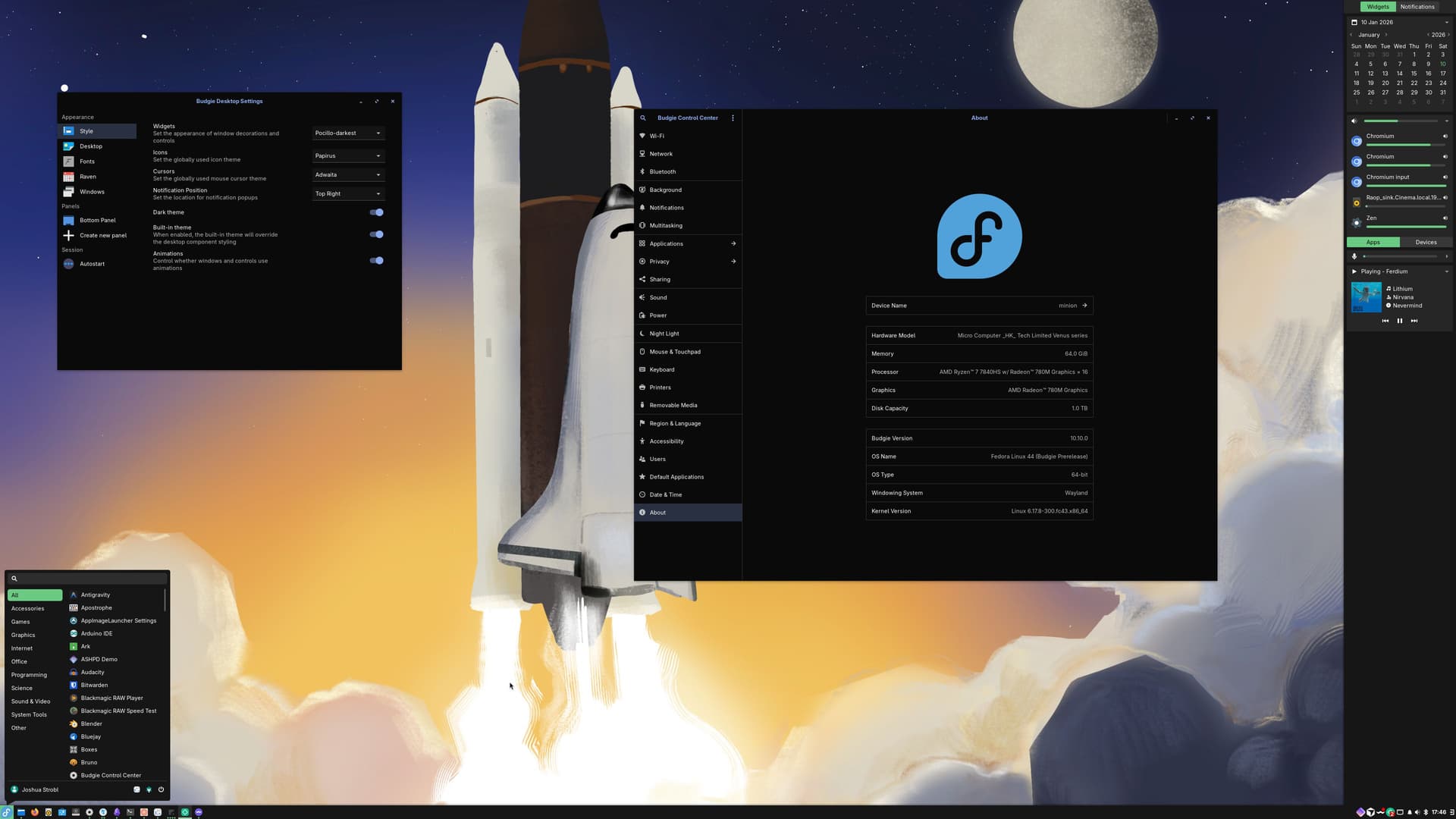
Budgie started as Solus’s desktop and went independent in 2022 under a group called Buddies of Budgie. It’s built on GTK, like GNOME, but arranged more traditionally: one main panel plus a slide out sidebar called Raven that holds notifications, quick settings, and widgets in one spot. Budgie 10.10, released in January 2026, is Wayland only and marks the end of active development on the 10.x line. The team is now building Budgie 11 from scratch on Qt6 and Kirigami, a bigger technical shift than it sounds.
Default on: Solus, Ubuntu Budgie, Fedora Budgie spin
Key features:
- Raven sidebar combining notifications, applets, and quick settings
- Budgie Menu and Icon Tasklist
- Clean, modern look with no theming required
Pros
- Looks polished the moment you install it
- Raven is a genuinely useful piece of design other DEs don’t really have
- Simple enough for a new Linux user, distinct enough to not feel like a GNOME clone
Cons
- Smaller development team than GNOME or KDE means slower bug fixes historically
- The move to Budgie 11 will bring growing pains
- Fewer distros ship it by default compared to the bigger DEs on this list
7. LXQt
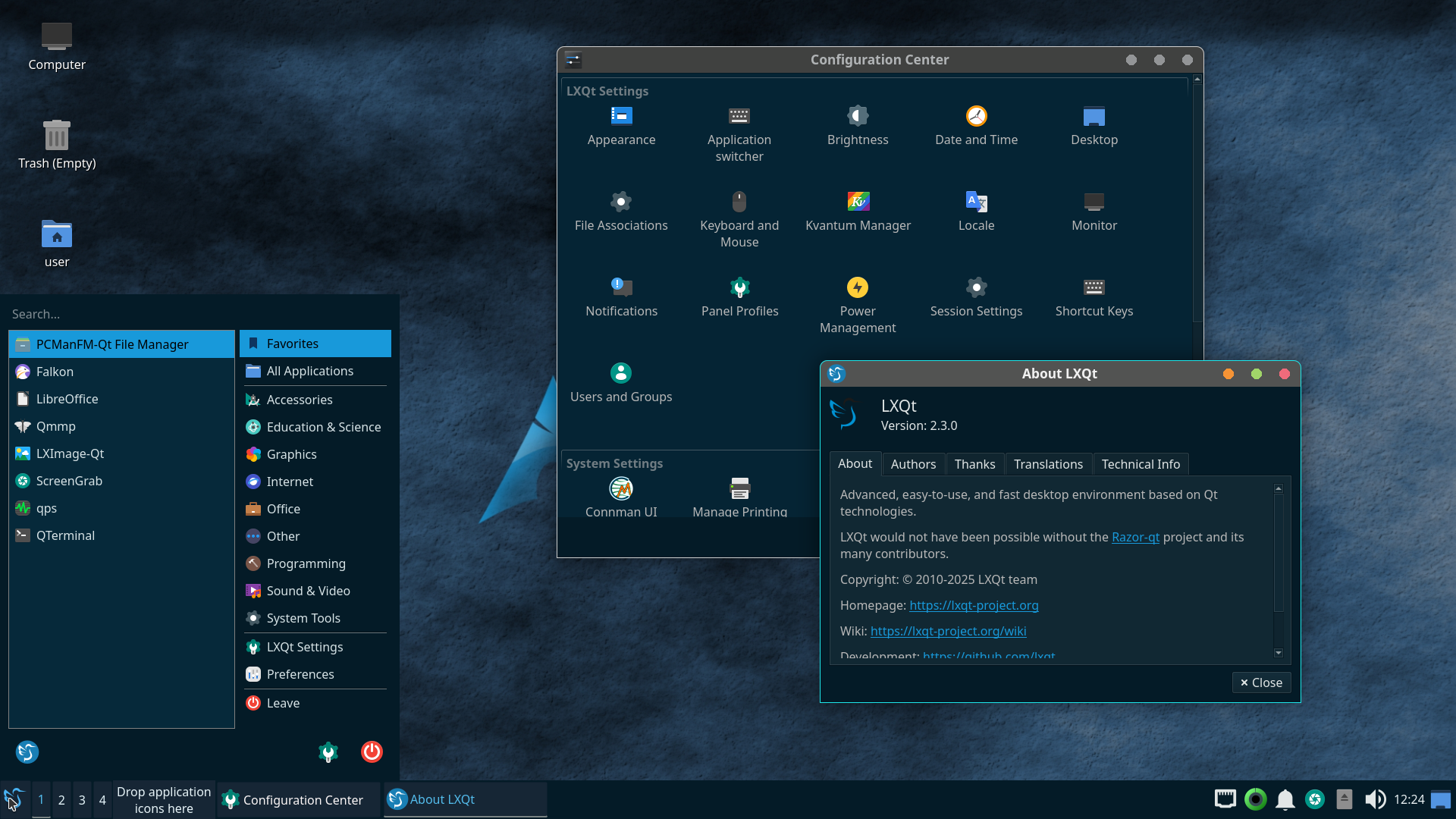
LXQt exists for one reason: use as little RAM and CPU as physically possible while staying usable. It’s the merger of the old LXDE project with Razor-qt, rebuilt on Qt. Lubuntu switched to it years ago and never looked back.
Default on: Lubuntu, minimal spins of Fedora and Debian
Key features:
- PCManFM-Qt file manager
- A simple, low overhead panel
- Modular components you can swap or drop entirely
Pros
- Runs comfortably on systems with 1 to 2GB of RAM
- Fast boot and fast app launches
- Qt base means good compatibility with KDE applications
Cons
- Plain appearance by default
- Fewer built-in customization options than Xfce
- Smaller theme and extension ecosystem
8. Pantheon
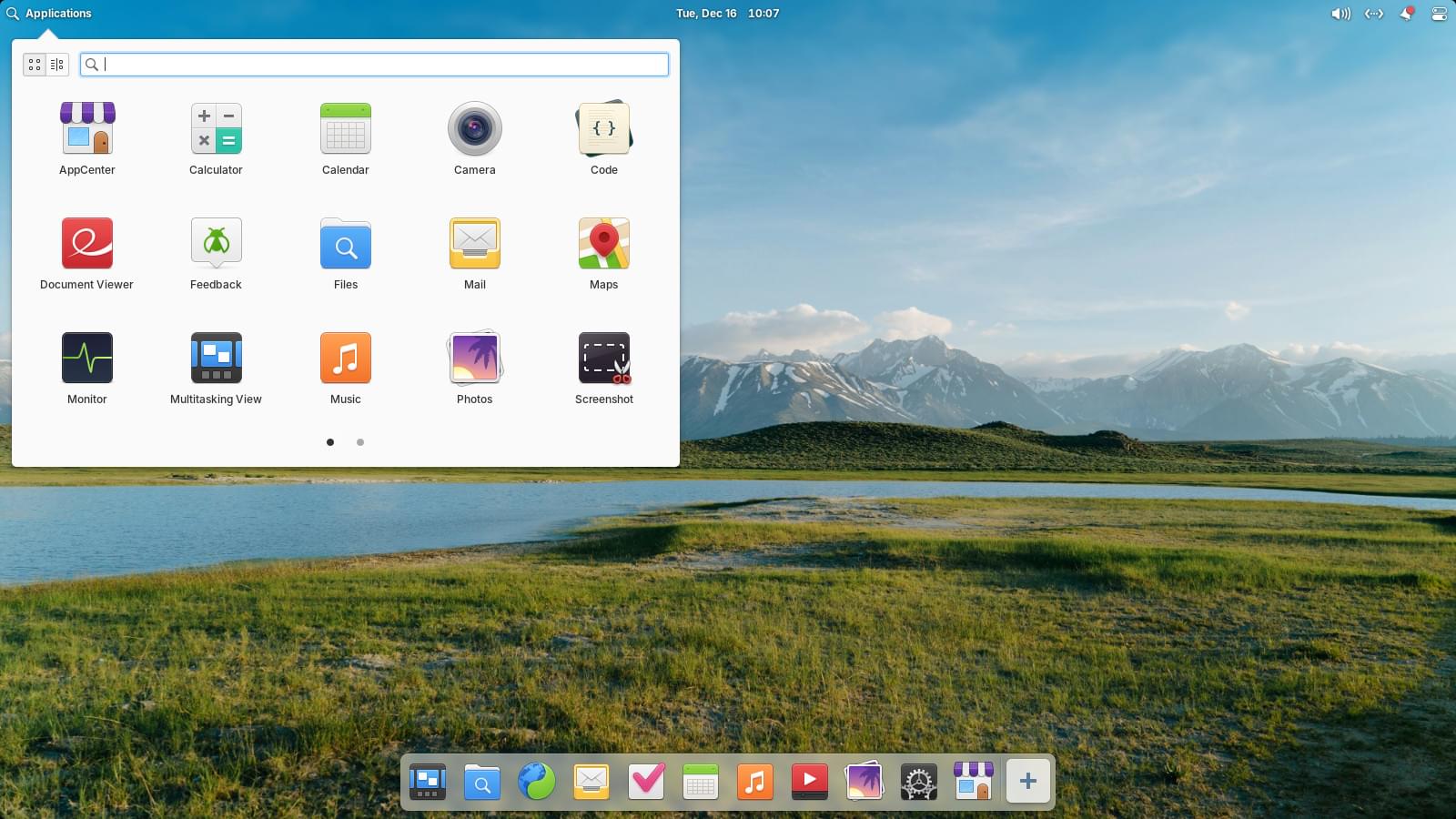
Mac switchers tend to gravitate toward Pantheon, elementary OS’s desktop environment, and it’s easy to see why. It’s the most opinionated environment on this list by design, with a macOS inspired top bar and a dock called Plank, and very few settings exposed to the user on purpose. The same team builds the desktop and the core apps together, which is why everything feels like it came from one sketchbook instead of a committee.
Default on: elementary OS
Key features:
- Wingpanel at the top, Plank dock at the bottom
- AppCenter, a curated pay-what-you-want app store
- Matching first party Files and Terminal apps
Pros
- The most cohesive, designed looking desktop on this list out of the box
- Very approachable for people switching from a Mac
- Consistency across every app that ships with it
Cons
- Deliberately limited settings; you either like the defaults or you don’t
- Barely used outside elementary OS itself
- Smaller app ecosystem than distros built around GNOME or KDE
9. Deepin (DDE)
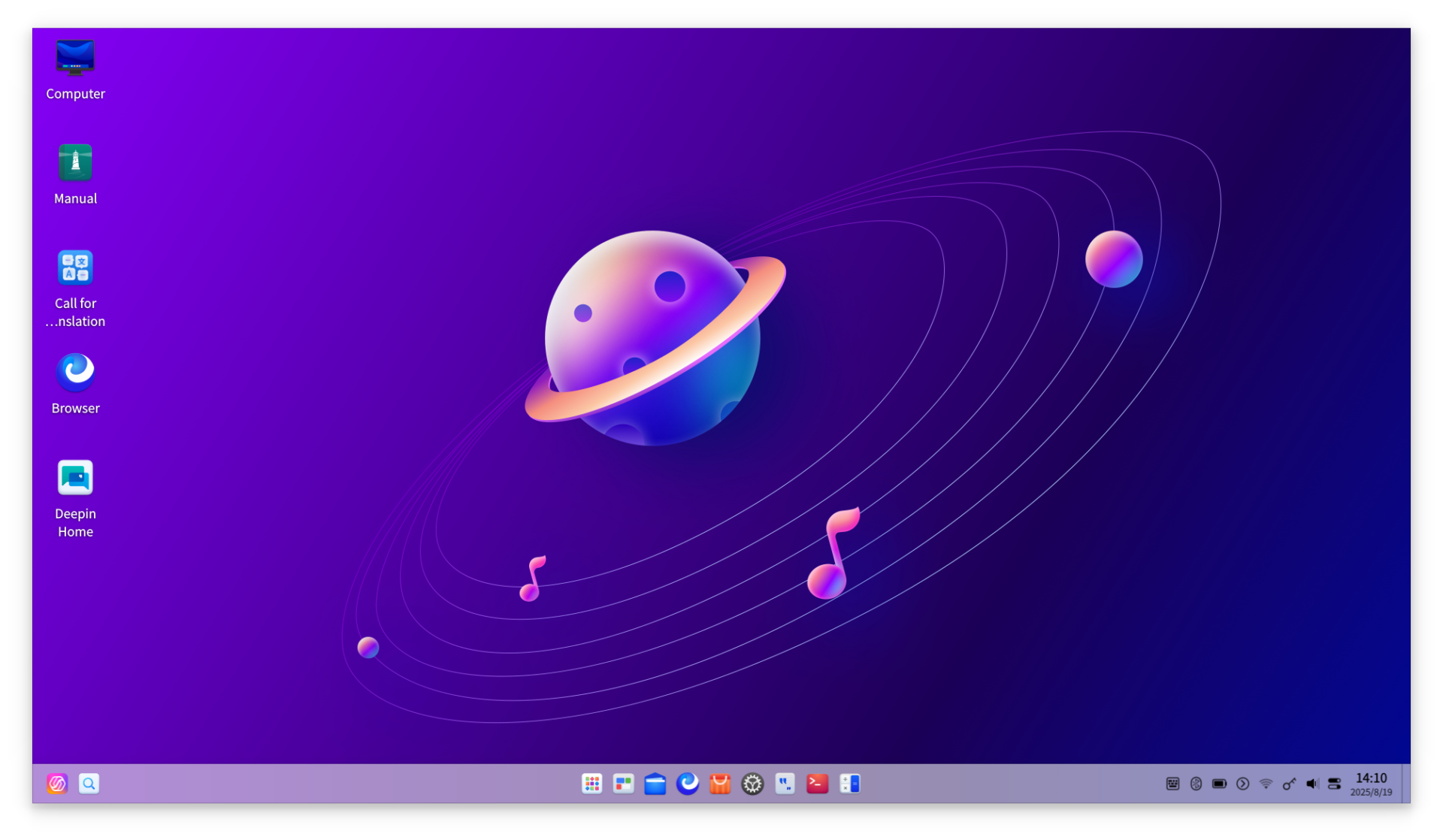
No desktop environment on this list looks better straight out of the install than Deepin. It’s the Qt based desktop for deepin OS, a distribution developed in China, and it doesn’t need theming to look premium. Deepin 25 “Crimson” runs DDE 7.0 and its own Wayland compositor called Treeland, built on wlroots. Worth knowing before you install it: openSUSE pulled DDE from its repositories in May 2025 over packaging policy violations and unresolved security issues, so check current advisories if that matters to you.
Default on: deepin
Key features:
- Animated dock with magnification effects
- Control Center sidebar for system settings
- Treeland, a dedicated Wayland compositor built for DDE
Pros
- The most visually polished desktop on this list without any setup
- Smooth animations and a distinct identity, not a GNOME or KDE clone
- Good for people who want their desktop to look premium immediately
Cons
- Rockier security and packaging track record than the other options here
- Mostly tied to deepin’s own distro
- Worth researching current privacy practices before installing, given the developer is based in China
10. COSMIC

System76 got tired of fighting GNOME’s extension system and disagreeing with upstream GNOME developers on design decisions, so it built COSMIC from scratch in Rust for Pop!_OS. It reached a stable 1.0 in December 2025 and has shipped frequent point releases since, well past version 1.6 by late summer 2026. It’s Wayland only, with tiling window management built directly into the desktop instead of bolted on through a separate tool.
Default on: Pop!_OS
Key features:
- Built-in tiling window management alongside a traditional floating mode
- COSMIC Settings, COSMIC Files, and COSMIC Store as first party apps
- Rolling development with new features shipping every few weeks
Pros
- Genuinely fast, and written in Rust for memory safety
- Tiling comes standard, no separate window manager required
- Backed by a company that ships actual hardware and has a reason to keep polishing it
Cons
- Still young, so rough edges show up between releases
- Smaller app and theme ecosystem than GNOME or KDE Plasma
- Mostly associated with Pop!_OS, though other distros are starting to package it
Best Lightweight Linux Desktop Environments for Old Hardware
If your hardware is the actual problem, three names matter more than the rest:
- LXQt is the lightest full desktop environment here. Comfortable on 1 to 2GB of RAM, and it boots fast even on a mechanical hard drive.
- Xfce uses a bit more than LXQt but gives you a more complete, more customizable experience in return. This is usually the better pick unless your hardware is genuinely ancient.
- MATE sits between the two: lightweight, but with a slightly more filled out feature set thanks to its GNOME 2 roots.
As a rough guide: under 2GB of RAM, go LXQt. Between 2 and 4GB, Xfce or MATE. Above 4GB, resource use stops being the deciding factor and you can pick based on which workflow you actually like.
Linux Distros That Let You Choose Your Desktop Environment
Some distros lock you into one desktop environment. Plenty of others let you pick, either at install time or afterward.
- Fedora: Fedora Workstation ships GNOME, but official Fedora Spins give you KDE Plasma, Xfce, LXQt, MATE, Cinnamon, and Budgie as separate downloads, each fully supported.
- Ubuntu: the main download uses GNOME, but official flavors swap it out entirely: Kubuntu (KDE Plasma), Xubuntu (Xfce), Lubuntu (LXQt), Ubuntu MATE, Ubuntu Budgie, and Ubuntu Cinnamon.
- Debian: the installer lets you pick your desktop environment directly during setup, with GNOME, KDE Plasma, Xfce, Cinnamon, MATE, and LXQt all available from the official repositories.
- Manjaro: official editions ship GNOME, KDE Plasma, and Xfce, with community editions covering Cinnamon, Budgie, MATE, and several tiling window managers.
- openSUSE: Leap and Tumbleweed both let you choose between GNOME and KDE Plasma at install, with other desktops available afterward through the repositories.
- EndeavourOS: an Arch based distro that ships without a fixed desktop environment; you pick one during installation from a long list.
Arch Linux itself doesn’t include a desktop environment at all. You install the base system, then add whichever DE you want by hand, which is exactly why so many Arch users end up with unusual, highly personal setups.
How to Install a Different Desktop Environment on Your Distro
Installing a second desktop environment is safe on most distros. It sits alongside your current one, and you pick which to use from the login screen. That said, test it in a virtual machine or a live USB first if you’re not sure, and avoid removing your original DE until you know the new one works the way you expect.
On Ubuntu, Debian, and other apt-based distros
sudo apt update
sudo apt install kde-plasma-desktop   # KDE Plasma
sudo apt install xfce4                # Xfce
sudo apt install mate-desktop-environment   # MATE
sudo apt install cinnamon-desktop-environment   # Cinnamon
sudo apt install lxqt                 # LXQt
On Fedora and other dnf-based distros
sudo dnf group install "KDE Plasma Workspaces"
sudo dnf group install "Xfce Desktop"
sudo dnf group install "MATE Desktop"
sudo dnf group install "Cinnamon Desktop"
On Arch, Manjaro, and other pacman-based distros
sudo pacman -S plasma-meta   # KDE Plasma
sudo pacman -S xfce4         # Xfce
sudo pacman -S mate          # MATE
sudo pacman -S cinnamon      # Cinnamon
sudo pacman -S lxqt          # LXQt
Switching between installed desktop environments
Log out once the install finishes. On the login screen, look for a small gear or settings icon, usually next to the password field. Click it and pick the desktop environment you just installed before you type your password. Your login manager (GDM, SDDM, or LightDM depending on your distro) remembers your choice for next time.
A couple of things to watch for: running two full desktop environments at once can leave you with duplicate icons in menus, and their settings daemons occasionally conflict over things like the clipboard or the polkit authentication agent. None of this is dangerous, it’s just mildly annoying, and it’s the tradeoff for being able to switch on a whim instead of committing to a full reinstall.
Which Desktop Environment Should You Actually Use?
- Coming from Windows: Cinnamon or KDE Plasma
- Coming from macOS: Pantheon or GNOME
- Old laptop or low RAM: LXQt or Xfce
- Want maximum control over how everything looks: KDE Plasma
- Want it to just work with minimal decisions: GNOME
- Want the best-looking desktop out of the box: Deepin
- Want to see where Linux desktops are headed next: COSMIC
None of these choices are permanent. Install two or three, try each one for a week, and keep whichever one disappears into the background while you get work done.
Frequently Asked Questions
What is the best Linux desktop environment for beginners?
Cinnamon and GNOME are the two easiest starting points. Cinnamon suits anyone coming from Windows because the taskbar and start menu already feel familiar. GNOME suits anyone who wants a clean, simple layout and doesn’t mind a short learning curve for the Activities overview.
What is the lightest Linux desktop environment?
LXQt uses the least RAM and CPU of any full desktop environment covered here, followed closely by Xfce. Both run well on hardware with 2GB of RAM or less.
Can I install more than one desktop environment on the same Linux system?
Yes. Most distros let you install several desktop environments side by side and choose between them from the login screen each time you boot. Just watch for occasional conflicts between their settings daemons.
Does switching desktop environments delete my files or installed apps?
No. A desktop environment only changes the graphical shell around your system. Your files, your command-line tools, and most of your GUI applications stay exactly as they were.
What’s the difference between a desktop environment and a window manager?
A window manager only handles how windows are drawn, moved, and resized. A desktop environment is the full package: a window manager or compositor, plus a panel, file manager, settings app, and default theme, all working together as one experience.
Which desktop environment looks the most like Windows? Which looks like macOS?
Cinnamon and KDE Plasma both default to a Windows-style taskbar and start menu, and Plasma can be reshaped into almost anything. Pantheon and Deepin lean closest to macOS, with GNOME sitting in its own minimalist category.
Does the desktop environment affect gaming performance?
A little, mostly through compositor overhead. Lightweight options like Xfce or LXQt free up slightly more RAM and CPU for games, but the GPU driver and the game itself matter far more than which desktop environment is running.
GNOME or KDE Plasma, which one is better in 2026?
Neither is objectively better. GNOME favors a clean, guided workflow with fewer decisions to make. KDE Plasma favors total configurability. Both are mature and run well on Wayland, so the right pick comes down to whether you want a layout someone else designed or one you build yourself.