
You just paid good money for a laptop with this year’s CPU, a new GPU, and a WiFi chip that didn’t exist six months ago. Then you install a Linux distro built for hardware from 2023, and half of it doesn’t work. The trackpad stutters. The fingerprint reader isn’t even detected. WiFi drops every ten minutes.
That’s not a Linux problem. It’s a distro problem.
Some distributions ship kernels and drivers that are months or years behind. That’s fine if you’re running a five year old ThinkPad and want rock solid stability. It’s a nightmare if your hardware needs this month’s kernel just to boot cleanly.
The distros below are built for the opposite situation: brand new laptops with brand new silicon. They’re not the lightest option out there, and they’re not always the lowest maintenance choice. What they have in common is current kernels, current drivers, and desktop environments that actually use the hardware you paid for instead of treating it like it’s still 2019.
Why Your Laptop’s Age Matters More Than Your Distro’s Popularity
Every piece of hardware in your laptop needs a driver, and most of those drivers live inside the Linux kernel itself. When a manufacturer releases a new WiFi chip, touchpad controller, or GPU, someone has to write the code that lets Linux talk to it. That code gets merged into the kernel, and only then does it trickle down into a distro’s actual packages.
If your distro ships kernel 6.8 and your laptop needs kernel 6.14 to even recognize its network card, you’re stuck. No amount of searching forums fixes that. You either wait for an update or switch to a distro that’s already caught up.
This is why the release model matters so much more for new hardware than for old hardware. A five year old laptop runs fine on almost anything because its hardware has been supported for years. A laptop that shipped last month needs a distro that ships kernels fast, either through a true rolling release or a distro that updates its kernel frequently between major versions.
A few things worth checking before you pick anything:
- Kernel version. Newer is better for new hardware, full stop.
- Release model. Rolling release distros update constantly. Point release distros like Fedora update on a schedule, usually every six months, with kernel updates in between.
- Firmware packages. The linux-firmware package needs to be current too, not just the kernel. This is what actually contains the firmware blobs a lot of WiFi and GPU hardware needs to function.
- Mesa version. This handles open source graphics drivers for Intel and AMD GPUs, and it updates on its own schedule, separate from the kernel.
The Best Linux Distros for New Laptops in 2026
These are ranked roughly by how well they balance fresh hardware support against how much upkeep they demand. All seven work well on new hardware. Where they differ is how much tinkering you’re signing up for.
1. Fedora Workstation (KDE Plasma or GNOME)
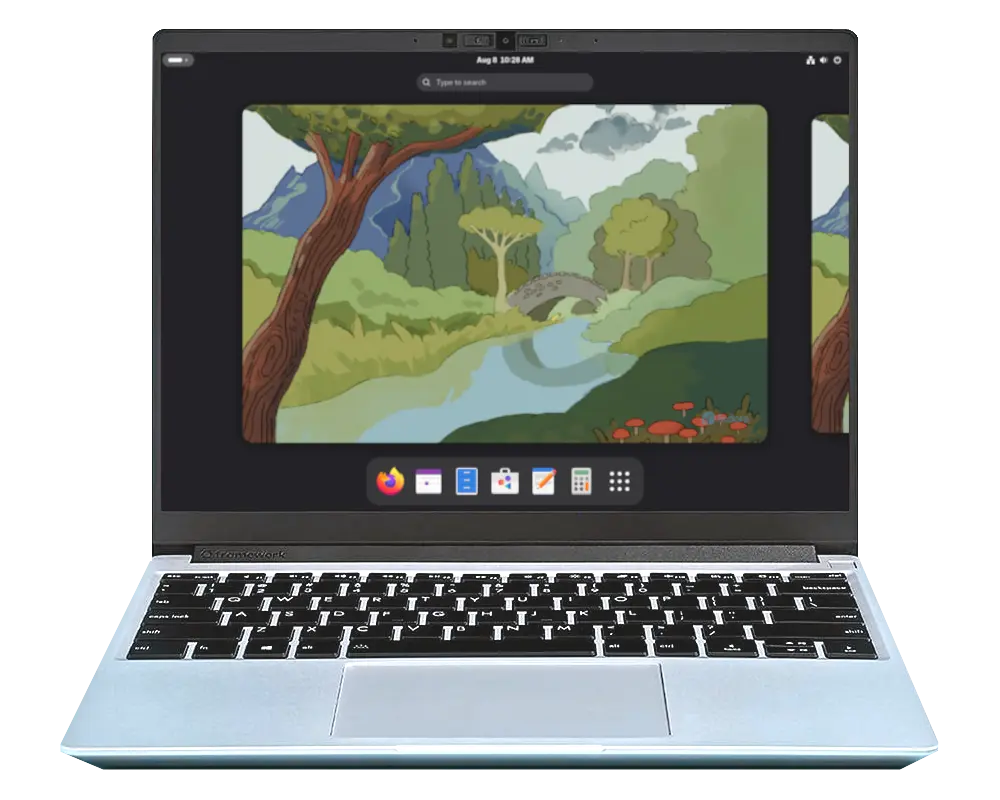
Fedora is the obvious starting point, and there’s a reason nearly every Linux forum recommends it for new hardware. Red Hat’s engineers work directly with Intel, AMD, and other hardware vendors, and a lot of that work lands in Fedora before it reaches anywhere else. Fedora Linux 44 shipped with the 6.19 kernel series back in April 2026, and it doesn’t sit still after that. Kernel updates keep arriving through Fedora’s normal update channel, so by the time you install it, you’re likely running something newer than the launch version.
Fedora comes in two flavors worth considering here: the GNOME based Workstation edition and the KDE Plasma Desktop edition. Both ship the same kernel and driver stack, so the choice mostly comes down to which desktop environment you prefer.
Features:
- Six month release cycle with frequent kernel updates in between
- GNOME 50 or KDE Plasma 6.6, depending on the edition you pick
- Backed by Red Hat, so hardware vendors test against it directly
- DNF5 package manager, faster and more reliable than the old DNF
- Wayland by default, with solid fractional scaling and touch support
Pros:
- Best out of box hardware detection of any non rolling distro
- Huge community, so hardware specific fixes get documented fast
- Strong security defaults out of the box, including SELinux
Cons:
- Not a true rolling release, so you wait for the next version for major desktop upgrades
- Proprietary codecs and NVIDIA drivers need the RPM Fusion repository added manually
2. openSUSE Tumbleweed
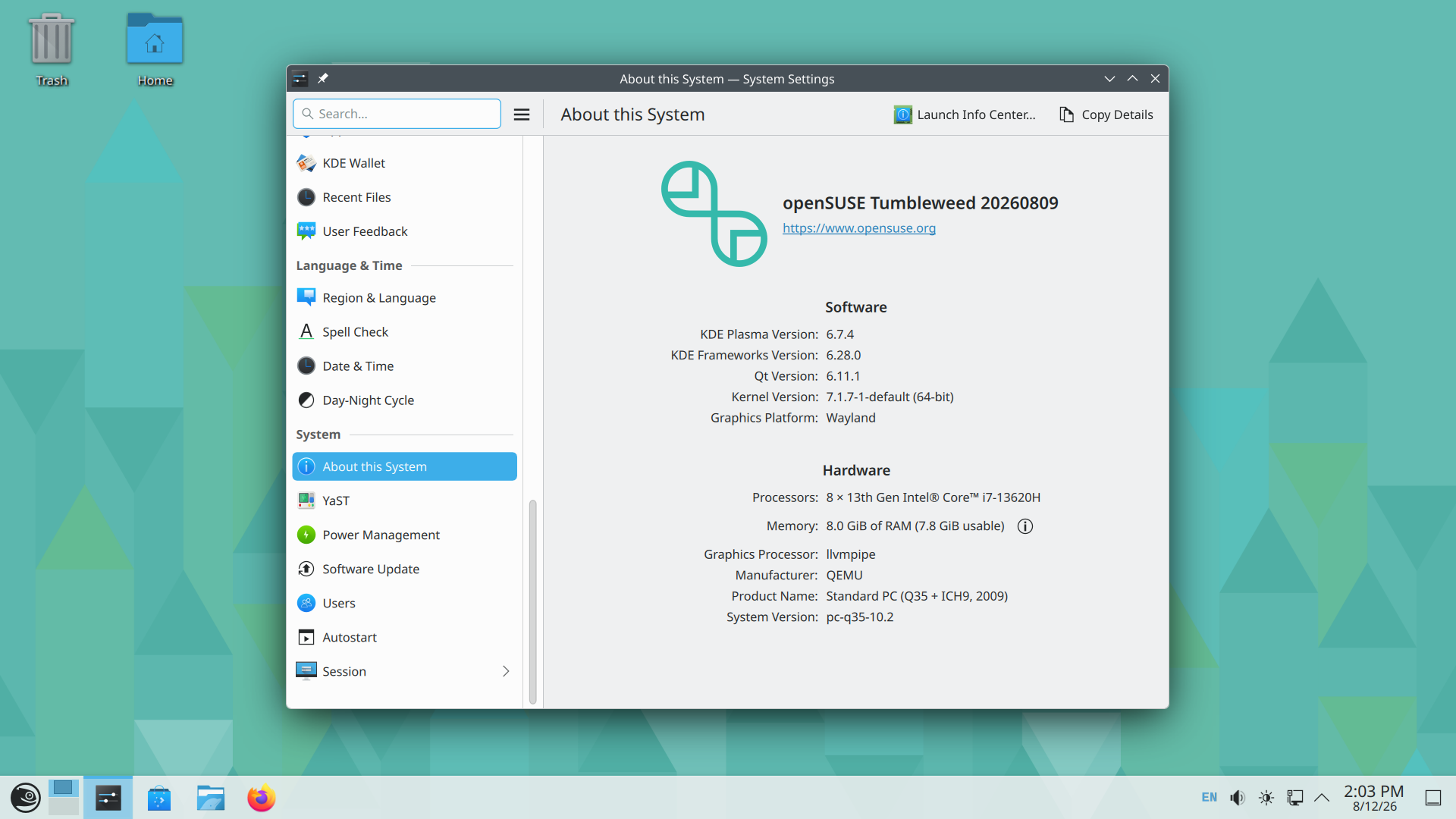
openSUSE Tumbleweed is a true rolling release, which means there’s no version number to wait for. Every package, including the kernel, updates on its own schedule instead of Fedora’s twice a year cadence. That sounds risky, and on paper it should be. In practice, Tumbleweed runs every package change through openQA, an automated testing system that catches broken builds before they ever reach your machine. Snapshots that fail testing simply don’t ship.
That combination of bleeding edge packages plus automated testing is what sets Tumbleweed apart from most rolling distros. You get the newest kernel and Mesa version almost as soon as they land upstream, without the constant small breakage you’d expect from a typical rolling release.
Features:
- True rolling release, kernel and driver updates arrive continuously
- Automated openQA testing before every snapshot ships
- Btrfs with automatic snapshots, so a bad update is one reboot away from being undone
- YaST, a genuinely powerful system configuration tool most distros don’t have an equivalent for
Pros:
- One of the most stable rolling releases available, thanks to the testing pipeline
- Snapper makes rolling back a broken update painless
- Excellent KDE Plasma integration, since SUSE contributes heavily to KDE upstream
Cons:
- RPM plus Zypper has a steeper learning curve than apt or pacman
- Smaller community than Ubuntu or Fedora, so laptop specific troubleshooting threads can be harder to find
3. CachyOS
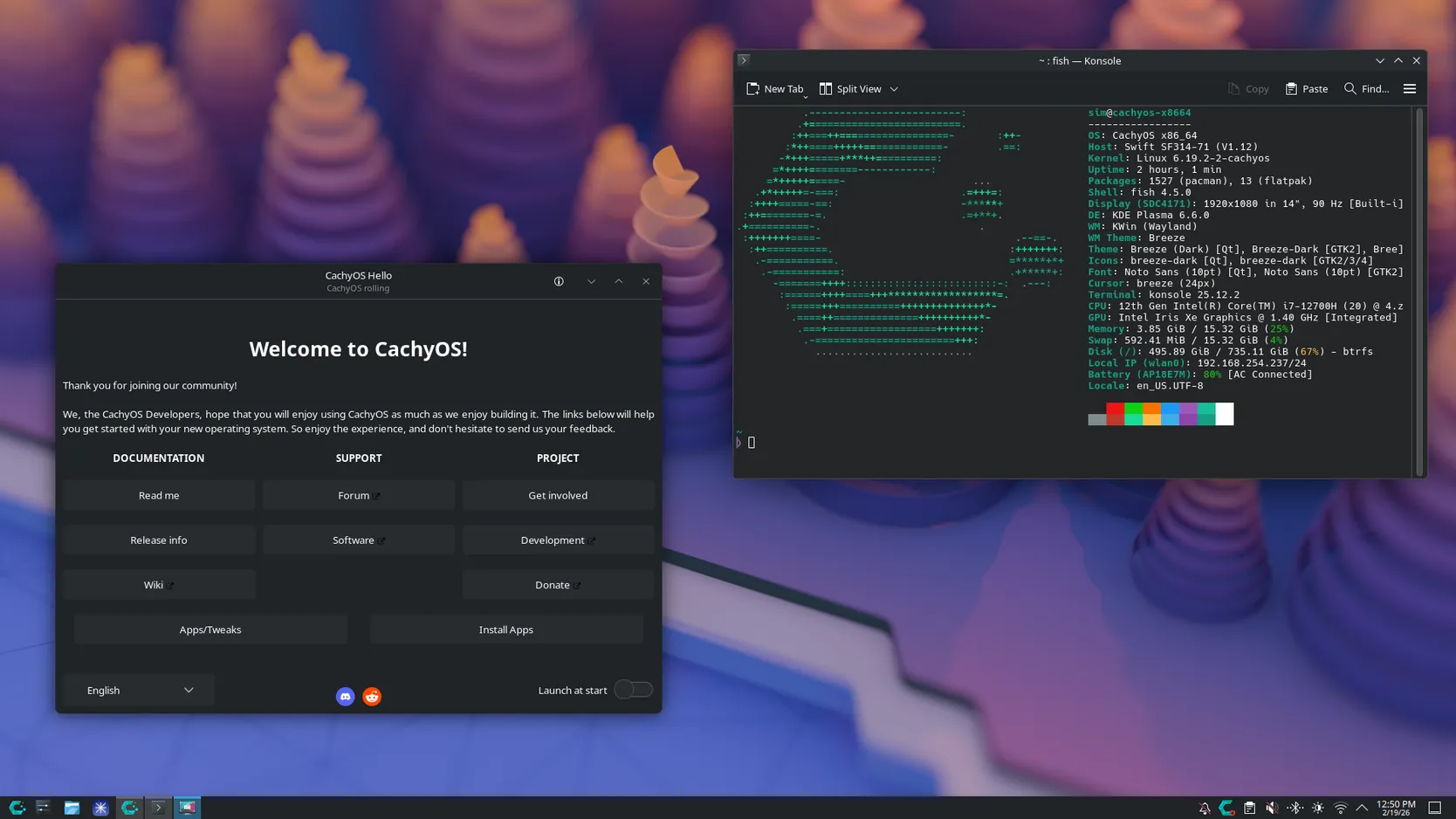
CachyOS takes a different approach entirely. Instead of just shipping current packages, it rebuilds large parts of the system with compiler optimizations aimed at squeezing extra performance out of modern CPUs. It’s built on Arch Linux, so you get Arch’s massive package repository and the AUR, but with a custom installer and a kernel tuned for desktop responsiveness.
The default kernel uses the BORE scheduler, which prioritizes tasks that have been waiting for CPU time, making the desktop feel snappier under load. Packages in the cachyos-v3 repository are compiled specifically for newer CPU instruction sets that only modern processors support. This is exactly why CachyOS fits a new laptop so well and doesn’t make much sense on an old one.
Features:
- Custom kernel with the BORE scheduler for better desktop responsiveness
- CPU optimized package repositories (x86-64-v3 and v4) for recent processors
- Calamares graphical installer with automatic hardware and driver detection
- Hardware specific patches for gaming laptops and handhelds
Pros:
- Noticeably snappier than a stock Arch or Ubuntu install on the same hardware
- NVIDIA drivers install cleanly through DKMS and rebuild automatically on kernel updates
- Full Arch package availability without Arch’s manual installation process
Cons:
- The extra performance work matters less on older CPUs without support for the newer instruction sets
- Smaller team than Fedora or openSUSE, so support leans more on community forums and Discord
4. EndeavourOS
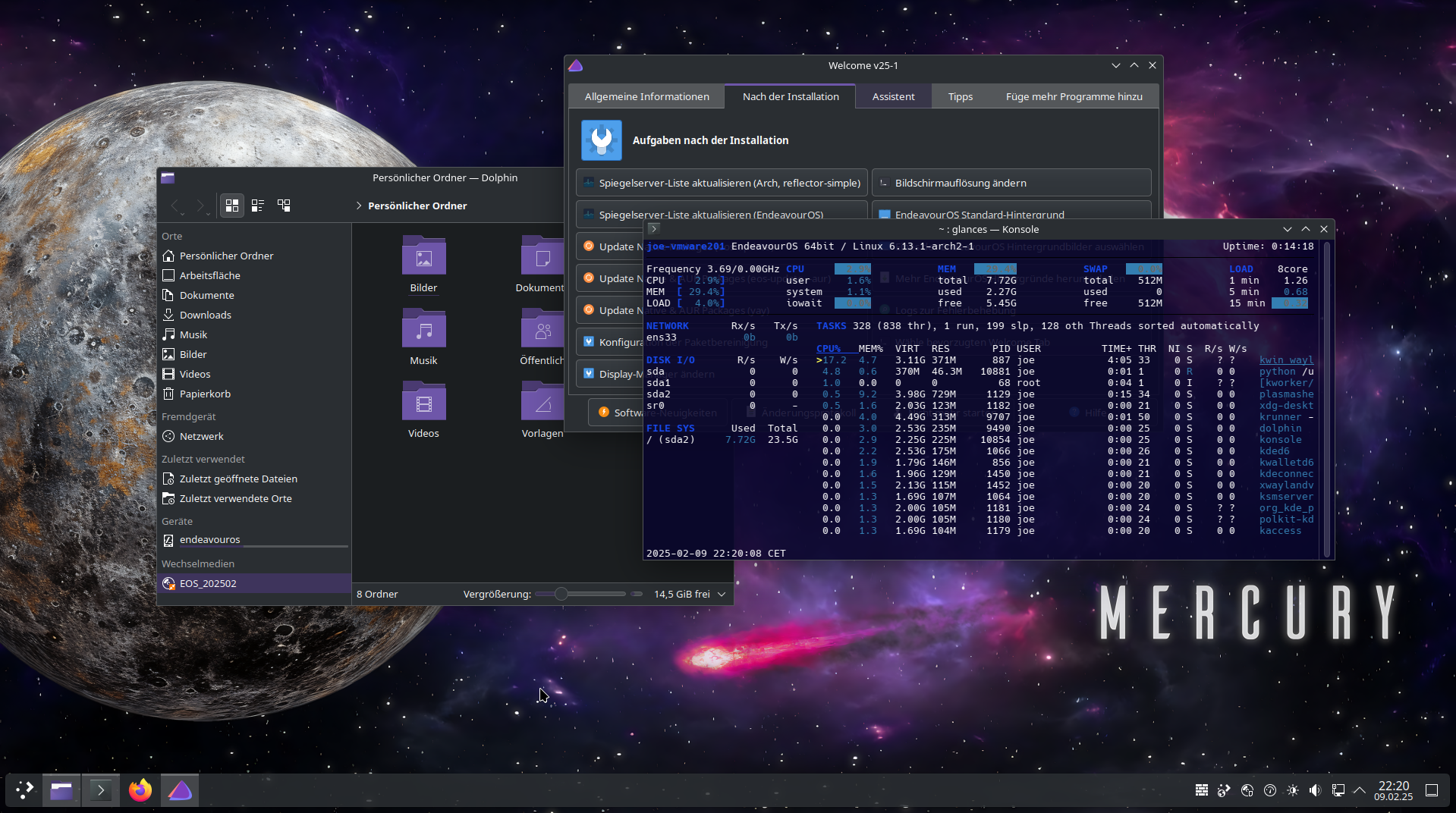
If you actually want vanilla Arch Linux, minus the part where you spend an entire evening partitioning drives by hand, EndeavourOS is the closest thing to it. It uses Arch’s own repositories directly instead of maintaining a separate one, so there’s no delay between a package landing in Arch and it reaching you. The Calamares installer handles partitioning and desktop environment selection, then hands you a system that behaves exactly like Arch from that point forward.
This matters for troubleshooting. Since EndeavourOS doesn’t patch or delay anything, Arch Wiki instructions and Arch forum threads apply directly to your system without translation. That’s not true of every Arch based distro.
Features:
- Uses Arch’s official repositories with no delay or repackaging
- Choice of desktop environment during installation, including KDE Plasma, GNOME, and Xfce
- Rolling release, same as vanilla Arch
- Active community forum and a welcome app that helps with post install setup
Pros:
- Arch Wiki solutions work without modification
- Minimal bloat, you choose what gets installed
- A solid middle ground between learning everything the hard way and a heavily customized distro
Cons:
- Post install configuration is still mostly manual
- Rolling updates occasionally need manual intervention, so reading the Arch news page before updating is a habit worth building
5. Pop!_OS
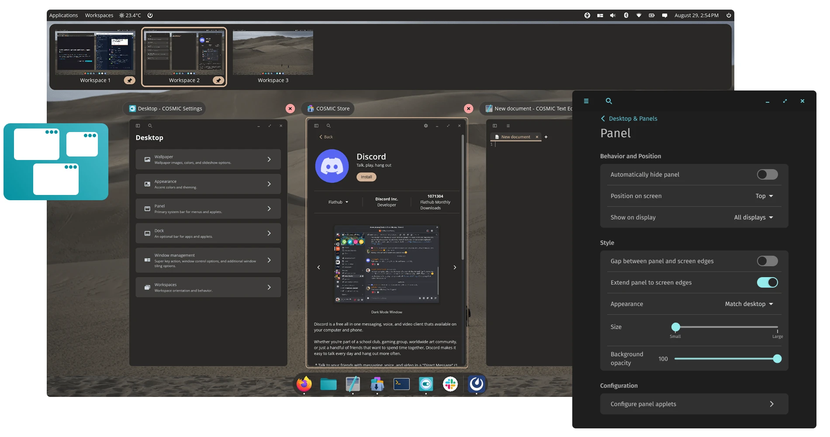
System76 builds Pop!_OS for the laptops and desktops it sells, and that focus shows. It’s one of the only distros that offers a separate ISO with NVIDIA drivers already installed, so switching between integrated and discrete graphics on a hybrid laptop doesn’t require any manual driver wrangling.
Pop!_OS made a big change recently by replacing its GNOME based desktop with COSMIC, a desktop environment System76 built from scratch in Rust. COSMIC is Wayland only and includes built in tiling window management, which matters if you multitask across a lot of windows on a laptop screen. It’s still maturing, but by 2026 it’s stable enough for daily use.
Features:
- Separate NVIDIA and Intel/AMD ISOs, so the right driver is there from first boot
- COSMIC desktop, built in Rust, with native tiling window management
- Automatic GPU switching for hybrid graphics laptops
- Flatpak and Flathub enabled by default instead of Snap
Pros:
- The easiest path to a fully working NVIDIA laptop of any distro on this list
- Power management tuned specifically for laptops, including a dedicated battery saving mode
- Firmware updates handled automatically through fwupd, even on non-System76 hardware
Cons:
- COSMIC is still newer than GNOME or KDE Plasma, so some extensions and theming options aren’t there yet
- Built on an Ubuntu LTS base, so some packages are less current than a true rolling release
6. Ubuntu
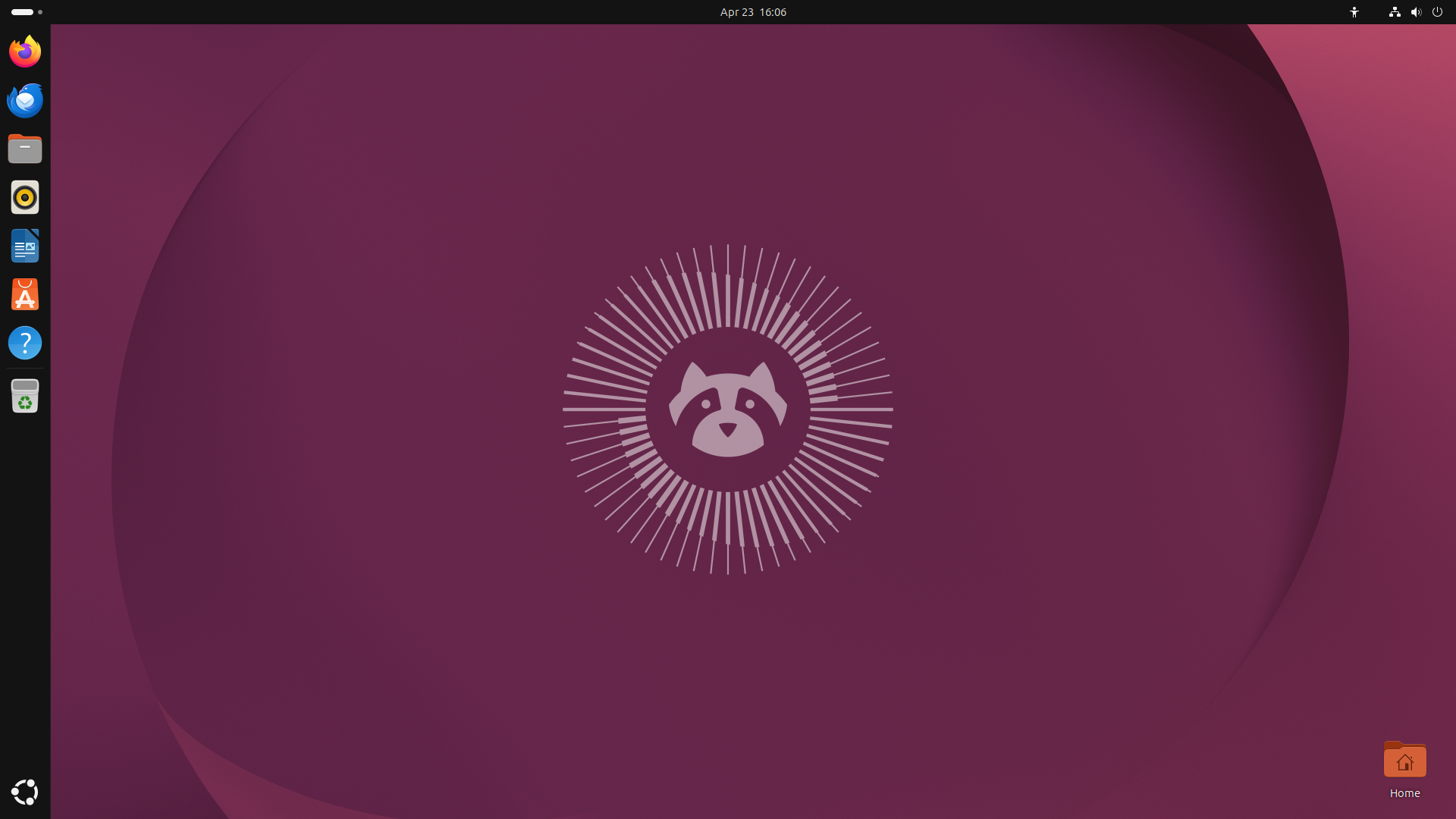
Ubuntu doesn’t usually make a bleeding edge list, but the 26.04 LTS release changes that math a little. Canonical originally planned to ship an older kernel and bumped it up to kernel 7.0 specifically to support newer hardware, including current generation Intel and AMD laptop chips. It’s also the first Ubuntu LTS to drop X11 entirely on the default desktop, running Wayland only.
The most relevant addition for this list: Ubuntu 26.04 introduced SPDM based fingerprint authentication, aimed at making biometric login actually reliable on certified laptops instead of the hit or miss experience it’s historically been.
If you want current hardware support with Ubuntu’s massive documentation and package ecosystem behind you, and you don’t want a rolling release’s constant updates, this is the pick.
Features:
- Kernel 7.0, bumped up from the originally planned version specifically for newer hardware support
- GNOME 50 with Wayland as the only supported session
- SPDM based fingerprint authentication for certified OEM laptops
- Five years of free security updates, extendable with Ubuntu Pro
Pros:
- The largest Linux community there is, so almost every problem has already been solved somewhere online
- Long term support means you’re not reinstalling every six months
- Broad OEM certification, with Dell, Lenovo, and HP all shipping certified Ubuntu laptops
Cons:
- Not a rolling release, so hardware released after launch might need workarounds until the next point release
- Snap is the default packaging format for some apps, which not everyone loves
7. Manjaro
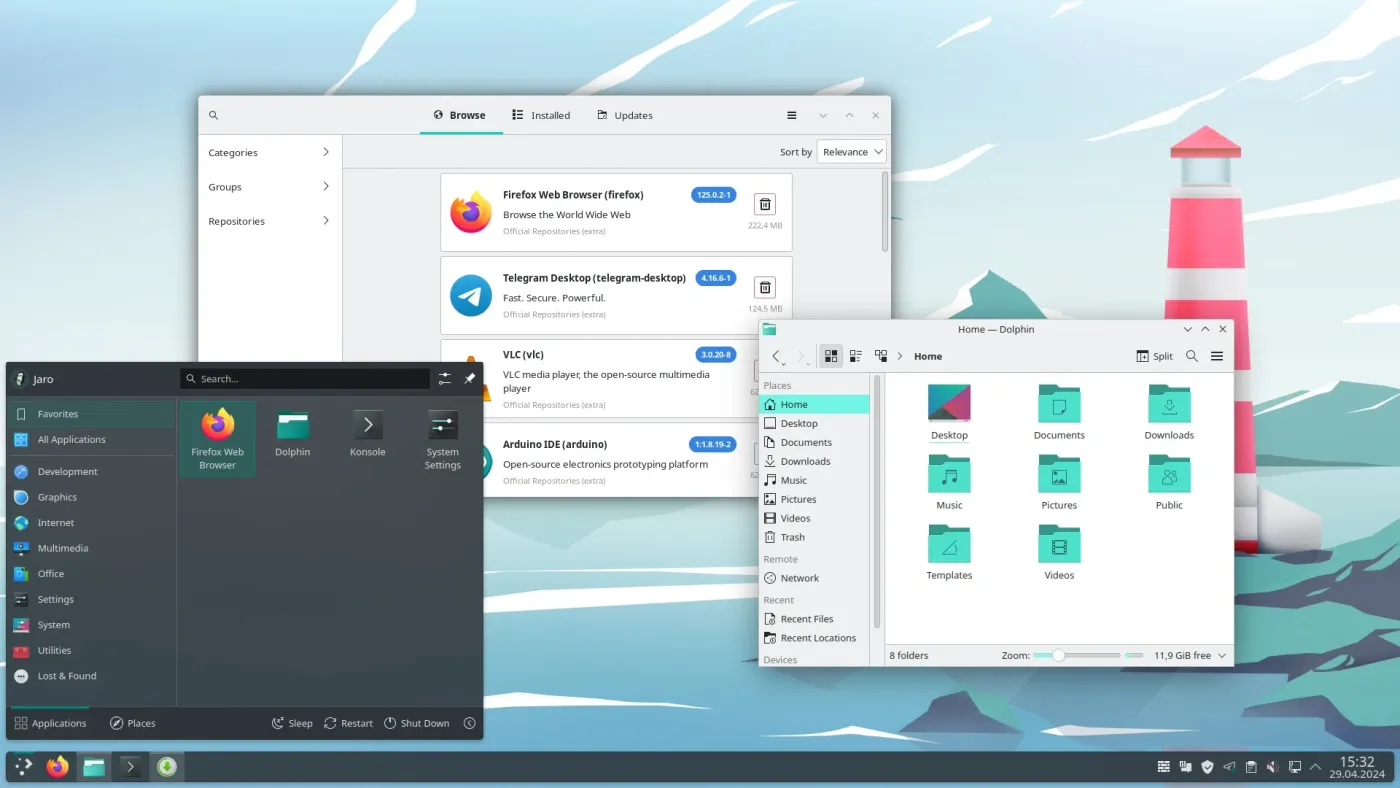
Manjaro takes Arch Linux and smooths off most of the sharp edges. It holds packages back for one to two weeks after they land in Arch’s own repositories, running them through its own testing branch first. You still get a rolling release and access to the AUR, just with a small buffer against Arch’s occasional breakage.
This makes Manjaro a genuinely easier daily driver than Arch or EndeavourOS, with a graphical installer, automatic hardware detection through its MHWD tool, and Pamac as a graphical package manager. The tradeoff is that Manjaro’s delay and its own patches mean Arch Wiki instructions don’t always apply cleanly, and the distro has had a few public missteps over the years, including an incident where expired SSL certificates broke updates for users.
None of that makes Manjaro a bad choice today. It just means going in with the understanding that it isn’t identical to Arch, even though it’s built from it.
Features:
- Own testing branch, packages held back briefly after landing in Arch
- MHWD automatic hardware detection and driver installation
- Pamac graphical package manager with optional AUR support
- Multiple kernel versions installable side by side, including LTS kernels
Pros:
- Most beginner friendly Arch based option available
- Good hardware detection out of the box, particularly for WiFi and graphics
- Choice of official Xfce, KDE Plasma, or GNOME editions
Cons:
- Arch Wiki fixes sometimes don’t translate directly because of Manjaro’s patches
- Has had trust issues in the past around infrastructure management
Worth Knowing About: Bazzite
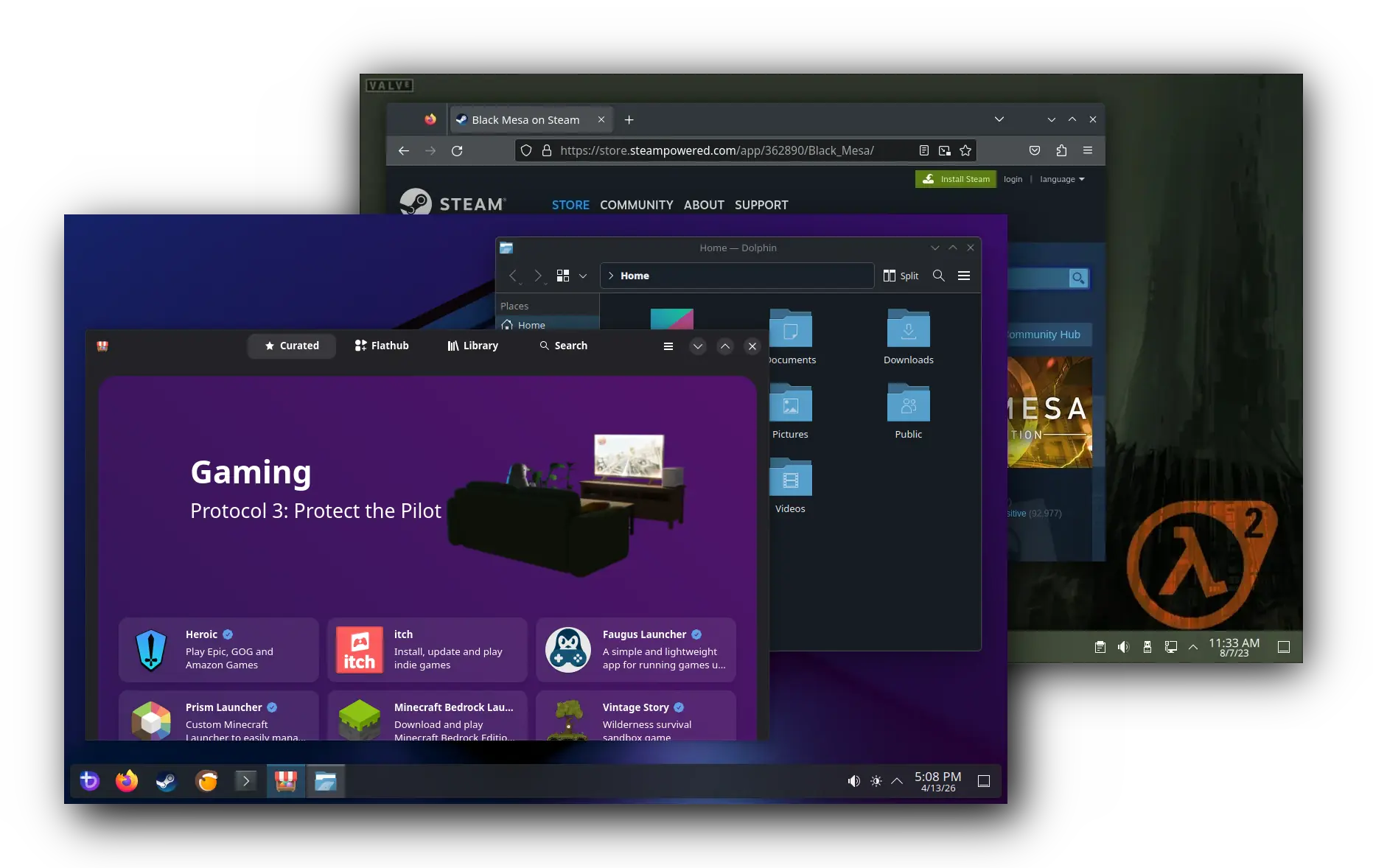
If the idea of an update ever breaking your system worries you, Bazzite is worth a look. It’s built on Fedora’s atomic desktop technology, meaning the core system is a single read only image. Updates get applied as a whole, and if one causes a problem, you reboot into the previous image and you’re back to a working system in seconds. It ships a dedicated NVIDIA image and defaults to KDE Plasma, and it started out as a SteamOS style gaming distro before growing into a genuinely usable general purpose option.
How Linux Drivers Actually Work (And Why New Hardware Cares)
Most of what people call Linux drivers actually live inside the kernel itself. When you install a new kernel version, you’re also getting hundreds of new or updated drivers for network cards, touchpads, sound chips, and more, bundled into the same package. That’s different from Windows, where drivers usually get installed separately from the OS.
Three pieces matter here, and they update independently of each other:
- The kernel, which handles most drivers directly, including networking, storage, and input devices.
- linux-firmware, a separate package containing the actual firmware blobs that WiFi cards, GPUs, and some other hardware need to function, since not everything can be open source due to vendor restrictions.
- Mesa, the open source graphics stack that handles OpenGL and Vulkan support for Intel and AMD GPUs, updated on its own release schedule.
A distro can have a recent kernel and still miss hardware support if its linux-firmware package or Mesa version is stale. This is one more reason rolling release distros and Fedora tend to work better on new laptops: all three of these pieces update together, instead of being frozen at whatever was current when the distro’s last major version shipped.
WiFi Chips: The Good, the Fine, and the Frustrating
Not all WiFi hardware is equal on Linux, and this catches people off guard more than almost anything else. Intel’s WiFi cards, including current WiFi 7 chips like the Intel BE200, use the iwlwifi driver that’s built directly into the mainline kernel. If your laptop has an Intel WiFi card, you’re in good shape almost regardless of distro.
Qualcomm and Realtek are more of a mixed bag. Some Qualcomm WiFi 7 chips work through the ath12k driver, but features like Multi-Link Operation and 6GHz band support are still maturing. Realtek WiFi cards without mainline support usually rely on vendor supplied DKMS modules, which need to be rebuilt every time the kernel updates and can break silently after an update. If you’re choosing between laptop configurations and Linux is the plan, an Intel WiFi card is the safer bet.
NVIDIA Graphics Have Gotten Genuinely Good
NVIDIA’s Linux drivers used to be the biggest headache on any list like this, and they’re still not perfect, but the situation has changed a lot. NVIDIA now maintains open source kernel modules, and as of the RTX 50 series, that open module isn’t optional anymore. The proprietary driver branch doesn’t support Blackwell generation cards at all, so the open kernel module is the only way to run a current NVIDIA laptop GPU on Linux.
The practical upshot is that most distros on this list, especially CachyOS and Pop!_OS, install the correct NVIDIA driver automatically during setup. Where things can still go sideways is hybrid graphics: laptops that switch between an integrated GPU and a discrete NVIDIA GPU sometimes run into trouble with suspend and resume, or with external displays plugged into the discrete GPU. It’s not universal, and it’s gotten a lot better, but if this matters to you, check recent forum reports for your specific laptop model before you commit.
Fingerprint Readers, Touchscreens, and Other Modern Laptop Features
New laptops increasingly ship with fingerprint readers, touchscreens, and other features that used to be Windows only territory. Linux support for these has improved a lot, but it’s still more device specific than most other hardware.
Fingerprint Readers
Fingerprint login on Linux runs through two pieces: libfprint, which handles communication with the actual sensor, and fprintd, the background service that GNOME, KDE, and most login managers talk to. If your fingerprint reader is supported, setup is genuinely simple. GNOME even has it built right into the Settings app.
The catch is that support depends entirely on which sensor chip is inside your laptop. Goodix sensors, common on a lot of recent laptops, generally work well through the libfprint-tod package. Elan’s match-on-chip sensors are supported for a growing list of device IDs. Synaptics and Validity sensors have historically been the worst supported, with many ThinkPad and HP models simply not working at all, though a recent push to add native Validity sensor support to libfprint is finally closing that gap.
Before assuming a fingerprint reader will work, check the specific sensor’s USB ID against libfprint’s supported device list. A reader that works flawlessly in Windows can still be completely unsupported in Linux, and that’s true no matter which distro you pick.
Touchscreens and Touchpad Gestures
This part is genuinely solved for most modern laptops. Touch input runs through libinput, the same library that handles your touchpad, and it works the same way across Wayland and X11. GNOME and KDE Plasma both detect touchscreens automatically and support standard multitouch gestures out of the box, with no extra configuration needed.
Touchpad gestures are in a similar place. Three and four finger swipes for switching workspaces or opening an overview work natively on GNOME’s Wayland session. KDE Plasma 6 added a dedicated touch mode with edge gestures that’s especially useful on 2-in-1 and convertible laptops. If you want more custom gestures than what ships by default, tools like libinput-gestures or Touchégg let you map specific finger counts to specific actions.
Auto-Rotation and 2-in-1 Features
Convertible laptops that fold into tablet mode rely on an accelerometer to detect orientation, and Linux handles this through iio-sensor-proxy. Both GNOME and KDE Plasma will auto-rotate the display and can switch to an on-screen keyboard when you fold the screen back, though this depends on your specific laptop’s sensor being recognized. It’s worth testing from a live USB before you buy, or right after, so you know exactly what you’re working with.
HiDPI Displays and Scaling
If your new laptop has a 1440p, 4K, or OLED high resolution display, fractional scaling used to be the thing that made Linux desktops look either tiny or comically oversized. That’s mostly fixed now. Distros running Wayland by default, which by 2026 is most of them, handle fractional scaling cleanly in both GNOME and KDE Plasma. That’s one more reason to lean toward Wayland first distros for a new laptop instead of sticking with X11 out of habit.
Which Distro Should You Actually Pick?
| If you want… | Go with |
|---|---|
| Zero hassle, just works | Fedora Workstation or Pop!_OS |
| The absolute newest packages, always | openSUSE Tumbleweed or CachyOS |
| Maximum gaming performance | CachyOS |
| NVIDIA hybrid graphics that just work | Pop!_OS |
| Long term stability with current hardware support | Ubuntu 26.04 LTS |
| To actually learn how Linux works | EndeavourOS |
| Arch’s power without Arch’s install process | Manjaro or CachyOS |
If you’re still not sure, start with Fedora. It’s the closest thing to a default answer for new hardware, it’s well documented, and switching to something else later is never off the table. Distro hopping is basically a rite of passage anyway.
Quick Tips Before You Install
- Boot from a live USB first. Test WiFi, sound, the touchpad, and suspend and resume before you commit to an install. Anything broken in live mode will still be broken after.
- Check Secure Boot compatibility. Fedora, Ubuntu, openSUSE, and Manjaro all support Secure Boot out of the box through a signed shim bootloader. Arch, EndeavourOS, and CachyOS can need an extra manual step, so check the docs for your chosen distro first.
- Look up your exact WiFi and fingerprint chip models once you’re booted from the live USB, using commands like lsusb and lspci, instead of assuming anything will work.
- Give yourself more storage than you think you need. Rolling releases and frequent kernel updates eat disk space faster than a distro that only updates twice a year.
- Back up before major updates on rolling release distros, or use one with automatic snapshots like openSUSE Tumbleweed, so a bad update is a five minute fix instead of a full reinstall.
The Bottom Line
None of these distros are wrong. The real difference between them is where they land on the spectrum between low maintenance and always current. Fedora and Pop!_OS sit closer to the low maintenance end. openSUSE Tumbleweed, CachyOS, and EndeavourOS sit closer to the always current, more hands on end. Ubuntu 26.04 LTS and Manjaro split the difference in their own ways.
Install one from a live USB, test your hardware, and if something isn’t working, check whether a different distro on this list handles it better before assuming Linux just isn’t for your laptop. Nine times out of ten, it’s the distro, not the hardware.
Frequently Asked Questions
What is the best Linux distro for a new laptop in 2026?
Fedora Workstation is the safest starting point for most new laptops, thanks to its frequent kernel updates and close ties to hardware vendors. If you want the newest packages without exception, openSUSE Tumbleweed or CachyOS are better fits. There’s no single best distro, it depends on how much maintenance you want to do versus how bleeding edge you need to be.
Do rolling release distros work better on new hardware than LTS distros?
Generally yes, because rolling release distros update the kernel and drivers continuously instead of waiting for the next major version. Fedora is a partial exception. It isn’t a rolling release, but it updates its kernel frequently within a six month cycle, so it delivers a similar benefit with less ongoing maintenance.
Will my fingerprint reader work on Linux?
It depends on the sensor chip inside your laptop rather than which distro you choose. Check your fingerprint reader’s USB ID against libfprint’s supported device list before assuming it will work. Goodix and Elan sensors generally have decent support, while Synaptics and Validity sensors are more hit or miss, though support has been improving.
Does NVIDIA graphics work well on Linux now?
Much better than it used to. NVIDIA’s open source kernel modules are now required for RTX 50 series cards, and most modern distros install the correct driver automatically during setup. The main remaining rough edge is hybrid graphics laptops occasionally having issues with suspend, resume, or external displays connected to the discrete GPU.
Should I dual boot Linux and Windows on a new laptop?
Yes, that’s a reasonable way to test a distro before fully committing. Make sure Secure Boot and disk encryption settings are configured correctly beforehand, and back up your data first. Many people who set up dual boot end up rarely touching the Windows side within a few months.
What if my WiFi doesn’t work after installing Linux?
Check whether your WiFi chip is made by Intel first, since those almost always work out of the box through the iwlwifi driver. Realtek and some Qualcomm chips sometimes need a specific kernel version or a separate DKMS module. Booting from a live USB before installing lets you catch WiFi problems before committing to a full install.
Do I need a powerful laptop to run a bleeding edge distro?
Not necessarily powerful, but reasonably current. Rolling release distros and frequent kernel updates add a bit more load on your CPU and storage during updates, and desktop environments like KDE Plasma 6 or GNOME 50 with full visual effects enabled use more RAM than a stripped down setup. None of this requires workstation class hardware, but a laptop from the last two or three years will run noticeably smoother than older hardware.








One thought on “Best Linux Distros for New Laptops in 2026”
I would place Garuda Linux right after CachyOS due to support BTRFS && OverlayFS right out of the box.