Most “kid-friendly” technology advice boils down to buying another tablet and hoping a screen time app saves the day. Linux takes a different approach. Instead of locking your kid into an app store, a Linux distro gives them an actual computer, one that’s hard to break, doesn’t come loaded with ads, and can run just fine on that old laptop sitting in your closet.
The catch is that not every distro is built with kids in mind. Some are genuinely designed for classrooms and small hands. Others are regular Linux distros wearing a kid-friendly coat of paint. And a couple of distros that still show up on “best of” lists across the internet have been dead for close to a decade (more on that further down).
This guide covers the Linux distros actually worth installing for a child in 2026, broken down by age and use case, plus how to set up real parental controls once you’ve picked one.
Quick answer:
- Best overall (ages 8+): Linux Mint
- Best for coding and STEM (ages 8 to 16): Zorin OS Education
- Best for younger kids and offline use (ages 4 to 12): Endless OS
- Best for classrooms and homeschool co-ops: Edubuntu
- Best for toddlers and pre-readers (ages 3 to 8): Sugar on a Stick
- Best for Raspberry Pi kits: Raspberry Pi OS
What to Look for in a Kid-Friendly Linux Distro
Before the list, it helps to know what you’re actually optimizing for. A good pick usually does most of these well:
- A simple, hard-to-break interface. Kids click on things, a lot. The best options either make the desktop nearly indestructible (an immutable system like Endless OS) or make it dead easy to reset (Linux Mint’s built-in Timeshift backups, ubermix’s 20-second recovery).
- Real educational software, not just wallpaper. A kid-themed background image doesn’t make something an educational distro. Look for genuinely bundled tools like GCompris, Scratch, Tux Paint, or a full STEM toolkit.
- Low hardware requirements. Most families aren’t buying a new laptop just for this. A solid pick should run comfortably on hardware from the last 10 to 15 years.
- Some form of account restriction or parental control. Not every distro handles this the same way, which is worth checking before you commit. There’s a full breakdown of this further down.
The Best Linux Distros for Kids in 2026
Here’s the full list, ranked by what each one is actually best at rather than a single generic “best overall” badge slapped on everything.
1. Linux Mint (Cinnamon): Best Overall
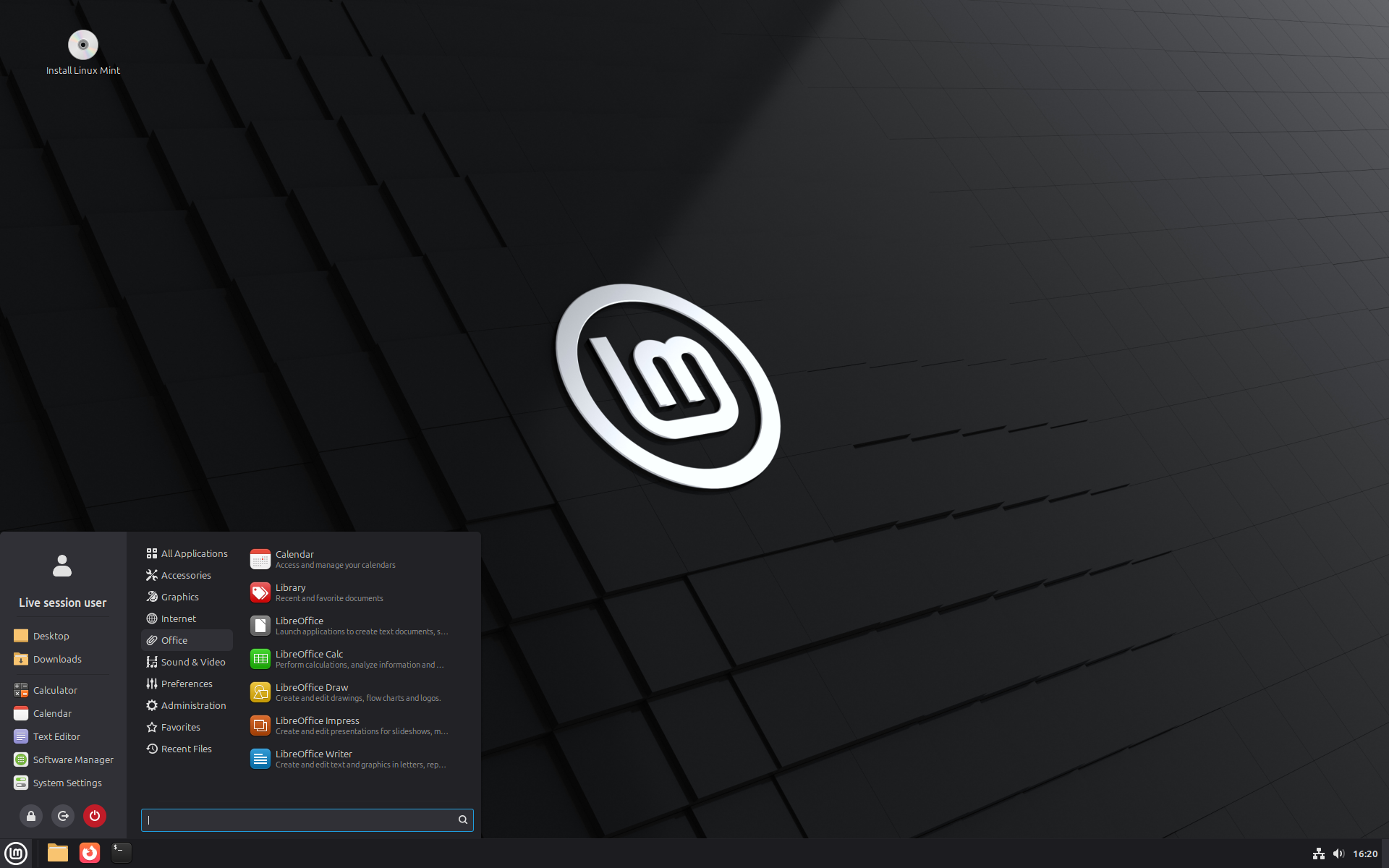
Based on: Ubuntu | Desktop: Cinnamon (MATE and Xfce editions also available) | Ages: 8 and up
Linux Mint is the distro to hand a kid who’s already used Windows and just needs something that works without turning into a part-time IT job for you. The Cinnamon desktop uses a familiar layout: a taskbar, a start menu, a system tray. Nothing new to learn.
The current release (as of writing), Linux Mint 22.3 “Zena,” is built on Ubuntu 24.04 LTS and supported until 2029, so there’s no yearly reinstall to worry about. A newer version, Linux Mint 23, is expected by the end of 2026, but 22.3 is the stable pick right now. Mint is also one of the most documented distros around. If your kid (or you) gets stuck, the answer is almost always one search away.
Features:
- Software Manager, an app-store-style tool for installing programs without touching a terminal
- Timeshift, a built-in backup tool that snapshots the system so you can roll back a broken install in a couple of clicks
- Cinnamon, MATE, and Xfce editions, so you can pick a lighter option for older hardware
- A massive software library covering everything from LibreOffice to Scratch to GIMP
Pros:
- Extremely stable and rarely breaks on its own
- Familiar layout for anyone coming from Windows
- Huge community, so troubleshooting help is easy to find
- No ads, no telemetry, no nagging to sign into an account
Cons:
- Doesn’t come with educational software preinstalled, you’ll need to add it yourself
- Cinnamon doesn’t support GNOME’s built-in parental controls, so screen time limits need a separate tool
2. Zorin OS Education: Best for Coding and STEM
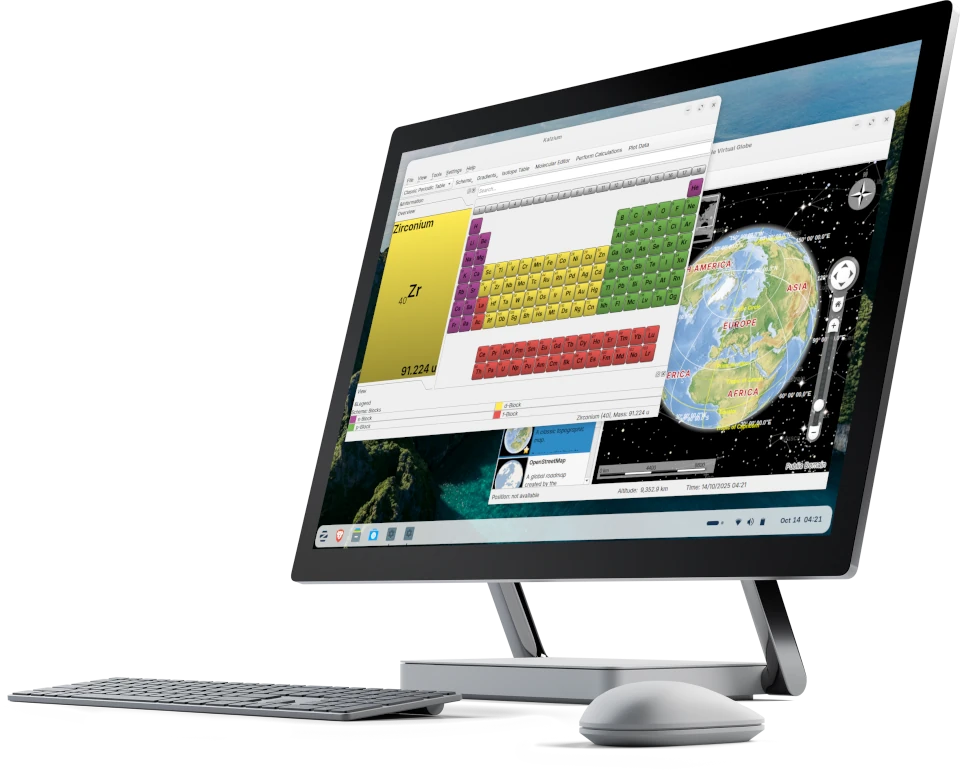
Based on: Ubuntu LTS | Desktop: GNOME, with a customizable Windows or macOS style layout | Ages: 8 to 16
Zorin OS built its reputation on making Linux look and feel like Windows or macOS, and the Education edition points that same approachable design at STEM learning instead of office work. This isn’t a repackaged desktop with a couple of extra icons bolted on, it’s built around actual project-based tools.
The current release, Zorin OS 18.1, ships free Core, Lite, and Education editions (a paid Pro edition exists too, but it’s entirely optional). Zorin’s own team says the Education edition runs on hardware as old as 15 years, which makes it a strong pick for repurposing an old family laptop.
Features:
- Scratch and TurboWarp for visual, drag-and-drop programming
- Godot, a full game development engine for kids ready to build actual games
- Fritzing, for designing electronics and circuit projects
- A full programming IDE for kids ready to move past block-based coding
- Veyon classroom management, which lets a parent or teacher view and help with a kid’s screen remotely over the network
Pros:
- Genuinely curated for STEM, not just a marketing label
- Runs well on very old hardware
- Windows and macOS style layout options make it comfortable for both kids and parents
- Veyon is a real, practical tool for homeschool parents who want to check in without hovering
Cons:
- Smaller community than the standard Zorin Core edition, so fewer education-specific tutorials exist
- Some tools, Godot especially, have a learning curve of their own
3. Endless OS: Best for Younger Kids and Offline Learning
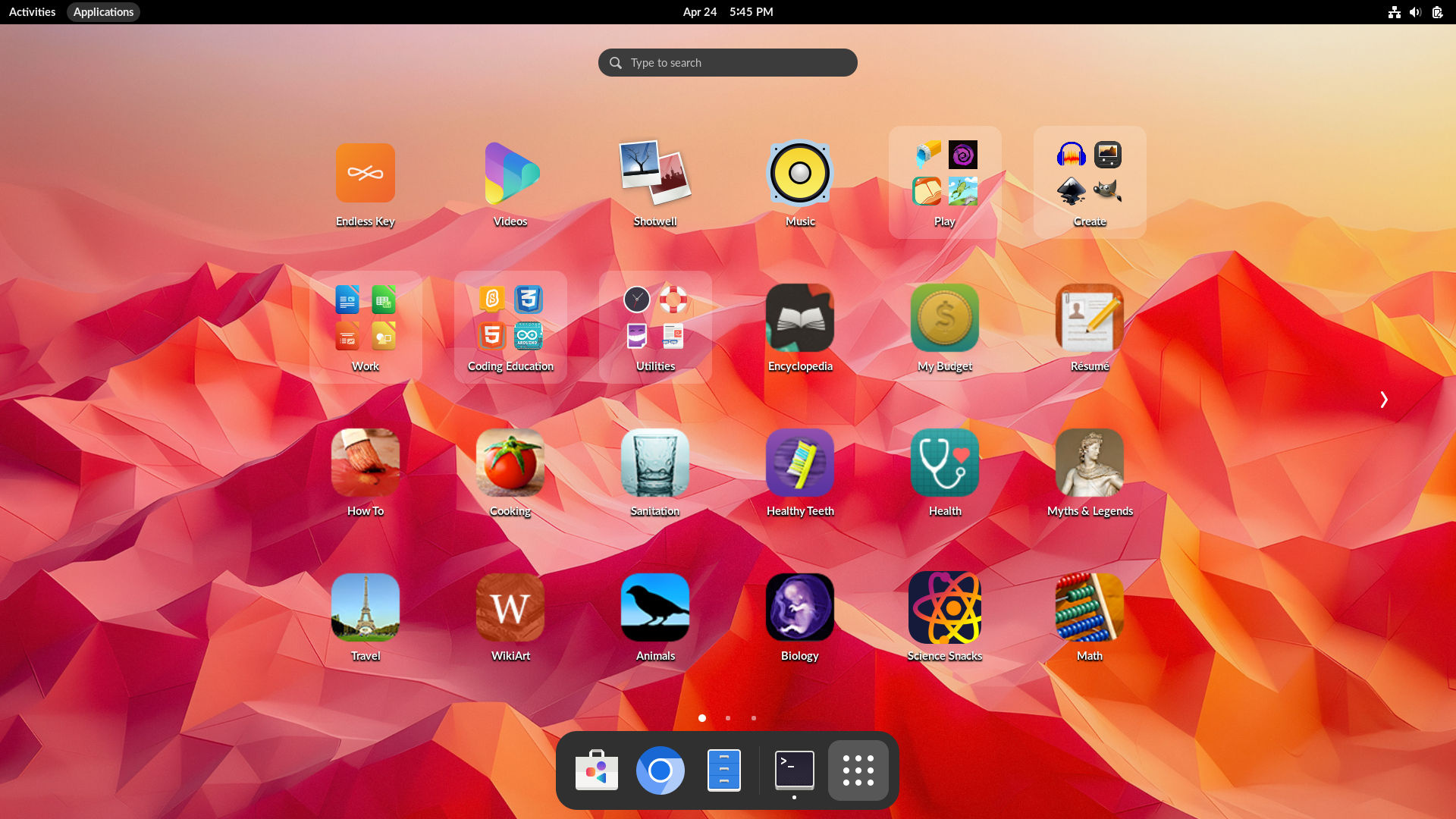
Based on: Debian | Desktop: Custom, GNOME-based, tablet-style layout | Ages: 4 to 12
Endless OS takes a different approach from the rest of this list. Instead of installing a normal desktop and adding educational apps on top, it’s built on an immutable, read-only core, meaning the base system can’t easily be changed or broken, even by a determined six-year-old mashing buttons. Anything a kid installs or messes with lives in a separate layer that’s simple to reset.
Endless OS 6, the current release, is developed by Endless Access, a nonprofit focused on closing the digital divide and part of the wider Endless organization working on technology and education access. The mission isn’t just about durability. Endless OS is also built to run smoothly on low-cost, modest hardware and in places with limited or no internet access, which is exactly why it ships with an offline copy of Wikipedia, Khan Academy videos, and educational content spanning science, math, and DIY projects, all usable without a Wi-Fi connection.
Features:
- Offline Wikipedia and Khan Academy content built right in
- A tablet-style interface organized into categories like Education, Create, Play, and Programming
- Built-in parental controls and web content filtering
- Runs on modest hardware, with a minimum of 2GB of RAM
Pros:
- Extremely hard to break thanks to the immutable core system
- The strongest offline content library of anything on this list
- Built by a nonprofit focused on getting technology and education to underserved communities
- Comfortable, tablet-like interface for younger kids
Cons:
- The full version with all offline content preloaded is a large download and eats up storage
- The tablet-style layout is a bigger jump if you want your kid learning a traditional desktop
- Installing software outside the curated app selection takes a bit more digging
4. Edubuntu: Best for Classrooms and Homeschool Co-ops
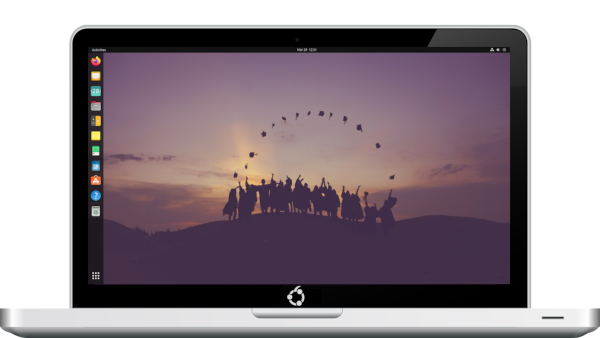
Based on: Ubuntu | Desktop: GNOME | Ages: 4 to 12
Edubuntu has an odd history. Canonical, the company behind Ubuntu, originally launched it in 2005, quietly discontinued it in 2016, then brought it back in 2022 as a full official Ubuntu flavor again. The current release, Edubuntu 26.04 LTS, comes with three years of support, so it’s back to being a serious long-term option rather than an abandoned side project.
Functionally, it’s standard Ubuntu with the GNOME desktop plus a curated set of educational software layered on top, most notably GCompris, a free suite of more than 100 learning activities covering reading, math, science, and basic logic for kids roughly ages 2 to 10.
Features:
- GCompris, covering reading, math, science, geography, and logic games
- Full LibreOffice suite for older kids doing actual homework
- Standard Ubuntu software center, so anything in Ubuntu’s library is one click away
- Backed directly by Canonical’s driver and hardware support
Pros:
- Excellent hardware and driver support, inherited straight from Ubuntu
- GCompris alone covers most of what a young child needs from an educational suite
- Three years of LTS support means less reinstalling
- Feels exactly like real-world Ubuntu, a genuinely useful skill to pick up
Cons:
- Still rebuilding its educational app catalog after the multi-year hiatus
- GNOME can feel heavier than lighter desktops like Cinnamon or Xfce
- Looks like standard adult Ubuntu, with no dedicated kid-friendly theme
5. Sugar on a Stick: Best for Toddlers and Pre-Readers
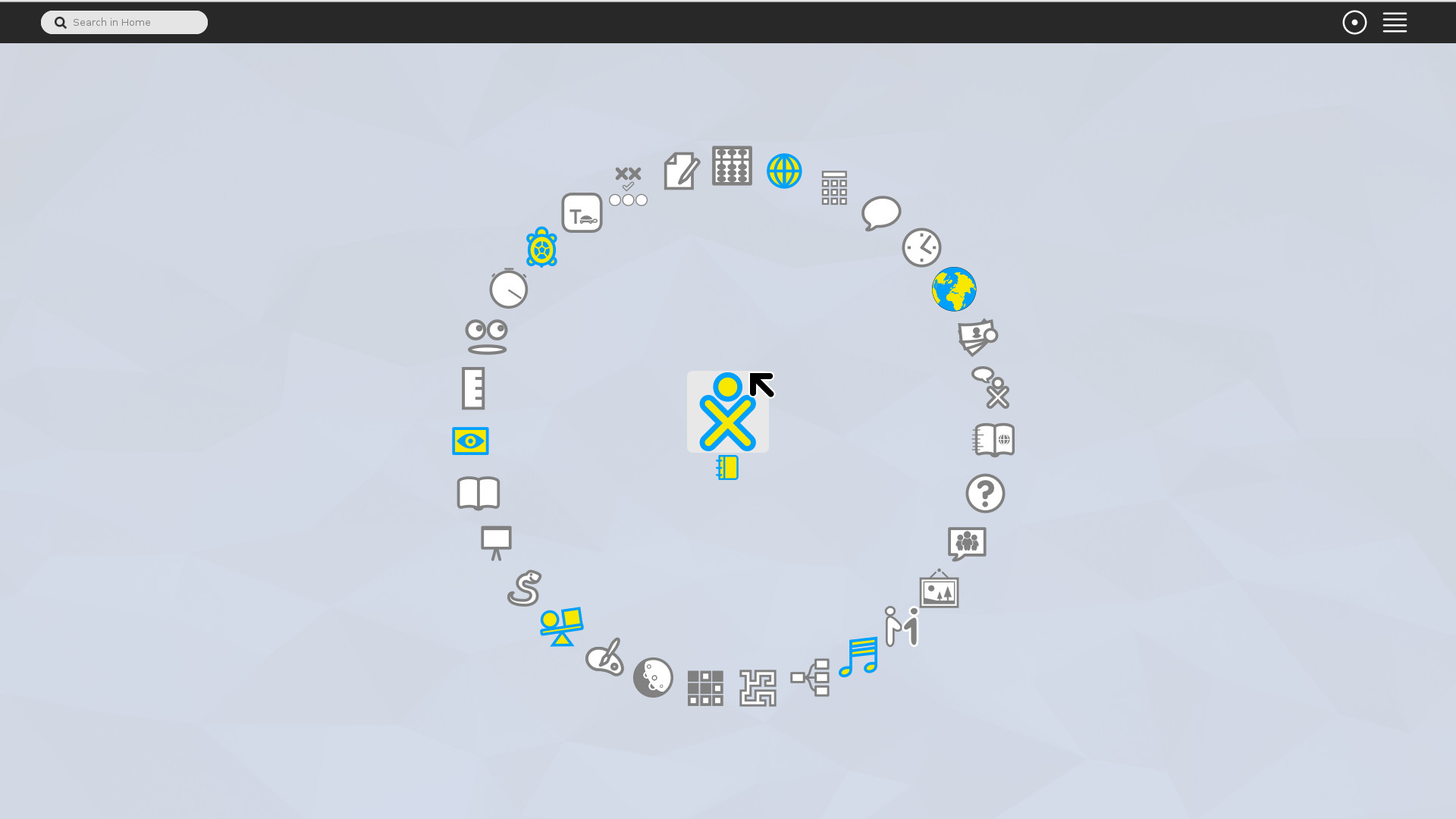
Based on: Fedora | Desktop: Sugar | Ages: 3 to 8
Sugar isn’t really a distro so much as a desktop environment, and it’s the one entry on this list built specifically for young children from the ground up rather than adapted from an adult operating system. It grew out of the One Laptop Per Child project, and the interface reflects that: no taskbar, no folders, no reading required, just a ring of large, colorful icons a toddler can tap through.
The easiest way to try it is Sugar on a Stick (SoaS), a Fedora-based build that runs entirely from a USB drive. Nothing gets installed on the host computer, so you can hand a kid a stick and any spare laptop and let them go.
Features:
- Icon-based navigation that doesn’t require reading
- “Activities” instead of apps, including Turtle Blocks for visual programming and a built-in paint tool
- A journal that automatically saves everything a kid works on, so nothing gets lost
- Runs live from a USB stick, no installation required
Pros:
- Actually built for small children instead of retrofitted for them
- Works for kids who can’t read yet
- Portable, since it runs from USB on almost any spare machine
- Very light on hardware requirements
Cons:
- Development has slowed a lot compared to the other distros on this list
- The activity library feels dated next to something like Zorin’s STEM tools
- Kids typically outgrow it by age 8 or 9
6. Raspberry Pi OS: Best for Raspberry Pi Kits
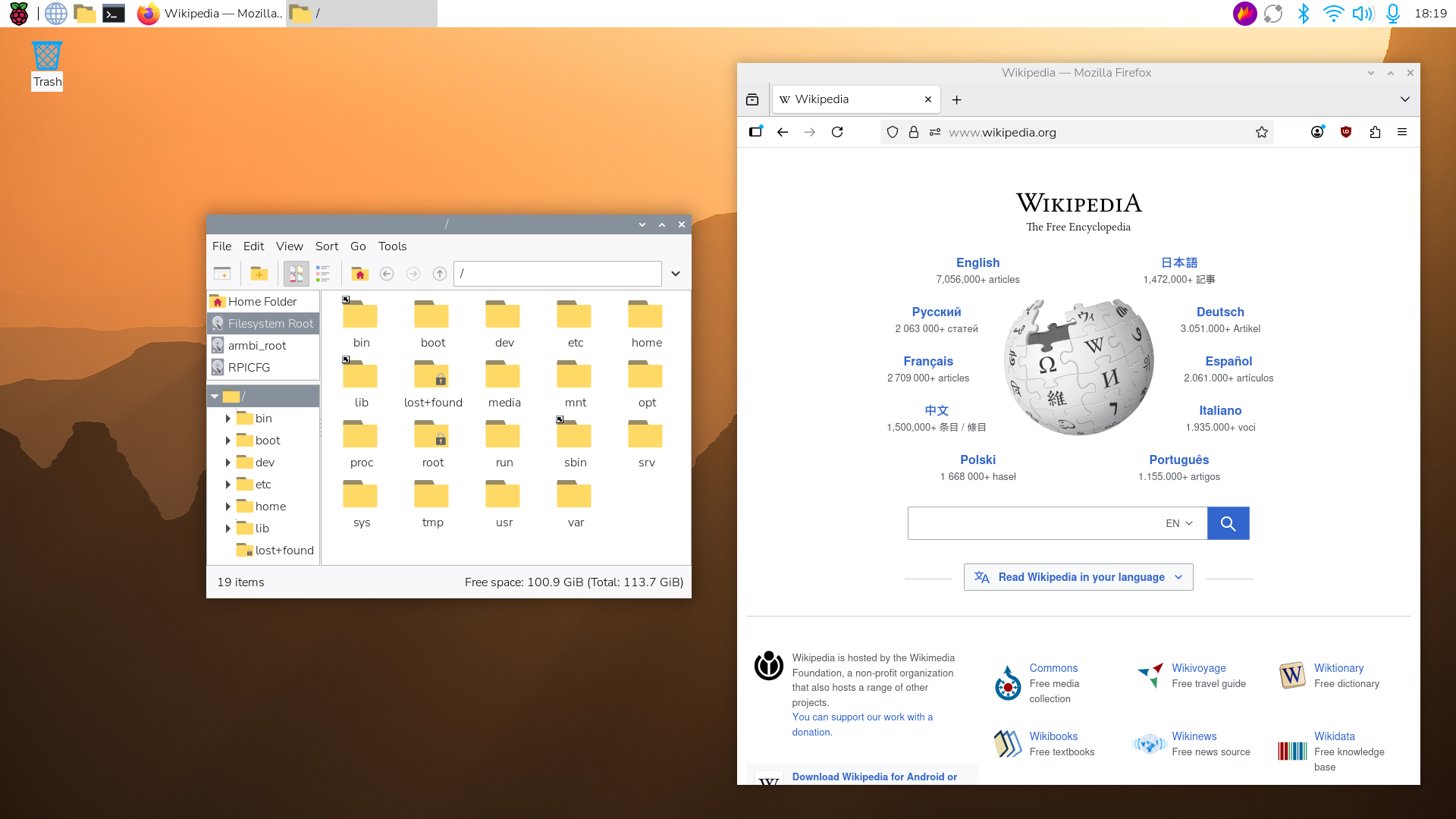
Based on: Debian | Desktop: PIXEL | Ages: 7 and up
If you’ve already bought, or are thinking about buying, a Raspberry Pi for your kid, this is the OS that ships with it, and there’s rarely a reason to look elsewhere. It’s the official, Debian-based operating system maintained directly by the Raspberry Pi Foundation, a nonprofit whose entire purpose is getting kids into computing.
This one’s a bit different from the rest of the list since it’s built for Raspberry Pi hardware specifically, not a regular laptop. If the goal is teaching your kid how computers actually work rather than just how to use one, this is the pick.
Features:
- Scratch for visual, block-based programming
- Thonny, a beginner-friendly Python editor
- Sonic Pi, which teaches coding by having kids make music with it
- Direct access to the Raspberry Pi Foundation’s free official projects and lesson plans
Pros:
- Built by the same nonprofit that makes the hardware, so everything’s designed to work together
- An enormous library of free, structured projects and lessons
- Teaches real hardware fundamentals a laptop can’t, like GPIO pins and physical computing
- Cheap hardware to get started with
Cons:
- Needs actual Raspberry Pi hardware, it’s not built for a regular laptop
- Less polished as a daily-use desktop compared to Mint or Zorin
- Works best paired with hands-on projects rather than general browsing
More Linux Distros for Schools and Homeschool Groups
These two didn’t make the main list because they’re built more for schools and IT-managed setups than a single kid’s laptop, but they’re worth knowing if that’s your situation.
- Ubermix was built by Jim Klein, a school district CTO in California, specifically to make student devices as simple and reliable as a phone. It has a 20-second recovery feature that wipes a device back to a clean state, genuinely useful if you’re managing more than one kid’s computer. It’s been used by more than 60 school districts, though these days it’s maintained mostly for Klein’s own district rather than pushed out on a fast public release cycle.
- Debian Edu, also called Skolelinux, is built for whole-school network deployments, with centralized management and support for thin clients. It’s been around since the early 2000s, jointly started in Norway and France. Setup is more technical than anything else on this list, so it makes the most sense for an IT-comfortable teacher or a homeschool co-op running a small shared server, not a single home computer.
Linux Distros for Kids You Should Skip
A lot of “best Linux for kids” lists floating around the internet haven’t been updated in years, and they keep recommending distros that don’t exist in any usable form anymore. Two come up constantly.
- Qimo 4 Kids used to be one of the most recommended kids’ distros around, thanks to its cartoon-style interface and lightweight Xfce desktop. The project officially shut down in January 2016, and its last release is based on Ubuntu 10.04 from 2010. The old domain has since expired. There’s no reason to install something with over a decade of missing security updates when Endless OS and Zorin Education exist.
- Kano OS shipped with Kano’s build-it-yourself Raspberry Pi computer kits for kids and was genuinely popular for a while. Development stopped in 2019, and the company behind it shut down in 2023. If you’ve got an old Kano kit sitting in a closet, flash it with Raspberry Pi OS instead. It’ll work better than the original software did.
How to Set Up Parental Controls on Linux
Picking the right distro solves half the problem. Here’s how to lock things down once it’s installed.
- Create a separate standard account for your kid. This is the single most useful step, and it works on every distro on this list. A standard, non-admin account can’t install software, change system settings, or dig into other users’ files without a password. Don’t let your kid use an admin account, even if it’s more convenient in the short term.
- Use the built-in Parental Controls app on GNOME-based distros. Endless OS, Edubuntu, and standard Ubuntu all use the GNOME desktop, which includes a real Parental Controls app built on a project called Malcontent. It lets you mark an account as a child account and restrict which apps they can open based on age ratings, plus block specific software entirely. GNOME 50, which landed in Ubuntu 26.04 LTS this year, added actual screen time and bedtime limits on top of that. Worth knowing: it works most reliably with Flatpak apps, and desktops like Cinnamon on Linux Mint don’t hook into the same system, so treat this as a GNOME-family feature rather than something every distro supports equally.
- Filter content at the network level. A DNS-based filter, like a router-level family filtering service or a self-hosted Pi-hole, blocks inappropriate content for every device on your Wi-Fi, not just the Linux machine. This is the most reliable option if a distro’s built-in tools feel incomplete, and it works no matter what OS your kid ends up using.
- Set a kid-safe default in the browser. Most of these distros ship with Firefox. Set a kid-appropriate search engine as the default and consider adding a content-filtering extension on top of the network-level filtering above.
Tips for Getting Your Kid Started
- Try a live USB first. Every distro on this list can run directly from a USB stick without installing anything. Let your kid poke around before you commit to a full install.
- Give them a machine that’s actually theirs. An old laptop that’s “the kid’s computer” gets more real engagement than a shared family machine they have to ask permission to use.
- Let them break it. Seriously. Endless OS’s immutable core and Linux Mint’s Timeshift backups mean most mistakes are a quick reset away, not a disaster. Treat it as part of learning rather than something to prevent entirely.
- Mix and match software. GCompris, Tux Paint, and Scratch all install as regular apps on almost any distro on this list. You’re not locked into only what ships by default.
- Check compatibility with school tools first. Some locked-down homework portals and testing software don’t play nicely with Linux. Run a quick test before fully switching your kid’s main computer.
Frequently Asked Questions
Is Linux safe for kids to use?
Yes, generally more so than Windows for a shared family computer. Linux isn’t a common target for malware, most distros run apps in a standard, restricted account by default, and options like Endless OS are built so the core system resists being broken through normal use.
What age can a kid start using Linux?
With Sugar on a Stick, kids as young as 3 can navigate the icon-based interface without reading a word. For a standard desktop layout like Linux Mint or Zorin, most kids do fine starting around age 7 or 8, once they’re comfortable reading menu labels.
Can my kid still play games like Minecraft or Roblox on Linux?
Minecraft: Java Edition runs natively on Linux with no workarounds needed. Roblox doesn’t officially support Linux, though some people get it running through compatibility tools like Steam’s Proton. Results vary, so test it before promising your kid it’ll work.
Will Linux make an old laptop run faster?
Usually, yes. Every distro on this list uses less RAM and storage than a modern version of Windows, which is exactly why schools and nonprofits lean on Linux to keep old hardware useful for years longer.
Do I need to already know Linux to set this up?
Not really. Installing Linux Mint, Zorin, or Endless OS is a guided, click-through process similar to installing Windows. You’ll pick up basic troubleshooting along the way, and the communities behind each of these distros are active and used to beginner questions.
Is any of this actually free?
Yes, every distro covered here is free to download and use, with no license fees or required subscriptions. Zorin OS Pro is a paid upgrade with extra themes and apps, but it’s entirely optional. Everything else works exactly the same whether you pay or not.
What’s the actual difference between a “kids’ distro” and regular Ubuntu with some apps installed?
Not much, technically. Edubuntu, Zorin Education, and Endless OS just save you the setup work: bundled educational software and kid-appropriate defaults, ready out of the box. You could build the same setup yourself on plain Ubuntu, these options just do it for you in advance.
Which Linux Distro Should You Actually Pick
If you’re still not sure, here’s the short version. Pick Linux Mint if your kid is old enough to use a regular computer and you want something that just works. Pick Endless OS if they’re younger or your internet isn’t reliable. Pick Zorin OS Education if coding and STEM projects are the actual goal. All three are free, all three are actively maintained, and none of them are designed to keep your kid scrolling.