ChromeOS is built around a browser. If that suits you, fine. If you want a real desktop, full-size apps and a laptop that keeps getting security patches after Google stops updating it, Linux is the obvious next step.
The catch is that Chromebook hardware is not standard PC hardware. Audio, keyboard layouts and firmware all need attention, and the wrong distro can leave you with a laptop that has no sound. This guide covers the two ways to run Linux on a Chromebook, ten distros worth your time, and the checks that save you a wasted afternoon.
The short answer
- Keep ChromeOS and add Linux: turn on the built-in Linux environment, which is Debian-based. No firmware changes needed.
- Newer Chromebook, full install: Fedora Workstation.
- 8 GB of RAM and a long support window: Ubuntu 26.04 LTS.
- Older Chromebook with 4 GB of RAM: Lubuntu or MX Linux.
- You like building your own system: EndeavourOS or Arch Linux.
Linux distros for Chromebooks compared
| Distro | Based on | Default desktop | Kernel at release | Update model | Comfortable RAM | Best for | Learning curve |
|---|---|---|---|---|---|---|---|
| Fedora Workstation 44 | Independent | GNOME 50 | 6.19, with 7.0 via updates | Fixed releases, about 13 months of support each | 8 GB | Newer Chromebooks | Medium |
| Ubuntu 26.04 LTS | Debian | GNOME 50 | 7.0 | LTS, 5 years (10 with Ubuntu Pro) | 8 GB (Canonical lists 6 GB) | Beginners with 8 GB or more | Low |
| Pop!_OS 24.04 LTS | Ubuntu | COSMIC | 6.17 at launch | LTS on an Ubuntu 24.04 base | 8 GB | Tiling fans on newer models | Low to medium |
| EndeavourOS | Arch | Your choice at install | Latest | Rolling | 4 GB or more | Arch without the manual install | Medium |
| Arch Linux | Independent | None, you choose | Latest | Rolling | 4 GB or more | Full control and a small footprint | High |
| openSUSE Tumbleweed | Independent | Your choice at install | Latest | Rolling, with snapshots | 8 GB (4 GB with Xfce) | Rolling releases with rollbacks | Medium |
| Debian 13 (Trixie) | Independent | GNOME 48 (Xfce and LXQt available) | 6.12 LTS | Stable, supported to June 2030 | 4 GB | Stability on older models | Medium |
| Lubuntu 26.04 LTS | Ubuntu | LXQt 2.3 | 7.0 | LTS, 3 years | 4 GB (2 GB works) | Low-RAM Chromebooks | Low |
| MX Linux 25.3 | Debian | Xfce 4.20 | 6.12 (7.2 on the AHS edition) | Stable point releases | 4 GB | Older machines that want a newer kernel | Low |
| Linux Mint 22.3 | Ubuntu | Cinnamon | Ubuntu 24.04 base | LTS base, supported to 2029 | 4 GB (Xfce for less) | Windows switchers | Low |
RAM figures are practical guidance for Chromebook use, not official minimums. Canonical’s release notes list 6 GB for Ubuntu 26.04 and say Lubuntu or Xubuntu work on 2 GB or more. Kernel versions are the ones at release, and rolling distros move on. Learning curve covers the whole Chromebook setup, including the audio and keyboard fixes.
In this guide
- What is a Chromebook?
- Why run Linux on a Chromebook?
- Two ways to run Linux on a Chromebook
- Before you install anything
- Best Linux distros for newer Chromebooks
- Best Linux distros for older and low-RAM Chromebooks
- Comparison table
- Which distro should you pick?
- Common Chromebook problems and fixes
- How to install Linux on a Chromebook
- Frequently asked questions
What is a Chromebook?
A Chromebook is a laptop or 2-in-1 that runs ChromeOS, Google’s browser-centered operating system. ChromeOS is built on the Linux kernel, but it is not a desktop Linux distro. You get Chrome, web apps, Android apps from Google Play on most models, and an optional Linux environment aimed at developers.
The hardware is usually modest: efficient processors, small drives, and 4 GB of RAM on many budget models. Chromebook Plus models start at 8 GB.
Every Chromebook also has an expiry date. Google’s policy is 10 years of automatic updates, counted from the release of the device’s platform, so a model bought late in its life gets fewer. After the final update, ChromeOS and browser updates stop. You can find your date under Settings, About ChromeOS, Additional details, in the Update schedule section (Google’s guide).
The platform is changing as well. In May 2026 Google announced Googlebooks, laptops built on a new operating system that combines ChromeOS and Android technology. Google says existing Chromebooks will keep receiving updates through their supported lifetime (Google’s notice). Nothing changes for the Chromebook you own today, but it is one more reason to know what else it can run.
Why run Linux on a Chromebook?
Chromebooks and Linux fit together better than most people expect.
- Updates that outlast ChromeOS. A Chromebook past its final update stops getting ChromeOS and browser patches. A Linux distro with an active security team keeps patching the same hardware. Debian 13, for example, is supported until June 2030.
- Real desktop software. LibreOffice, GIMP, Kdenlive, Inkscape and a full development toolchain run natively instead of through a web app or a virtual machine.
- A good match for light hardware. The Chrultrabook project lists Linux as lightweight and well suited to Chromebooks with low storage or slow CPUs.
- Free audio drivers. On Skylake-era and newer models, Windows needs a paid audio driver. On Linux, audio support is free.
- Control. You choose the desktop, the browser, the update schedule and what runs at startup.
Linux is not a cure-all. Some hardware never works properly, and the Chrultrabook team says outright that buying a Chromebook only to run Linux is a bad plan. More on that below.
Two ways to run Linux on a Chromebook
Pick a route before you pick a distro. The route decides which distros are even possible.
Route 1: Linux on ChromeOS (built in)
ChromeOS ships with a Linux environment, often called Crostini. Open Settings, expand Advanced, go to Developers and turn on Linux. ChromeOS sets up a Debian-based environment, adds a Terminal app and lists Linux apps in the launcher next to your regular apps. It is reversible, needs no firmware changes and takes a few minutes (Google’s setup guide).
Google is reworking it. A new architecture called Baguette drops containers and runs the Linux environment directly in a virtual machine, and it becomes the default for new installs starting with ChromeOS M147. Google has also deprecated the UI-based Debian upgrade, UI-based .deb installs and multi-container support, and it lists graphics acceleration as no longer supported, meaning it may still work but bugs will not be fixed (Google’s Linux on ChromeOS news).
Best for: coding, command-line tools and light desktop apps. Poor fit for: GPU-heavy work, gaming and anything that needs direct hardware access.
Route 2: Custom firmware for a full install
To run a full desktop distro, you flash different firmware. The MrChromebox project offers two kinds:
- RW_LEGACY: lets you dual boot ChromeOS and Linux. It is not available for every device.
- UEFI Full ROM: replaces the stock firmware with coreboot and edk2, so the Chromebook boots like an ordinary UEFI PC. This is the route for running Linux without ChromeOS.
Some rules apply to both:
- MrChromebox firmware supports Intel and AMD x86_64 devices only. ARM Chromebooks with MediaTek, Rockchip or Qualcomm chips are not supported at all, so ARM owners should stay with the built-in Linux environment (MrChromebox known issues).
- Support depends on your device’s board name. Check the MrChromebox supported devices list and the Chrultrabook Device Support Status page before you buy or flash anything.
- The firmware utility script runs from ChromeOS or a full Linux shell. It does not run inside the Linux environment on ChromeOS (script documentation).
- Flashing firmware carries risk. A failed flash can brick the device, which is why MrChromebox keeps an unbricking guide.
- MrChromebox supplies the firmware, not OS support. Help with distros comes from the Chrultrabook community.
Old advice to ignore
Older guides point to GalliumOS, a Xubuntu-based distro built for Chromebooks. The project was discontinued in 2022, its last release (3.1) came out in December 2019, and its wiki tells users to move to another OS because of security risks. Guides that tell you to enable Legacy or CSM mode are outdated too, because the UEFI firmware does not support it (MrChromebox FAQ).
Before you install anything
Run through this list first.
- Confirm your Chromebook is x86 and supported. Find your board name and check it against the lists above.
- Choose a recent distro. The Chrultrabook docs currently say only Linux kernel 6.19 or newer is supported, and that old LTS releases (more than a year old) may have issues (Installing Linux). Older platforms may run fine on older kernels, but they fall outside what the project supports.
- Match the distro to your hardware. Plenty of budget Chromebooks have 4 GB of RAM and small drives. Canonical recommends 6 GB of RAM and 25 GB of free space for Ubuntu 26.04, so a lighter desktop makes more sense on those machines.
- Plan for audio and keyboard fixes. Both need attention after installation. See the fixes section below.
- Back up your files and your stock firmware. The firmware script can back up the current firmware to USB. It restores stock firmware only on devices that have not reached end of life, so do not skip the backup on an older machine.
- Do not buy a Chromebook only to run Linux. The Chrultrabook FAQ advises against it and warns not to expect everything to work out of the box (Chrultrabook FAQ). Use a Chromebook you already own.
Best Linux distros for newer Chromebooks
These picks suit Chromebooks with 8 GB of RAM and recent hardware. Newer platforms lean on fresh kernels and drivers, so this group favors fast-moving releases. The picks draw on the Chrultrabook docs, the Chromebook audio script’s supported list and each project’s release notes as of late September 2026.
1. Fedora Workstation
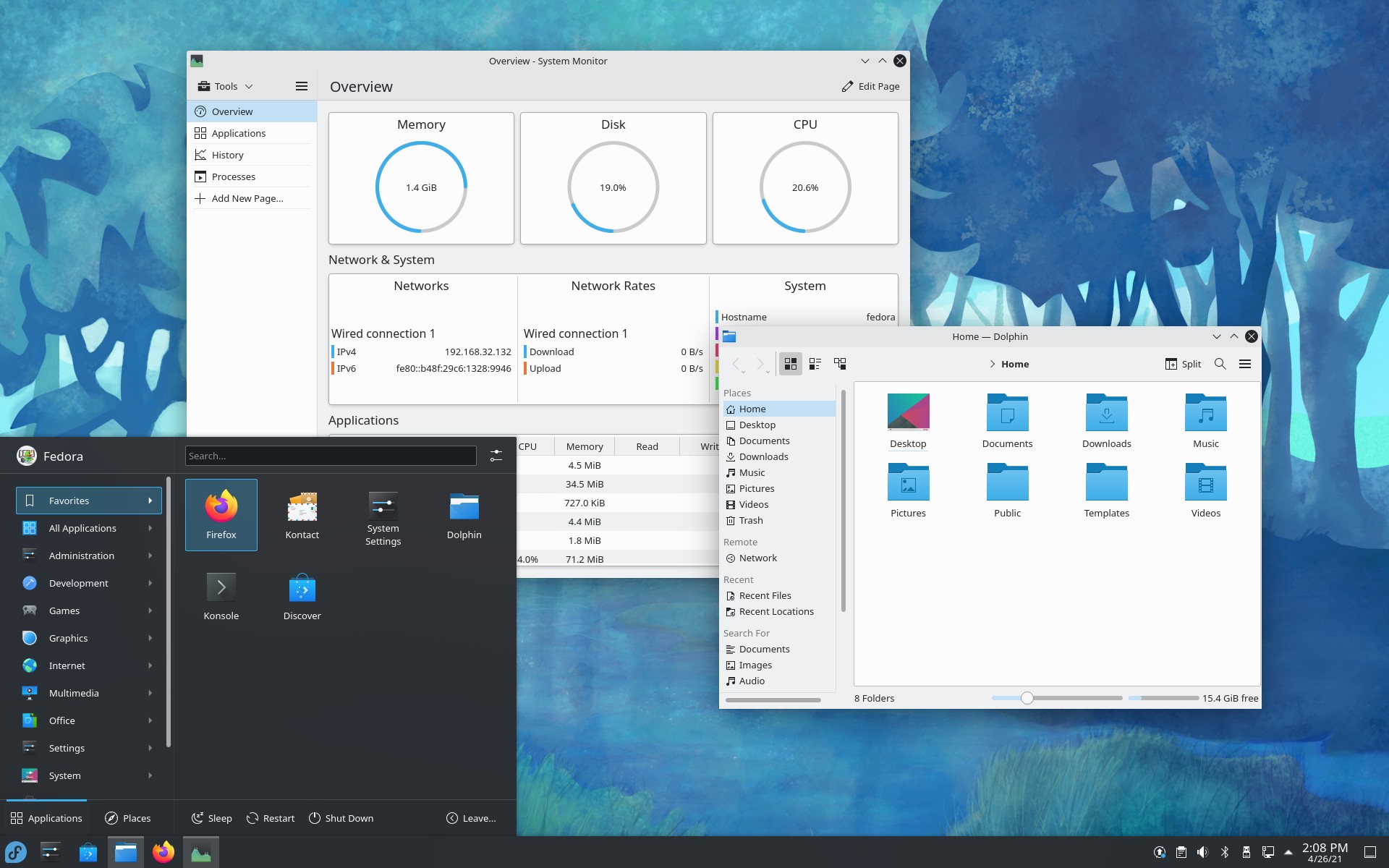
Fedora is the closest thing to a default recommendation for a newer Chromebook. Fedora 44 arrived on April 28, 2026 with GNOME 50 and Linux 6.19, and newer kernels keep landing through regular updates. The Chrultrabook docs recommend Fedora and the Fedora-based Ultramarine Linux (Fedora 44 announcement).
Best for: newer Chromebooks with 8 GB of RAM that benefit from a fresh kernel.
Main features
- GNOME 50 on Workstation, plus a KDE Plasma edition and Xfce and Budgie spins
- Btrfs with transparent compression by default, which stretches a small drive
- Immutable Atomic variants such as Silverblue and Kinoite
Pros
- Fresh kernel and Mesa suit newer Chromebook hardware
- GNOME on Wayland handles touchpad gestures and touchscreens well, which helps on 2-in-1 models
- The audio script supports Fedora, so the sound fix is a known path
Cons
- Each release gets about 13 months of support, so you upgrade roughly twice a year
- GNOME feels heavy on 4 GB of RAM
- Some media codecs need RPM Fusion, a third-party repository
2. Ubuntu 26.04 LTS
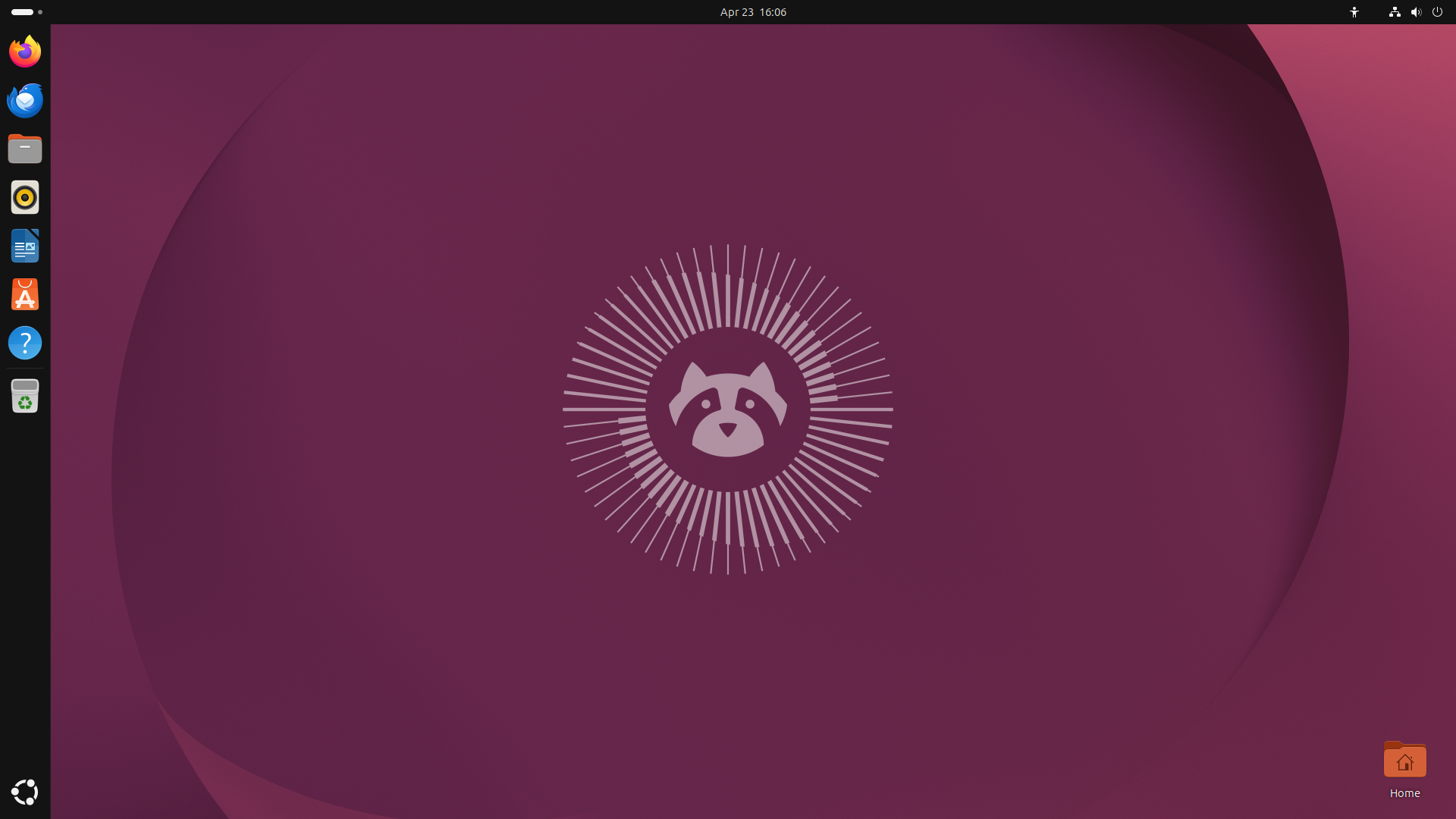
Ubuntu is the distro most people already know. Ubuntu 26.04 LTS, released April 23, 2026, runs Linux 7.0 and GNOME 50 and gets five years of standard security updates, extendable to ten with Ubuntu Pro. The new kernel clears the Chrultrabook baseline that Ubuntu 24.04 missed (Ubuntu 26.04 release notes).
Best for: beginners with 8 GB of RAM or more who want a long support window.
Main features
- Linux 7.0 and GNOME 50 on Wayland
- Standard support until April 2031
- Huge software catalog through apt and the Snap Store
Pros
- The largest community, so most questions already have an answer
- Few upgrades thanks to the five-year support life
- The audio script lists Ubuntu 25.10 as officially supported
Cons
- Canonical recommends 6 GB of RAM and 25 GB of free space, which rules out many 4 GB and 32 GB Chromebooks
- The Chrultrabook FAQ has warned that Ubuntu and Ubuntu-based distros may have audio problems, so read the current docs for your device first
- Firefox and other default apps come as Snaps, which some users avoid
3. Pop!_OS 24.04 LTS
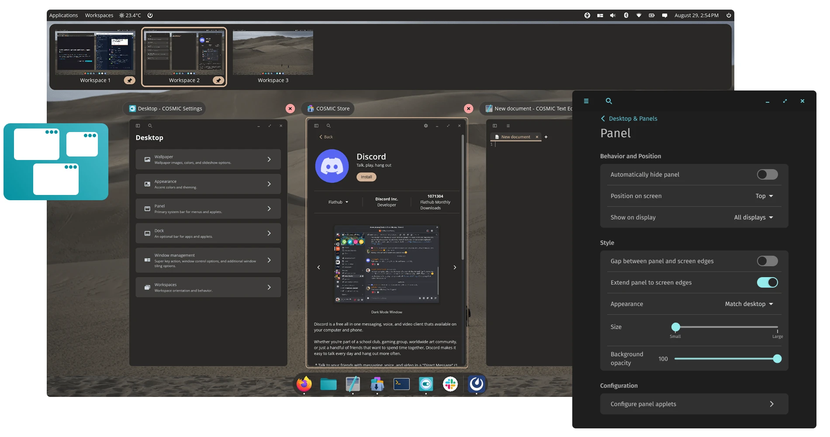
System76’s distro sits on an Ubuntu 24.04 base but runs a newer kernel and graphics stack. Pop!_OS 24.04 LTS, released December 11, 2025, introduced COSMIC, a desktop written from scratch in Rust with built-in tiling. It appears on the Chrultrabook recommended list.
Best for: newer Chromebooks with 8 GB of RAM, and anyone who likes tiling windows on a small screen.
Main features
- COSMIC desktop with auto-tiling and a configurable panel and dock
- Linux 6.17 and Mesa 25.1 at launch, newer than stock Ubuntu 24.04
- Flathub enabled out of the box
Pros
- Fresher kernel and drivers than plain Ubuntu 24.04
- Tiling makes good use of a small display
- Full access to the Ubuntu package archive
Cons
- COSMIC is young, so some settings and customization options trail GNOME and KDE
- Heavier than Xfce or LXQt
- The Ubuntu 24.04 base means older core packages than Fedora 44 or Ubuntu 26.04
4. EndeavourOS
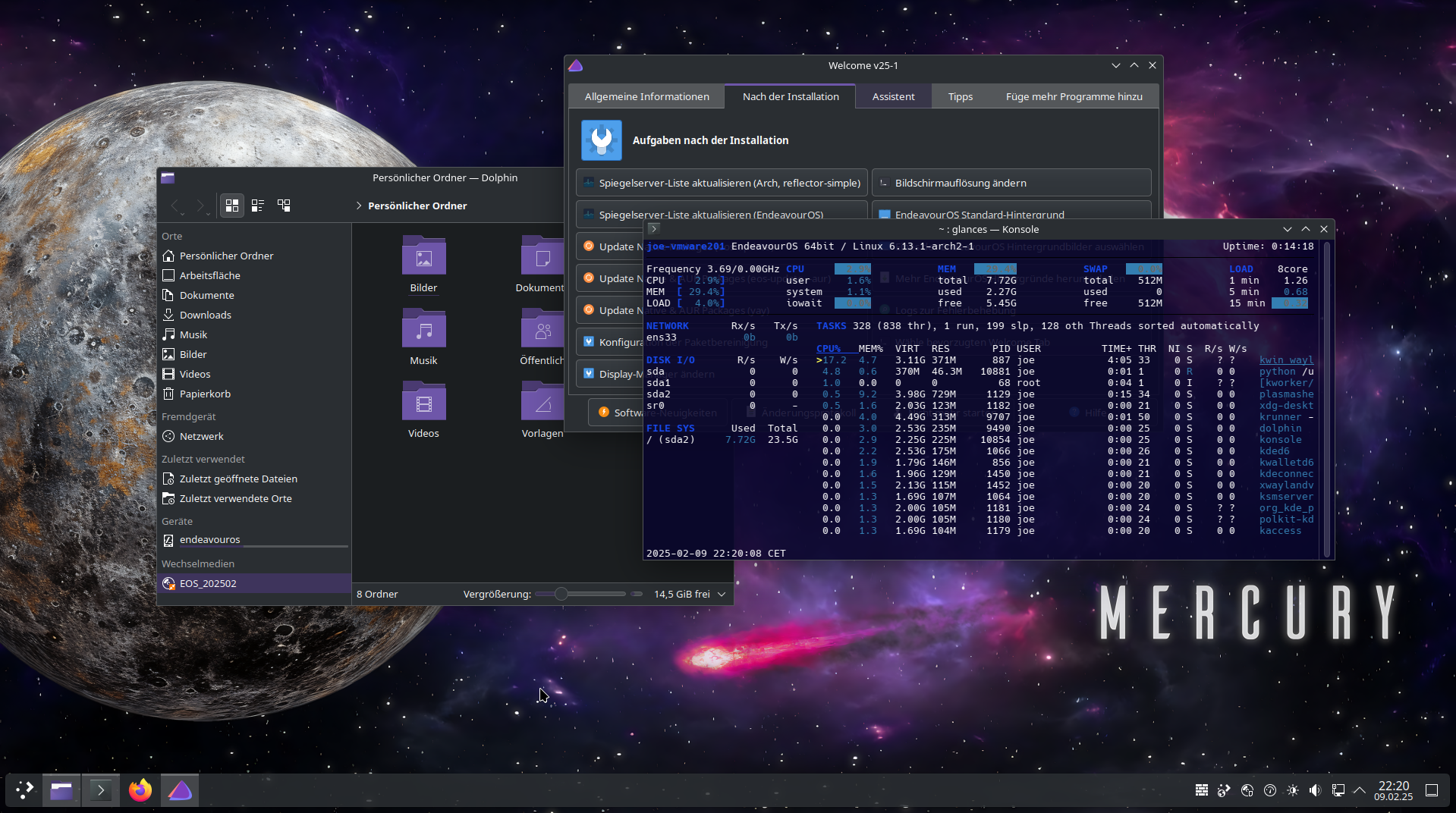
EndeavourOS is Arch Linux with a graphical installer and a friendly community. It stays close to vanilla Arch, so you get new kernels and the Arch User Repository without typing out a manual install. The Chrultrabook docs recommend it alongside Arch Linux.
Best for: confident terminal users who want the newest kernel without a from-scratch install.
Main features
- Calamares graphical installer, with an online install that lets you pick your desktop
- Rolling release, so there are no version upgrades
- Access to the Arch repositories and the AUR
Pros
- New kernels and Mesa arrive as soon as Arch ships them
- Easier to set up than Arch, with the ArchWiki behind it
- Pick Xfce or LXQt for a light footprint
Cons
- An update can break something, and you are the one who fixes it
- Not a set-and-forget system: read the news before big updates
- Chromebook audio and keyboard fixes still need manual work
5. Arch Linux
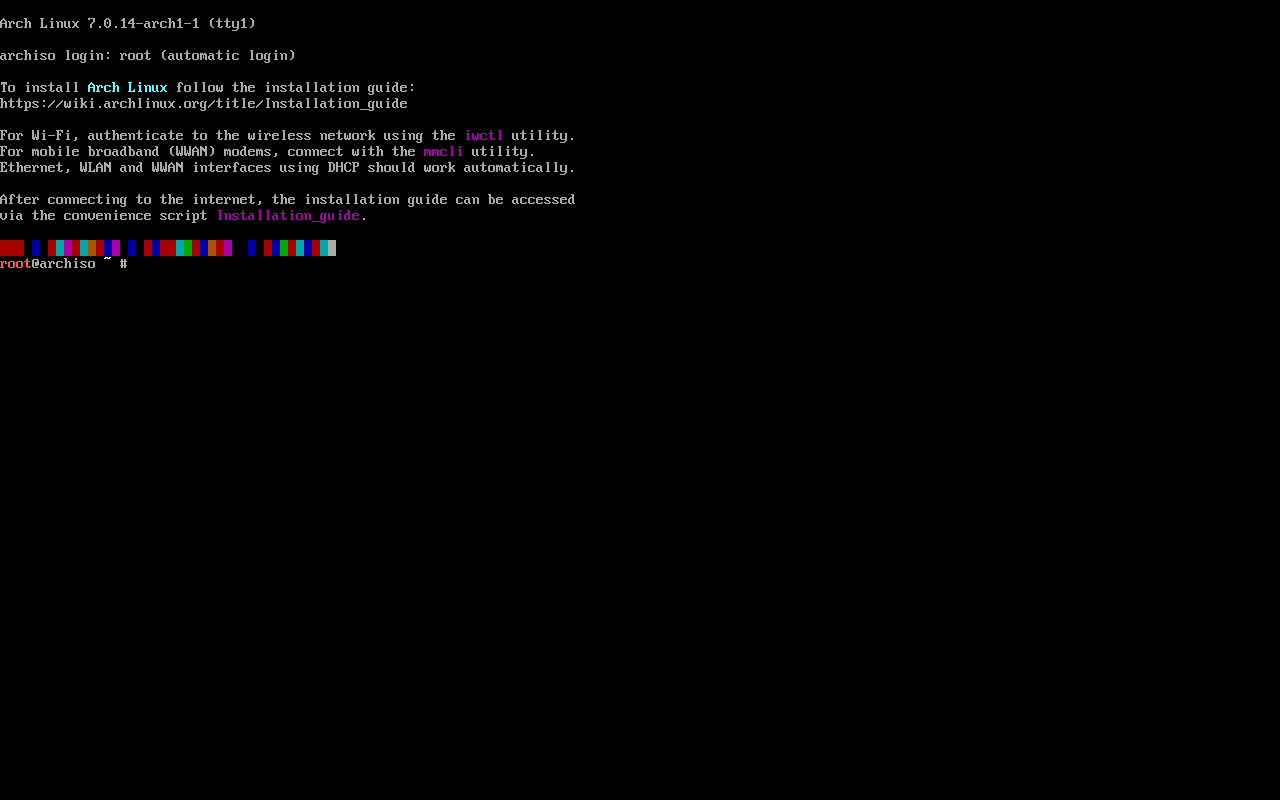
Arch gives you nothing you did not ask for, which is the appeal on a small Chromebook drive. The ArchWiki has dedicated pages for Chrome OS devices and custom firmware, and the audio script lists Arch as officially supported.
Best for: experienced users who want full control and the smallest footprint.
Main features
- Rolling release with the pacman package manager and the AUR
- A guided
archinstallscript alongside the manual install - You choose the kernel, desktop and bootloader
Pros
- A minimal base leaves more room for your files
- Newest kernel and drivers
- Excellent documentation, including Chromebook-specific pages
Cons
- Setup and upkeep take time and skill
- No rollback by default when an update goes wrong
- Rolling updates need regular attention
6. openSUSE Tumbleweed
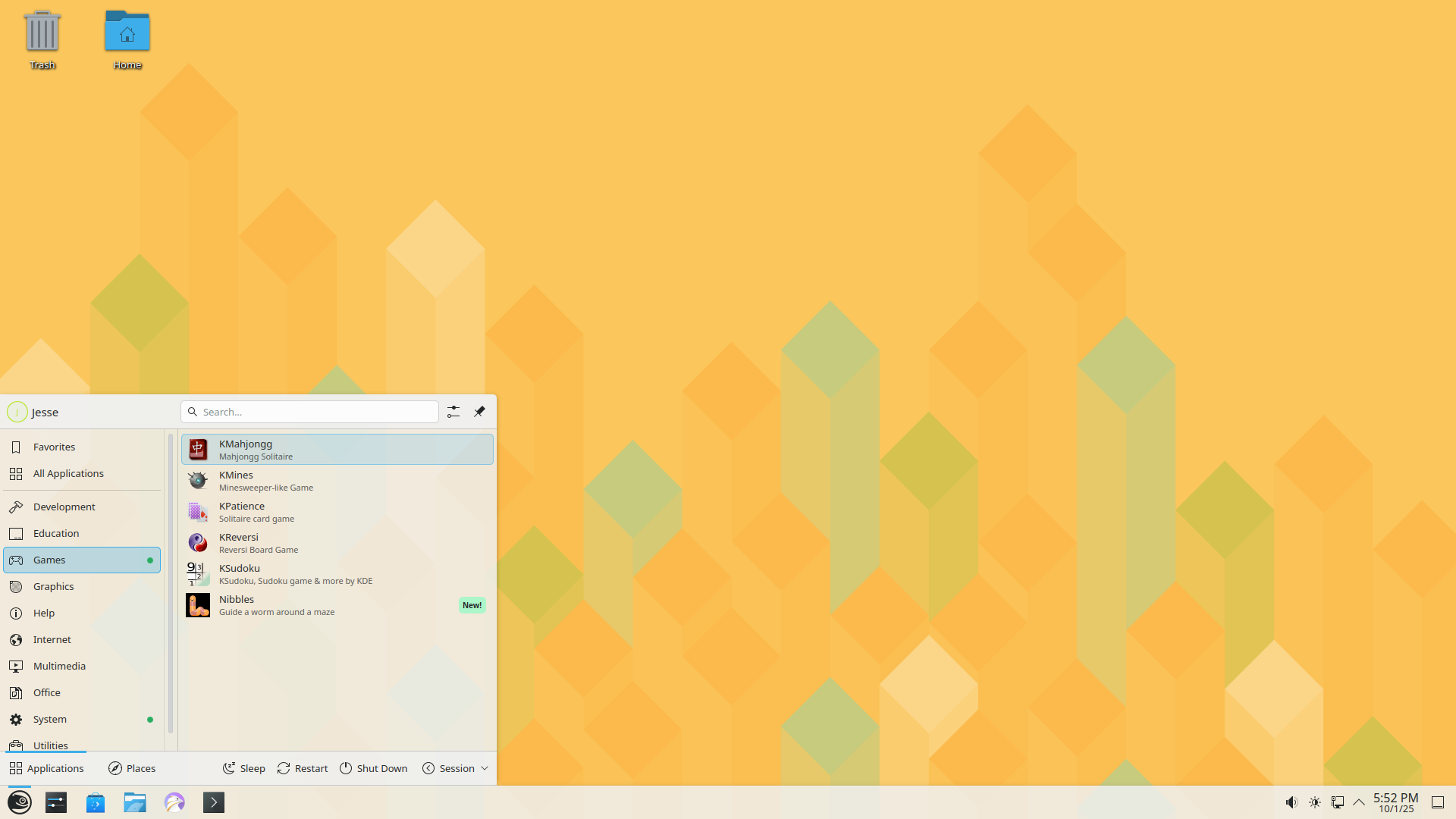
Tumbleweed is a rolling release with a safety net. Snapshots let you roll back after a bad update, which matters on hardware where a kernel change can break audio or suspend. The Chrultrabook docs recommend it, and the audio script lists it as officially supported.
Best for: people who want fresh software and an undo button.
Main features
- Btrfs with Snapper snapshots by default, and the option to boot an older snapshot from the GRUB menu
- Rolling release, with each snapshot tested before it ships
- KDE Plasma, GNOME, Xfce and other desktops selectable at install
Pros
- Rollbacks after a bad update
- New kernel and Mesa versions
- Named by both the Chrultrabook docs and the audio script
Cons
- Fewer Chromebook-specific guides than Arch, Fedora or Ubuntu
- Snapshots use space on a small drive unless you prune them
- Full multimedia codec support means adding Packman, a third-party repository
Best Linux distros for older and low-RAM Chromebooks
A Chromebook with 4 GB of RAM and a 32 GB drive needs a lighter approach. Canonical’s own release notes point machines with 2 GB of RAM or more toward Lubuntu or Xubuntu instead of the standard Ubuntu desktop. On these machines the desktop environment matters as much as the distro, so lean toward Xfce or LXQt.
7. Debian 13 (Trixie)
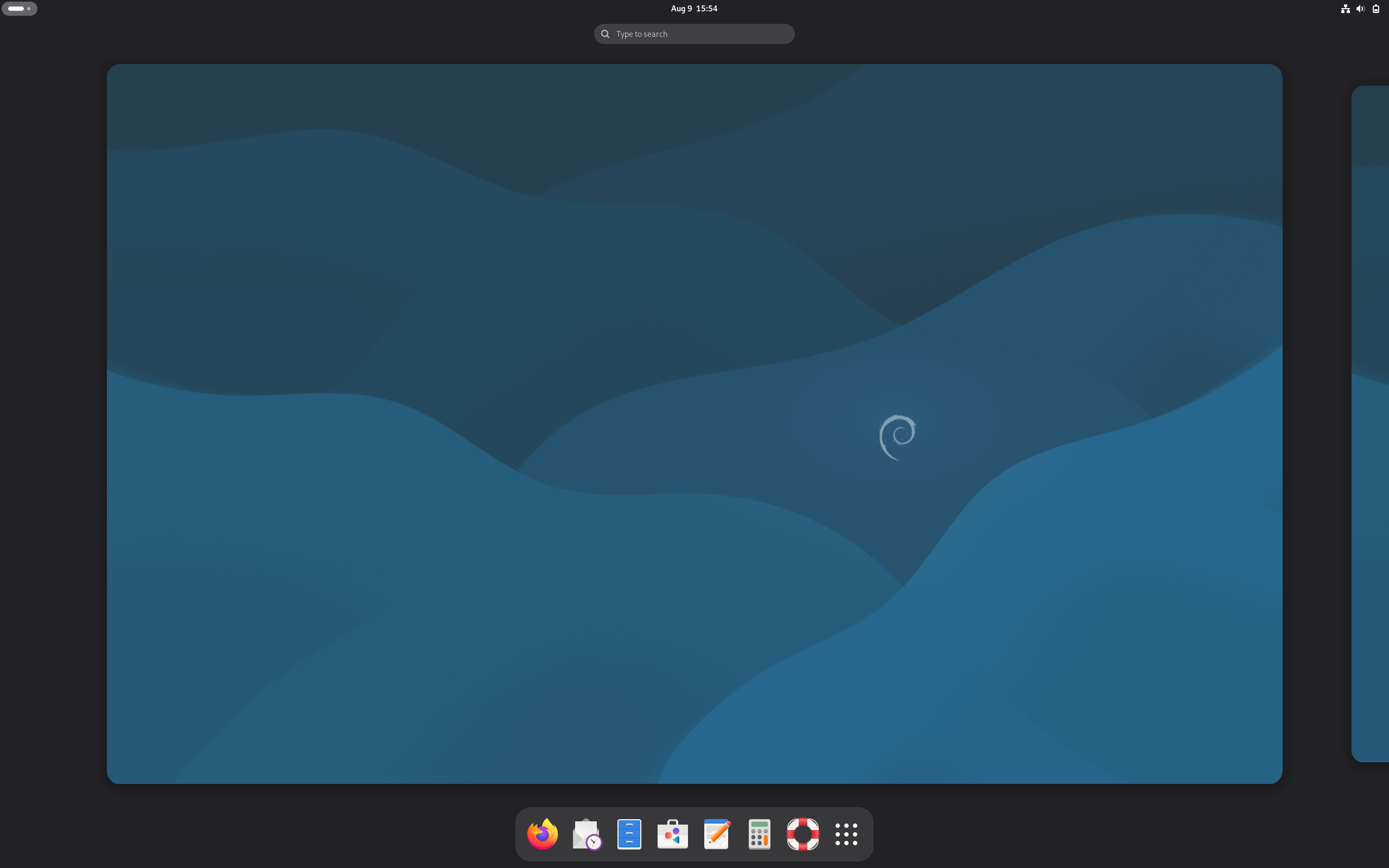
Debian is what runs inside ChromeOS’s built-in Linux environment, so it feels familiar if you have used that. Debian 13 arrived on August 9, 2025 and ships with kernel 6.12 LTS. The latest point release, 13.7, landed on September 12, 2026. Full support runs until August 2028, and LTS extends security updates to June 30, 2030 (Debian release information).
Best for: stability seekers who want a light install (Xfce or LXQt) and years of updates.
Main features
- Kernel 6.12 LTS, with Xfce 4.20, GNOME 48 and KDE Plasma 6.3 available
- Trixie is on the audio script’s officially supported list
- A backports repository that typically carries newer kernels
Pros
- Predictable and stable
- Five years of security updates
- Runs comfortably on 4 GB with a light desktop
Cons
- Kernel 6.12 sits below the 6.19 baseline in the Chrultrabook docs, so newer Chromebooks may need a backports kernel
- Software versions trail Fedora and Arch by design
8. Lubuntu 26.04 LTS
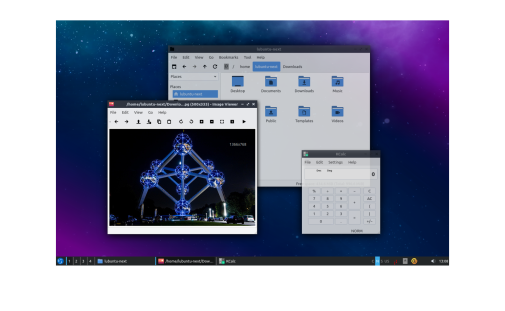
Lubuntu is the lightest mainstream Ubuntu flavor. Lubuntu 26.04 LTS, released April 23, 2026, uses LXQt 2.3 on Linux 7.0 and is supported until April 2029 (Lubuntu release post). Ubuntu’s release notes name it as a fit for machines with 2 GB of RAM or more.
Best for: 4 GB Chromebooks and small drives.
Main features
- LXQt 2.3, a Qt 6 desktop with a low memory footprint
- Ubuntu 26.04 base with the full Ubuntu archive
- Linux 7.0
Pros
- Light on RAM and CPU
- Kernel 7.0 clears the Chrultrabook baseline
- Familiar Ubuntu packages and documentation
Cons
- Three years of support, against Ubuntu’s five
- No Wayland session on the ISO, which usually means weaker touch and gesture handling on 2-in-1 models
- As an Ubuntu flavor, it inherits the audio caveats the Chrultrabook FAQ raises about Ubuntu
9. MX Linux 25.3
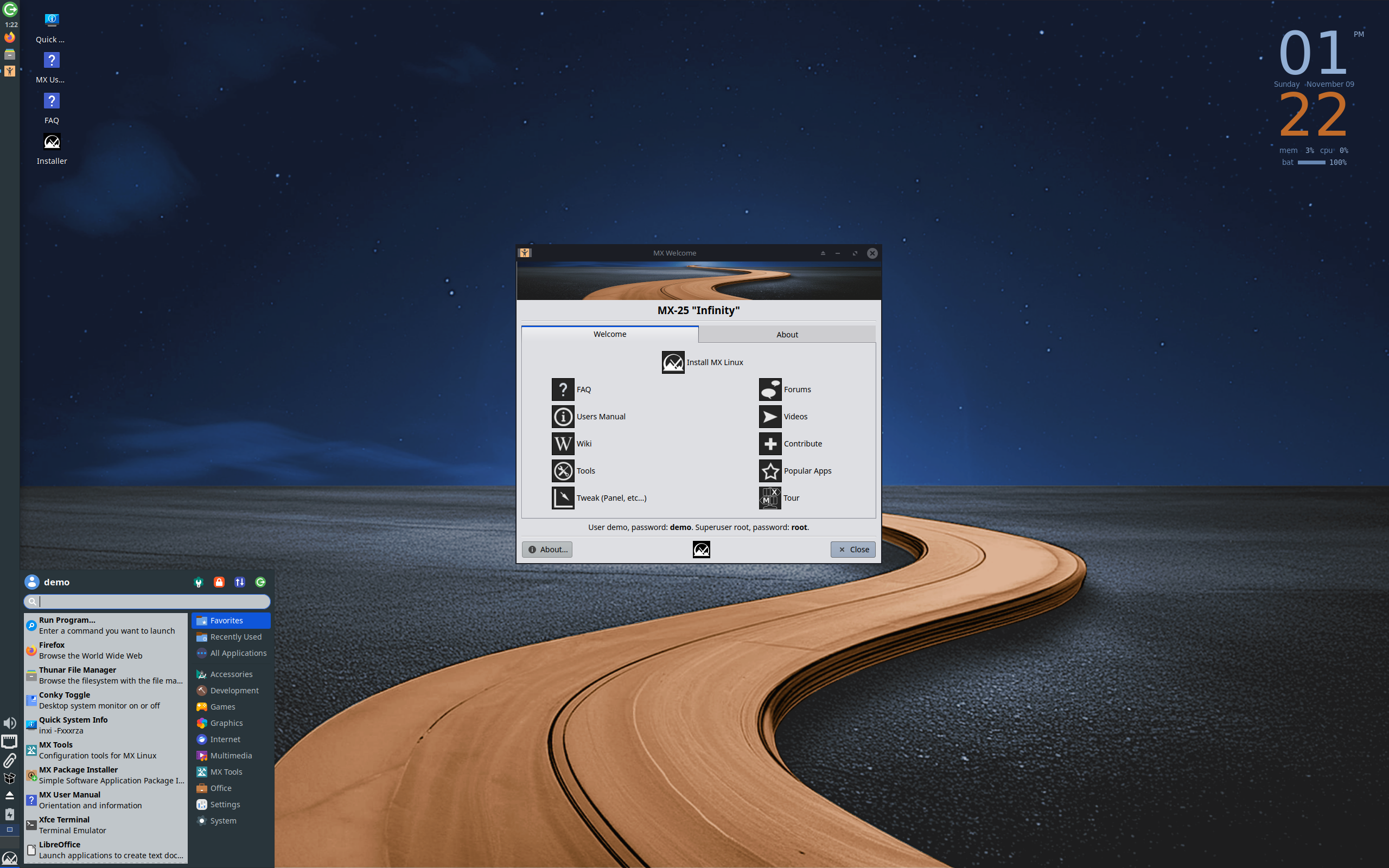
MX Linux is a Debian-based distro known for a tidy Xfce desktop and a big set of practical tools. MX-25.3 (codename Infinity) arrived on September 20, 2026 on Debian 13.7. Most editions use Debian’s 6.12 kernel, but the Xfce AHS (Advanced Hardware Support) edition ships a Liquorix 7.2 kernel and Mesa 26.1, which puts it above the Chrultrabook baseline.
Best for: older and mid-range Chromebooks that need a light desktop and a newer kernel.
Main features
- Xfce, KDE Plasma and Fluxbox editions, plus the Xfce AHS image for newer hardware
- MX Tools, including MX Snapshot for turning your setup into a bootable ISO
- An installer that can set up zram swap, which helps on low-RAM machines
Pros
- Fast and light on 4 GB
- The AHS edition supplies a 7.x kernel and current Mesa
- Debian stability underneath
Cons
- Not on the audio script’s official distro list, so expect to install some packages by hand
- Smaller community than Debian or Ubuntu, so fewer Chromebook-specific guides
10. Linux Mint
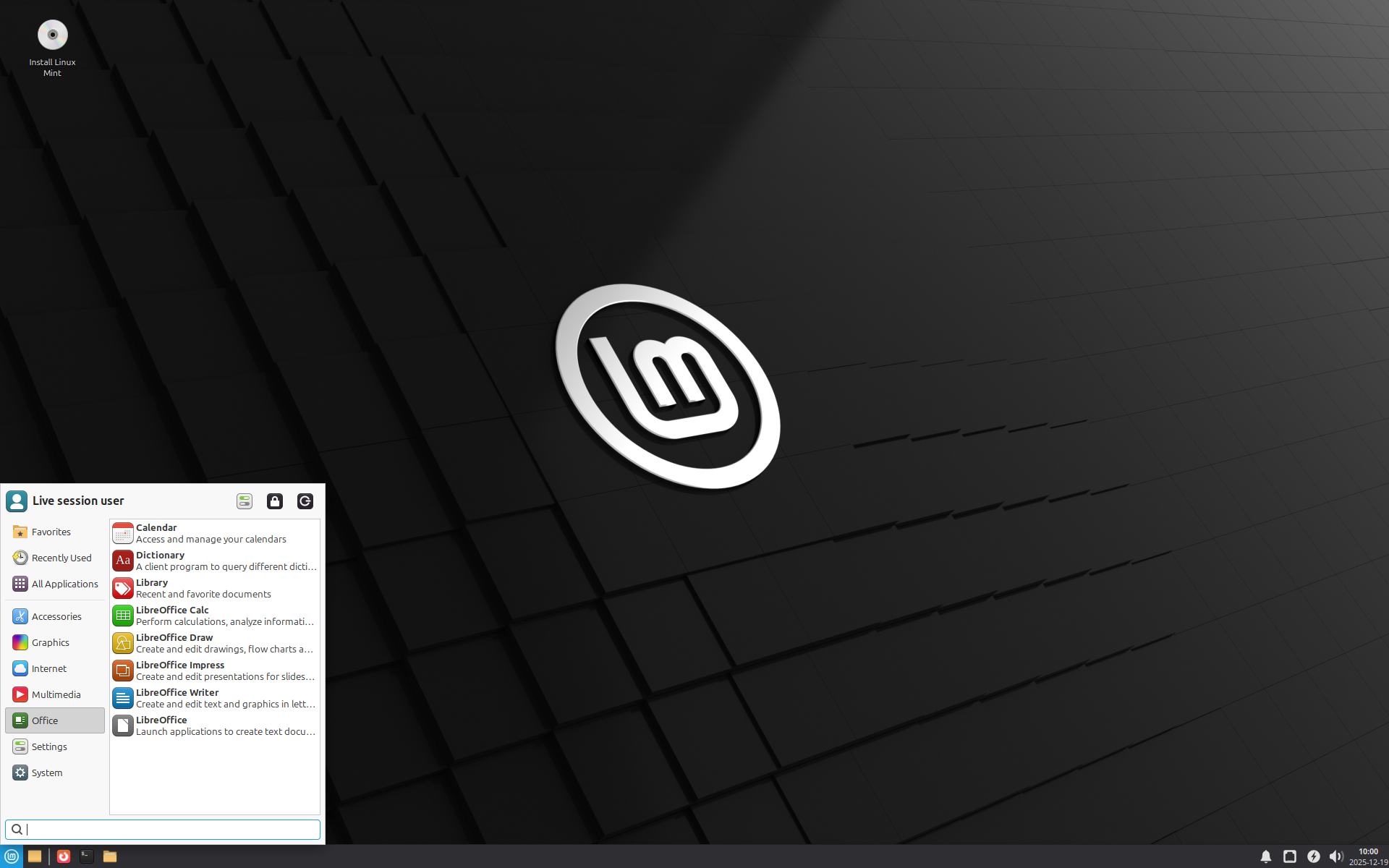
Mint is the easiest recommendation for anyone coming from Windows. Linux Mint 22.3 sits on the Ubuntu 24.04 base and is supported until 2029. On Chromebooks the base is the catch: its kernel is older than the 6.19 the Chrultrabook docs ask for. Mint 23, planned for December 2026, moves to Ubuntu 26.04 and Linux 7.0
Best for: Windows switchers on older Chromebooks. Use the Xfce edition on 4 GB of RAM.
Main features
- Cinnamon, MATE and Xfce editions
- No Snap by default, with Flatpak available through the Software Manager
- Update Manager with a built-in kernel selector, plus LMDE, a Debian-based edition, if you want to skip Ubuntu
Pros
- Familiar layout for Windows users
- Conservative, stable updates
- Easy to try a newer kernel through Update Manager
Cons
- The Ubuntu 24.04 base means an older kernel and Mesa than Fedora, Arch or Ubuntu 26.04
- Cinnamon needs more RAM than Xfce or LXQt
- Newer Chromebooks should wait for Mint 23 or pick another distro
Which distro should you pick?
- You want to keep ChromeOS: use the built-in Linux environment. Debian is already inside it.
- Newer Chromebook that should work with the least fuss: Fedora Workstation.
- 8 GB of RAM and no wish to upgrade every year: Ubuntu 26.04 LTS.
- 4 GB of RAM and a small drive: Lubuntu or MX Linux.
- Stability over novelty: Debian 13 with Xfce.
- You like tinkering: EndeavourOS, or Arch if you want to build it yourself.
- You want a rollback button: openSUSE Tumbleweed.
- You want tiling windows: Pop!_OS.
- You are coming from Windows: Linux Mint, ideally after Mint 23 arrives if your Chromebook is recent.
Common Chromebook problems and fixes
Audio
Expect silence after your first boot. The chromebook-linux-audio script enables sound on many Chromebooks. It needs Python 3.10 or newer and Git, and it only works on a full install, not a live USB session. Its official list covers Alpine edge, Arch, Debian Trixie, Fedora, openSUSE Tumbleweed, Ubuntu and Void. Other distros will likely work but may need packages installed by hand, and the script prints what you are missing.
One safety note: the Chrultrabook docs warn that using the AVS driver on a device with a max98357a speaker amplifier can damage the speakers. Read what the script tells you about your device before you confirm anything.
Keyboard
Chromebook keyboards have a ChromeOS-style top row and a Search key where Caps Lock normally sits. The Chrultrabook docs cover remapping with cros-keyboard-map and keyd so the top row behaves the way it did on ChromeOS.
Everything else
The Chrultrabook docs note that AVS and SOF audio setups can be unstable at times, and some models have parts that never work under Linux. Read the Chrultrabook Known Issues page for your board before you flash.
How to install Linux on a Chromebook (short version)
Exact steps vary by model, so treat this as the outline and follow the official docs for the details.
- Confirm your Chromebook is x86 and listed on the Chrultrabook Device Support Status page.
- Back up your files and your stock firmware.
- Disable hardware write protection. The method depends on the model, and some devices need a special USB-C debug cable called a SuzyQable. The MrChromebox docs index links the write protection guide.
- Flash RW_LEGACY (to dual boot) or UEFI Full ROM firmware (to replace ChromeOS) with the Firmware Utility Script.
- Write your distro’s ISO to a USB drive, plug it in, and press ESC at the coreboot logo to pick the drive.
- Install as you would on any PC, then run the audio script and set up keyboard mapping.
The Chrultrabook docs walk through the Linux side in detail: Installing Linux. If a step feels risky, the built-in Linux environment costs nothing and you can remove it later.
Frequently asked questions
What is the best Linux distro for a Chromebook?
It depends on the hardware. Fedora Workstation is the best all-rounder for newer Chromebooks with 8 GB of RAM. Lubuntu and MX Linux suit older machines with 4 GB. If you want to keep ChromeOS, turn on its built-in Debian-based Linux environment instead of replacing anything.
Can I install Linux on any Chromebook?
No. Full installs rely on MrChromebox firmware, which supports Intel and AMD x86_64 Chromebooks only, and support depends on the device’s board name. ARM Chromebooks are not supported. Check the MrChromebox and Chrultrabook device lists before you flash anything. Most Chromebooks can still use the built-in Linux environment.
Can I run Linux on a Chromebook without replacing ChromeOS?
Yes. Open Settings, expand Advanced, go to Developers and turn on Linux. ChromeOS installs a Debian-based environment with a Terminal app, and Linux apps appear in the launcher. Google says graphics acceleration is no longer supported in it, so GPU-heavy work belongs on a full install.
Can I dual boot ChromeOS and Linux?
Sometimes. MrChromebox’s RW_LEGACY firmware allows dual booting on devices that support it, while UEFI Full ROM firmware replaces ChromeOS. On devices past their end-of-life date, the firmware script blocks installing or updating RW_LEGACY, so check your update schedule first.
What is the best lightweight Linux distro for an old Chromebook?
Lubuntu 26.04 LTS and MX Linux 25.3 are the best fits for 4 GB machines, and Ubuntu’s own release notes point 2 GB systems toward Lubuntu or Xubuntu. Debian 13 with Xfce or LXQt also works well. Choose a recent release, because the Chrultrabook docs currently support only kernel 6.19 or newer.
Why is there no sound after installing Linux on my Chromebook?
The Chrultrabook docs say you will likely have audio problems after installing Linux. Run the chromebook-linux-audio script on a full install, because live USB sessions do not work. Read its warnings too: using the wrong driver on some devices can damage the speakers.
Is GalliumOS still a good choice for Chromebooks?
No. GalliumOS was discontinued in 2022, and its last release, version 3.1, came out in December 2019. Its wiki tells users to move to another OS because of security risks. Pick a current distro from this list instead.
Should I buy a Chromebook to run Linux?
The Chrultrabook FAQ advises against it. Not everything works out of the box, and some models have hardware that never works under Linux. Use a Chromebook you already own, or check the exact board name on the Chrultrabook device list before you buy one.
What happens when my Chromebook stops getting updates?
After the final update, ChromeOS and browser updates stop, including security fixes. Check your date under Settings, About ChromeOS, Additional details. If your model supports a full install, a Linux distro with active security updates keeps the hardware usable and safe.
Bottom line
Start with the built-in Linux environment if you need a terminal and a few apps. It costs nothing and can be undone. If you want a full desktop, match the distro to the hardware: Fedora for newer Chromebooks, Lubuntu or MX Linux for older ones, and EndeavourOS or Arch if you enjoy the work. Check your board name, back up your firmware and plan for the audio script before you flash anything.
Sources and further reading
- Chrultrabook Docs: Installing Linux
- Chrultrabook Docs: FAQ
- MrChromebox docs: Supported devices
- MrChromebox docs: Firmware Utility Script
- chromebook-linux-audio on GitHub
- Google: Check your Chromebook’s update schedule
- Google for Developers: Linux on ChromeOS news
- Ubuntu 26.04 LTS release notes
- Fedora Magazine: Fedora Linux 44
- Debian 13 release information