Boot a PC from a USB stick, pull the stick out, and keep working. It sounds like a party trick, but a handful of Linux distributions do exactly this. They copy the whole operating system into memory at startup and stop touching the disk.
The upside is speed, privacy, and a system that resets to a clean state on every reboot. The catch is that you need enough RAM to hold everything, and anything you forget to save disappears when the power goes off.
This guide explains how RAM-based distros work, what people use them for, and ten of the best options, each with features, pros, cons, and memory needs. You will also find a comparison table, a short how-to, and an FAQ.
Comparison Table: Linux Distros That Run Entirely in RAM
RAM and size figures are approximate and vary by edition and release. Check each project’s download page before you plan around them.
| Distro | Based on | Best for | Approx. minimum RAM | Approx. image size | Saving data | Difficulty | Update status |
|---|---|---|---|---|---|---|---|
| Tiny Core Linux | Independent | Ancient PCs, minimal builds | 46 MB (Core: 28 MB) | 20 to 275 MB | Optional (backups, extension folder) | Advanced | Active (17.0, Feb 2026) |
| Puppy Linux | Debian, Ubuntu, Slackware, Void builds | Old laptops, beginners | 300 to 600 MB | 400 to 800 MB | Save file or folder | Beginner | Active (multiple builds) |
| Tails | Debian | Privacy and anonymity | 2 GB (4 GB is better) | About 1.5 GB | Optional encrypted storage | Beginner | Very active (7.x) |
| Alpine Linux | Independent | Servers, routers, Raspberry Pi | Under 64 MB base, 256 MB practical | 60 to 250 MB | Optional (lbu apkovl) | Advanced | Active (3.23, Dec 2025) |
| antiX | Debian | Older PCs, no systemd | 256 MB (512 MB better) | 0.2 to 1.8 GB by edition | Optional persistence | Intermediate | Active (26, Mar 2026) |
| Slax | Debian or Slackware | Portable pocket OS | 512 MB | About 300 MB | Optional persistent changes | Intermediate | Slow (12.2.0, Oct 2023) |
| Porteus | Slackware | Fast modular desktop on a stick | 512 MB | About 300 MB | Optional changes file or folder | Intermediate | Slow (5.01, Sep 2023) |
| SystemRescue | Arch | Rescue and disk repair | About 1 GB for RAM mode | About 1 GB | Optional config and scripts | Intermediate | Active |
| SliTaz | Independent | Very old PCs | 48 MB base, 192 MB desktop | About 50 MB | Optional home partition | Intermediate | Slow |
| Grml | Debian | Sysadmin toolkit | 256 MB (512 MB better) | 400 to 900 MB | Optional persistence | Advanced | Active |
Quick Picks
- Best for old PCs and beginners: Puppy Linux
- Smallest footprint: Tiny Core Linux
- Best for privacy: Tails
- Best for servers, routers, and Raspberry Pi: Alpine Linux
- Best familiar desktop on aging hardware: antiX
- Best for rescue and disk repair: SystemRescue
- Best pocket OS: Slax or Porteus
In This Guide
- What “running entirely in RAM” means
- Why run Linux from RAM
- What to check before you choose
- The 10 best RAM-based Linux distros
- Comparison table
- How to run almost any live distro from RAM
- Downsides and risks
- How to try one safely
- FAQ
What Does “Running Entirely in RAM” Mean?
A normal Linux install reads programs and files from the disk whenever it needs them. A RAM-based distro does the reading once. During boot, it copies a compressed copy of the system into memory and runs from there. When the copy finishes, the boot device is no longer needed, so you can unplug the USB stick or eject the disc.
How it works
The boot loader starts the kernel and a small initial filesystem. That early code finds the compressed system image, usually a squashfs file, and loads it into RAM. A writable layer, also held in memory, sits on top of it. Every file you create and every setting you change lands in that layer, which is why it all vanishes at shutdown unless you save it somewhere permanent.
RAM-only, live USB, frugal install, and diskless mode
These terms overlap, and people mix them up constantly. Here is how they differ:
- Standard live USB or DVD: The system runs from the boot device and keeps reading from it. Pull the stick and it usually crashes.
- Copy to RAM (toram): The live system is copied into memory first, so the boot device can be removed.
- Frugal install: The system’s image files live in a folder on a hard drive, get loaded into RAM at every boot, and changes are saved to a file. No traditional installation is involved.
- Diskless mode: Alpine Linux’s name for the same idea. The whole OS loads into RAM and runs from there, which suits servers and network booting.
Why Run Linux From RAM?
Most people who try this have one of these reasons:
- Speed. RAM is far faster than any SSD or hard drive. Apps open almost instantly, and a dying disk stops being a bottleneck.
- Reviving old hardware. A ten-year-old laptop with a slow spinning drive feels much better when the drive is out of the picture.
- Privacy. Nothing gets written to the host computer’s storage. Tails goes further and wipes memory when you shut down.
- Rescue and repair. You can boot, remove the USB stick, and repair or clone the system drive without anything running from it.
- Protecting flash storage. SD cards and cheap USB sticks wear out from constant writes. Running from RAM cuts those writes to almost nothing, which is why diskless setups are popular on Raspberry Pi projects.
- Kiosks, thin clients, and appliances. Every reboot returns the machine to a known clean state.
- Disposable testing. Try risky software or odd configurations without leaving a trace.
What to Check Before You Choose
- RAM budget. The image expands in memory, and you still need room for apps and files. A safe rule is to allow at least twice the image size. A 1 GB image is comfortable on a 4 GB machine.
- Persistence. Decide how you will keep files and settings. Options range from a save file to an encrypted partition to config backups.
- Hardware support. Check for 32-bit or 64-bit builds, UEFI support, and whether your Wi-Fi card needs firmware that the distro includes.
- Software ecosystem. Debian-based options give you APT and thousands of packages. Tiny Core and Slackware-based distros use their own module systems.
- Update pace. A slow-moving project is fine offline and risky on the open internet.
- Your comfort level. Puppy is friendly. Tiny Core and Alpine expect you to read the docs.
The 10 Best Linux Distros That Run Entirely in RAM
1. Tiny Core Linux
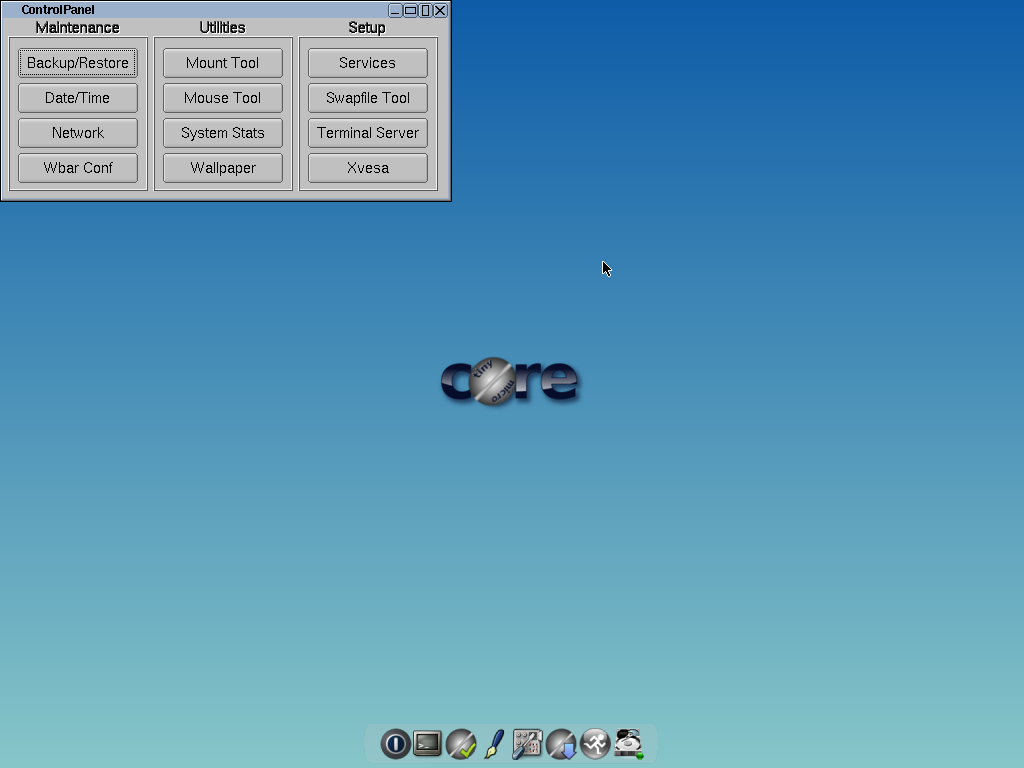
Tiny Core is what most people mean when they ask for the smallest usable Linux desktop. The base Core image is about 20 MB, the 64-bit TinyCorePure64 with a graphical desktop is around 41 MB, and the larger CorePlus installer image is about 275 MB. By default it loads itself and every extension into RAM and forgets everything on reboot unless you set up persistence. Version 17.0 arrived in February 2026 with Linux kernel 6.18.
Key features
- Runs on as little as 46 MB of RAM. The command-line MicroCore edition needs about 28 MB, and 128 MB is the recommended amount.
- Apps come as small .tcz extensions from a repository with thousands of community-built packages.
- Boot modes let you choose between pure RAM, or mounting and copying extensions from persistent storage.
- Default desktop is the tiny FLWM window manager. CorePlus adds Wi-Fi support and several other window managers.
Pros
- Smallest footprint of any actively maintained distro
- Boots in seconds and loads only what you ask for
- Runs on hardware as old as the i486
Cons
- Steep learning curve, with its own way of doing almost everything
- Persistence requires manual setup
- Bare-bones defaults mean you build your own desktop
Best for: very old PCs, embedded projects, and anyone who wants to understand how a Linux system is put together.
2. Puppy Linux
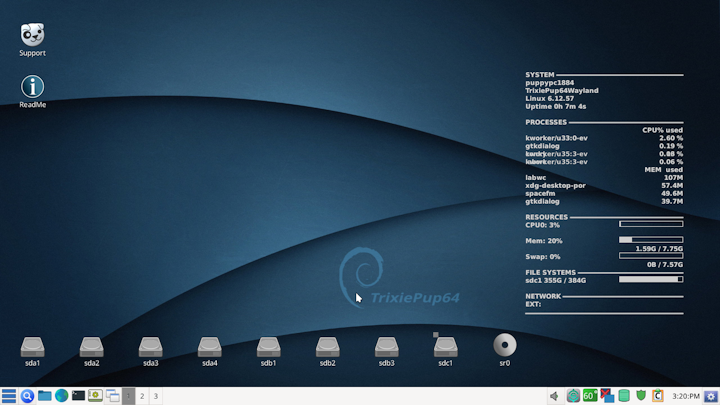
Puppy is the friendliest RAM-based distro and the one we would point most beginners to. It is a family of builds rather than a single ISO, with versions based on Debian, Ubuntu, Slackware, and Void Linux. It loads into memory at boot, which lets you remove the boot medium, and current versions typically use around 300 MB of RAM (32-bit) to 600 MB (64-bit). The Woof-CE build system keeps new builds coming, including a TrixiePup64 release in mid-2026.
Key features
- Complete desktop out of the box with a browser, word processor, spreadsheet, and media player
- Prompts you to save your session at shutdown, into a save file or folder
- Runs on JWM or IceWM with the ROX file manager
- Builds for both 32-bit and 64-bit hardware
Pros
- Easiest way into RAM-based Linux
- Quick to boot, and apps launch fast
- Large, helpful community and forum
Cons
- Many builds make the first choice confusing
- Traditionally runs as root, which raises security concerns
- The interface looks dated next to mainstream desktops
Best for: reviving old laptops and carrying a personal desktop on a USB stick.
3. Tails
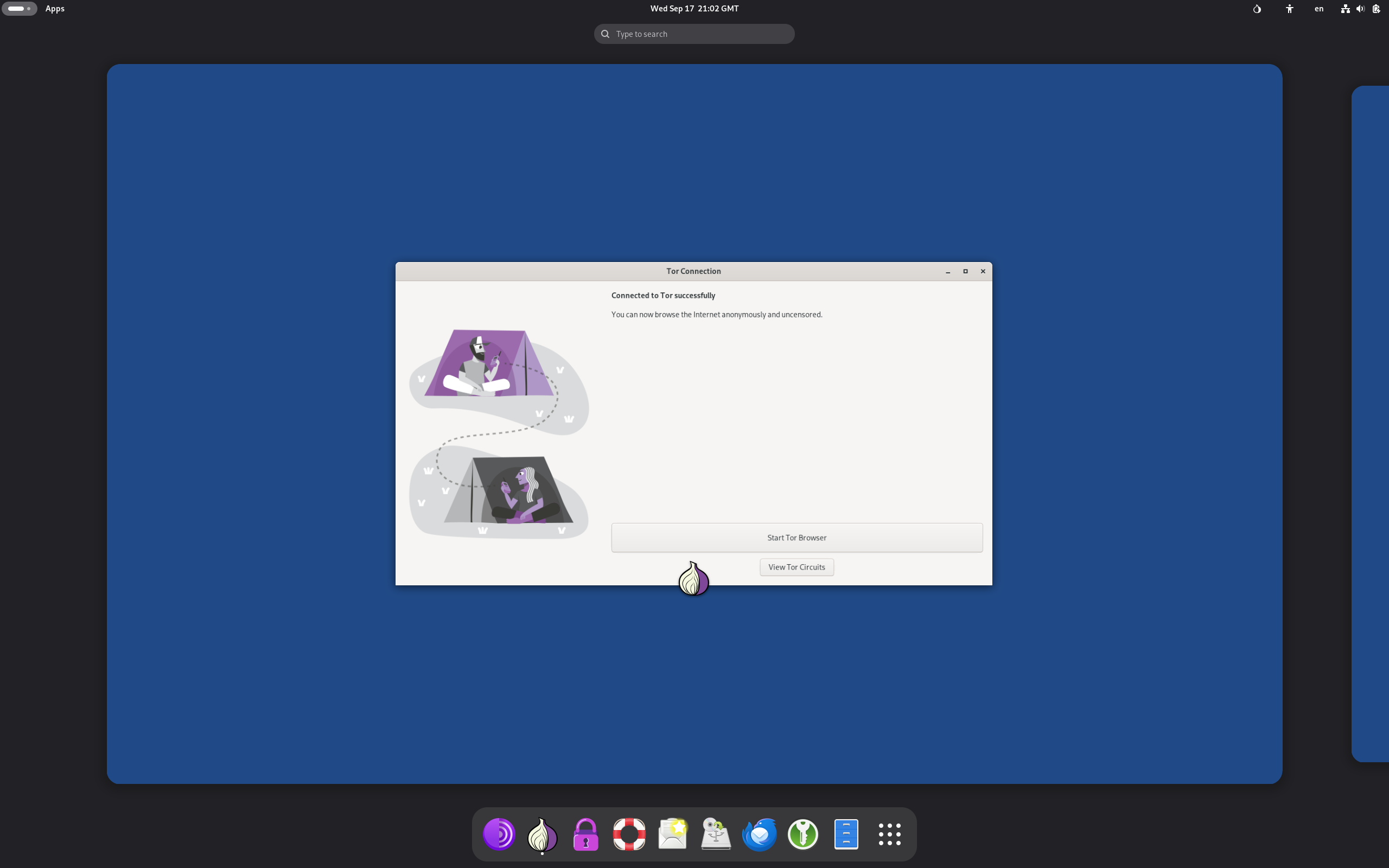
Tails, short for The Amnesic Incognito Live System, is built for privacy. It is based on Debian, uses the GNOME desktop, and sends all internet traffic through Tor. It runs from memory once booted and wipes RAM when you shut down. If someone yanks the USB stick, it triggers an emergency shutdown and clears memory. The Tails 7 series is built on Debian 13.
Key features
- Tor Browser, Thunderbird, KeePassXC, and Metadata Cleaner included
- Optional encrypted Persistent Storage on the USB stick
- Leaves no trace on the host computer’s drive
- Frequent security updates, often monthly
Pros
- Strong privacy defaults with almost no setup
- Memory wipe on shutdown and on stick removal
- Runs on most modern PCs, including many without an internal drive
Cons
- Needs more RAM than the small distros, around 2 GB at minimum
- Tor makes browsing slower, and some sites block Tor traffic
- Not a daily-driver desktop, and it does not protect you from a compromised computer or careless habits
Best for: journalists, activists, travelers, and anyone who needs a clean, private session on borrowed hardware.
4. Alpine Linux

Alpine boots its own ISO in diskless mode, which loads the entire operating system and its applications into RAM and runs from there. It uses musl libc, BusyBox, and OpenRC, which keeps everything small and fast. Alpine 3.23 shipped in December 2025 with the new APK 3 package tools and Linux 6.18. The Register reported running it with a full Xfce desktop on roughly 210 MB of RAM.
Key features
- Three install modes: diskless, data disk, and system disk
- The
lbutool saves your configuration as an apkovl file so it survives reboots - Optional local package cache for reinstalling apps at boot without re-downloading
- Base system needs under 64 MB of RAM
Pros
- Excellent for servers, routers, firewalls, and Raspberry Pi projects
- Fast boot, small attack surface, and predictable behavior
- Well-documented, with two releases a year
Cons
- musl libc breaks some glibc-only software
- Not beginner-friendly, and desktop use takes manual setup
- Different conventions from Debian or Ubuntu
Best for: infrastructure, appliances, and SD-card projects where write wear matters.
5. antiX

antiX is a Debian-based distro that skips systemd and targets older machines. It is a practical middle ground: you get a real Debian package base with APT, but the system stays light. Adding the toram boot option loads the whole live system into memory. antiX 26 arrived in March 2026.
Key features
- Editions from a full desktop down to a bare Core image with no graphical interface
- IceWM, Fluxbox, JWM, and other lightweight window managers
- Persistence options for root and home, plus tools for building your own live USB
- Around 256 MB of RAM at minimum, with 512 MB or more being more comfortable
Pros
- Full Debian software library through APT
- No systemd, if that matters to you
- Flexible persistence and remastering tools
Cons
- RAM mode is a boot option, not the default
- The interface and tools feel dated
- Smaller community than Puppy or mainstream distros
Best for: older PCs where you want normal Debian software without a heavy desktop.
6. Slax
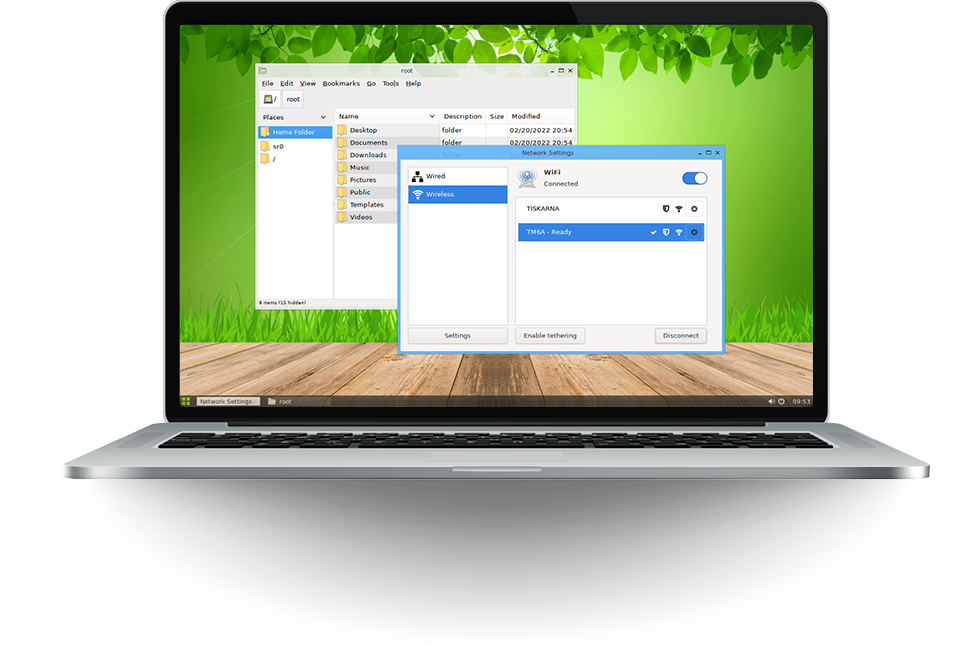
Slax bills itself as a pocket operating system. It runs from a USB stick, boots fast, and lets you add software as self-contained modules. There is a Debian edition that also supports APT and a Slackware edition. The boot menu includes a copy-to-RAM option. The latest Debian-based release, 12.2.0, dates from October 2023.
Key features
- Modules you can drop in and remove without touching the base system
- Simple, clean desktop with the basics preinstalled
- Optional persistent changes on the USB stick
- Around 512 MB of RAM recommended
Pros
- Small, quick, and easy to customize
- Good fit for a portable toolkit on a stick
- Debian edition gives you access to APT
Cons
- Slow development, with long gaps between releases
- One-person project, so support is thin
- Minimal default software
Best for: a personal portable environment that you customize once and carry everywhere.
7. Porteus
Porteus is a Slackware-based portable distro with a strong following among people who like control. Version 5.01 arrived in September 2023 with Linux 6.5 and offers eight desktop editions, including KDE Plasma, Xfce, MATE, Cinnamon, LXQt, LXDE, GNOME, and Openbox. Most editions are around 300 MB because the system stays compressed and is unpacked on the fly at boot.
Key features
- Boot modes include Copy to RAM and Always Fresh, which discards all changes at shutdown
- Software is added as modules, and its package manager pulls from Slackware and SlackBuilds
- Changes can be saved to a file or folder on a USB stick or drive
- Around 512 MB of RAM recommended
Pros
- Very fast and modular
- More desktop choices than most RAM-based distros
- Solid Slackware foundation
Cons
- Release pace has slowed
- USB setup is unusual: you copy files to an EXT4-formatted drive instead of writing the ISO directly
- Slackware-style package handling is unfamiliar to most people
Best for: experienced users who want a fast, modular desktop on a stick.
8. SystemRescue
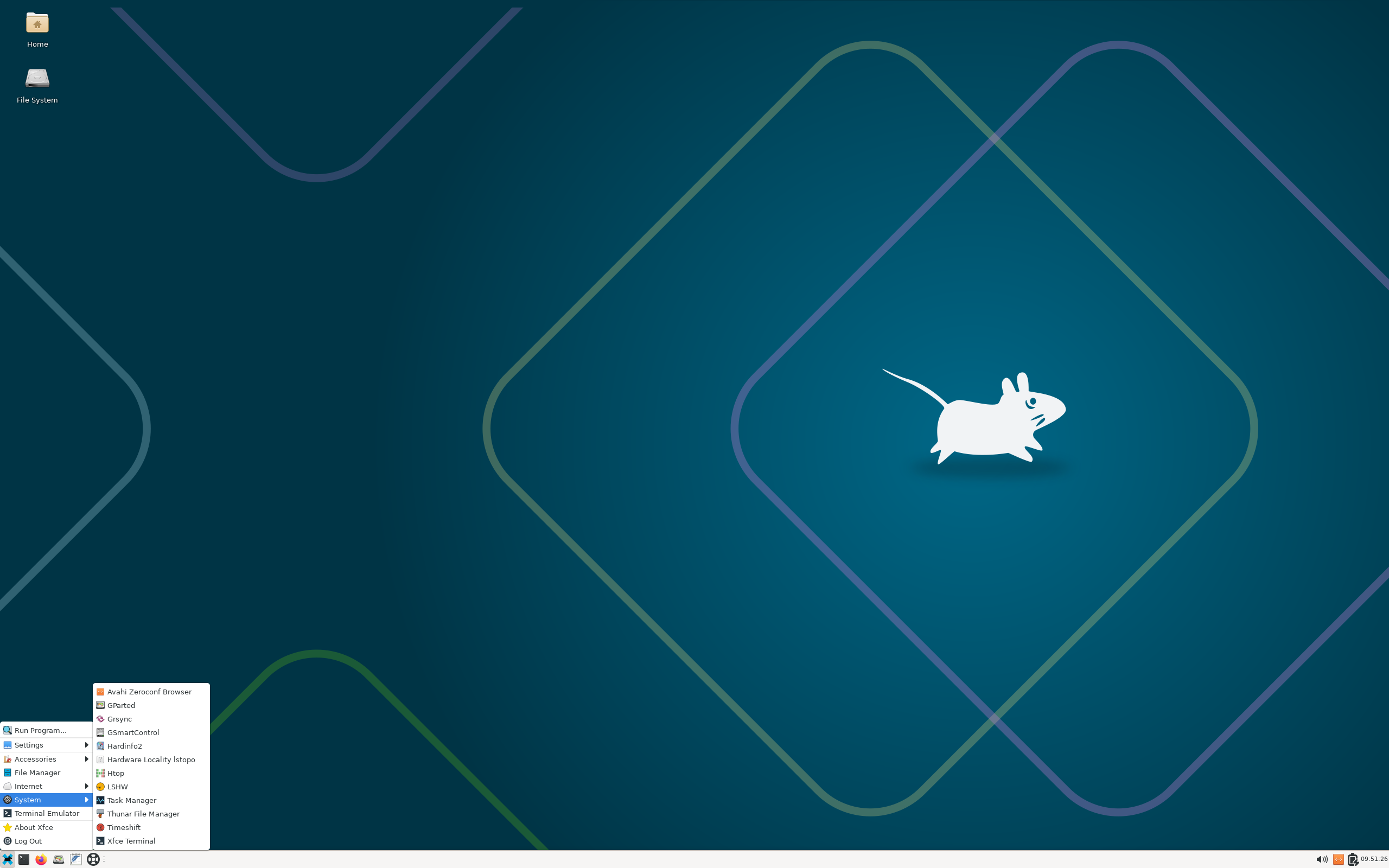
SystemRescue is an Arch-based toolkit for fixing computers. It packs partitioning, cloning, recovery, and filesystem tools into one boot image. Choosing the copy-to-RAM option from the boot menu loads the system into memory so you can remove the USB stick and use the port for something else, such as a backup drive.
Key features
- GParted, ddrescue, TestDisk, and many other disk tools preinstalled
- Boots to a command line or a lightweight graphical desktop
- Customization through configuration files and scripts
- Supports UEFI and network boot
Pros
- Best-in-class toolkit for disk repair, recovery, and cloning
- Regular updates from the Arch ecosystem
- Ideal for repairing a drive without booting from it
Cons
- Built for maintenance, not as a daily desktop
- Larger image, so you want 1 GB or more of RAM for RAM mode
- Some tools can destroy data if you use them carelessly
Best for: technicians, sysadmins, and anyone who keeps a rescue stick in a drawer.
9. SliTaz
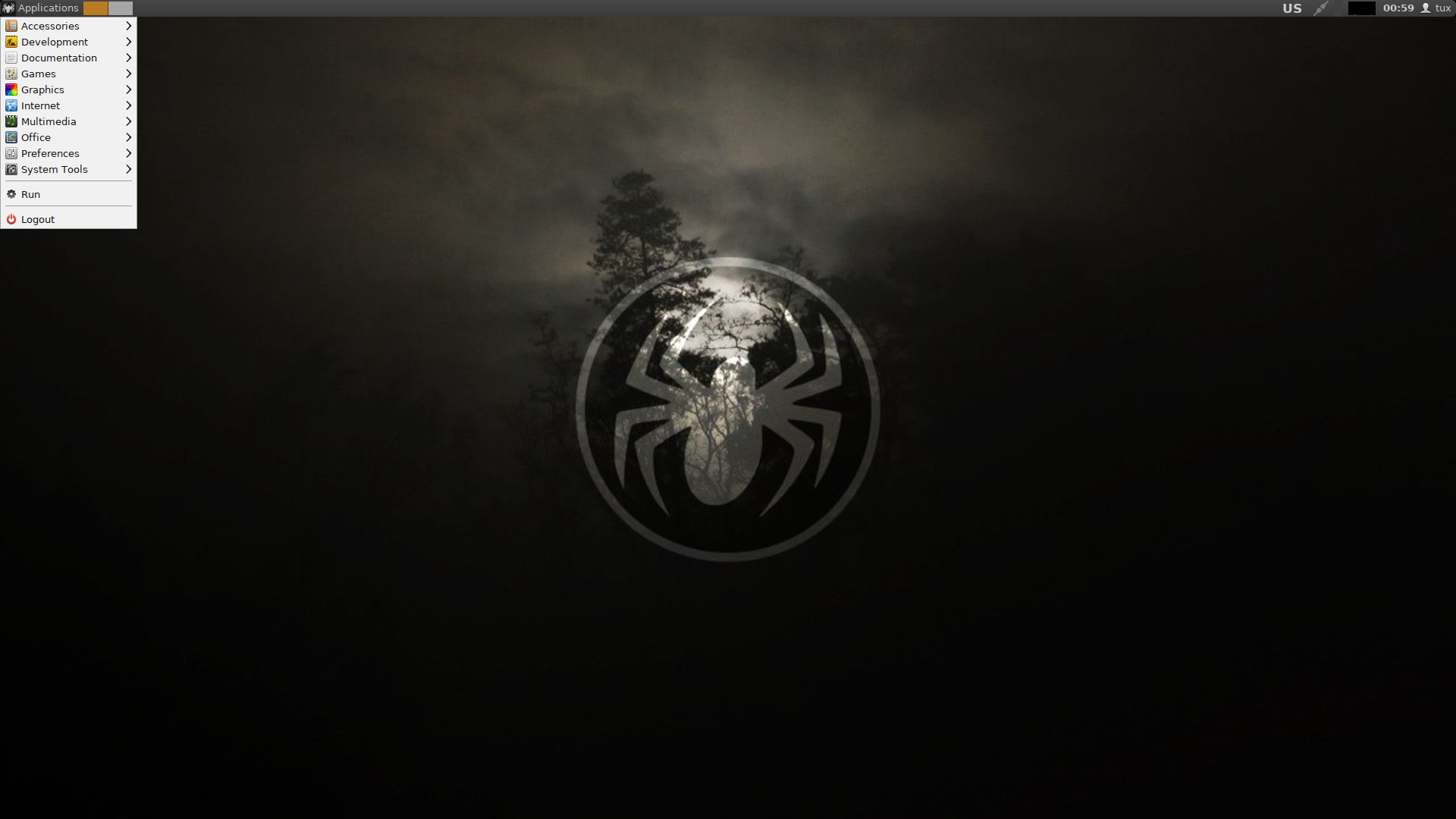
SliTaz is a small French distro with its own tools, including the TazPanel web-based control panel and the tazpkg package manager. The base system runs in about 48 MB of RAM, and the live desktop wants around 192 MB. It is one of the lightest full desktops you can boot from memory.
Key features
- Openbox-based desktop with a lightweight panel
- Runs as a live system in RAM, with a home partition or saved config for persistence
- Builder tools for making custom and even smaller images
Pros
- Extremely light for a complete graphical desktop
- Simple, unusual tooling that is fun to learn
- Good for very old PCs
Cons
- Development has slowed considerably
- Ships an old kernel by modern standards, so keep it off untrusted networks
- Small package repository compared to Debian-based options
Best for: vintage hardware and offline or trusted-network use.
10. Grml
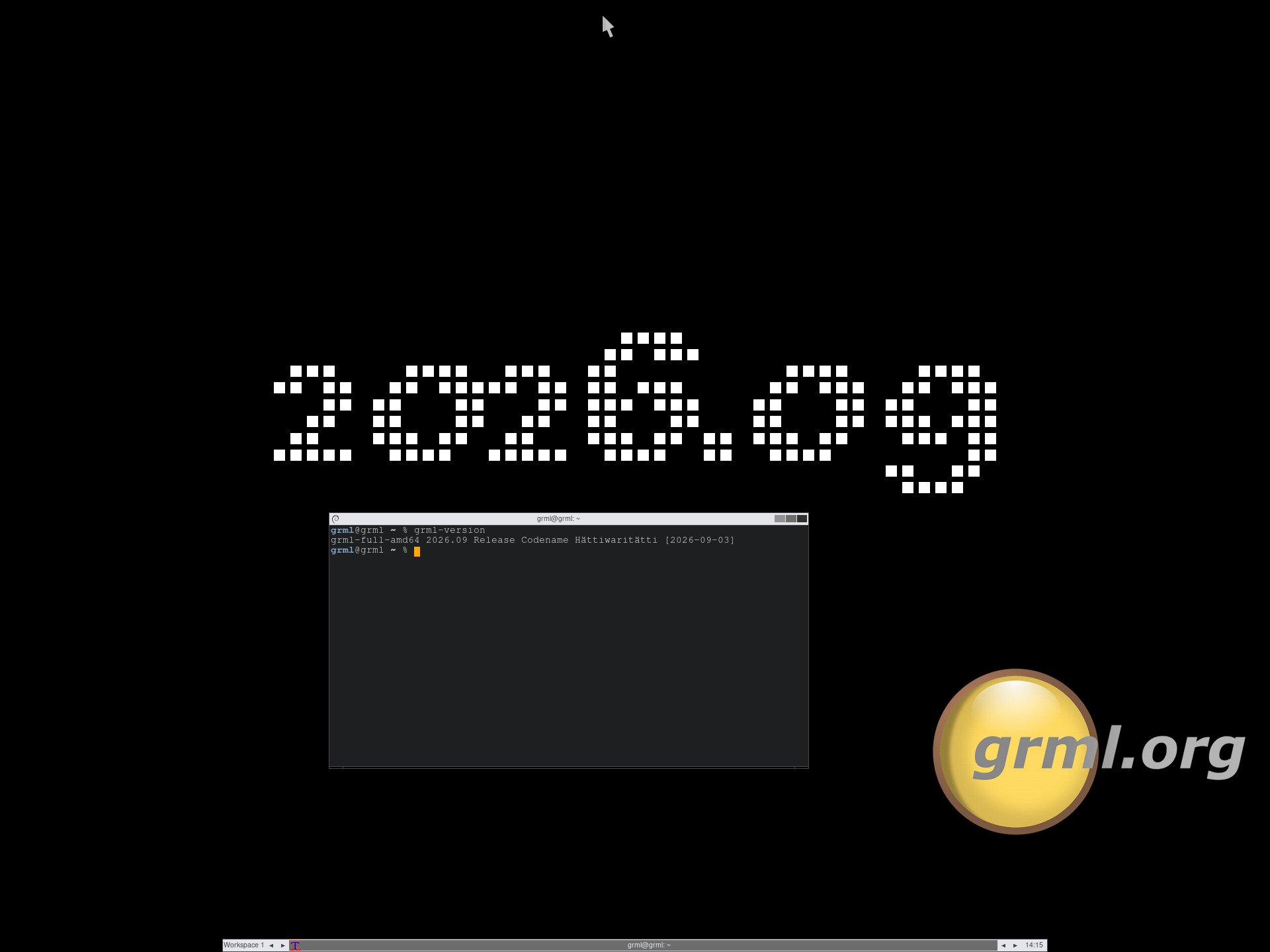
Grml is a Debian-based live system aimed at sysadmins and people who live in the terminal. It comes with a tuned zsh setup and a large collection of network, backup, and recovery tools. Adding the toram boot option loads it into memory. It needs 256 MB of RAM at minimum, and 512 MB or more is recommended.
Key features
- Full and Small editions
- Console-first design with a minimal graphical environment
- Regular releases based on Debian
Pros
- Excellent toolset for admin and recovery work
- Familiar Debian base with APT
- Boots quickly and behaves predictably
Cons
- Not friendly to casual desktop users
- RAM mode is an option you have to enable
- Limited graphical tools
Best for: sysadmins who want a rescue and troubleshooting system that lives in memory.
Honorable mentions
Damn Small Linux 2024 is a revival of the classic, now based on antiX. It fits on a 700 MB CD and still targets 32-bit hardware. Knoppix, Debian Live, Ubuntu, and Arch ISOs can all run from memory too, using the boot options described below.
How to Run Almost Any Live Distro From RAM
You do not need a special distro to try this. Many mainstream live ISOs can copy themselves into memory if you add one boot parameter. At the boot menu, press the key that lets you edit the boot entry (often Tab, e, or F6) and add the option for your distro:
- Ubuntu and Debian Live:
toram - Fedora Live:
rd.live.ram - Arch ISO and SystemRescue:
copytoram - Knoppix, antiX, and Grml:
toram
Mainstream desktop images are big, though. Ubuntu’s desktop ISO is several gigabytes, so you want 8 GB of RAM at the very least and preferably 16 GB. The lightweight distros above are a better fit for modest machines.
Downsides and Risks
- Data loss. A power cut or crash erases anything you have not saved to permanent storage.
- RAM hunger. The system, your apps, and your files all share the same memory. Big files fill it quickly.
- Slower first boot. Copying the image into RAM takes time, especially from a slow USB stick.
- Persistence takes effort. Saving settings and software across reboots is where most people get stuck.
- Not automatically secure. No disk writes helps privacy, but it does not fix a compromised machine or unsafe browsing habits.
How to Try a RAM-Only Distro Safely
- Test in a virtual machine first. VirtualBox or QEMU lets you explore the distro without touching real hardware.
- Download from the official site and verify the checksum.
- Write it to a USB stick with a tool like balenaEtcher or Rufus. Porteus is the exception, since it needs its files copied to an EXT4-formatted drive.
- Boot from the stick and choose the copy-to-RAM or toram option if the distro offers one.
- Wait for the load to finish, then remove the stick to confirm the system really runs from memory.
- Set up persistence if you want to keep files and settings.
Frequently Asked Questions
What is the best Linux distro that runs entirely in RAM?
There is no single winner. Puppy Linux is the best all-rounder for old PCs and beginners, Tiny Core Linux is the smallest, Tails is the best choice for privacy, and Alpine Linux is the best for servers and embedded devices. Pick based on the job you need done.
How much RAM do I need to run Linux entirely from memory?
You need enough to hold the compressed system image plus working room for apps and files. Tiny Core runs on 46 MB and Alpine’s base system needs under 64 MB. Puppy needs roughly 300 to 600 MB, and heavier systems such as Tails want 2 GB or more. As a rule of thumb, aim for at least twice the image size.
Can I remove the USB drive after booting?
Yes, once the system has fully loaded into RAM. Puppy, Tiny Core, Alpine in diskless mode, and Tails all support this. On distros that offer a copy-to-RAM or toram option, you have to select it at boot, or the system may keep reading from the stick.
Do RAM-based distros save my files and settings?
Not by default. Everything lives in memory and disappears at shutdown. Most offer optional persistence, such as a save file in Puppy, encrypted Persistent Storage in Tails, lbu backups in Alpine, or a changes file or folder in Slax and Porteus.
Is running Linux from RAM more private or secure?
It helps with privacy because nothing is written to the host computer’s drive, but it does not make you anonymous. Tails adds Tor routing and erases memory at shutdown, which is why it is the usual pick for sensitive work. A RAM-based distro running on a compromised computer is still running on a compromised computer.
Can I run Ubuntu, Debian, or Fedora from RAM?
Yes. Most live ISOs can load into memory with a boot option: toram on Ubuntu and Debian, rd.live.ram on Fedora, and copytoram on Arch-based images. Desktop ISOs are large, so Ubuntu needs at least 8 GB of RAM and ideally 16 GB.
Does running from RAM protect SSDs and SD cards?
It cuts down on writes, which helps SD cards, old USB sticks, and cheap flash storage. That is why Alpine’s diskless mode is popular on Raspberry Pi projects. Modern SSDs wear slowly enough that the benefit is small for typical desktop use.
What happens if the power goes out?
RAM is volatile, so anything you have not saved is lost, just like unsaved work on any PC that loses power. Save to persistent storage often, use a distro with automatic persistence, and put servers on a UPS.
Final Thoughts
Running Linux from RAM is a useful trick that has plenty of practical uses. If you want a friendly place to start, download Puppy Linux and try it in a virtual machine. If you need privacy, use Tails. If you are building something small and permanent, look at Alpine or Tiny Core. Whichever you choose, check the RAM figure first, decide how you will save your files, and keep a spare USB stick handy.